eSIM Management Interface
The main grid is organized by EID, the identifier of an eUICC. One EID can have several profiles, each identified by its ICCID. Select the account scope first, then use the search, filters, and row controls to locate the EID or profile you need.
Interface Components
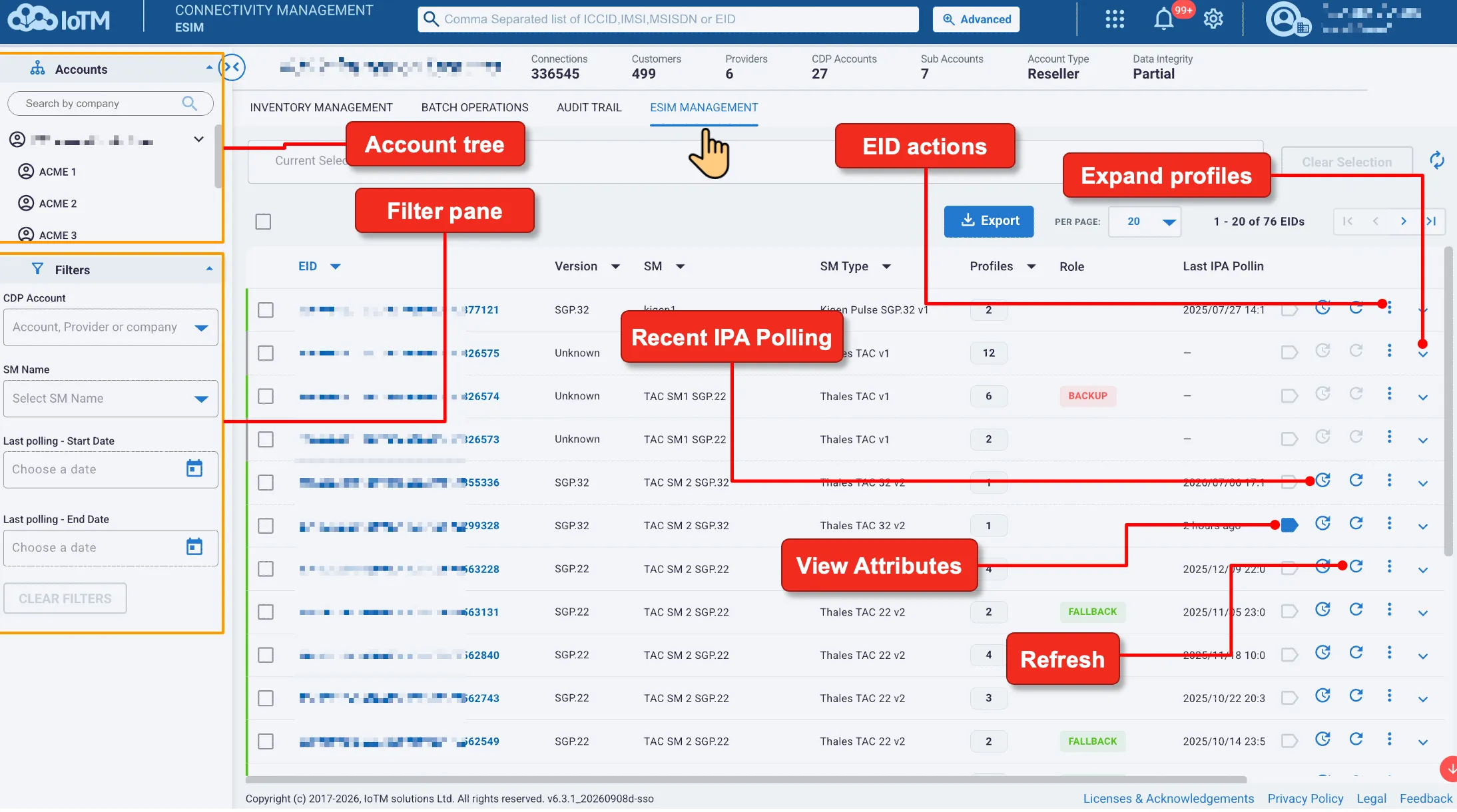
Interface Control | Description |
|---|---|
Account tree and search | Select the relevant company or sub-account. The top search field accepts a comma-separated list of ICCIDs, IMSIs, MSISDNs, or EIDs. |
Filter pane | Narrow the grid by CDP Account, SM Name, and the start and end dates for the last polling event. Clear Filters removes the filter selections. |
EID link | Opens the selected EID details page. Version, SM, SM Type, profile count, role, and Last IPA Polling provide context in the grid. |
Expand profiles | Use the chevron at the right of an EID row to display its profiles. The expanded table shows ICCID, State, Role, CDP, and Provider. |
EID actions | Use the EID row’s three-dot menu, or the EID Actions button on its details page, for downloads, queries, and EID configuration. |
Recent IPA Polling | Opens recent polling events for the EID. A disabled control is not available for that row. |
Refresh and Export | Refresh reloads the displayed information. Export downloads the grid selection. Use the page-size selector and navigation arrows to browse the results. |
Expand an EID row to compare its profiles without leaving the grid. Select a linked ICCID to open the managed connection’s details. Profiles without a managed CDP connection may not have the same links or connection-level information.
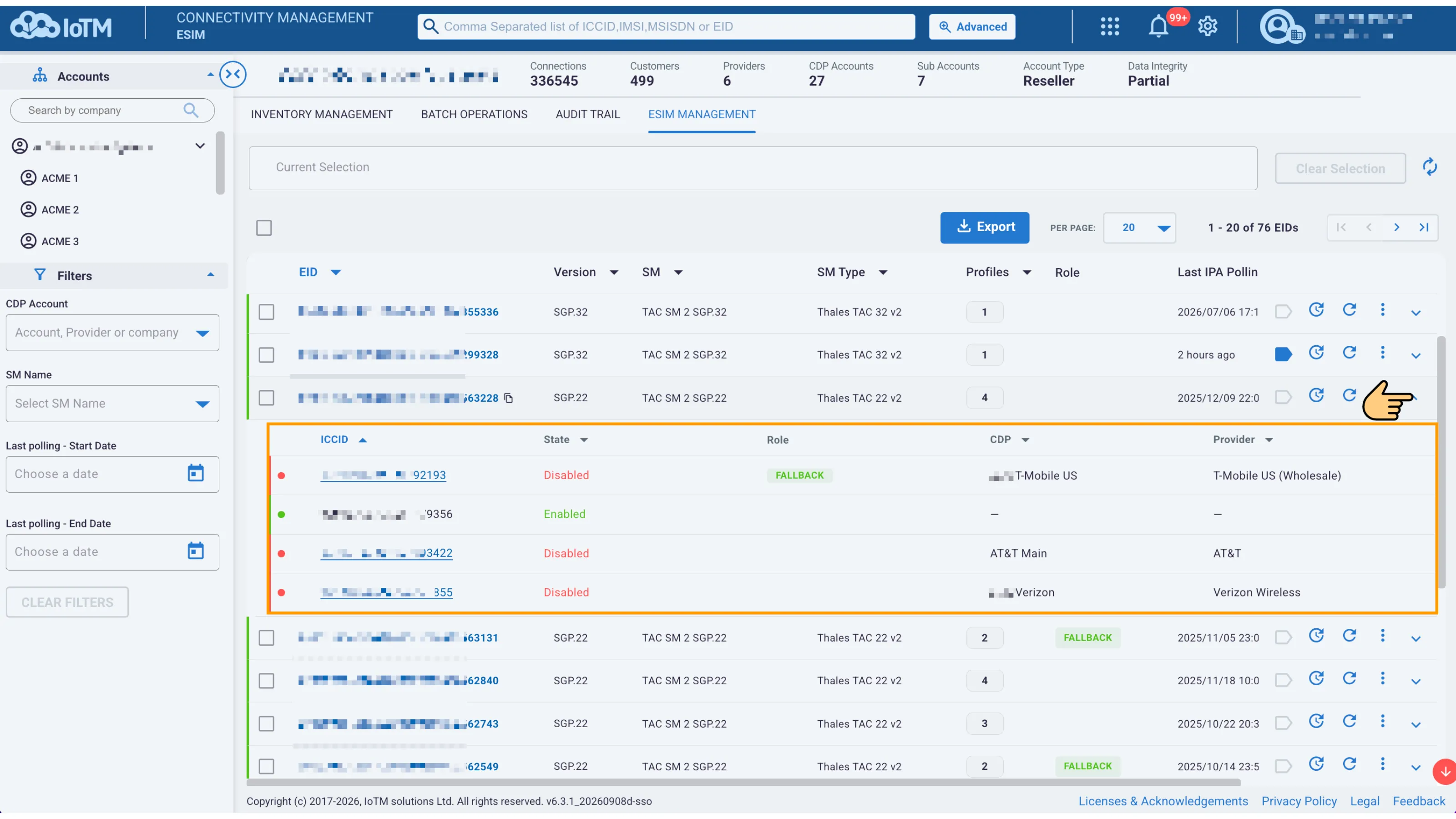
Expanded EID row showing individual profiles
Pressing on the EID link will bring you to the EID’s details page:
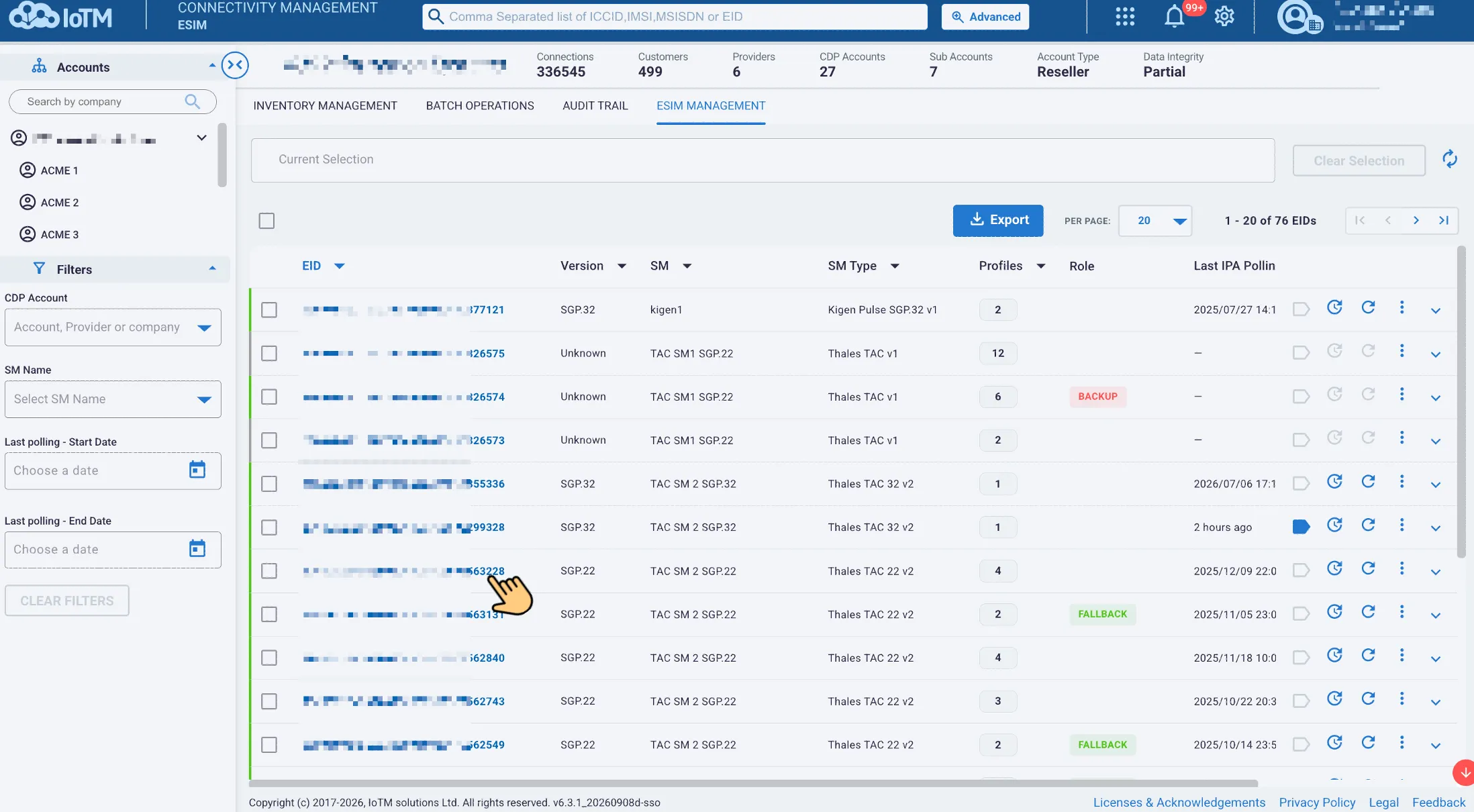
The EID details page brings together the EID identity, manager, last update, profile summary, and Target profiles table. Use the table search to find a profile by identifier, state, provider, CDP, or country. Expand a profile row for its additional identifiers and connection information.
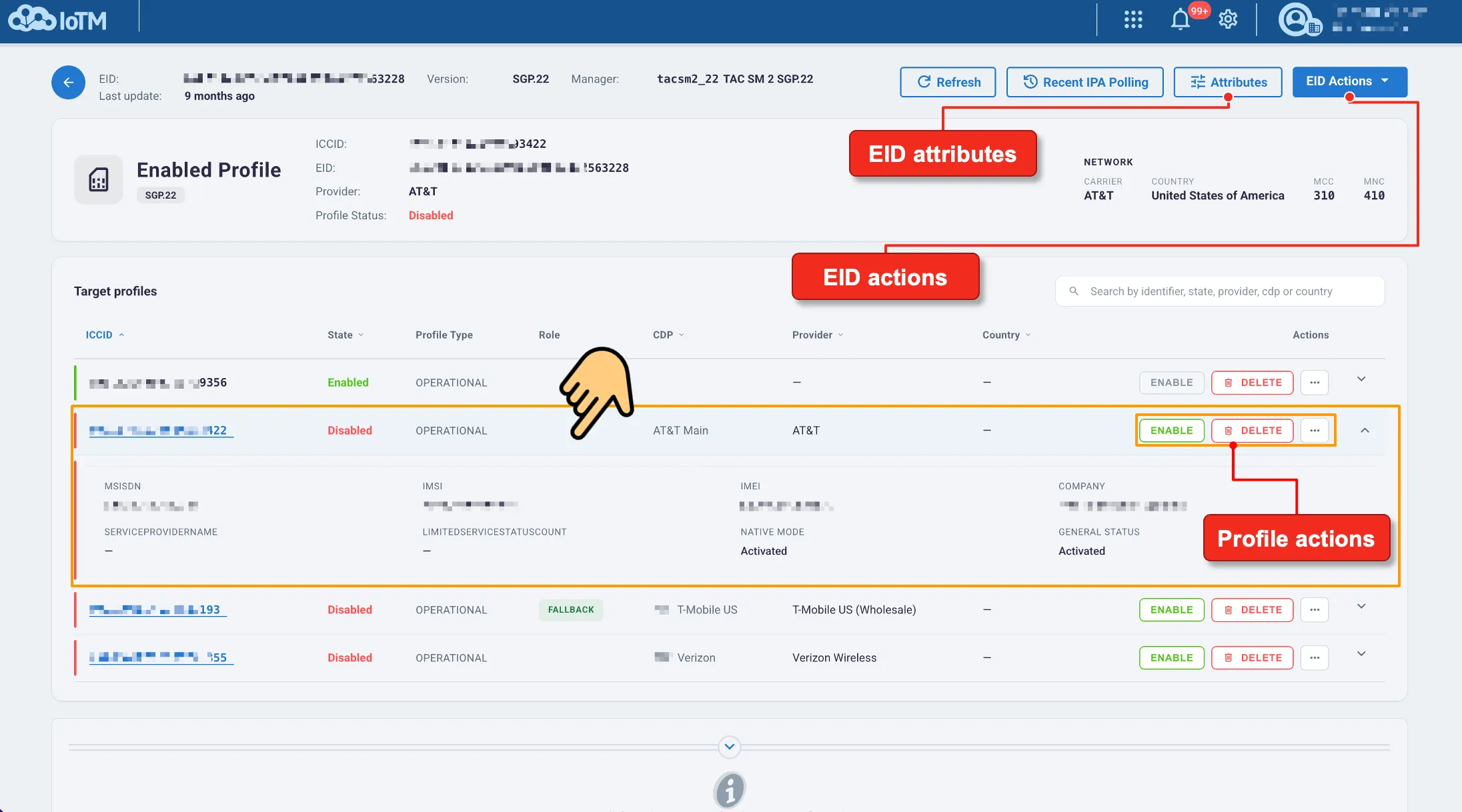
EID details with EID-level controls and profile-level actions
Understanding Action Scope
Scope | Meaning |
|---|---|
Profile scope | Acts on one installed profile, identified by ICCID. Examples include Enable Profile, Delete Profile, and Set Fallback Attribute. Confirm the PROFILE SCOPE identifier in the dialog. |
EID scope | Acts on the eUICC or provisions a profile onto it. Examples include Download Profile, profile/configuration queries, Update FQDN, and Update Polling Parameters. Confirm the EID SCOPE identifier. |
RSIM specialization | Uses the same EID and profile structure, with RSIM-specific PRIMARY and BACKUP roles, Set Primary Profile, fallback controls, and polling-history views. |
A profile’s Enabled or Disabled state on the eUICC is separate from the subscription’s Native Mode on the CDP. A subscription can be Activated while its eSIM profile is Disabled. Likewise, a PRIMARY or BACKUP role is not the same as an Enabled or Disabled state.
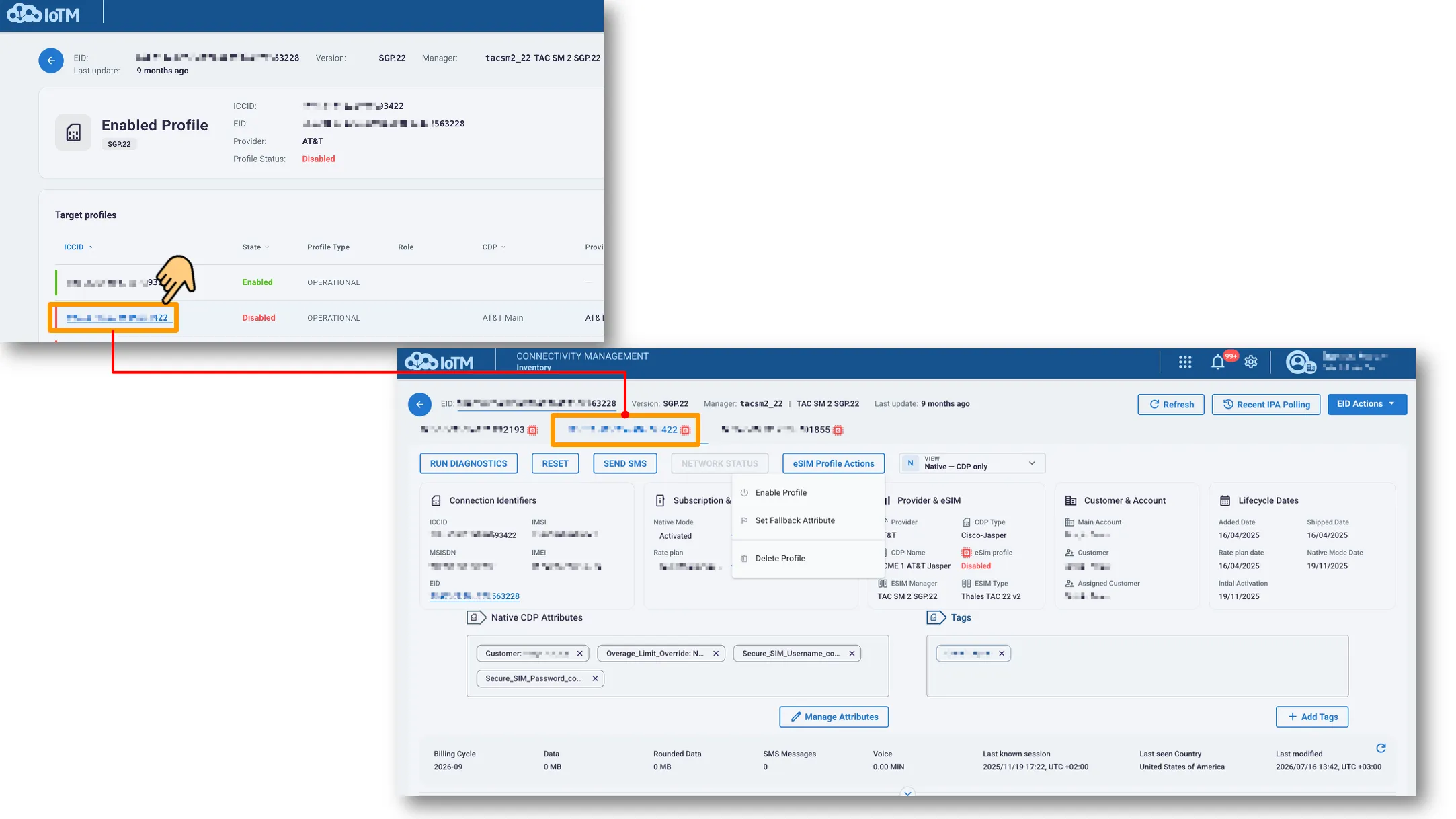
Clicking on any of the profiles will take you to that profile’s details page, with the associated profiles accessible through the neighboring tabs: