eSIM Profile Actions
Individual eSIM Profile Actions can be run:
- From the eSIM inventory grid
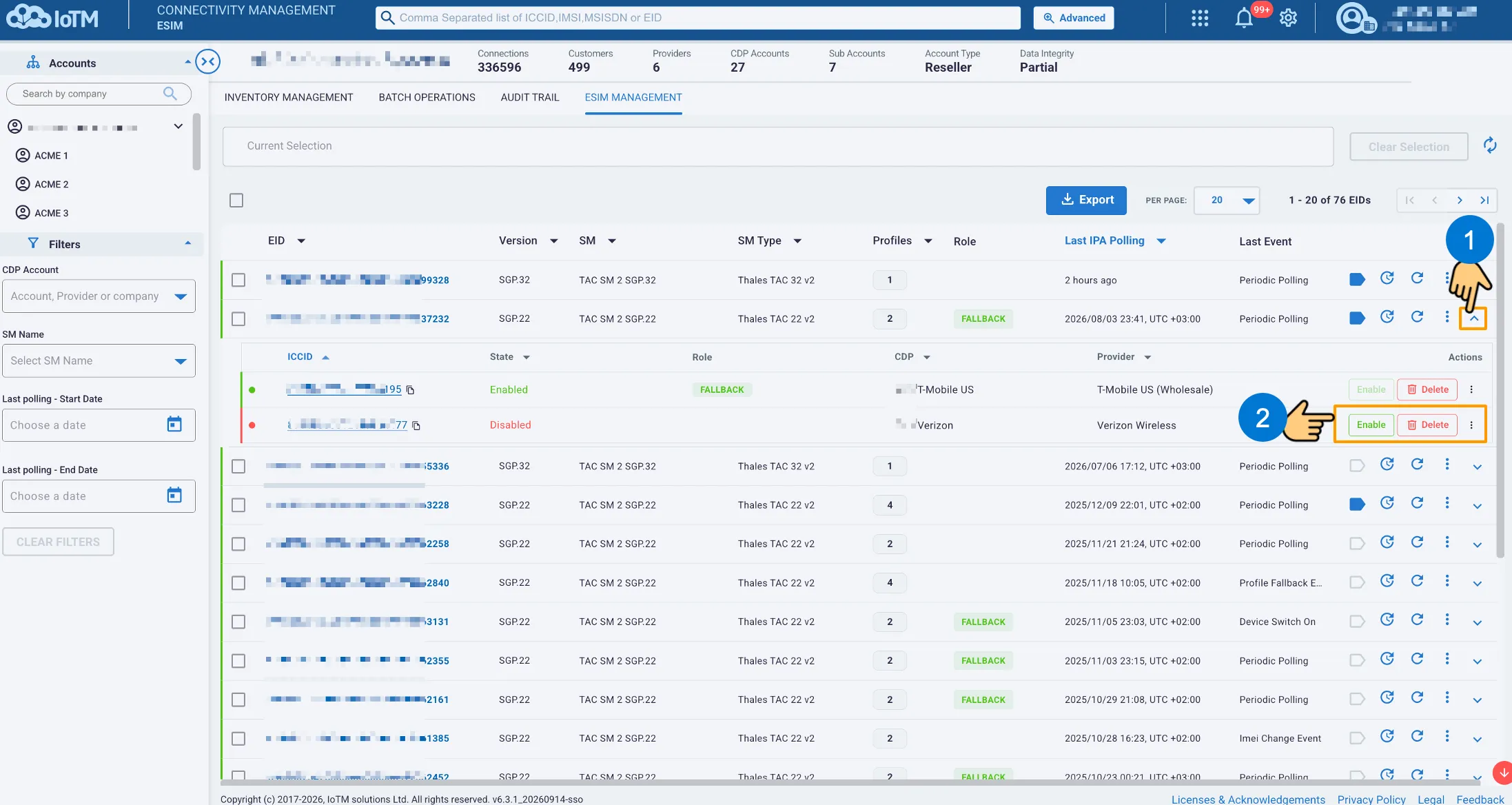
eSIM Profile Action controls on the inventory grid
- From the profile row on the EID details page (on the Target profiles table)
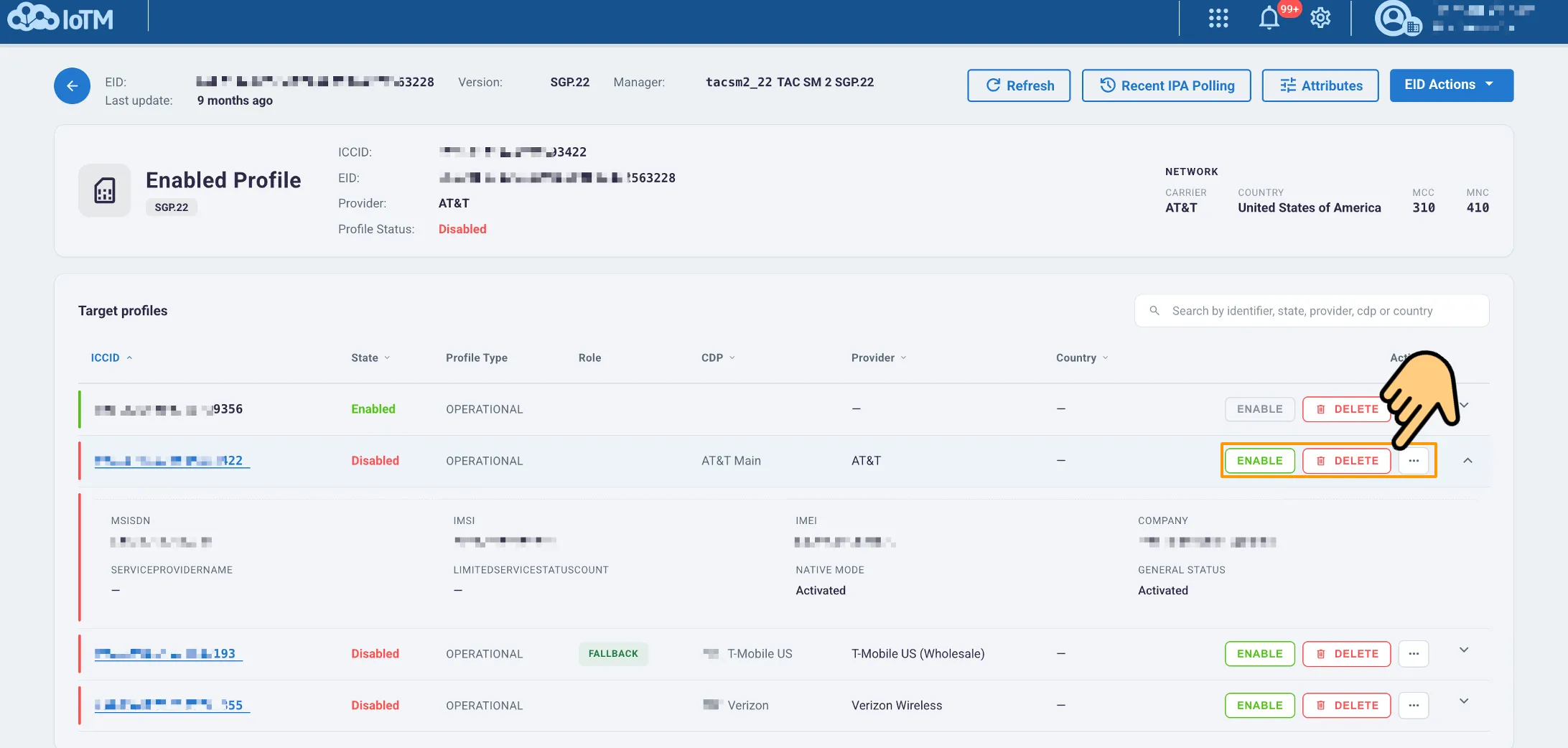
eSIM Profile Action controls on Target profiles table in the EID details page
- From the managed profile’s details page
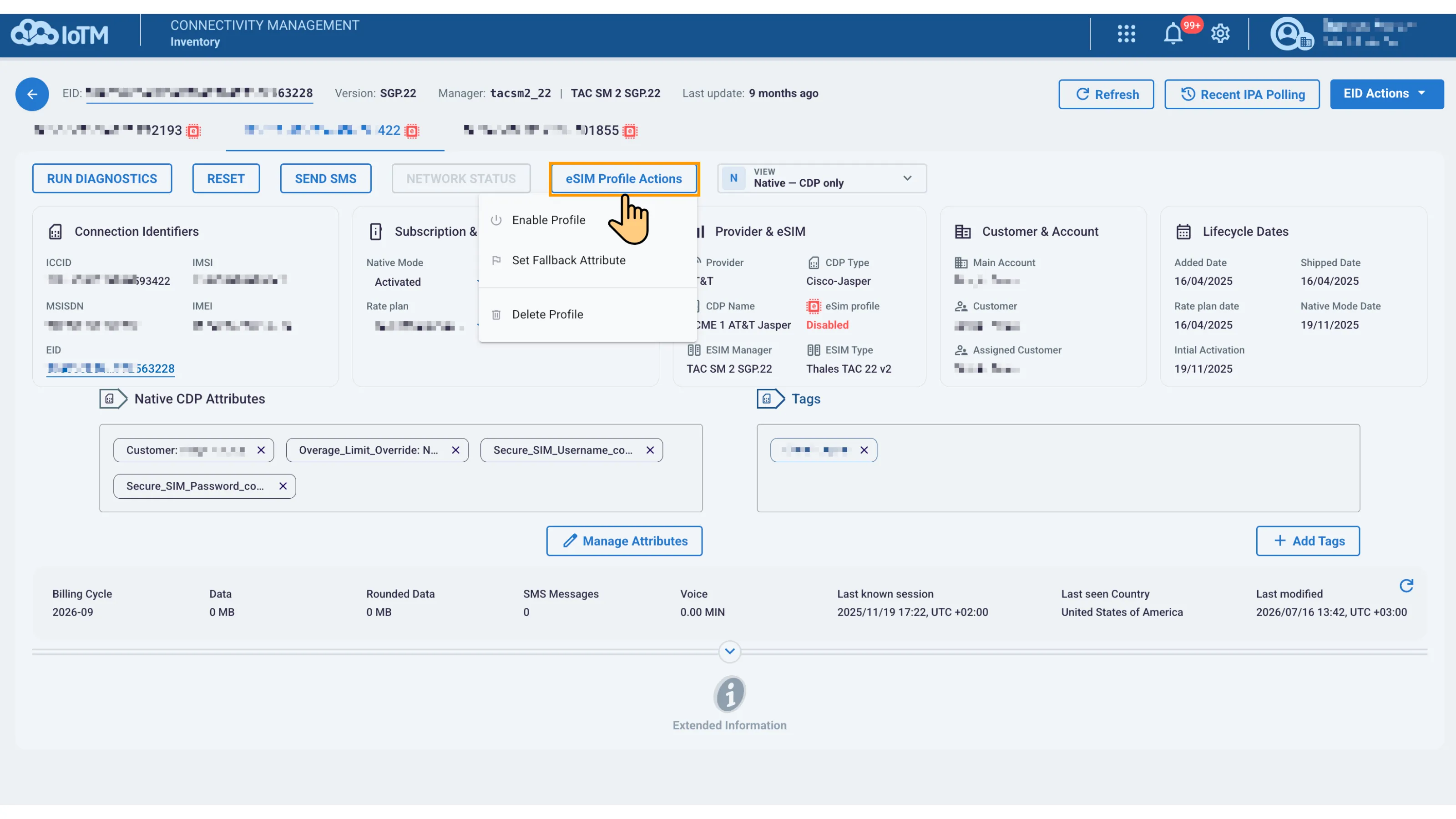
eSIM Profile Action controls on the managed profile’s details page
Running and Scheduling Actions
Action dialogs identify the target and provide Run now or Schedule. Run now queues the request to the eUICC. To schedule it, select Schedule and enter the date, hour, and minute in 24-hour format. Complete the required fields before selecting Apply, Schedule action, or the action-specific confirmation button.
Available actions and fields depend on the subscription manager, eSIM implementation, profile state, provider, and your permissions. A submitted request is not proof that the device has completed it. Review the resulting status and eSIM Audit History after execution.
14.1.1 Enable Profile
Enable Profile selects the target installed profile for use on the eUICC. Enabling a different profile can change the active connectivity path, so verify the ICCID and the intended provider before submitting.
- Select Enable on the target profile row in the EID details page or on the inventory grid, or choose Enable Profile from eSIM Profile Actions on the connection’s details page.
- Confirm PROFILE SCOPE. Leave Activate after profile enable unchecked if you only need the eSIM enable operation.
- Select Run now and then Apply, or select Schedule and complete the execution date and time.
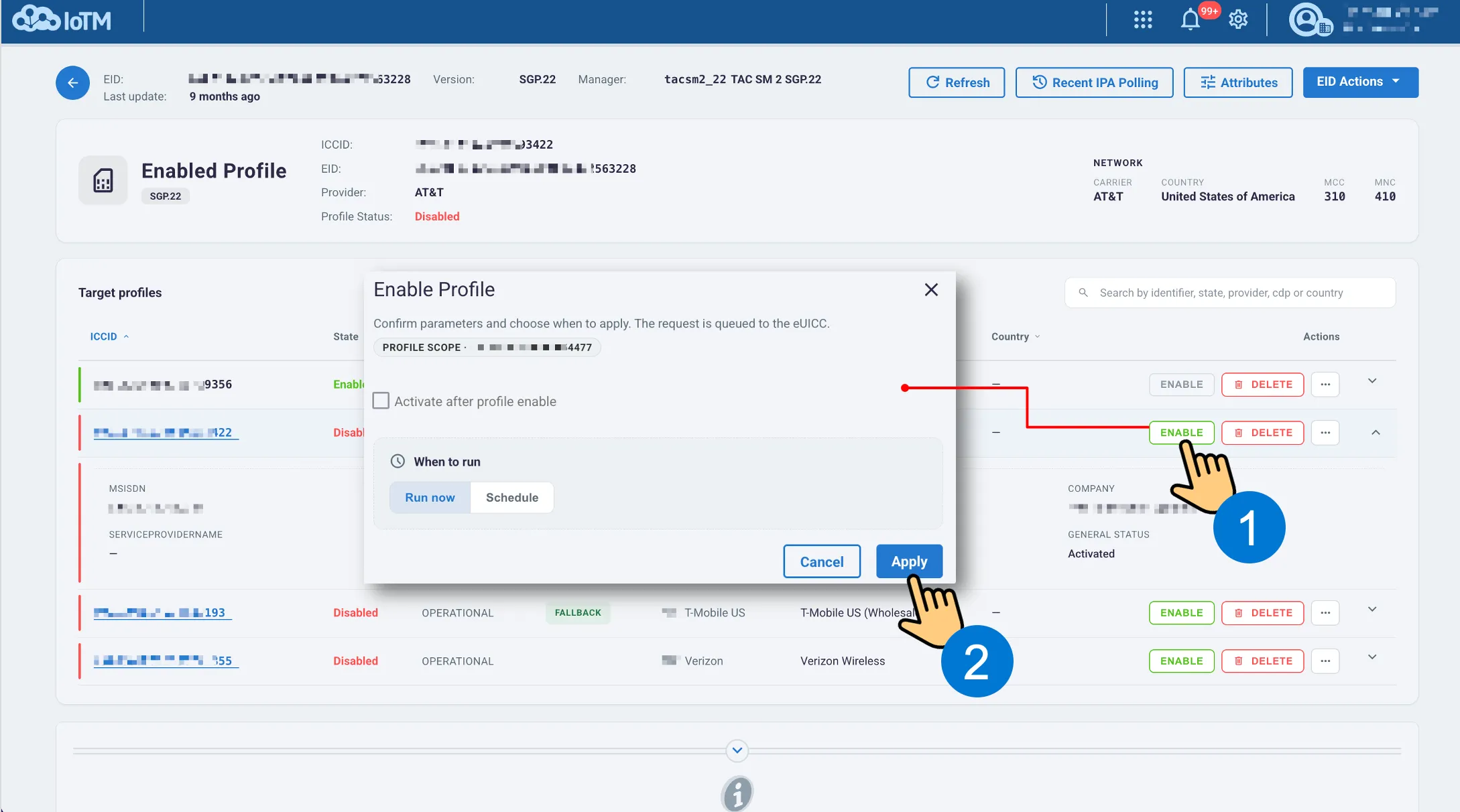
Enabling a profile from the EID details page without a CDP activation step, to queue the action immediately
Combining Profile Enable with CDP Activation
Select Activate after profile enable to request subscription activation on the underlying CDP after the profile is enabled. Complete the provider-specific fields that appear. The Verizon example includes a rate plan, a 5- or 9-digit ZIP code, SKU Number, Verizon account name, ICCID, and IMEI. The account name is required when the CDP contains multiple Verizon accounts. Note that the configuration details change depending on the underlying CDP type.
Review the CDP and identifiers, add a description if needed, and choose when to run the combined action. The scheduled example below is incomplete, so Schedule action remains disabled.
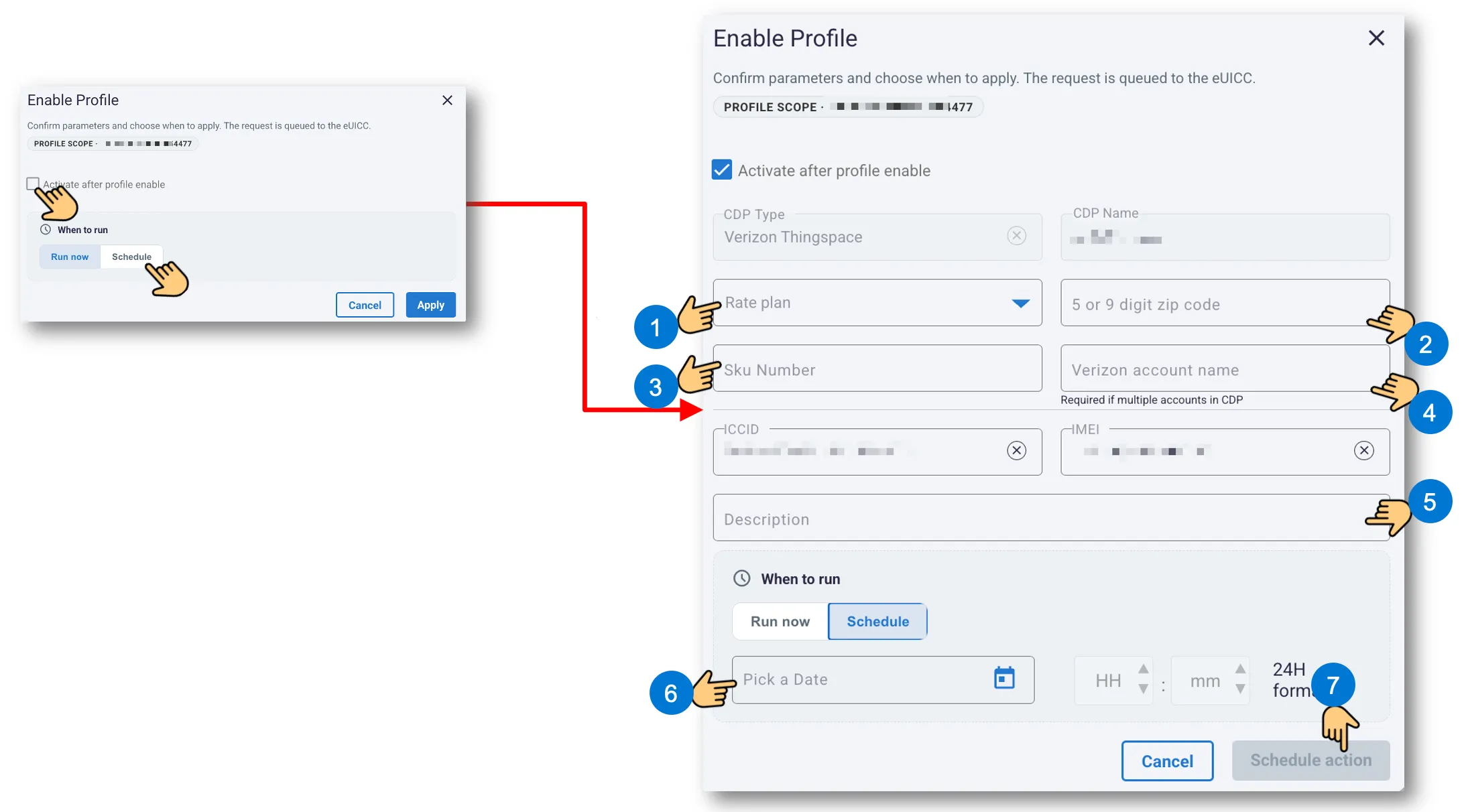
Scheduling profile enable with Verizon subscription activation
14.1.2 Delete Profile
Delete Profile permanently removes the selected profile from the eUICC. This cannot be undone by cancelling the dialog after execution. Confirm that the PROFILE SCOPE identifier is the intended ICCID and that the connectivity consequences are acceptable.
- Select Delete on the target profile row or Delete Profile in its action menu.
- Review the deletion warning and the target profile.
- Choose Run now and select Delete, or schedule the deletion for a specified date and time.
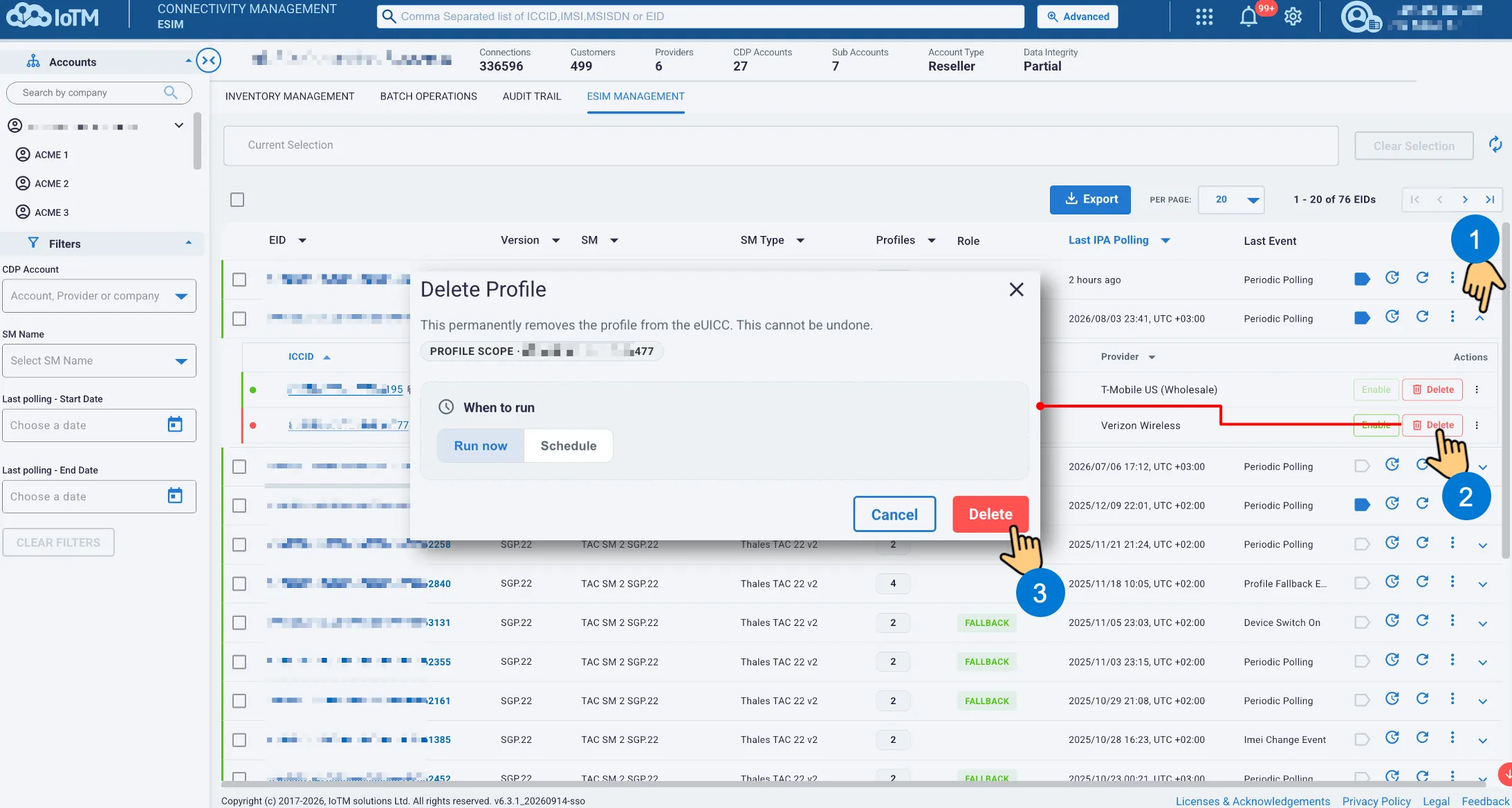
Delete Profile (initiated from the inventory grid) with immediate execution
To defer the deletion, select Schedule and enter the date and time. Complete those values before the Delete button becomes available.
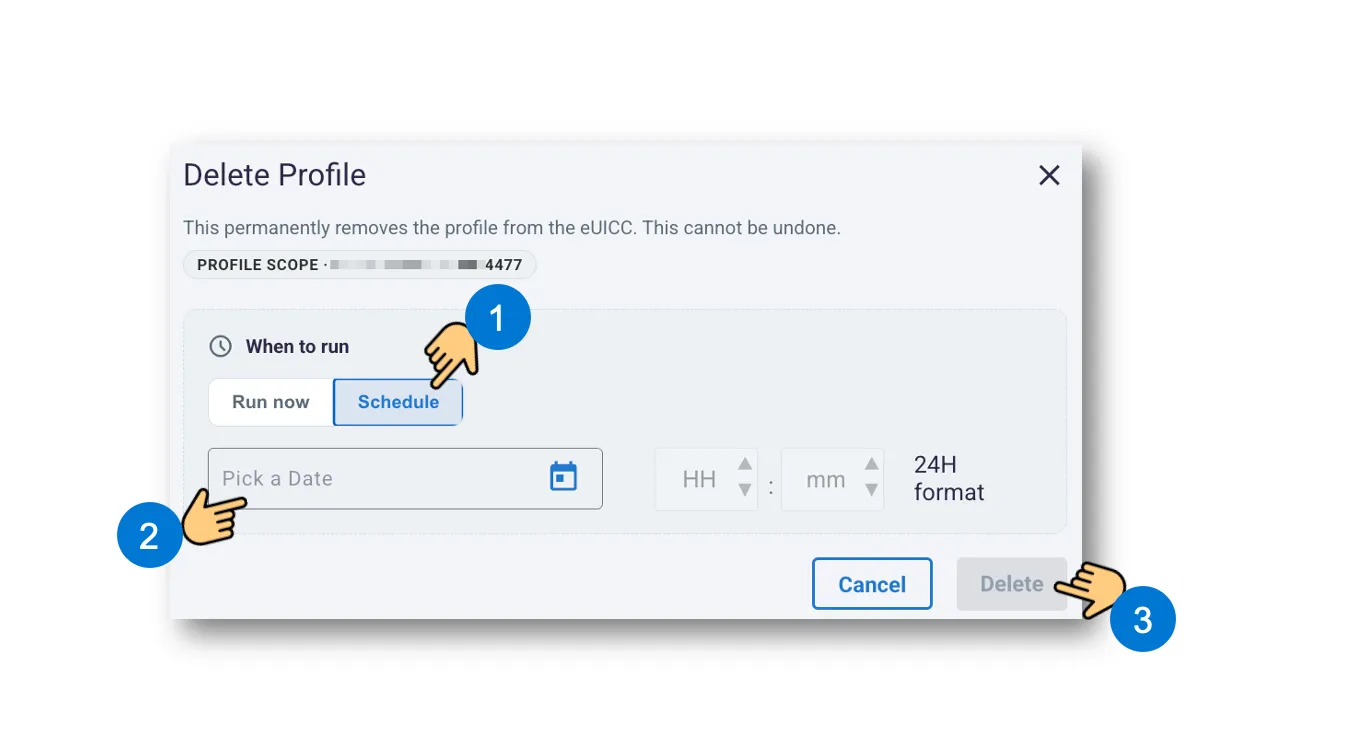
Scheduling deletion of a profile
14.1.3 Set Fallback Attribute
Set Fallback Attribute is a profile-level operation. Open it from the selected profile’s menu, confirm the ICCID, and configure the fields supported by that eSIM implementation. In the example below, the dialog includes a Fallback Attribute checkbox and Limited Service Count from 1 to 30.
Select the intended fallback setting and count, then run the request now or schedule it. This is distinct from Update Fallback Configuration, which configures the EID-level mechanism. RSIM exposes its own version of this dialog, described in section 14.5.3.
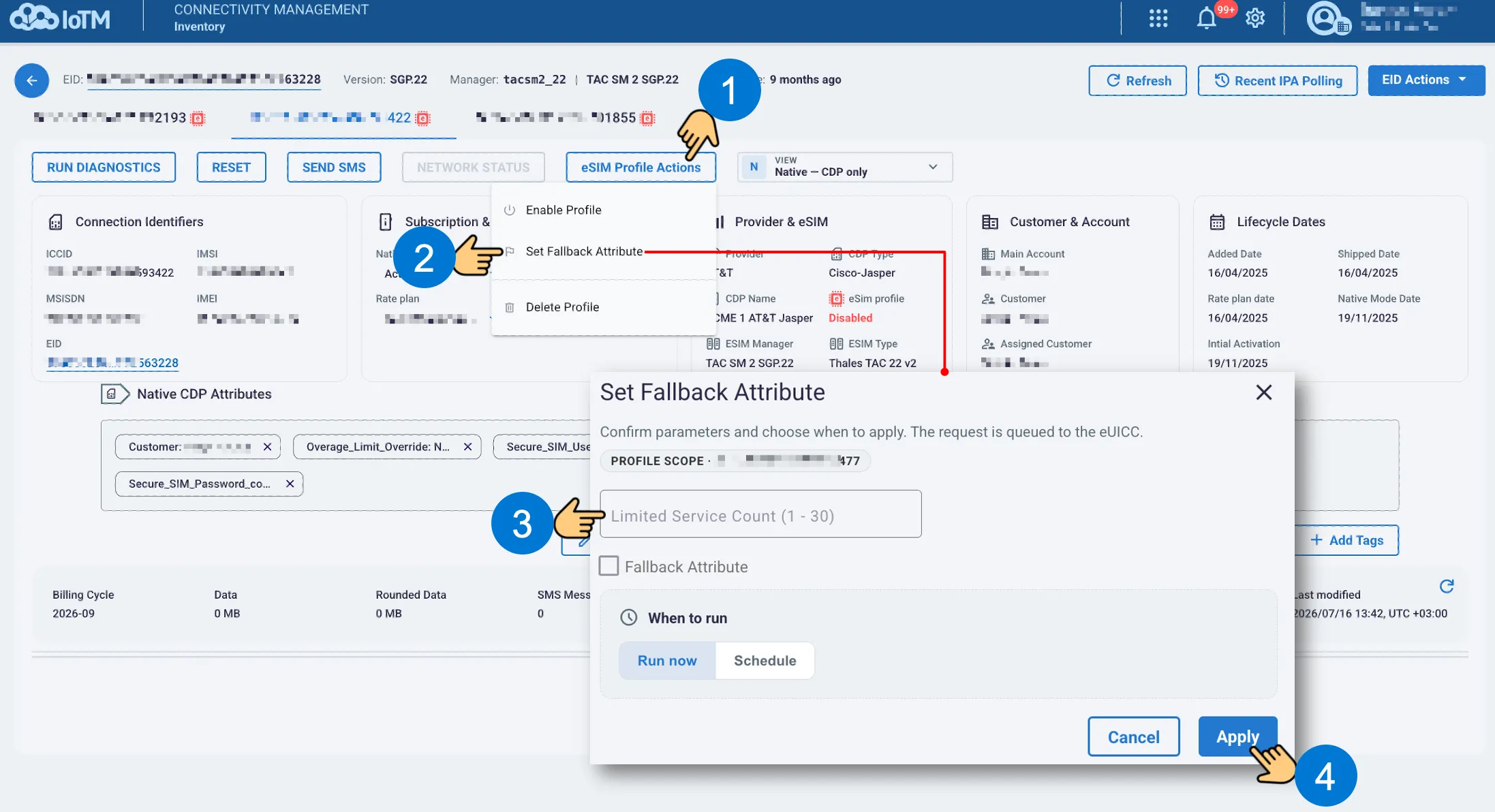
Running Set Fallback Attribute for immediate execution from the managed profile’s details page
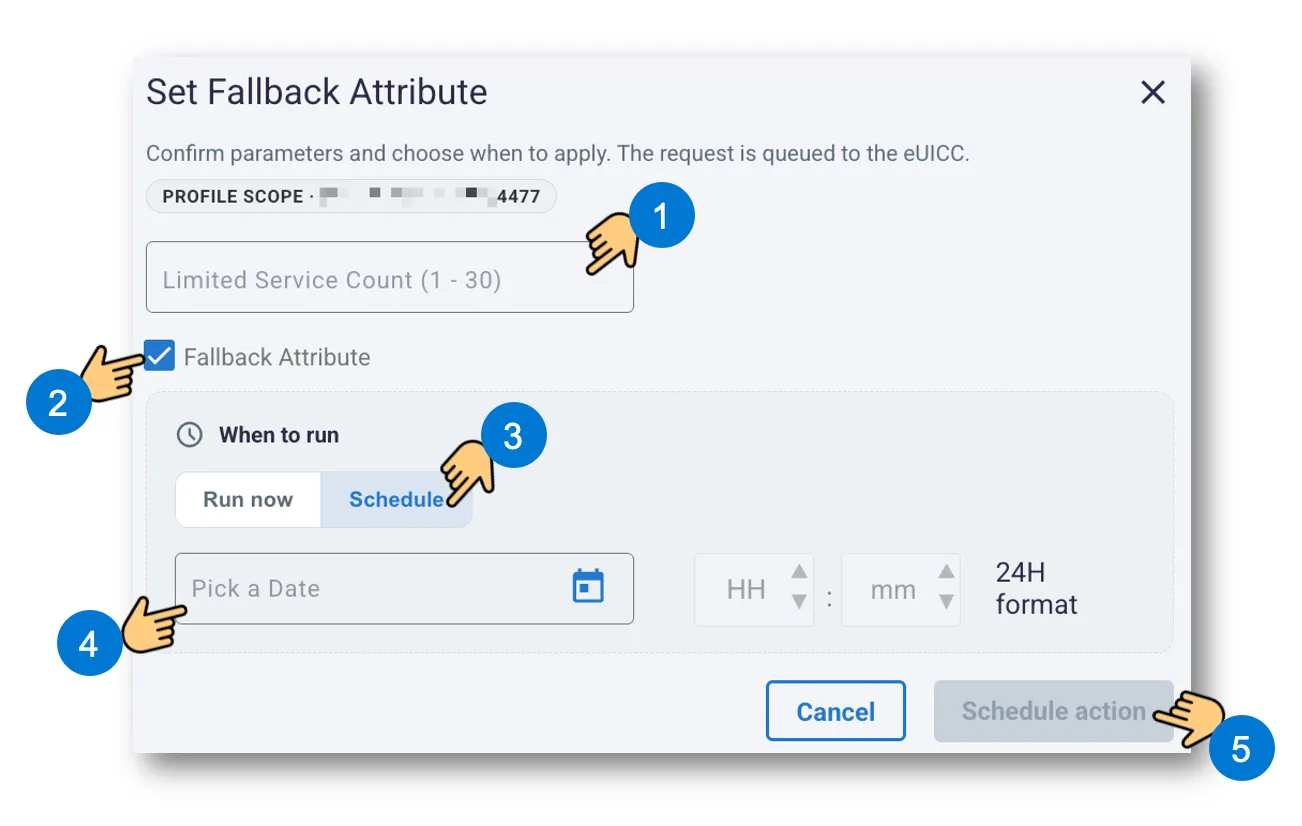
Scheduling a Set Fallback Attribute action
Other profile operations, such as Disable Profile or Disable and Delete Profile, may be available for supported managers and states. Use only the actions offered for the selected profile and review any confirmation before submitting.