Signing Up and Joining IoTM Services
Chapter 2: Getting Started
This section explains how to get started with the IoTM Portal, from logging in to understanding the user interface and how to use the service to gain meaningful business insights.
Signing up to the IoTM platform is done by invitation in either of 2 methods:
- Self signup using a secure one time signup token generated by either the system administrator or an administrator in a parent account that is authorized by IoTM to create sub-accounts and self-signup invitation tokens.
- Creation of an organizational account, directly by IoTM or an authorized parent account administrator, and invitation of a user to an existing account by the system administrator. The invited user then becomes the initial administrator of the newly created organizational account and can further add new users to the account.
2.1. Self Signup Using a Token
In this signup method, the system administrator creates a secure one time use signup token that is valid for a period of 2 weeks. It can be used for creating a new IoTM organizational enterprise account and signing up the initial admin user. After successful account creation, the token expires and cannot be used again. The IoTM or parent account administrator creates the token in the platform as detailed in the IoTM First Level Support Guide - see [INSERT REFERENCE] Resellers. The system then sends a welcome email with the token to the email address of the person who is designated by the token creator to be the initial organizational account administrator. This designated initial administrator will be the one that creates the organizational account and can subsequently add more users to the newly created account.
There are several ways of requesting a signup token, as seen in the screenshots below.
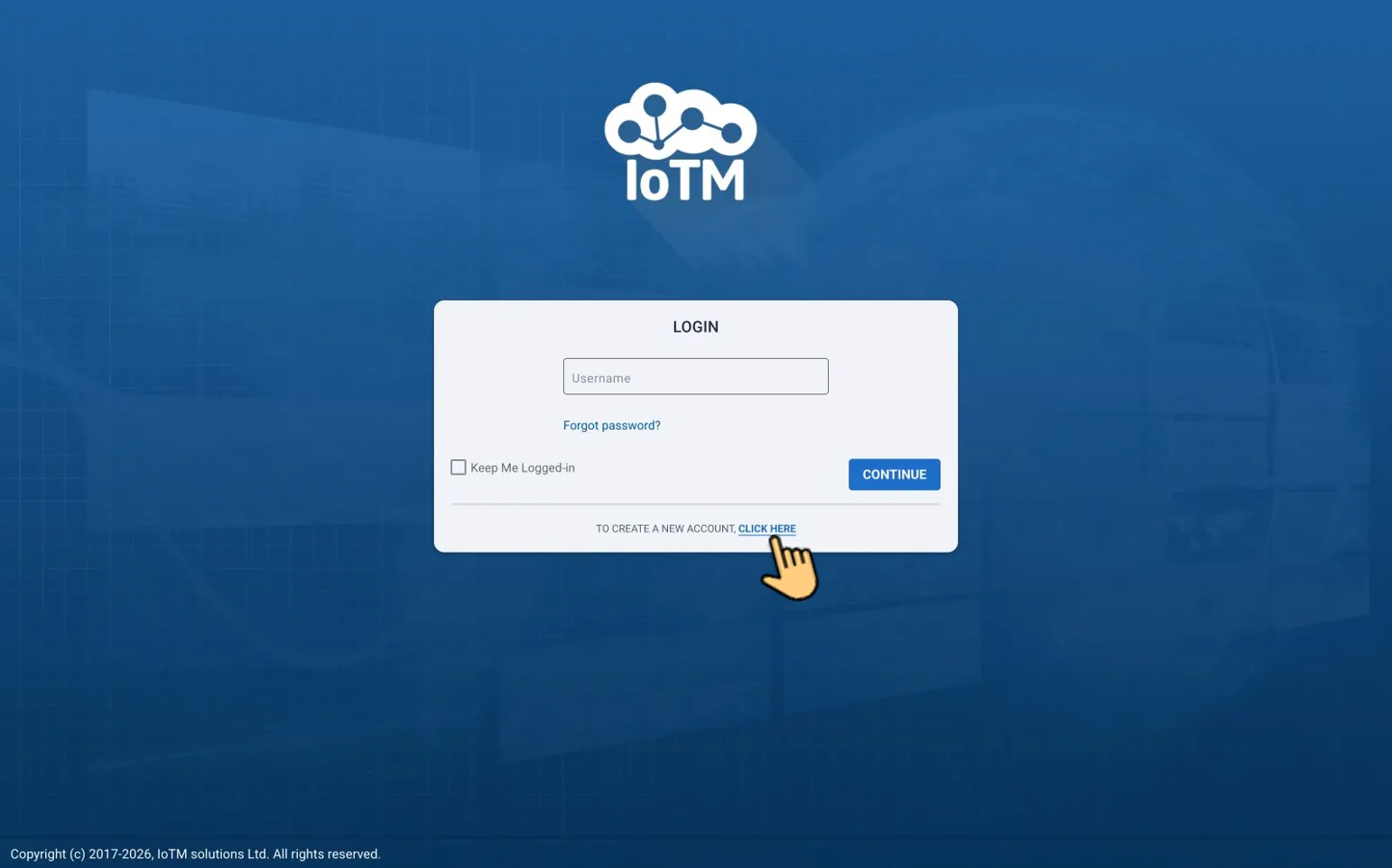
Click here to get to the signup page
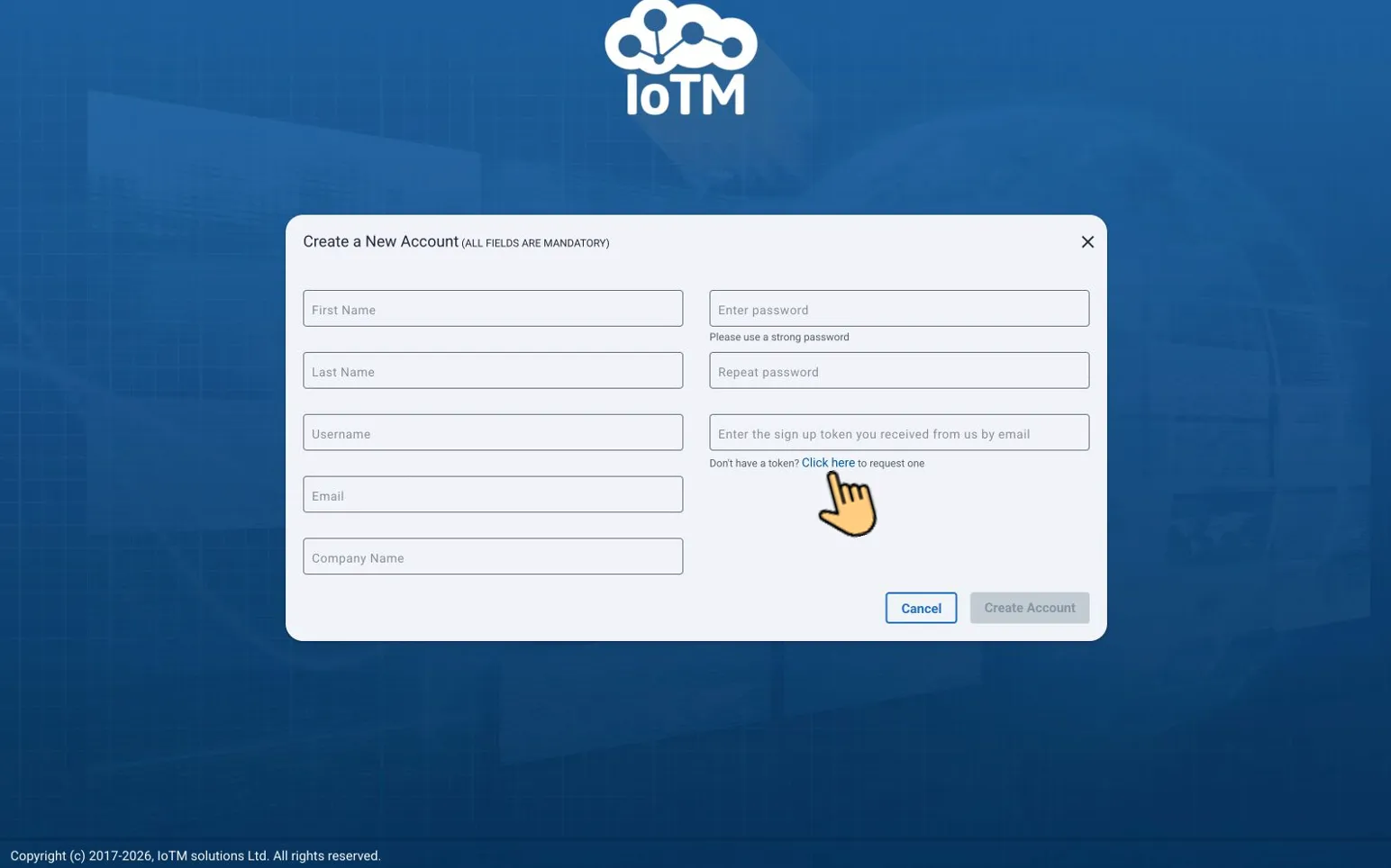
Click here to request a signup token if you don’t have one
After receiving the Sign-up invitation email with the token, as seen below, you can click the “Sign-up” call-to-action button, and you will automatically be redirected to the signup page of the IoTM POD in which the token has been created.
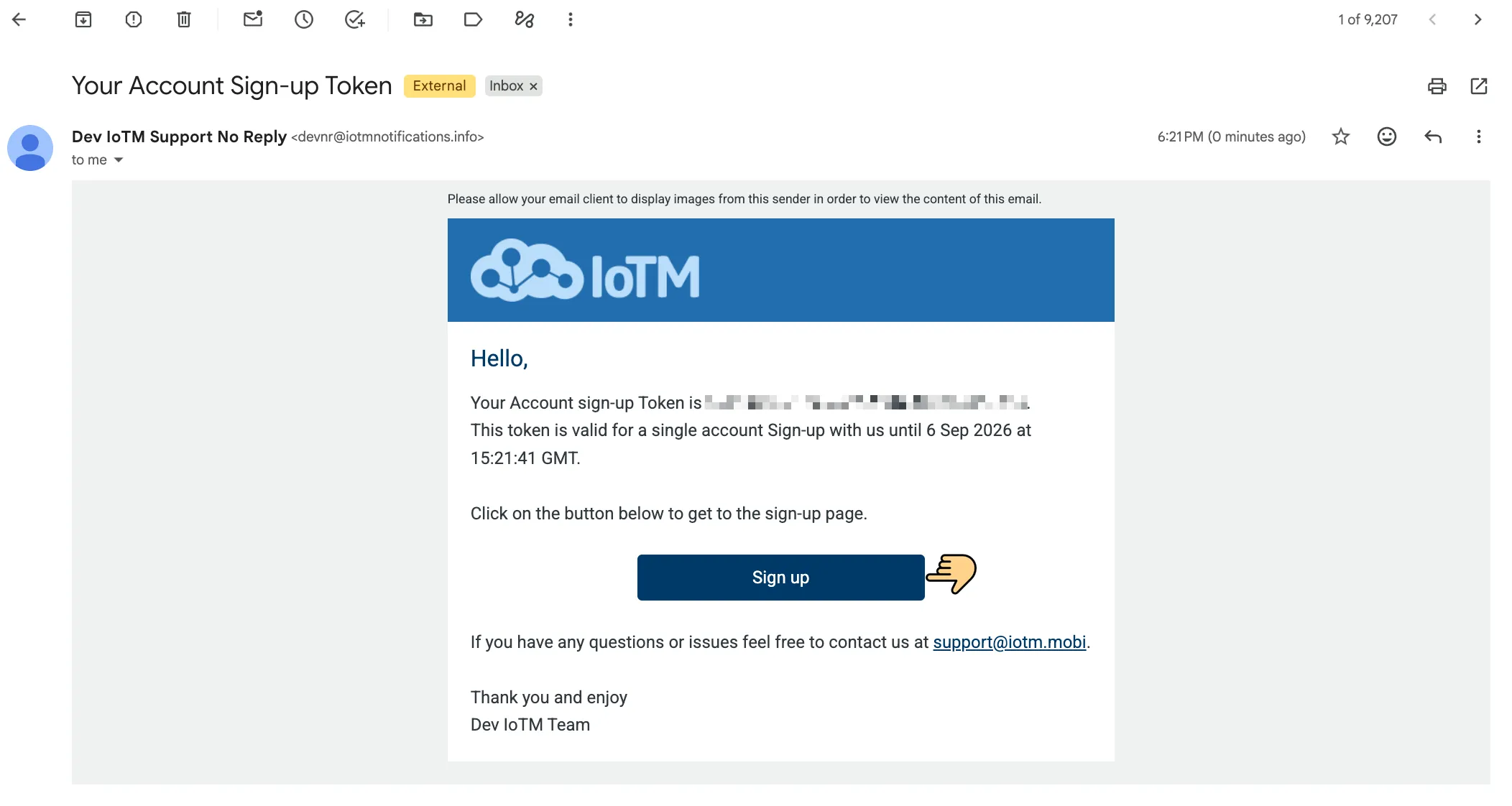
Sample Sign Up invitation email from IoTM
After redirection to the signup page, the email address and the token will already be present in the relevant fields.
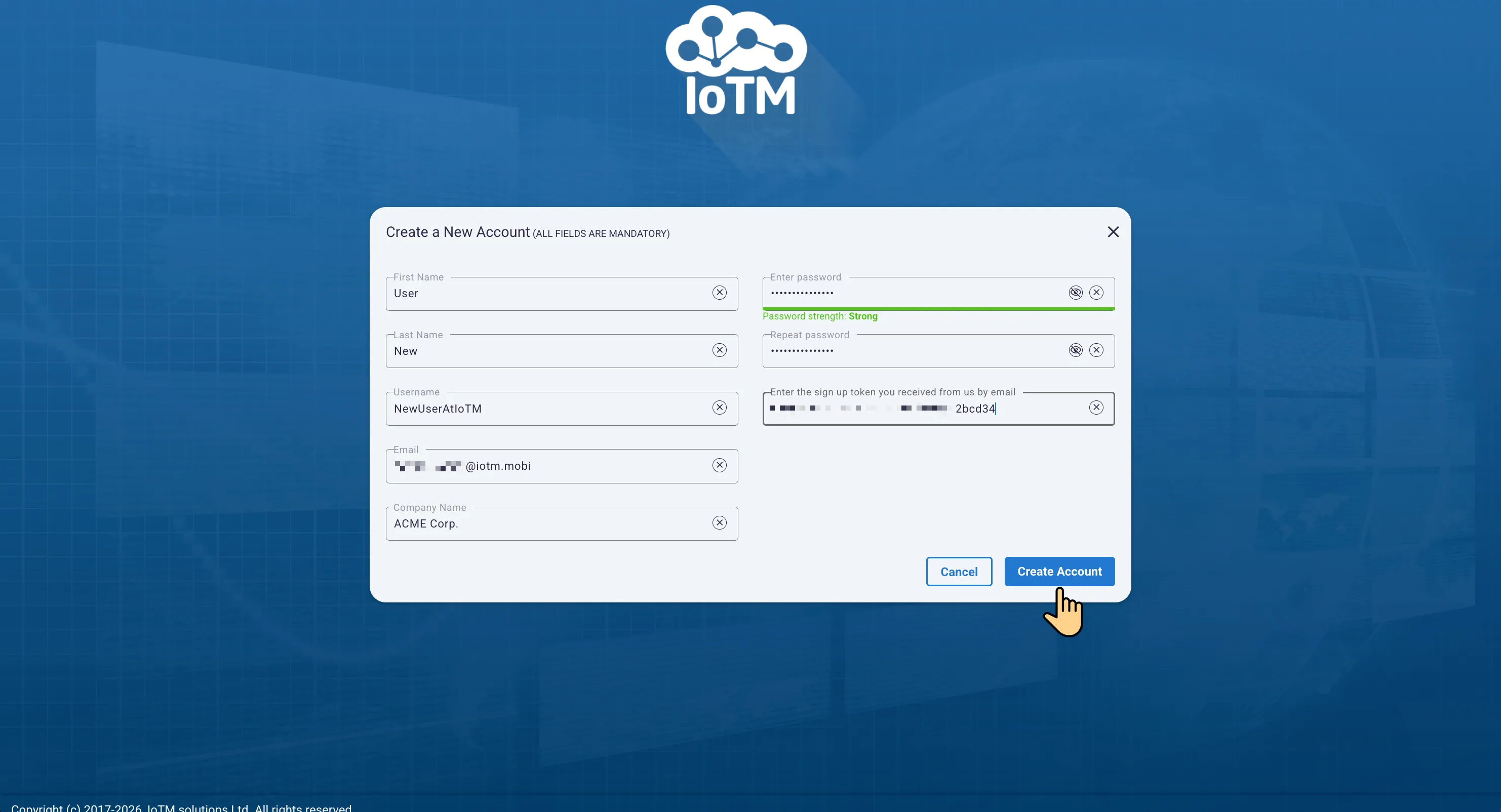
This is the signup page you will land on after you click on the Sign-up call-to-action button in the signup invitation email. The user needs to complete the rest of the fields like in the image. Once all the mandatory fields have been filled, the “Create Account” call to action becomes available.
Notification that the account was created, and that the user should expect an email verification notification from the platform to the stated email address to verify the email that was used as the user email in the signup form. User login will be rejected until the email is verified by clicking on the button / link in the email.
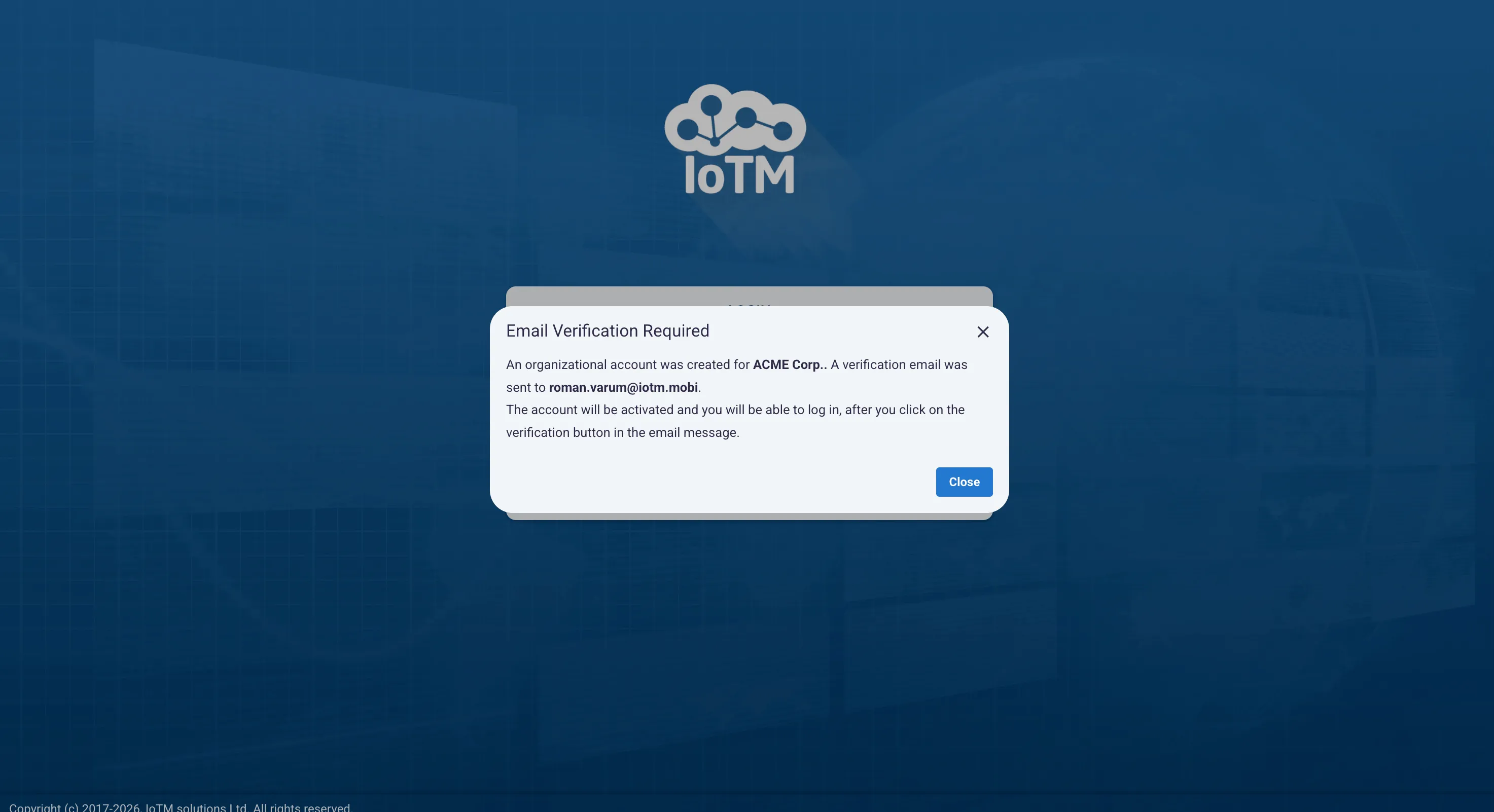
Email verification notification
Once you’ve verified your email address by following the call to action in the verification email, you can log in to the service as described in the Logging in section below.
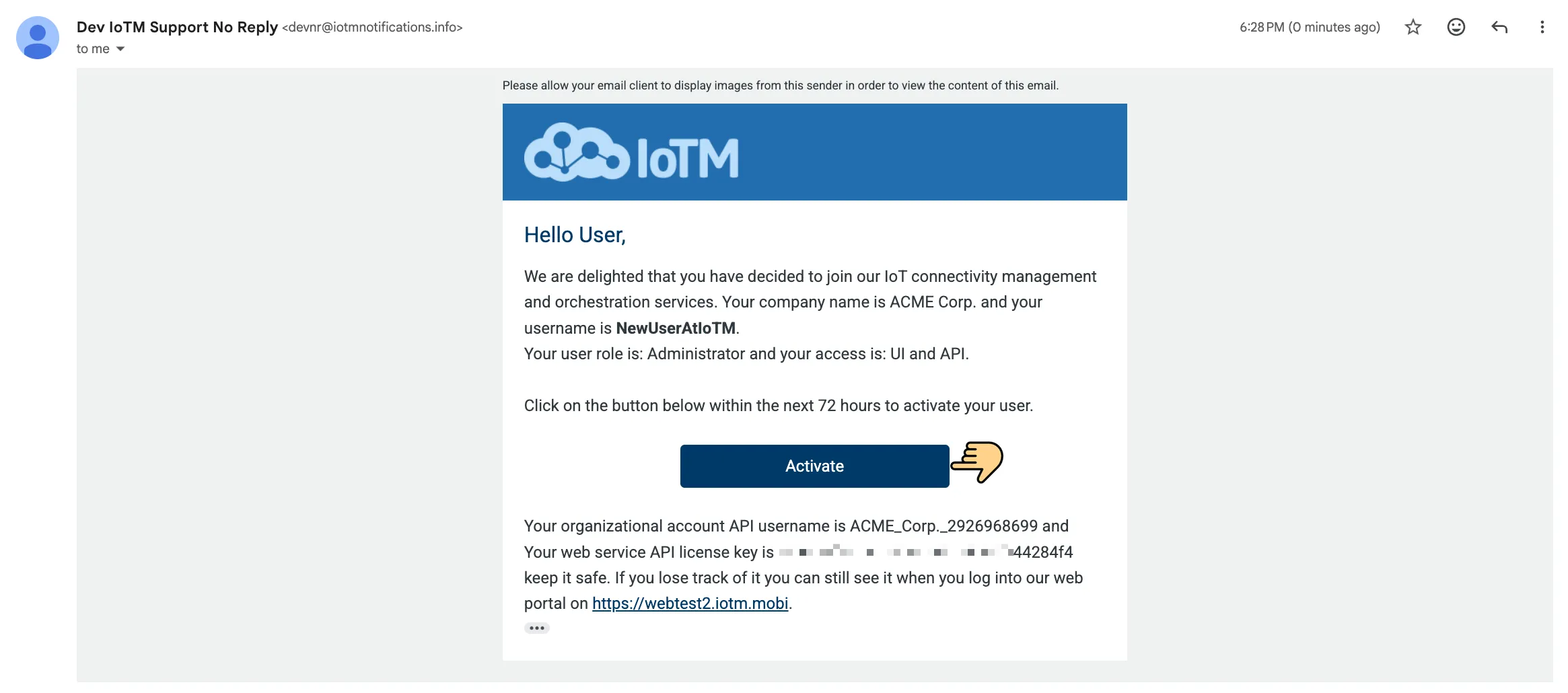
Sample verification email after self sign up
After pressing on ‘Activate’, the user will see the notification that the account has been activated and that they can log in:
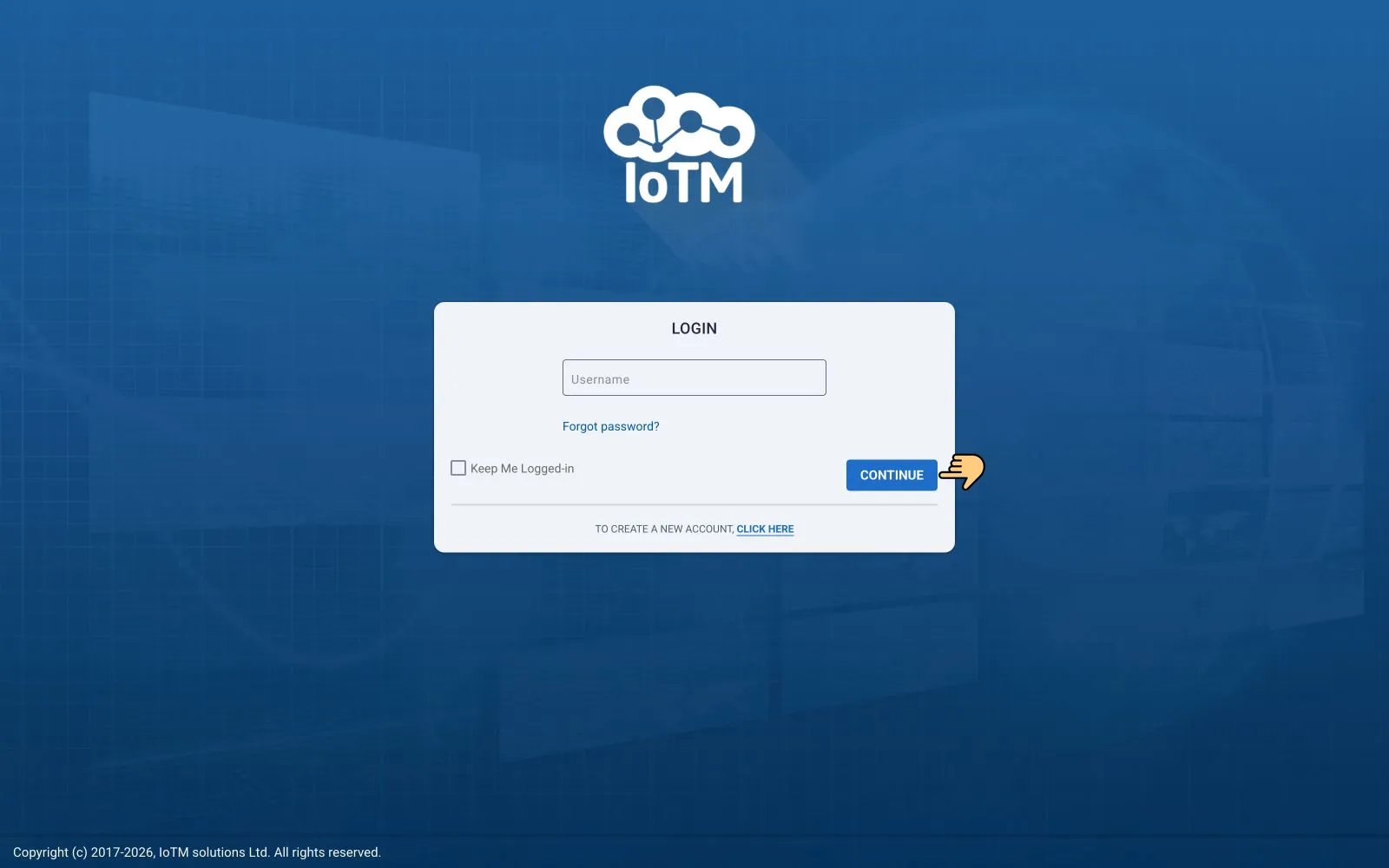
Account activation notification
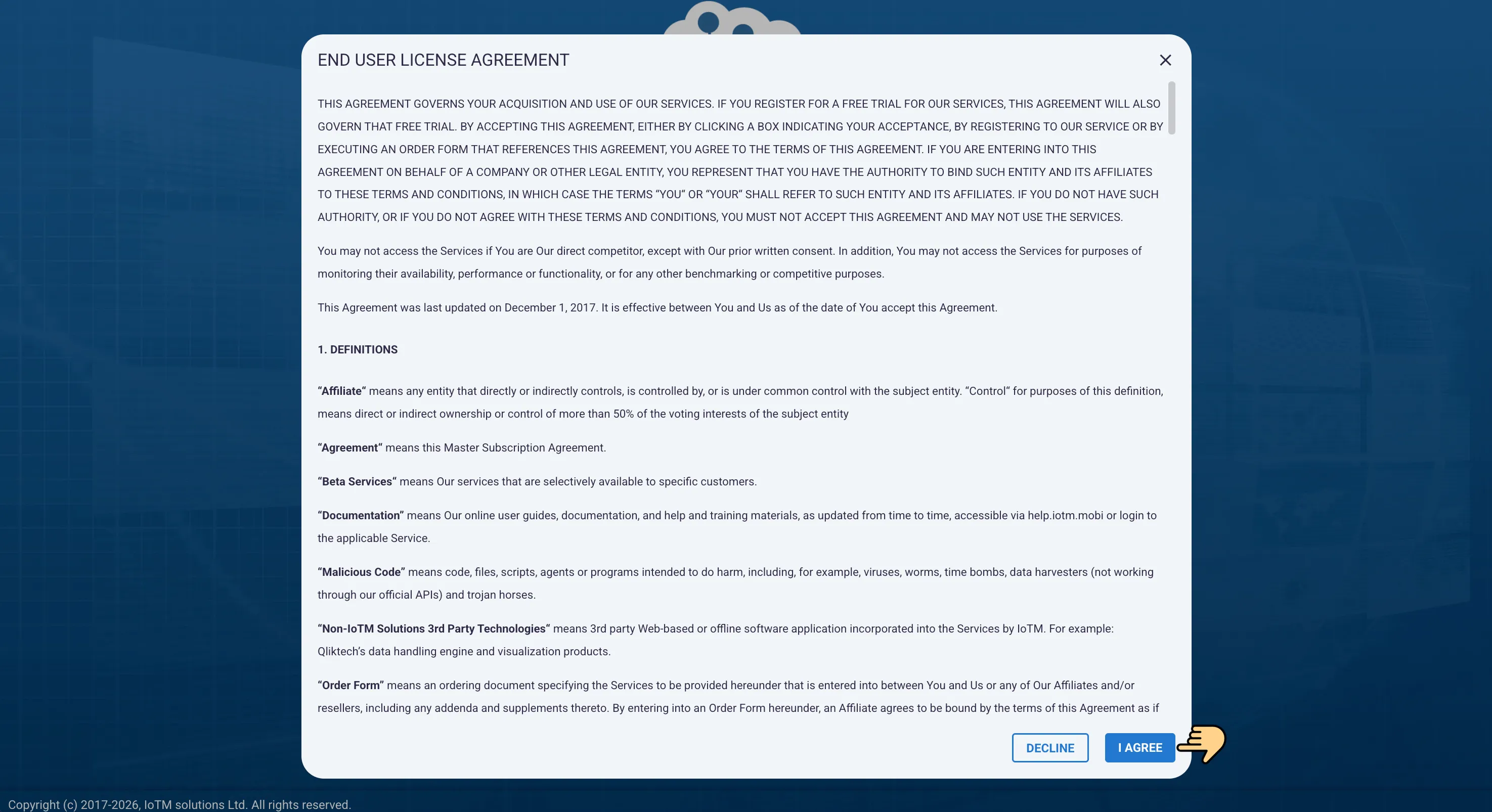
You will be prompted to read the IoTM EULA before agreeing. Clicking on DECLINE will log the user out.
2.2. Invitation To An Existing Account
In the case of a new user invitation to a pre-existing account that has been created beforehand, there is no need to create the organizational enterprise account since it already exists and a new user is being invited to this existing account as an initial account administrator or by an existing account administrator.
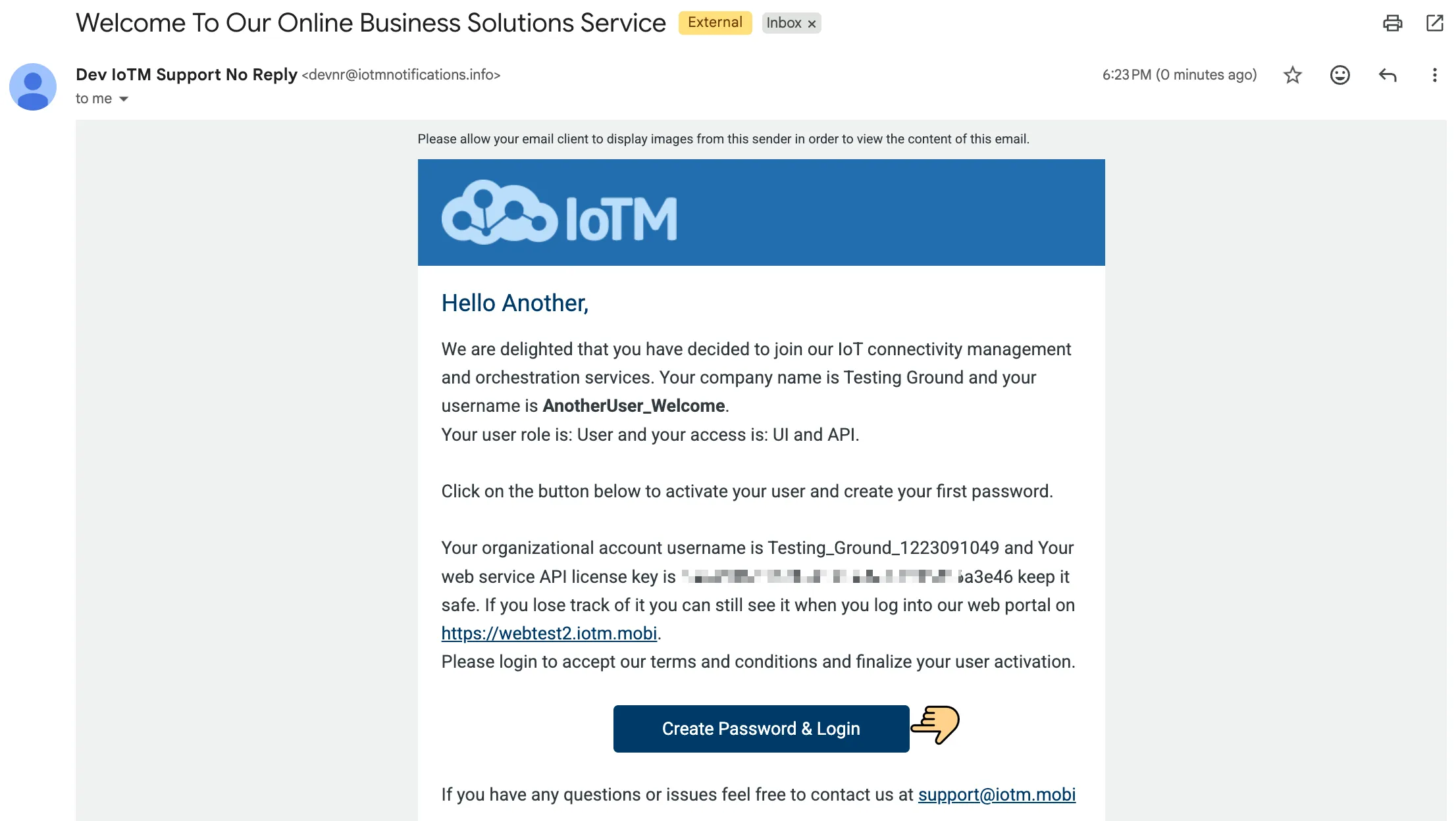
If the system or parent administrator has already set the user’s initial password, they will receive an email asking them to verify ownership of their email address, like the one below. Once the email has been verified, the user is activated, and they can log in to the web console subject to availability of the UI access role for the user. It might take a few minutes to a couple of hours in order for the system to build the analytics for the new user. All other services that the account is registered to will be available to the user once they click through and accept the EULA. There is also an option for the system or parent administrator to not set the password and invite the user, forcing them to generate their initial password, an action which will also verify ownership of their email address in the process. These options are detailed further in the Adding / Editing Users section below.
Sample verification email after the administrator has created the account and set your initial passwordSample email following user creation, prompting the user to create their own password