Logging In
IoTM Users come in 3 access role types: UI, UI and API and API Only. Users that have a UI access role can access the IoTM Portal via a web interface. IoTM deploys multiple trade - dressed instances of the web application for itself (with native IoTM branding) and for its OEM resellers, each with its own access URL and branding trade dress.
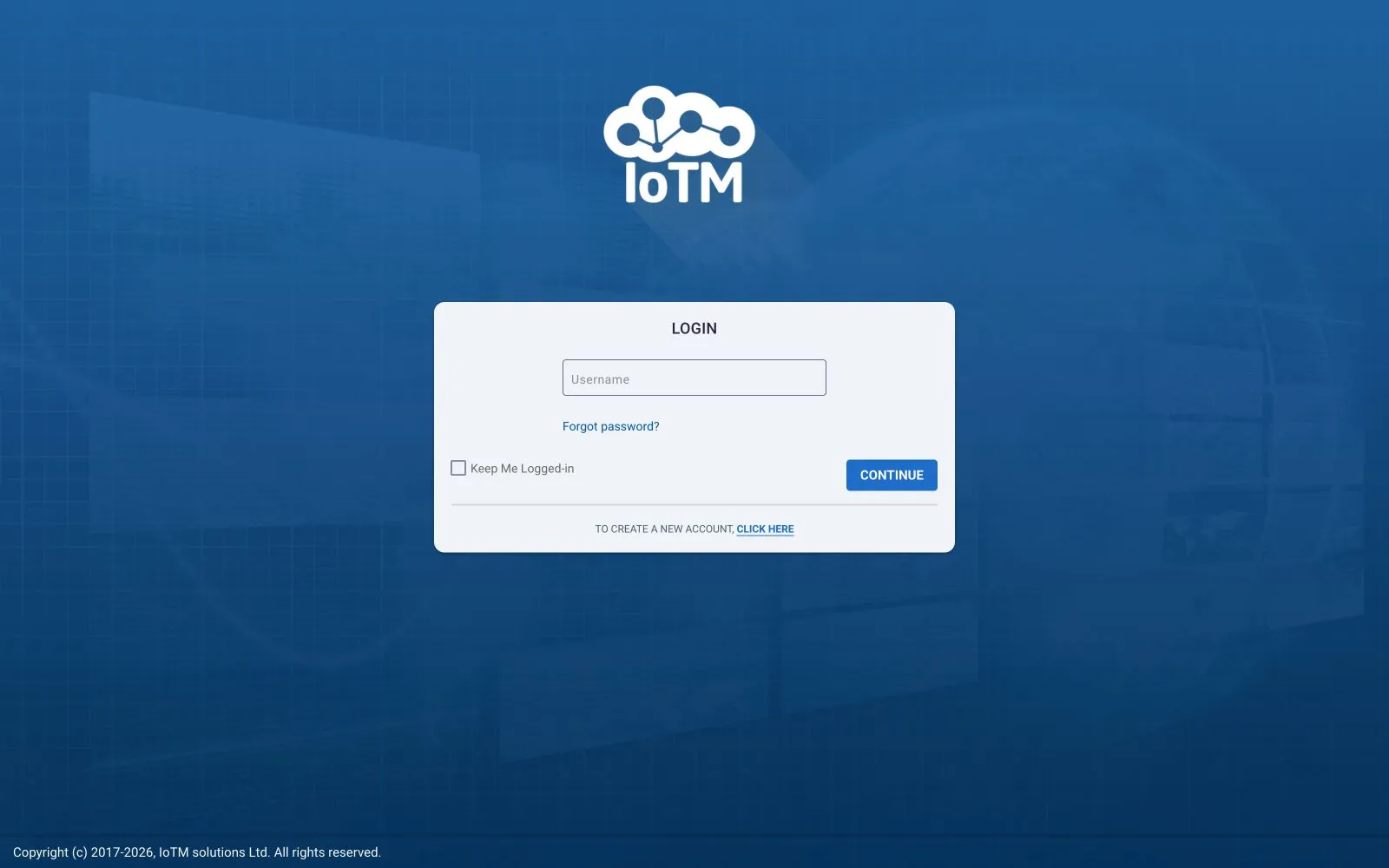
Sample login screen for the IoTM platform
Enter your credentials (username and password) and click the LOGIN button to access the IoTM launchpad home page. The IoTM web application supports optional Multi-Factor Authentication for enhanced security. The option can be enabled and enforced on all the account users by the organizational account administrators, or enabled by the user individually See Managing Multi-Factor Authentication & Security below. When enabled, a Time-based One-Time Password (TOTP) 6-digit code needs to be entered to complete the login after entering the correct username and password credentials.
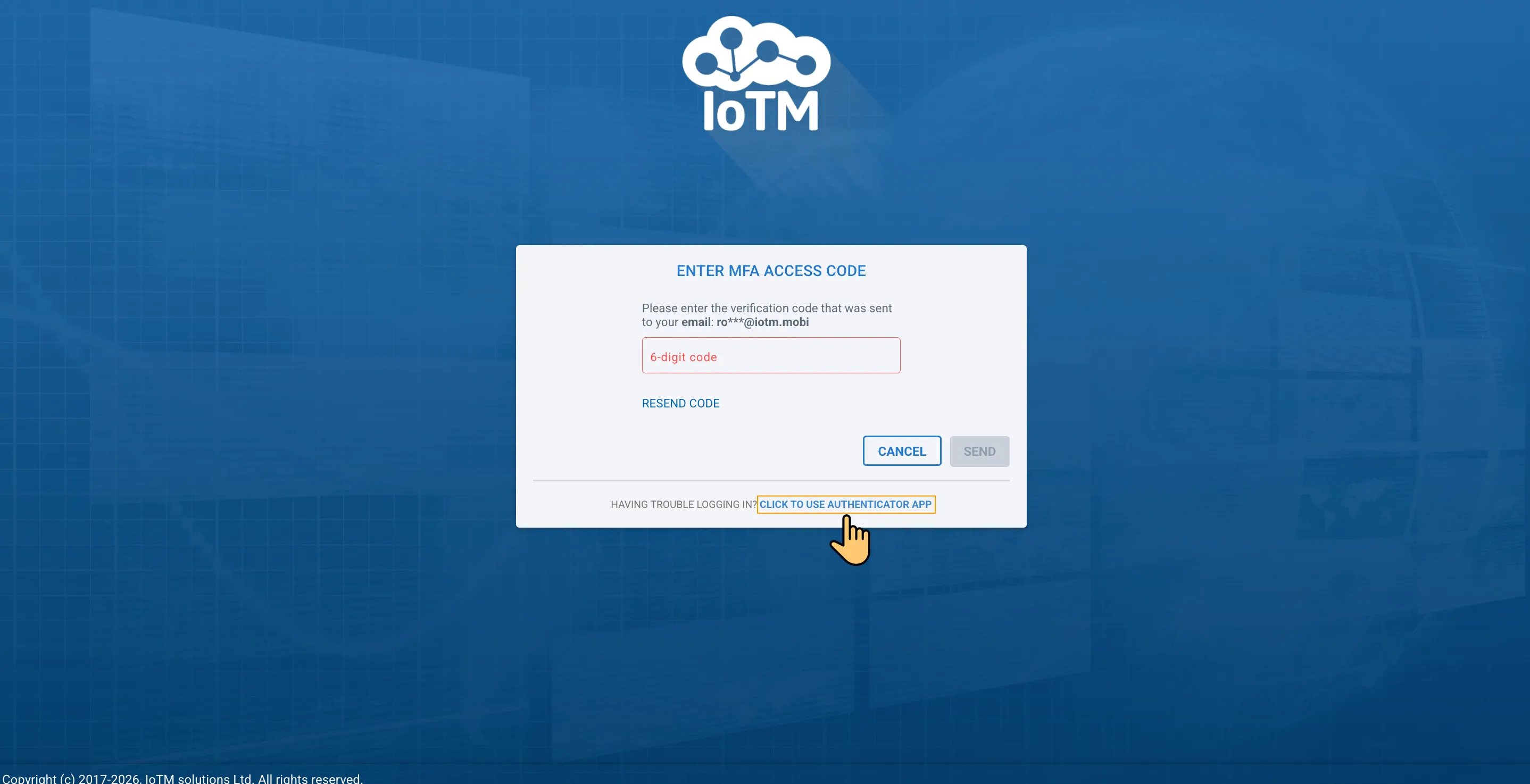
The IoTM platform currently supports 2 modes of multifactor authentication, with a plan to add additional options in the future. The currently supported 2FA methods are either receiving a time limited one time login 6-digit code to the email address that is associated with the username, or receiving the TOTP code from a paired virtual authenticator app like Google, Microsoft or Twilio Authy virtual 2FA authentication Apps. To learn more about MFA in IoTM, see Managing Multi-Factor Authentication & Security.
IoTM 2-Factor Authentication (2FA) using email login code entry phase with options to resend the code or transition to a paired authenticator application 2FA option if the email cannot be received.
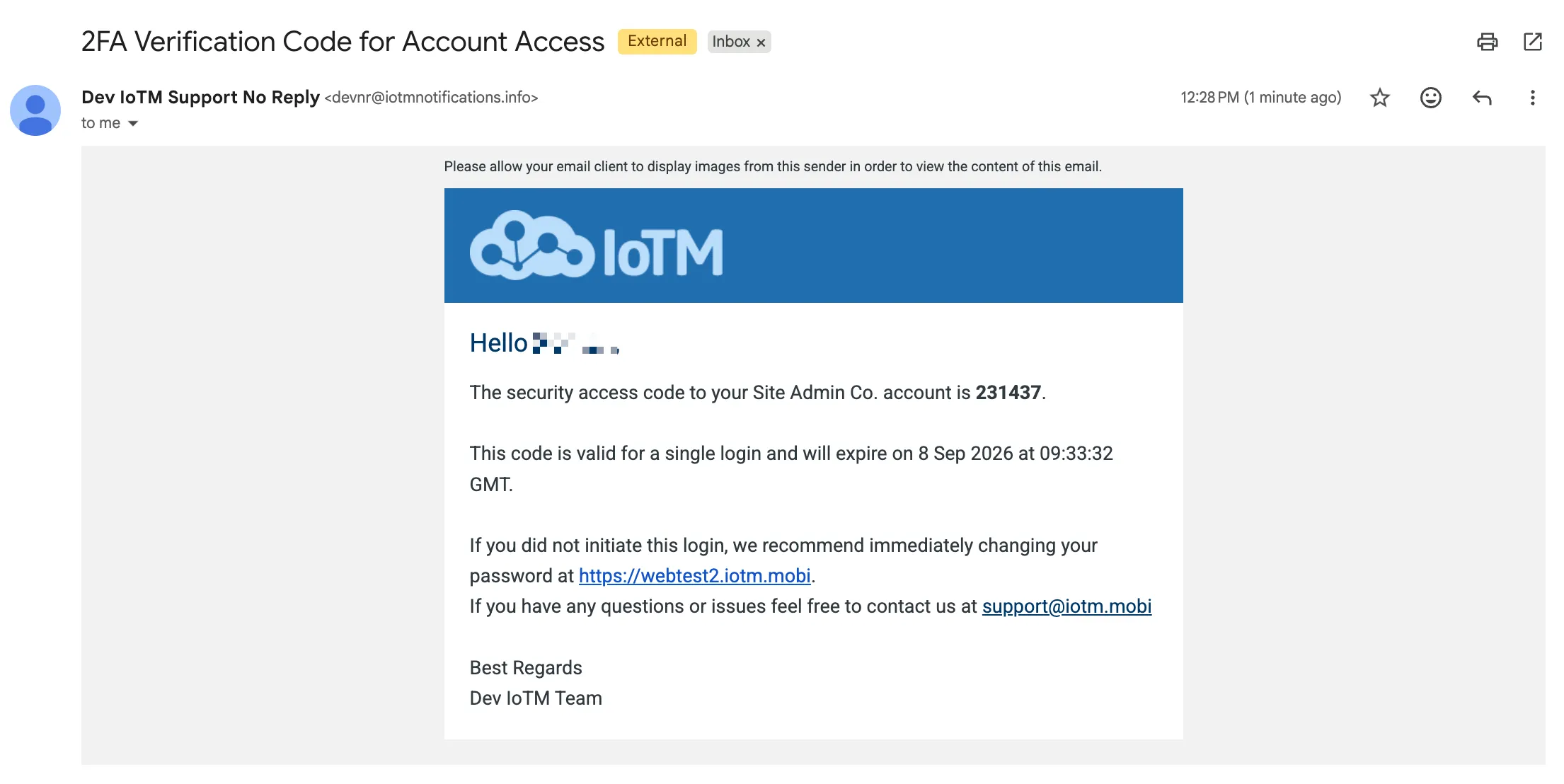
IoTM 2FA login email with code and call to actions to either automatically complete the login or secure the account by changing the password if the login action is not recognized by the user.
If your preferred MFA method is the authenticator app, during the login stage you will have the option to receive the code by email in case you’re experiencing any trouble with a paired authenticator app:
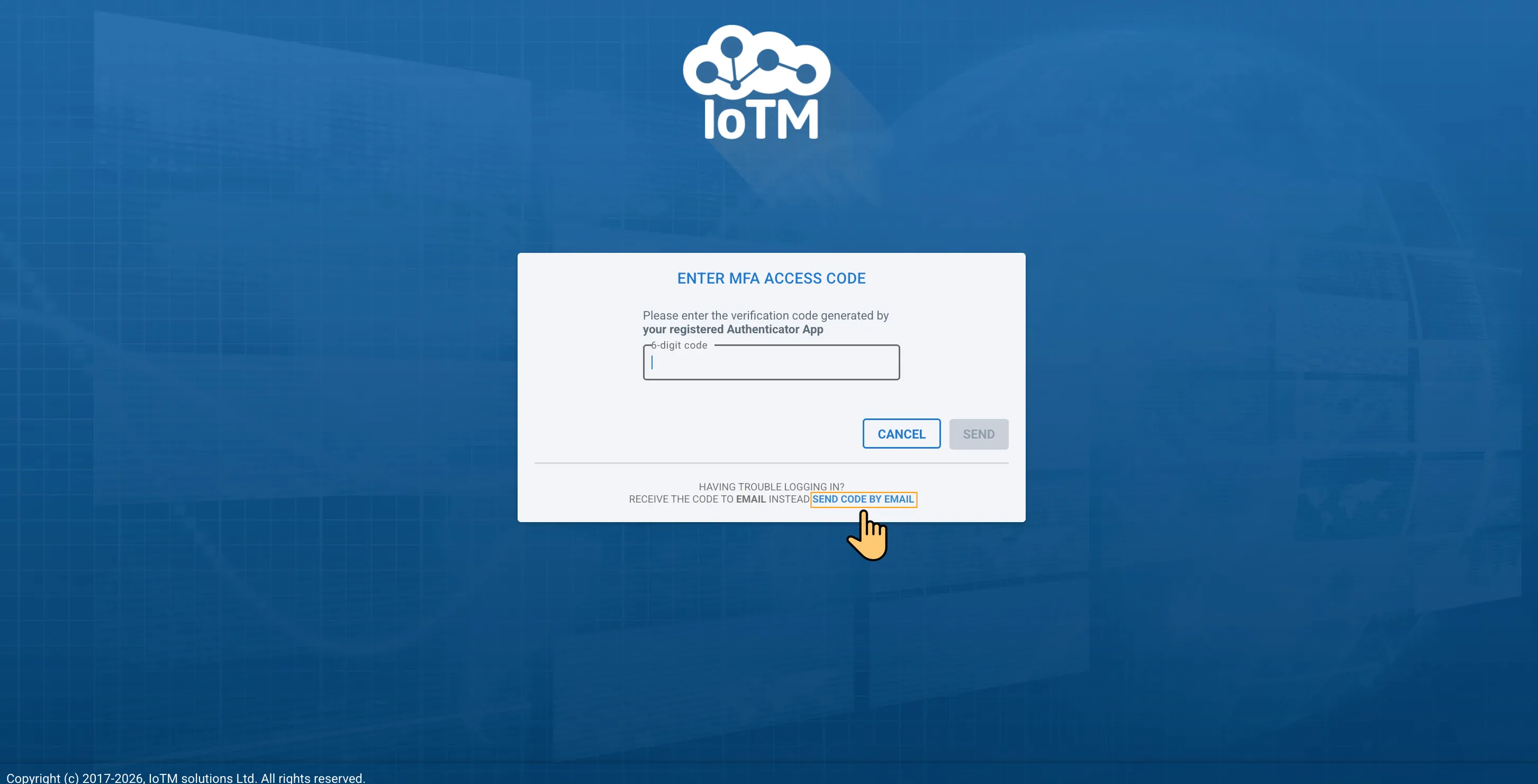
Authenticator 2FA code entry
Upon successful login, you will land on the IoTM Launchpad page.
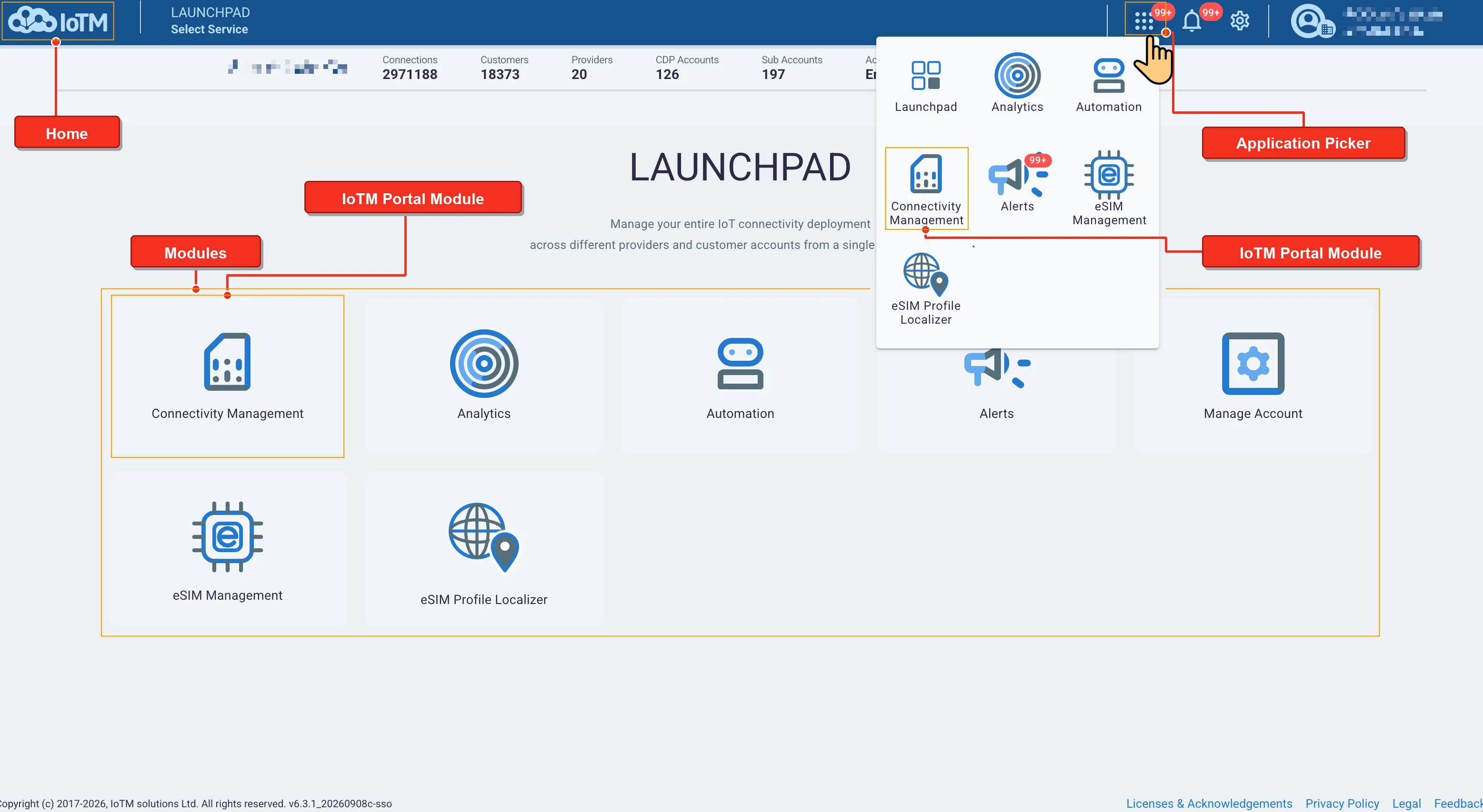
IoTM launchpad
The launchpad provides tile-based access to IoTM’s different Applications (Modules). The module tiles and Application Picker take you to different modules (i.e. applications). The account service assignment determines which modules are available to the account. The user authorization role determines which functions the user will be able to access and activate inside the available modules. The Application Picker icons and module tiles take you to the same places. Specifically, the launchpad has an additional dedicated tile to the manage account page that can also be reached from the top bar gear icon – for more details about managing users, accounts, and CDPs, see Chapter 3. Otherwise, the Application Picker is meant to provide shortcut access to all the main applications from anywhere inside the portal, including to the Launchpad page itself.
The ‘HOME’ Button, i.e. the logo in all trade dressed versions of the IoTM portal, is displayed in the upper-left corner of the top bar on every screen to provide easy navigation back to the launchpad from everywhere in the portal.
4. Login Security Enforcement Policy
In case multiple frequent wrong password attempts are executed on user credentials, the system will start to ask for captcha challenges for this username for a period of a few hours to prevent automated password phishing brute force attacks. In parallel, an email will be sent to the user and to IoTM operations informing them of the situation and offering the user to secure their account by changing their password.
In case 2FA is enabled, and the wrong code is entered, the IoTM platform assumes that an attacker already gained access to the username’s password and is trying to guess 2FA codes. The user in question will go into total lockdown after the wrong code has been entered 10 consecutive times. In parallel, an email will be sent to the user informing them of this and IoTM operations will be notified as well. A locked user is quarantined and cannot access the platform under any circumstances until it is manually unlocked by the IoTM pod administrator and following a forced password change.
5. Lost or Forgotten Password Recovery
In case users forget their password, there are 2 recovery options.
- Clicking on the “Forgot password” call-to-action link on the login screen. An email will be sent to the associated user’s email address with instructions on how to reset their password.
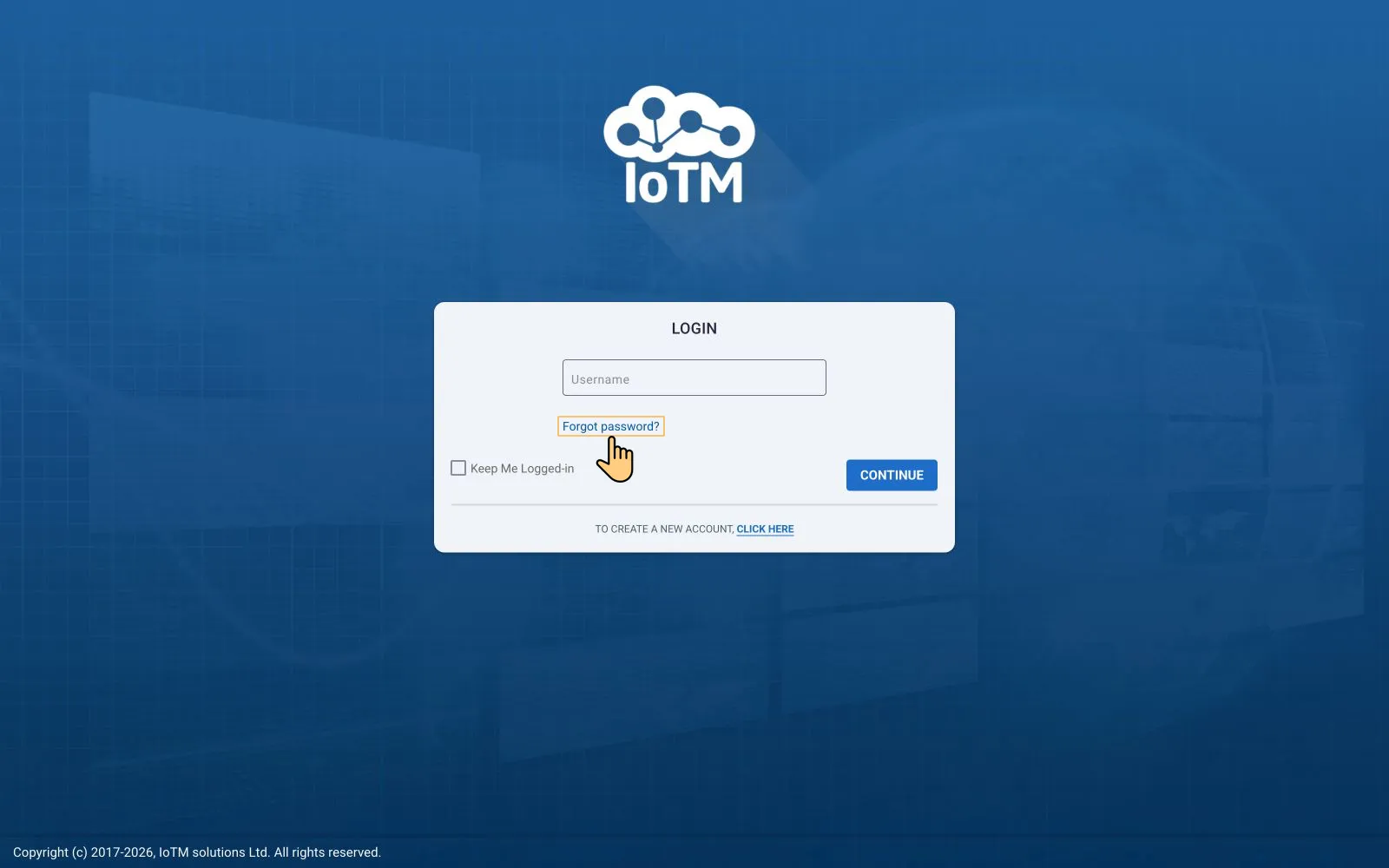
Forgot Password Call to Action
- The second option is notifying the organizational account administrator who can reset an account user’s password through the user management section, triggering the platform to send a password reset email to the user’s associated email address.