Account and User-level Multi-factor Authentication
6.3. Managing Multi-Factor Authentication & Security
2-Factor Authentication is a security method whereby login authentication is completed by information that is additional to simply entering a username and password at login. In IoTM’s case, 2FA is a time limited 6-digit code. IoTM supports 2 forms of 2FA: Email and TOTP authenticator apps. In the case of email based 2FA, the code is issued after successfully authenticating the username and password, and it is valid for 10 minutes. In the case of paired TOTP authentication apps, it is re-generated every 30 seconds on an ongoing basis. Once you have the code on hand, you can either enter it in a dialog that follows the login dialog, or you can click on a call-to-action button in the email (in case of email 2FA) to complete the login process as described in the Logging In section above.
Multi-Factor Authentication can be enforced on two levels: account and user.
If MFA is active at the account level, then it is mandated for each user in the account, and it cannot be turned off at the user level. If the user does not have a paired TOTP authentication device like google authenticator or Twilio Authy etc., then their default 2FA authentication method will be by receiving an email to the address associated with their username.
If MFA is disabled at the account level, then a user can decide for themselves whether they want to activate MFA or not, and they can pair an authentication device if they choose to.
6.3.1. Enabling Account Level MFA
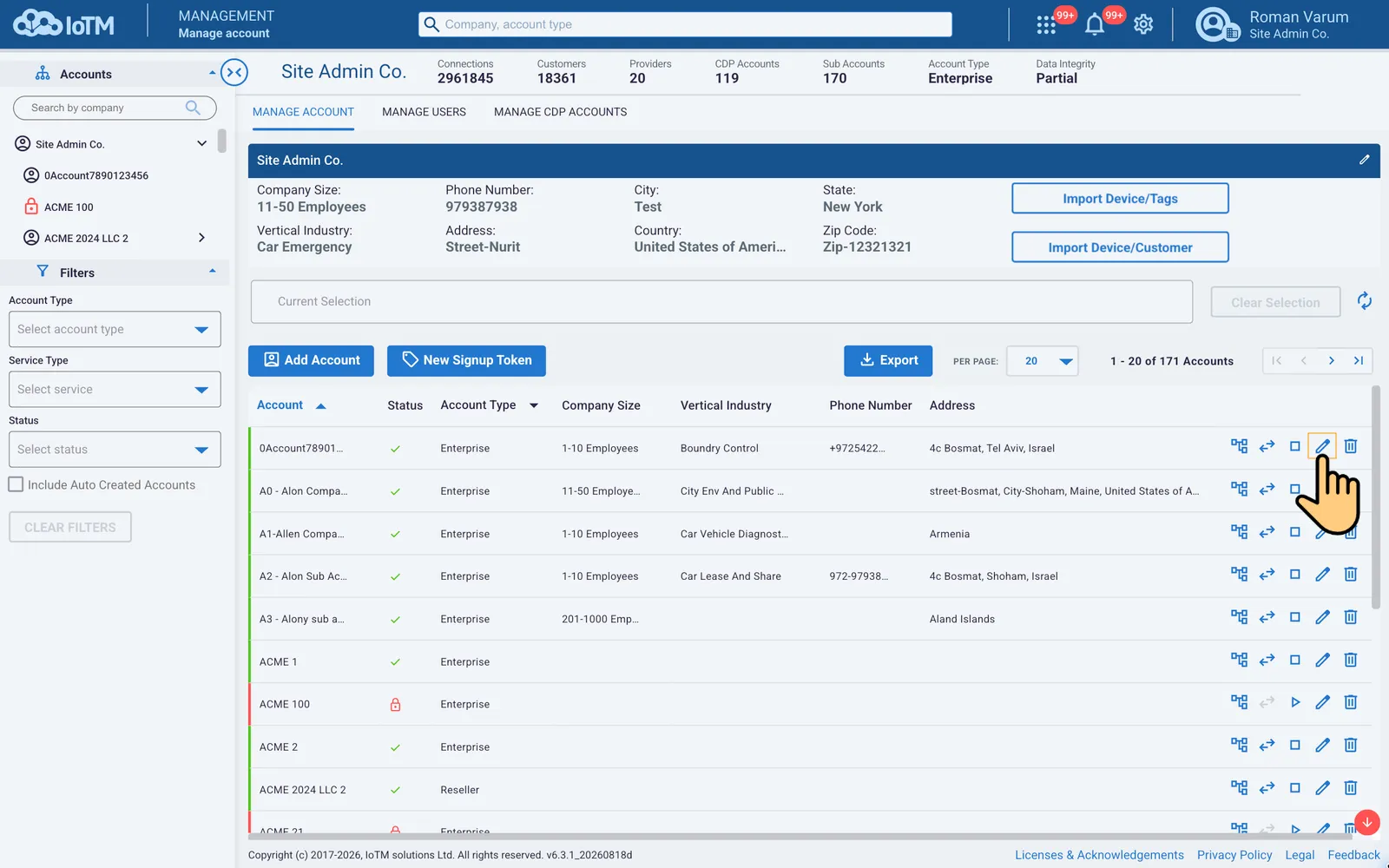
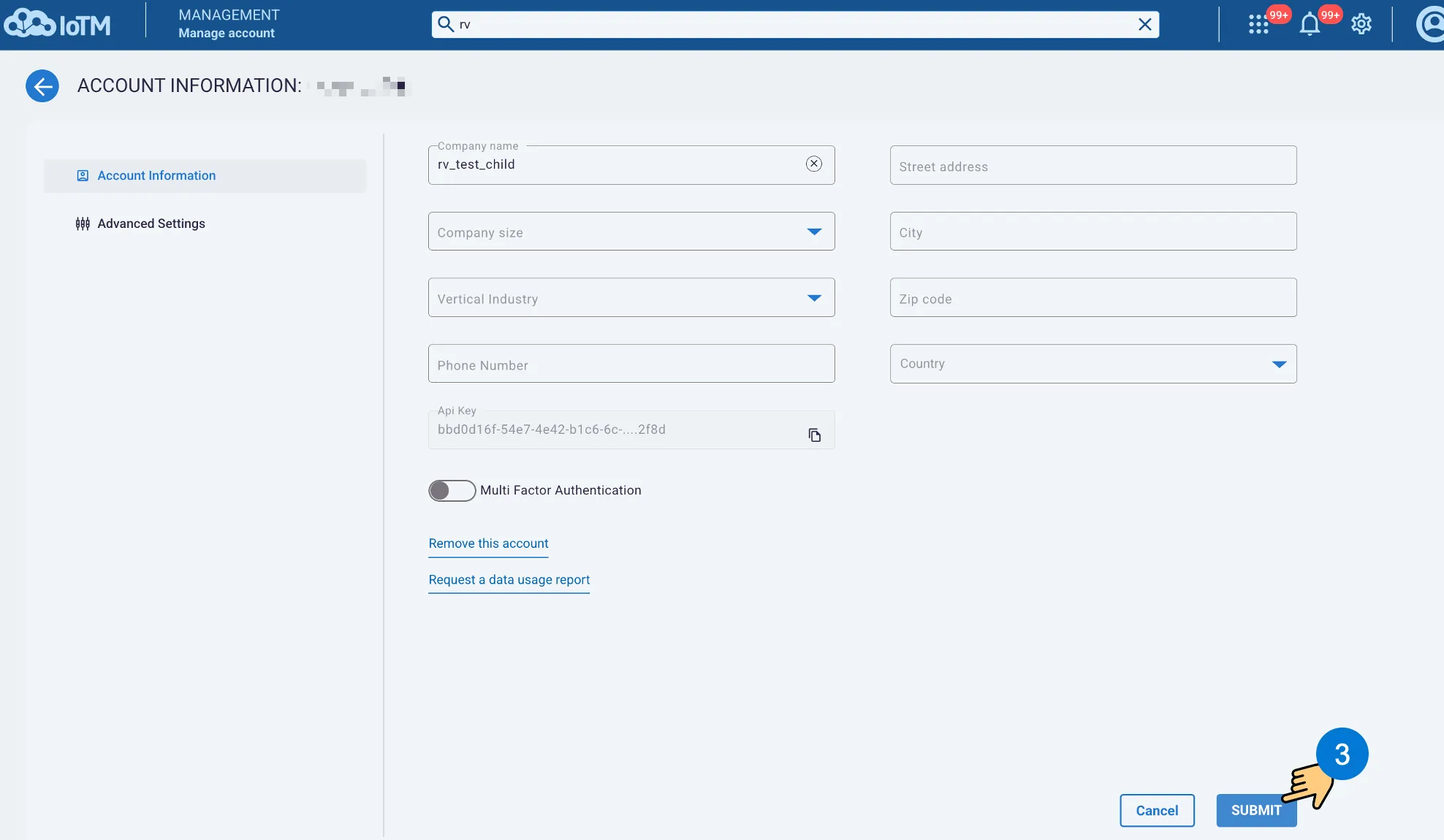
Navigate to the Account Management page and click on ‘Edit Account’:
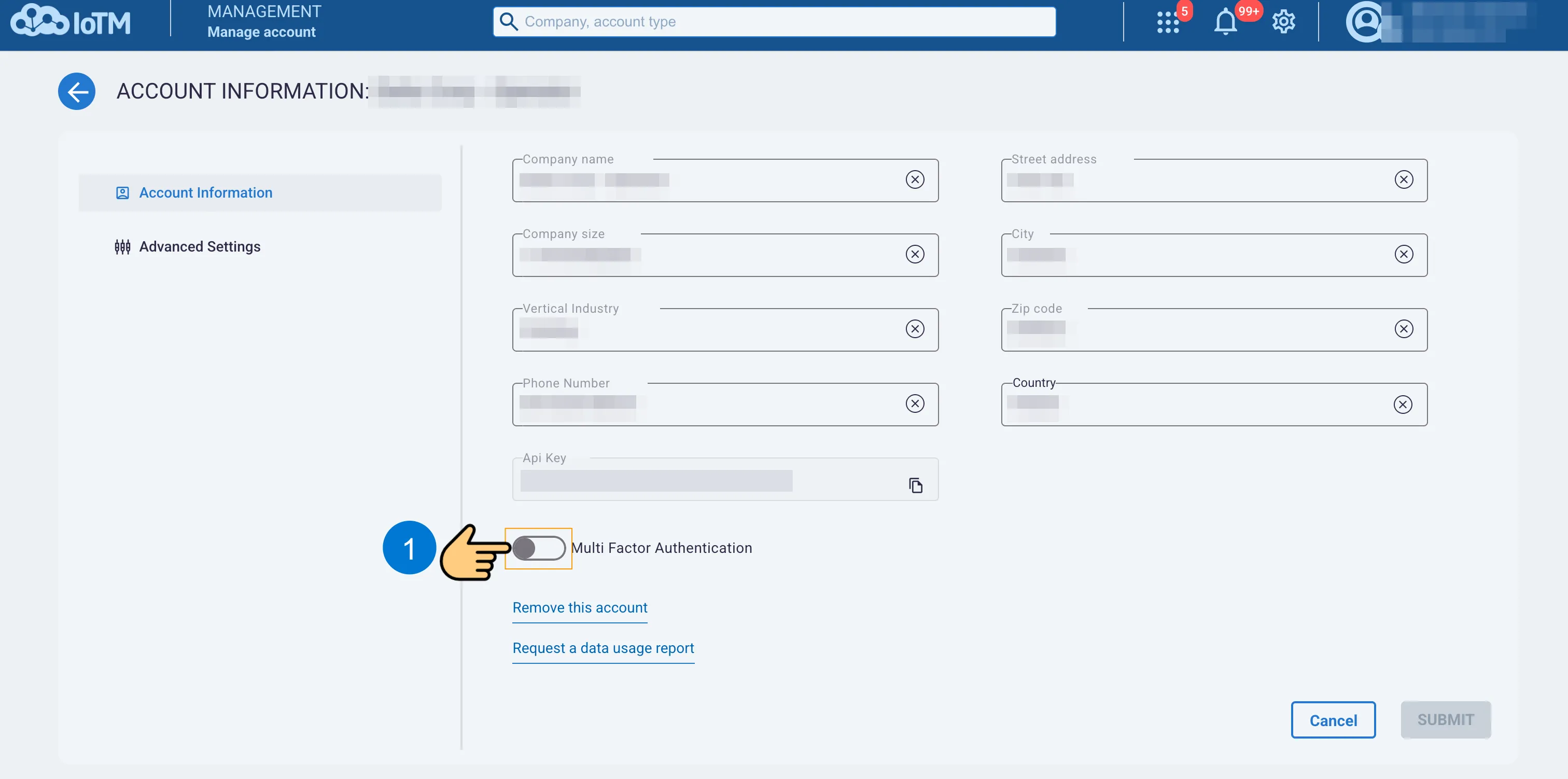
To enable and force multi-factor authentication on all account users, you need to click on the grayed out toggle button, and you will see a confirmation dialog attached to the button explaining 2FA requirements and asking if you want to proceed. If you click YES, then 2FA will be enabled and enforced on all account users from now on.
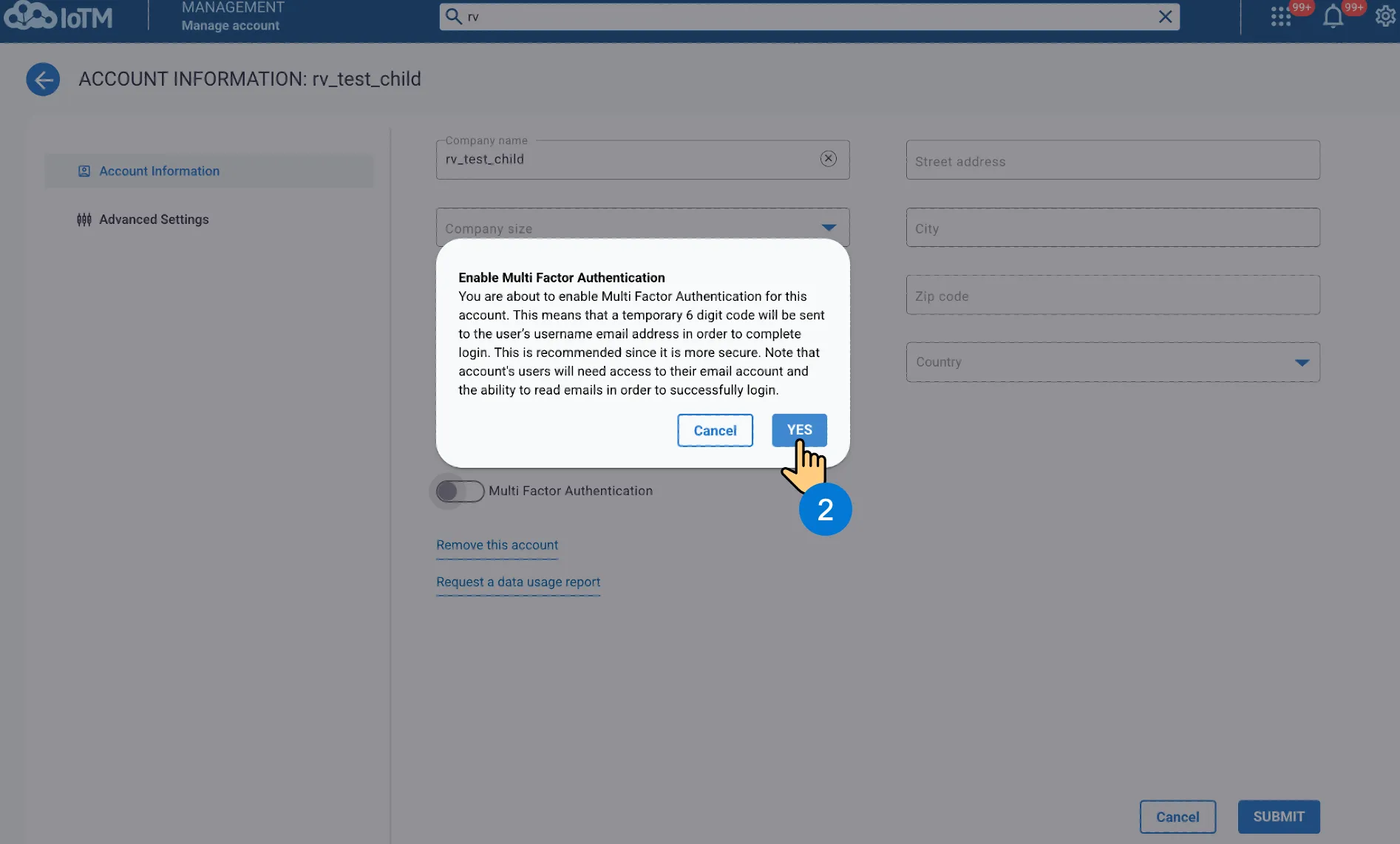
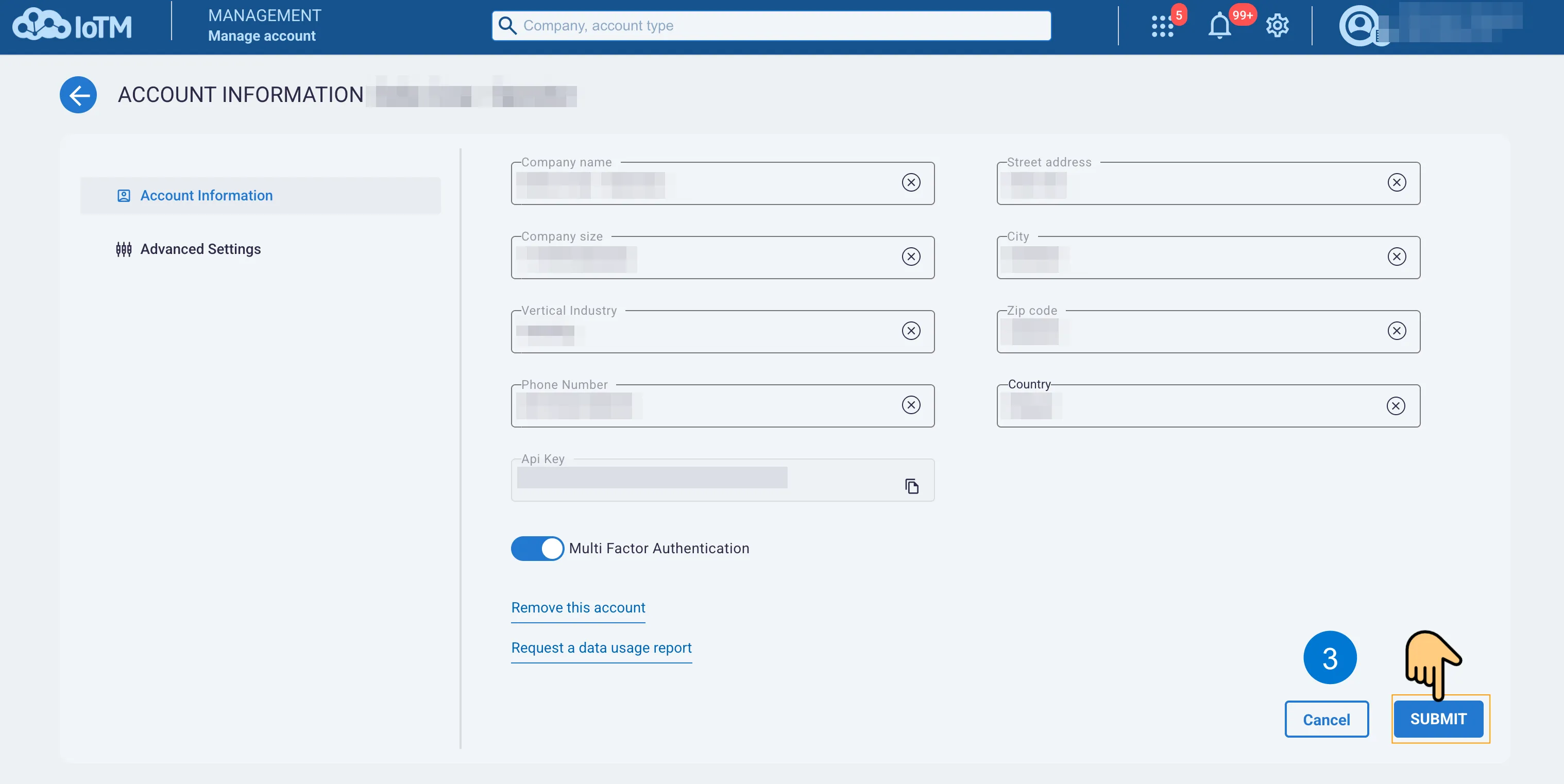
Enabling 2-Factor Authentication
Once the account level MFA is activated, the user level MFA cannot be turned off when editing the user:
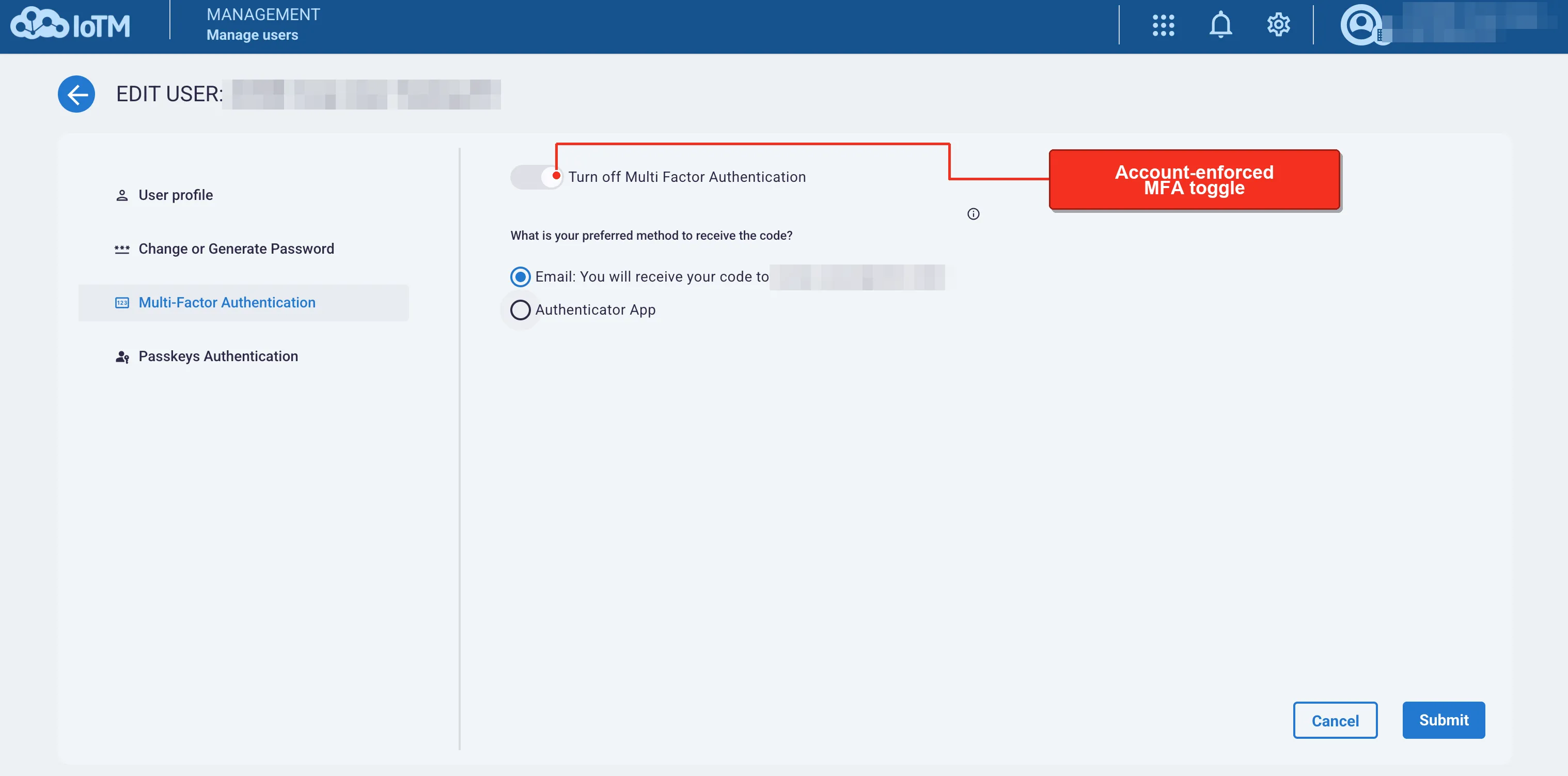
6.3.2. Disabling Account Level MFA
To disable account level multifactor authentication, you need to click on the enabled toggle button, and you will see a confirmation dialog attached to the button explaining the security disadvantages of disabling 2FA and asking if you want to proceed. If you click YES, then 2FA will be disabled from now on. When 2FA is disabled, it is no longer explicitly enforced on all account users, and each user can individually decide whether they would like to activate 2FA or not.
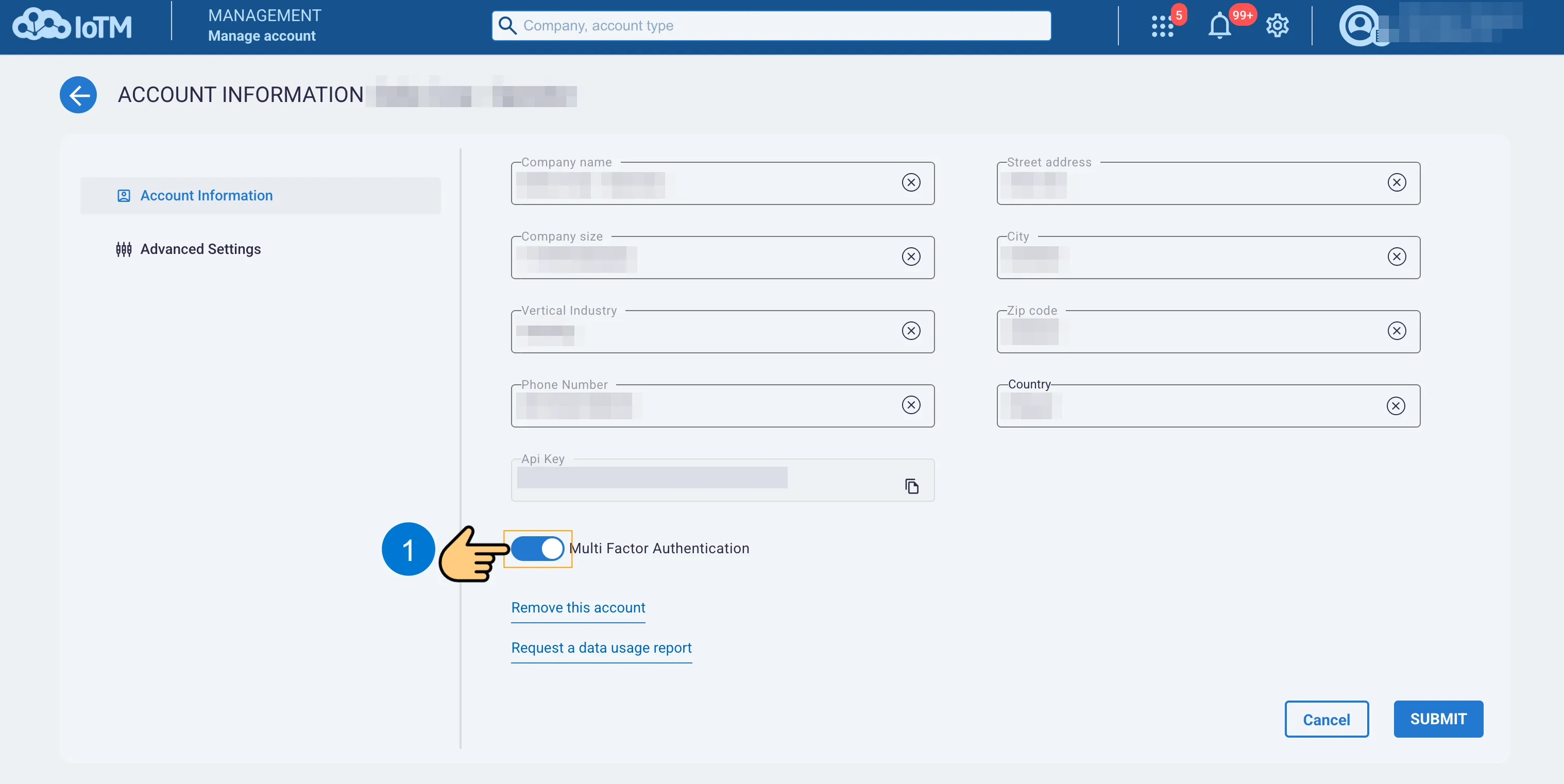
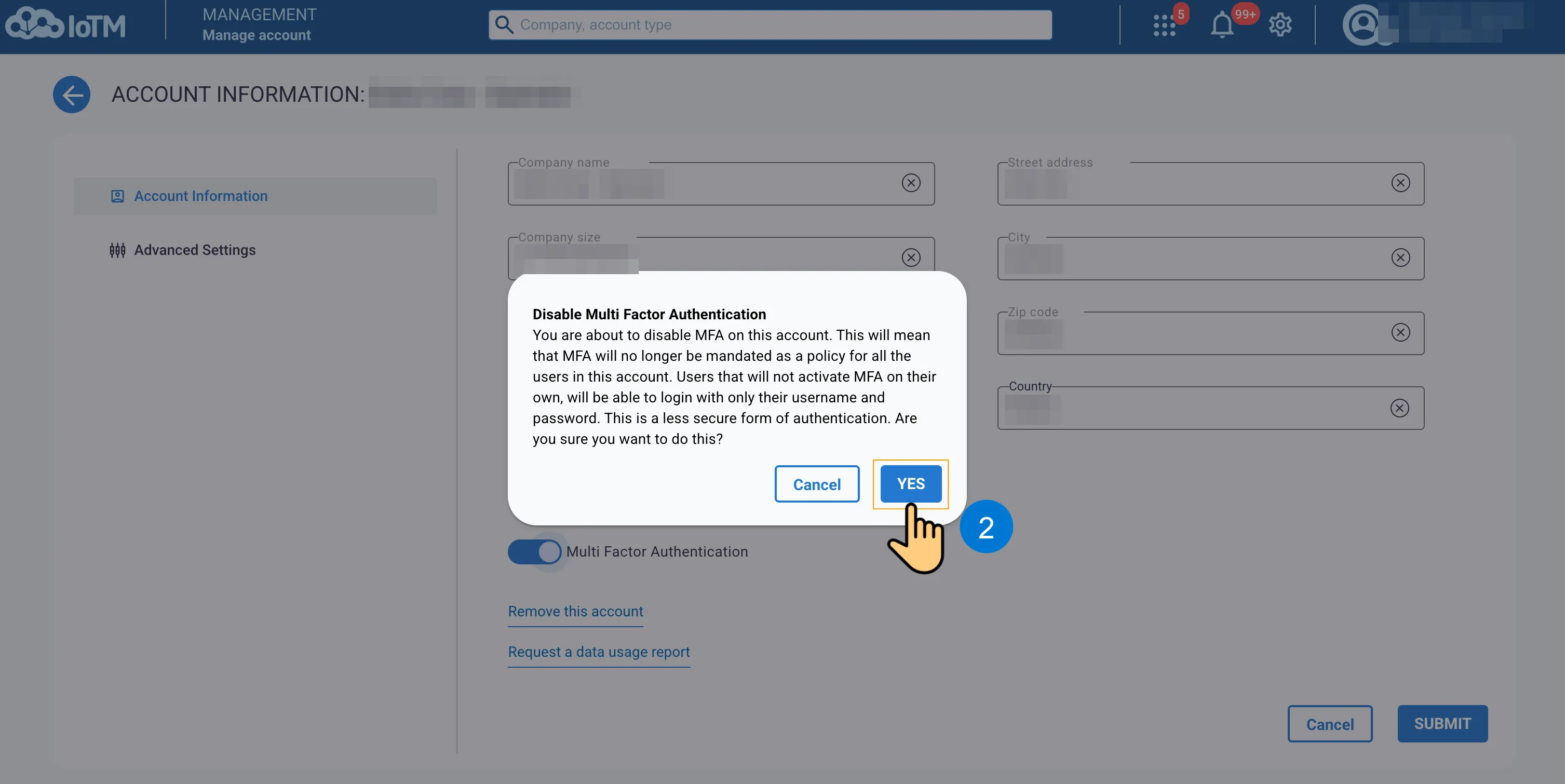
Disabling Multi-Factor Authentication
6.3.3. Enabling User Level MFA
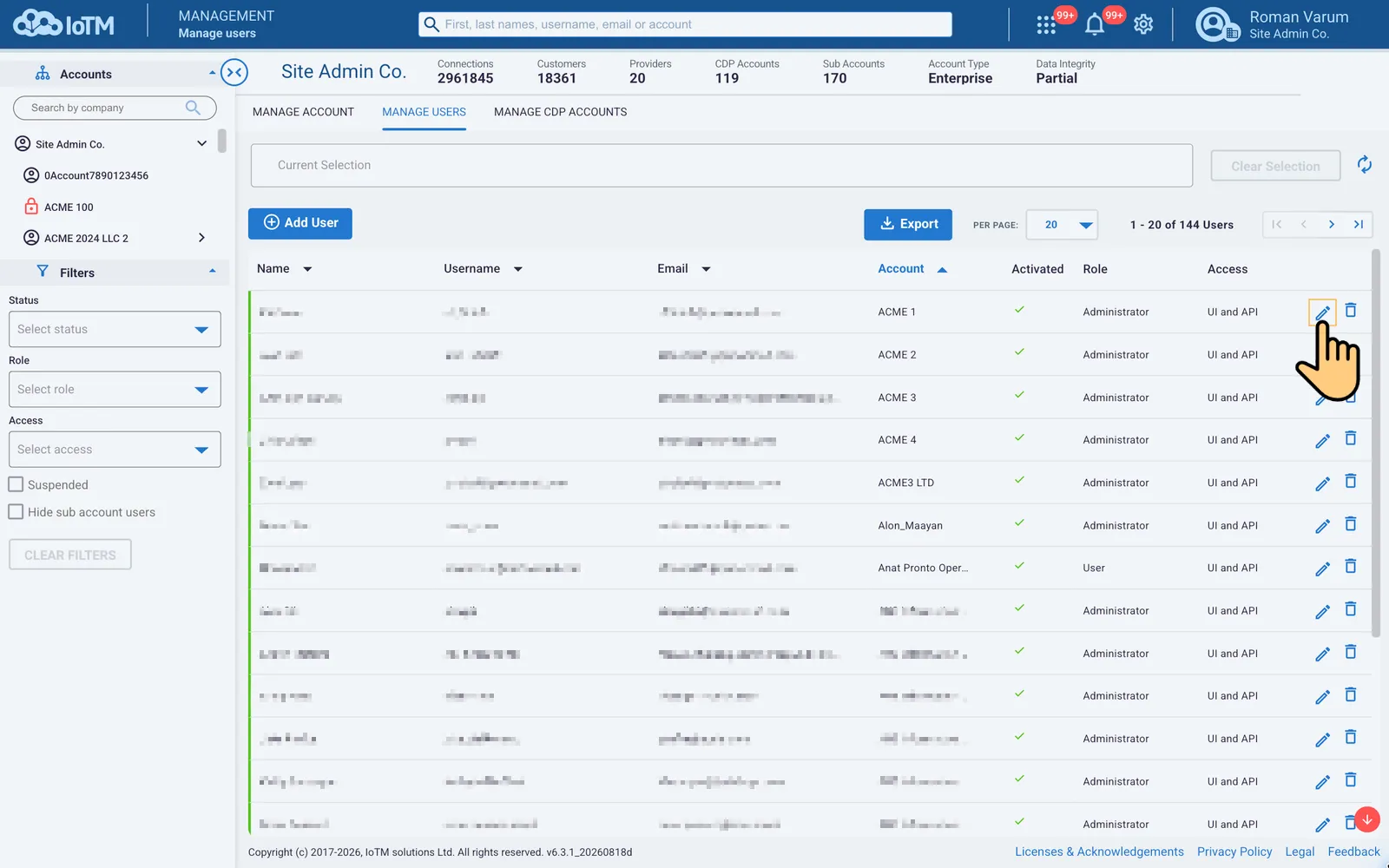
Navigate to the User Management page and click on ‘Edit User’:
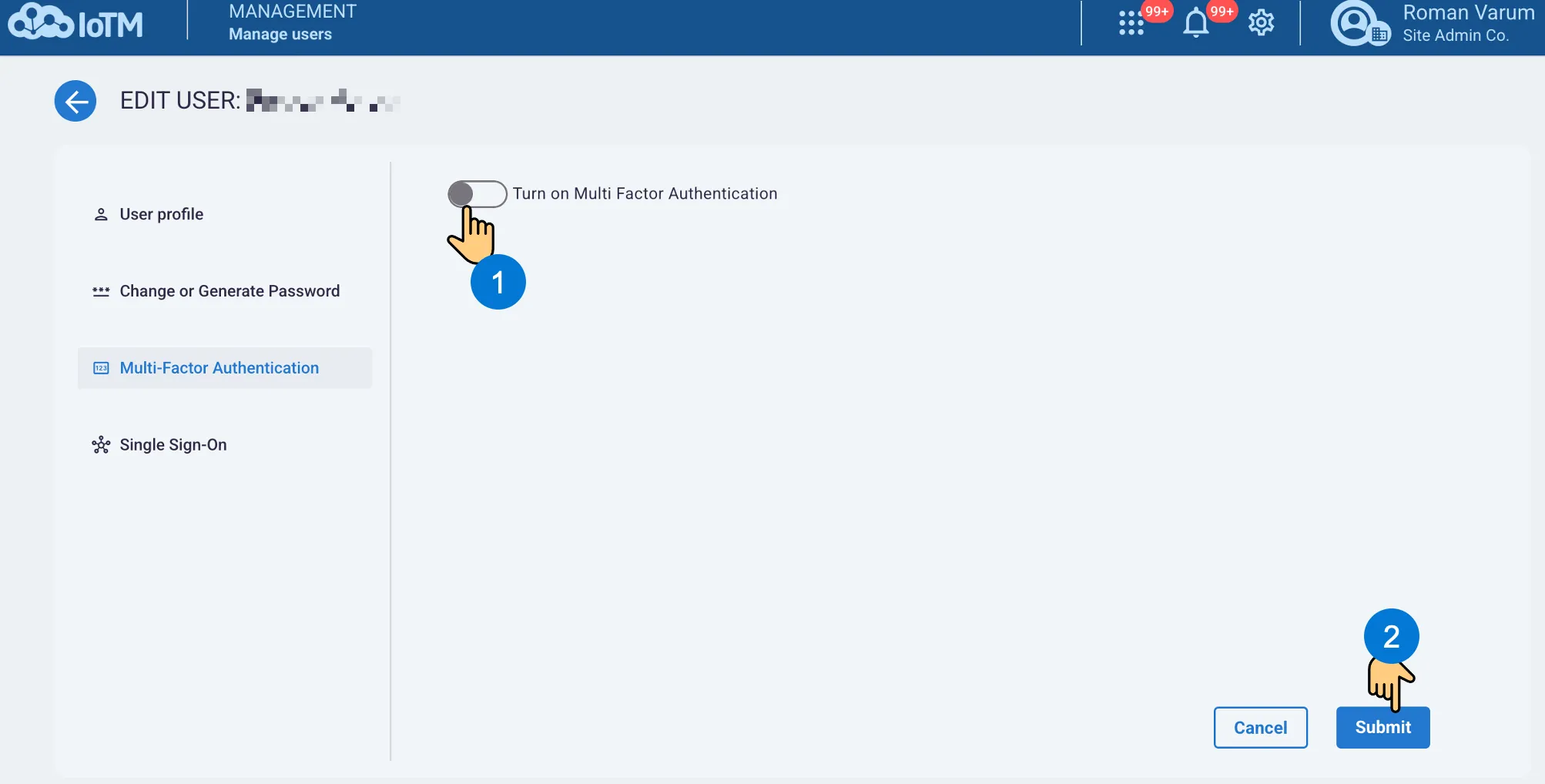
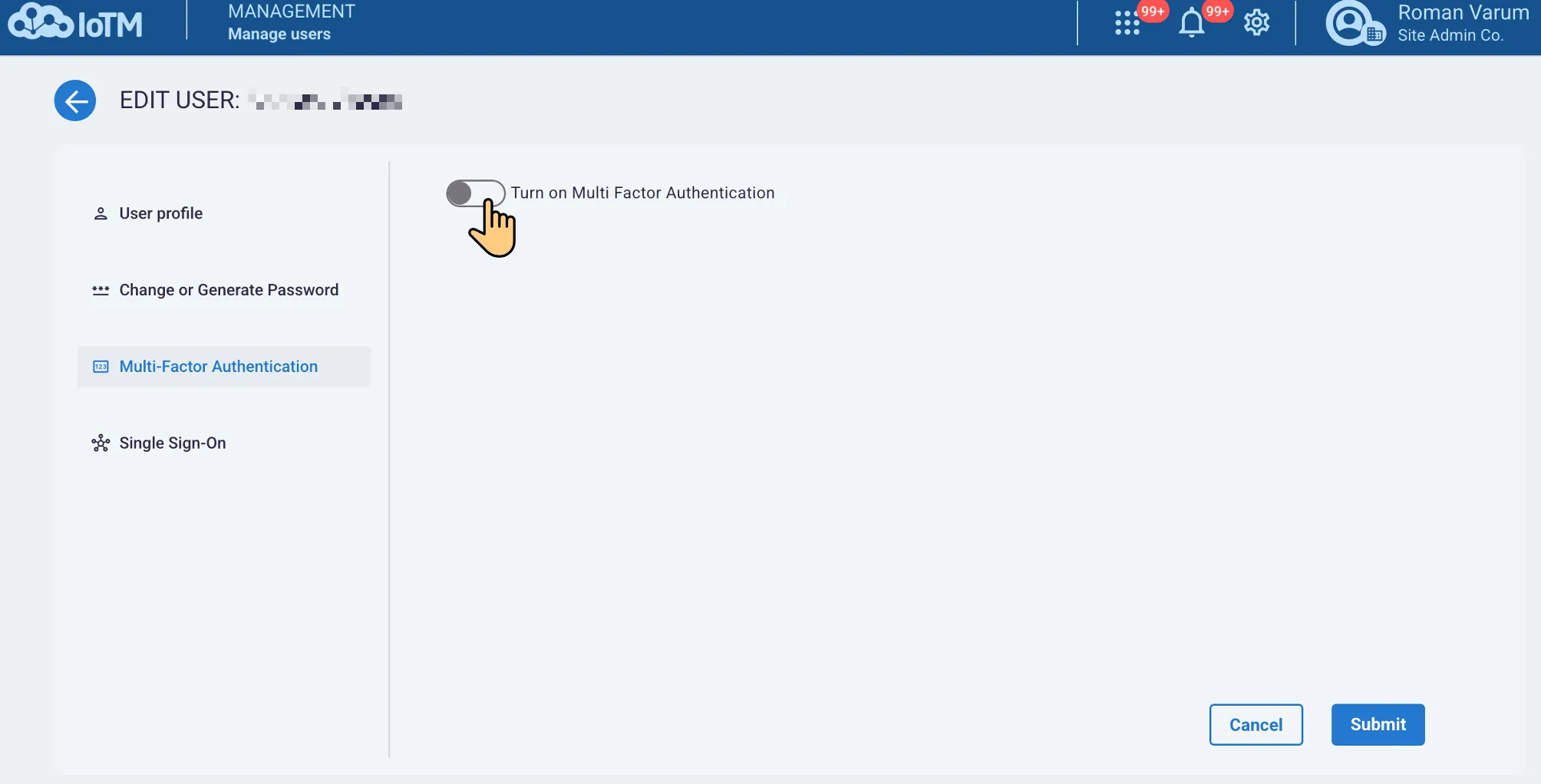
If the account level MFA is inactive, the user will have the option to activate the user level MFA by switching the toggle. If account level MFA is active, then user level MFA will be active as well:
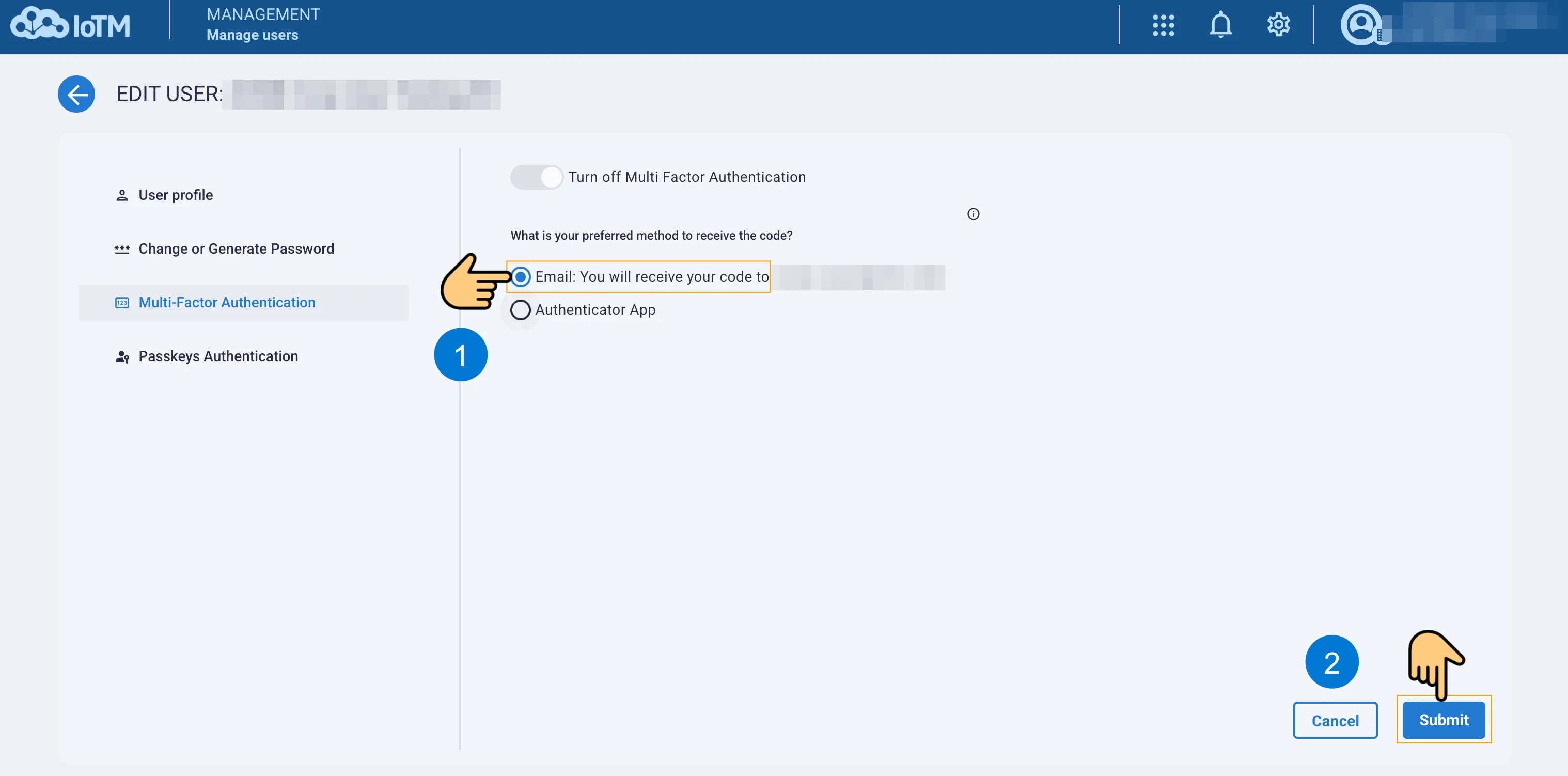
Click Submit if email authentication – which is the default, – is the preferred option:
To set up a TOTP virtual authenticator app as the preferred authentication method, select the Authenticator App option, click ‘Next’, and follow the instructions before clicking on ‘Submit’.
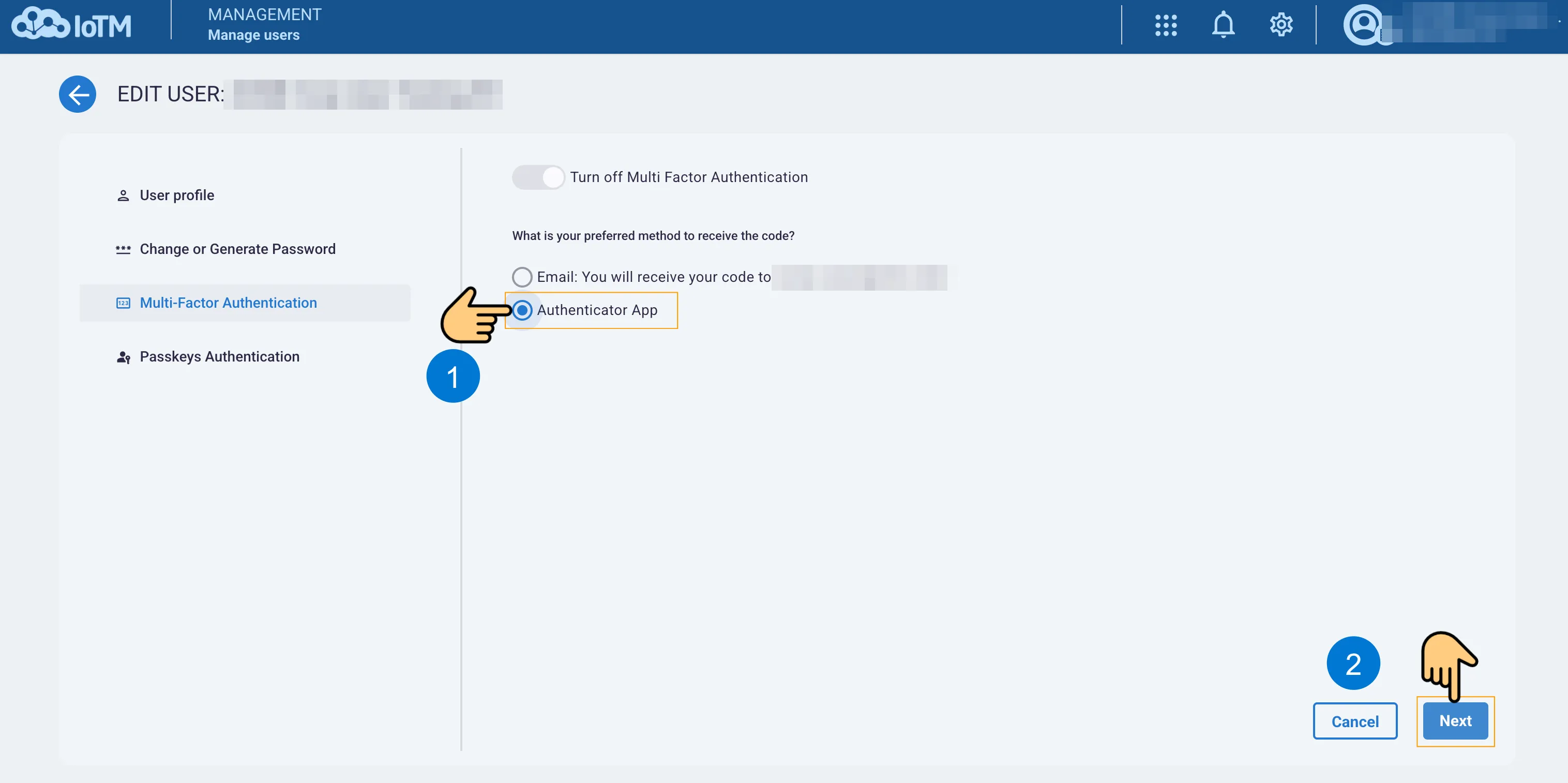
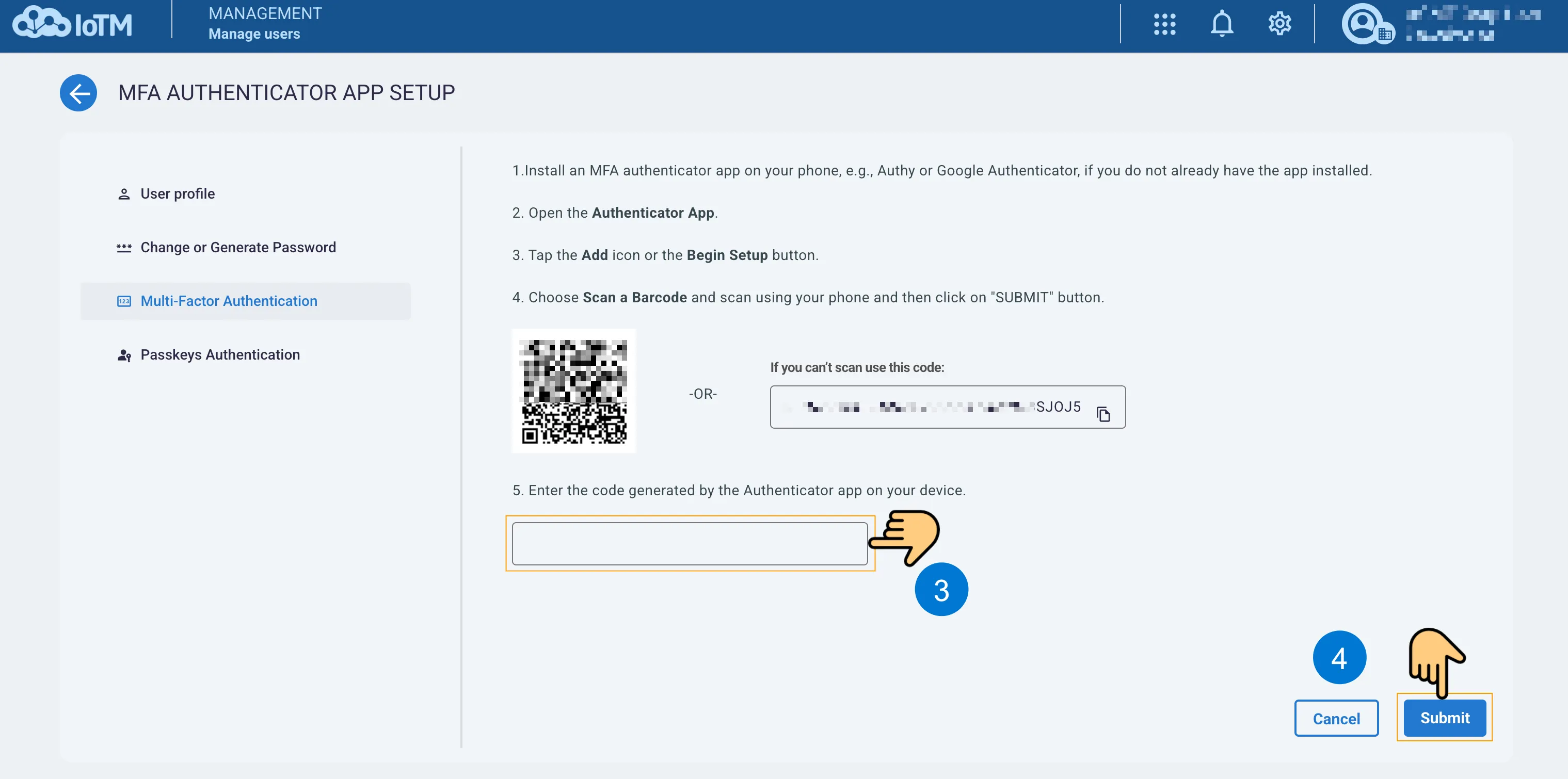
The user can scan the barcode with a phone camera if they are using a mobile app as an authenticator (Twilio Authy, Google authenticator, Microsoft authenticator), or copy the text code, if using a desktop app (such as Twilio Authy desktop).
After the authenticator app produces the TOTP code, enter it in Step 5 and click on ‘Submit’. If the code is verified, the preferred authentication method will change to an authenticator app, although it is always possible to fall on receiving an email authentication code if your authentication app is not at hand.
6.3.4. Unlinking or Deleting The Authenticator App Pairing (User Level)
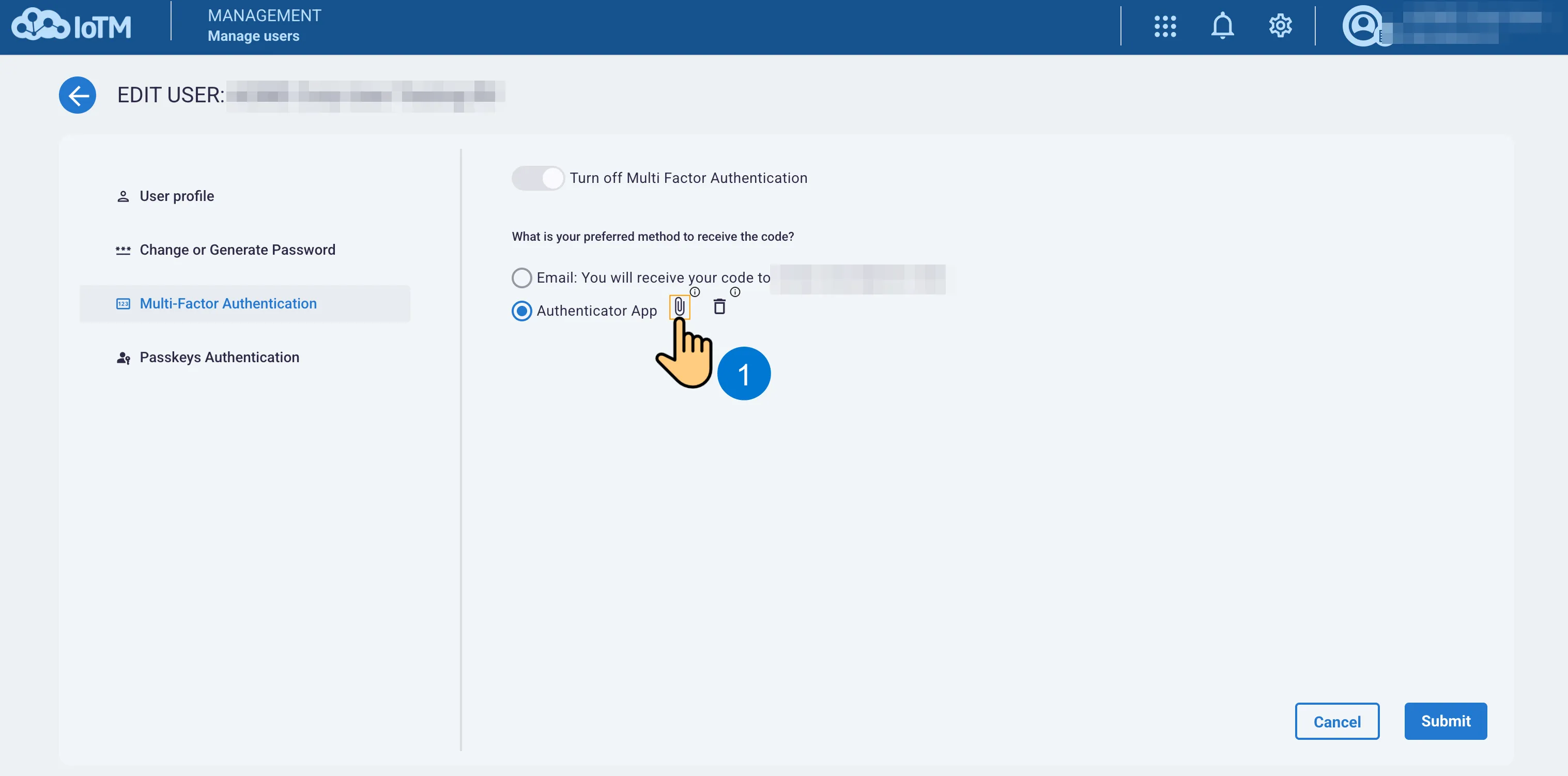
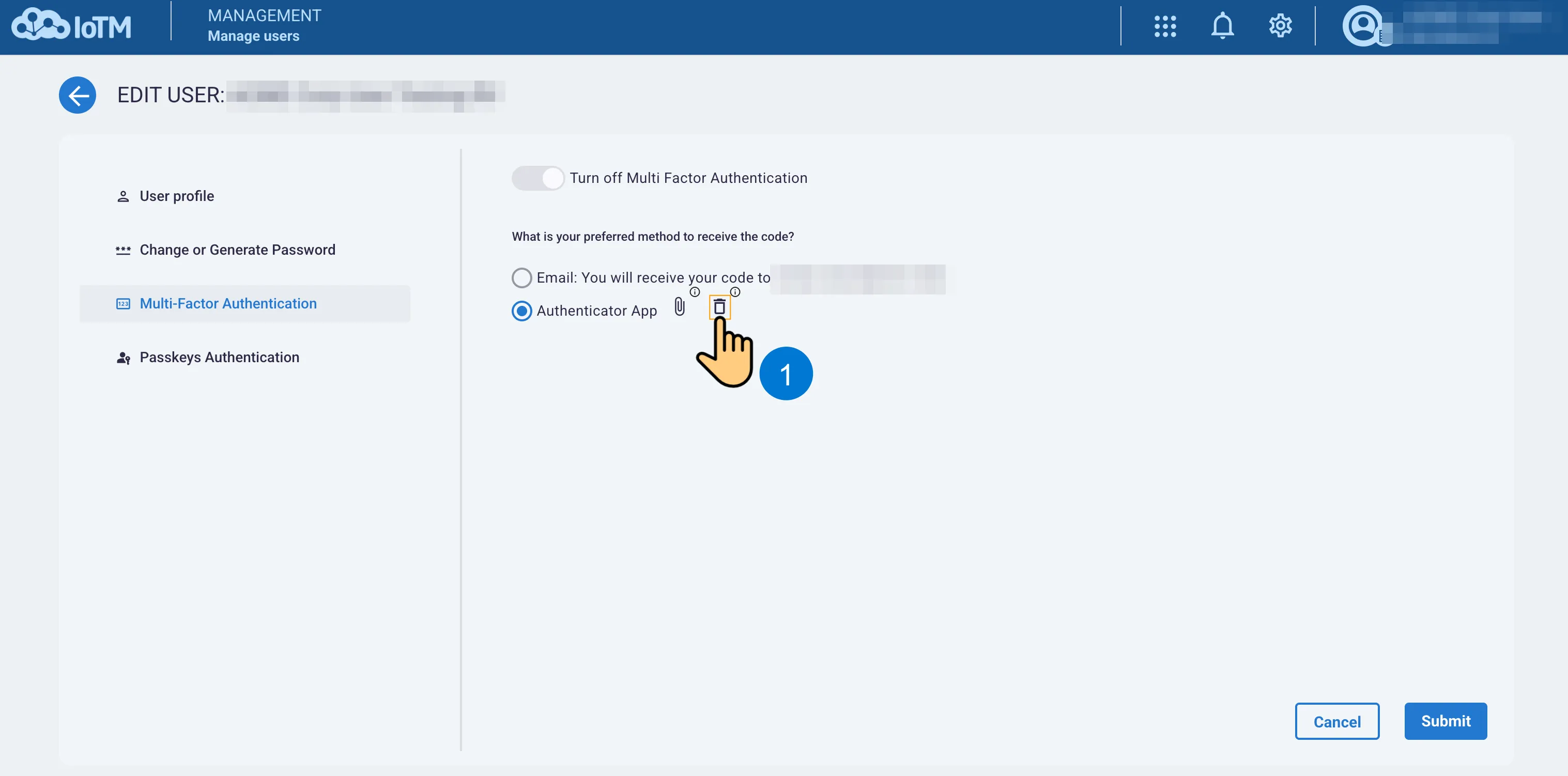
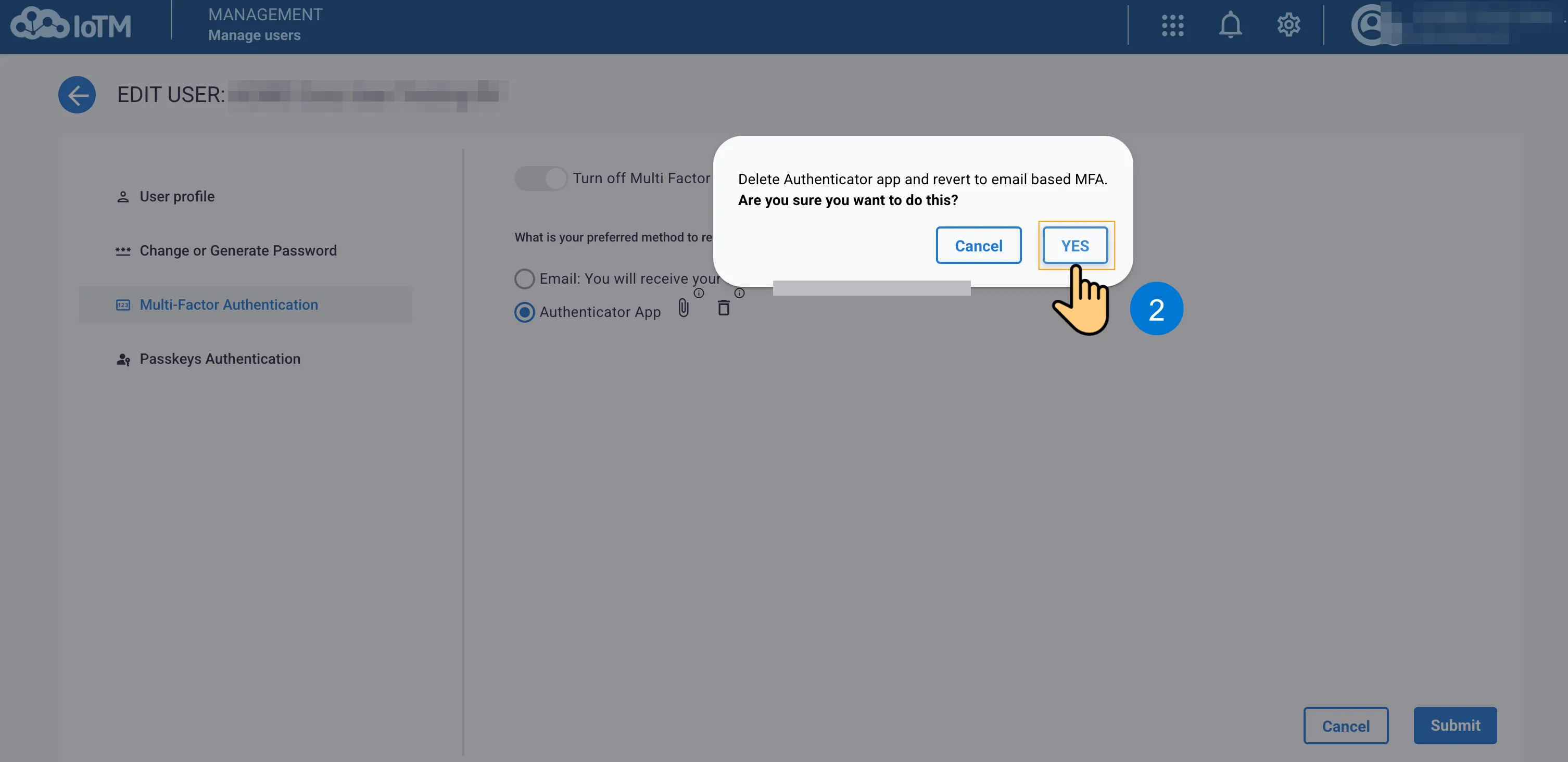
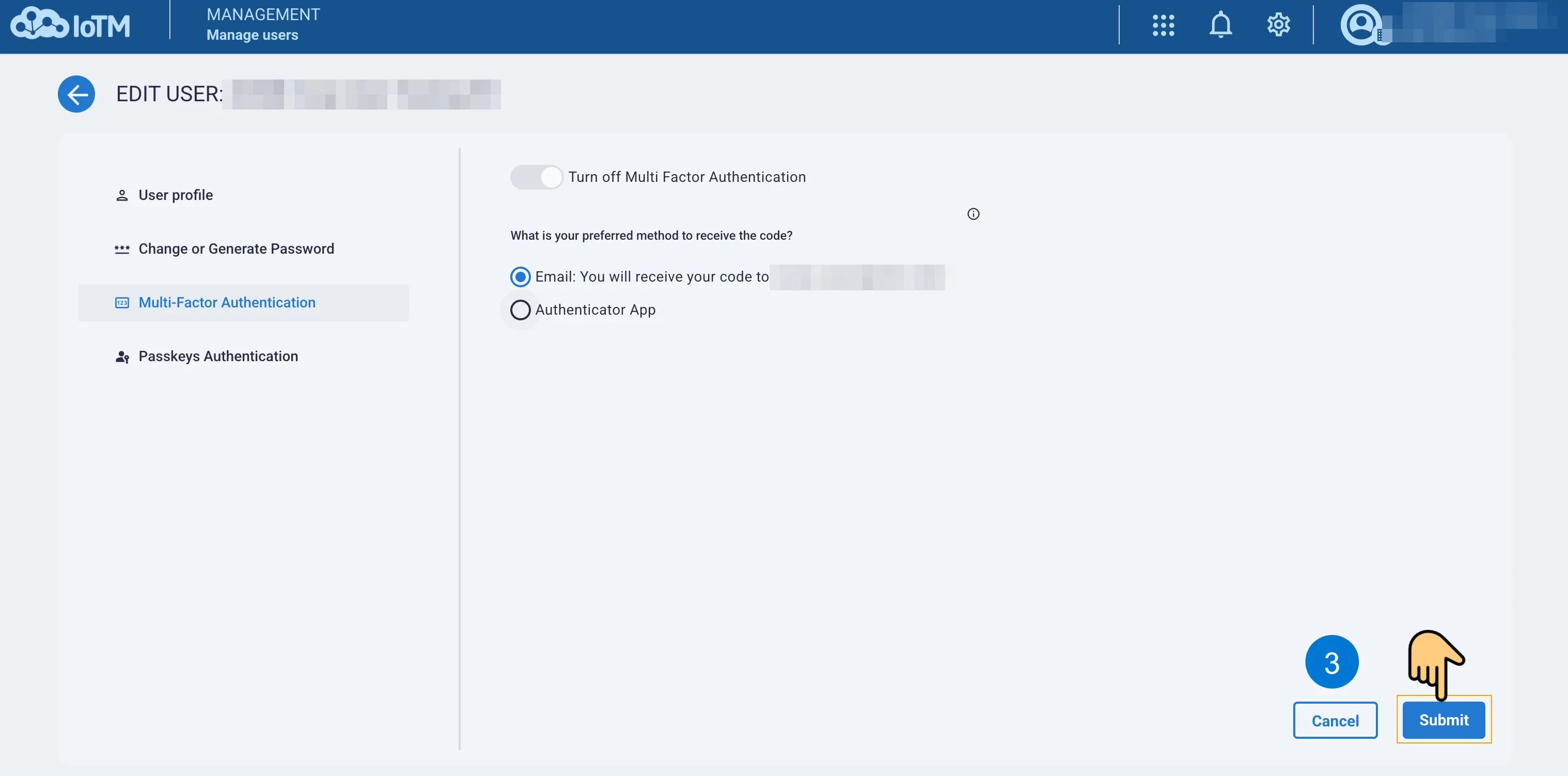
Once a user has switched from email to an authenticator app, as the preferred 2FA method, they will have the option to unlink and register a new authenticator app or delete the authenticator app registration and revert to email.
Click on the link icon to unlink:
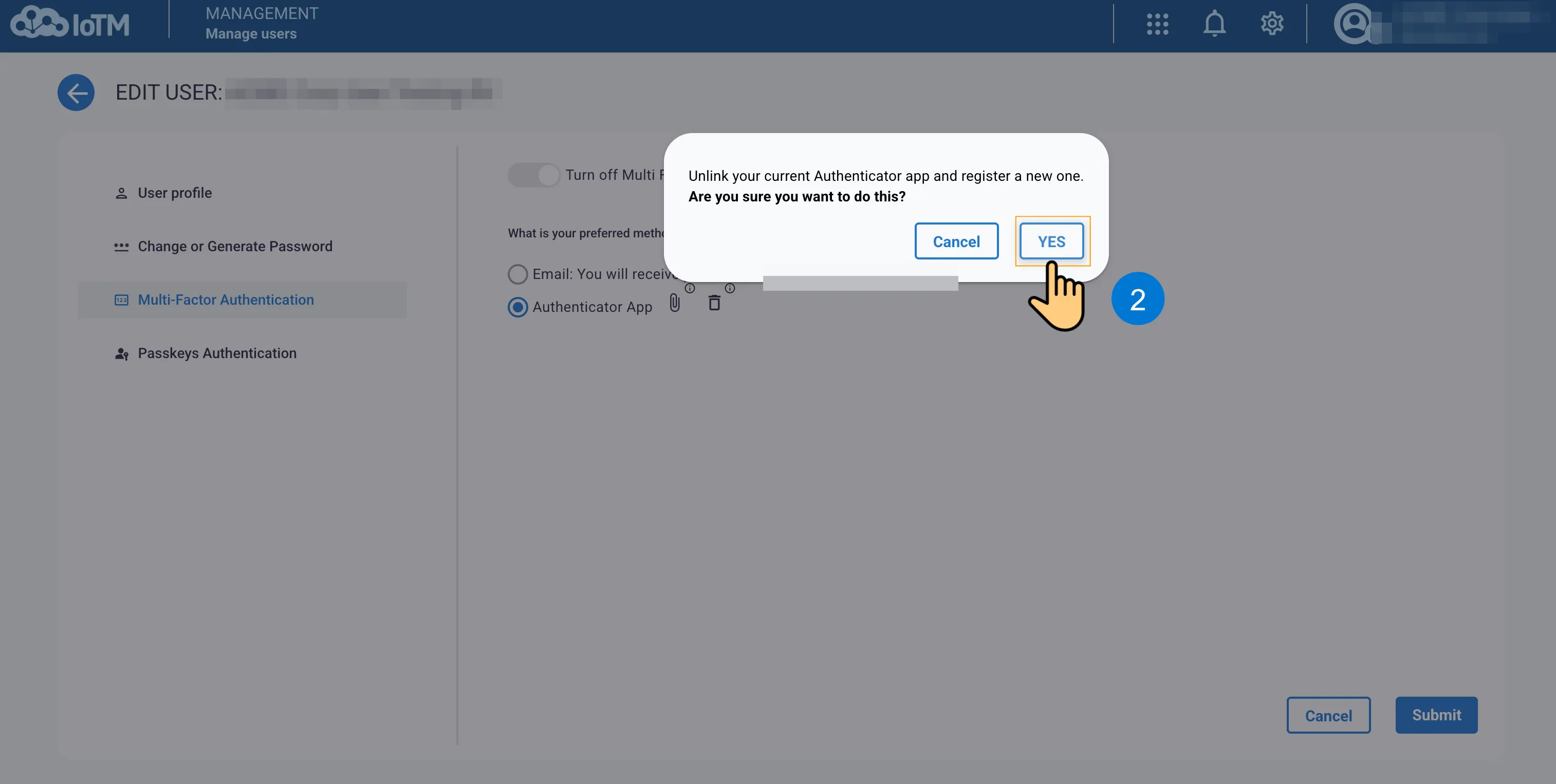
Upon clicking ‘Yes’ you will be prompted to set up a new Authenticator app.
Click on the trash icon to delete the authenticator app and revert to email:
6.3.5. Disabling User Level MFA
To disable user level MFA, switch the MFA toggle when editing the user: