Adding and Removing Tags and Attributes
10.7. Selectively Tagging Connections
You can capture and track additional information about Connections in the system by assigning, creating or removing custom tags to a single Connection or group of Connections.
A tag can be up to 100 characters in length. You can create and assign as many tags as you want. These tags appear on the connections item grid and on the single connection ID details page. Users can edit the tag values and use them to filter devices using the advanced search feature.
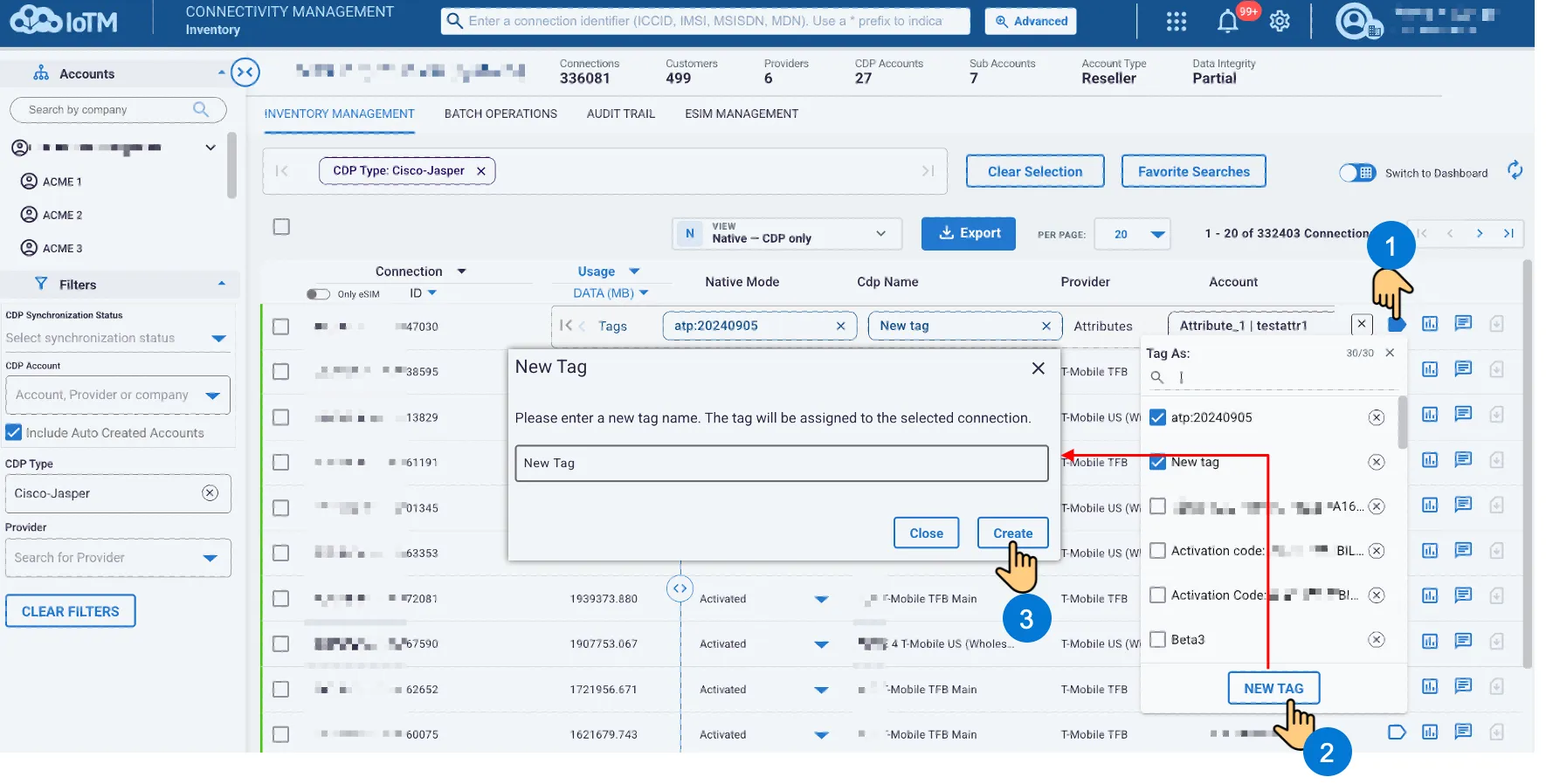
10.7.1. Creating And Adding a New Tag To A Single Connection
You can create and assign a tag to a single connection in the Inventory Management functional tab item list.
Location: ➀ ‘INVENTORY MANAGEMENT’ > ➁ Press Connection Tags Control Button > ➂ Press ‘NEW TAG’ > ➃ Insert new tag name in the text field in the “New Tag” pop-up notification and Press ‘CREATE’
10.7.1.1. Creating And Adding a New Tag To A Single Connection From The Details Page
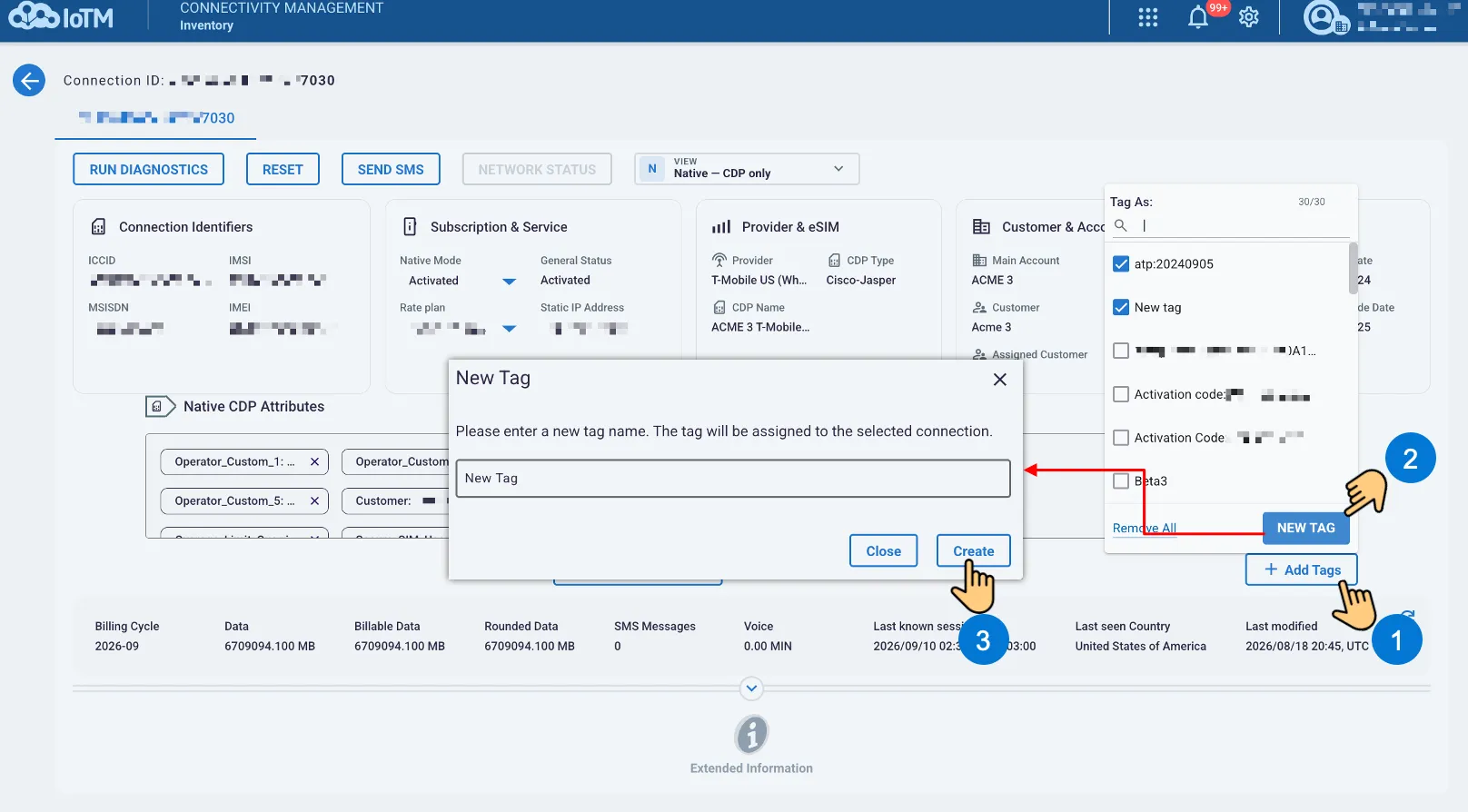
You can also create and assign a tag to a single connection in the Inventory Management functional tab connection ID Details Page.
Location: ➀ Press ‘Add Tags’ > ➁ Press ‘NEW TAG > ➂ Insert new tag name in the text field in the “New Tag” pop-up notification and press ‘CREATE’
10.7.2. Create And Assign a New Tag To Multiple Connections
You can create and assign a tag to multiple connections in the Inventory Management functional tab item list.
Location: ➀ ‘INVENTORY MANAGEMENT’ > ➁ Press the Beyond Visual Range Selection > ➂ Press "TAG” > ➃ Press ‘NEW TAG” > ⑤ Insert new tag name in the text field in the “New Tag” pop-up notification and Press ‘CREATE’
10.7.3. Assign Or Remove An Existing Tag From A Single Or Multiple Connections
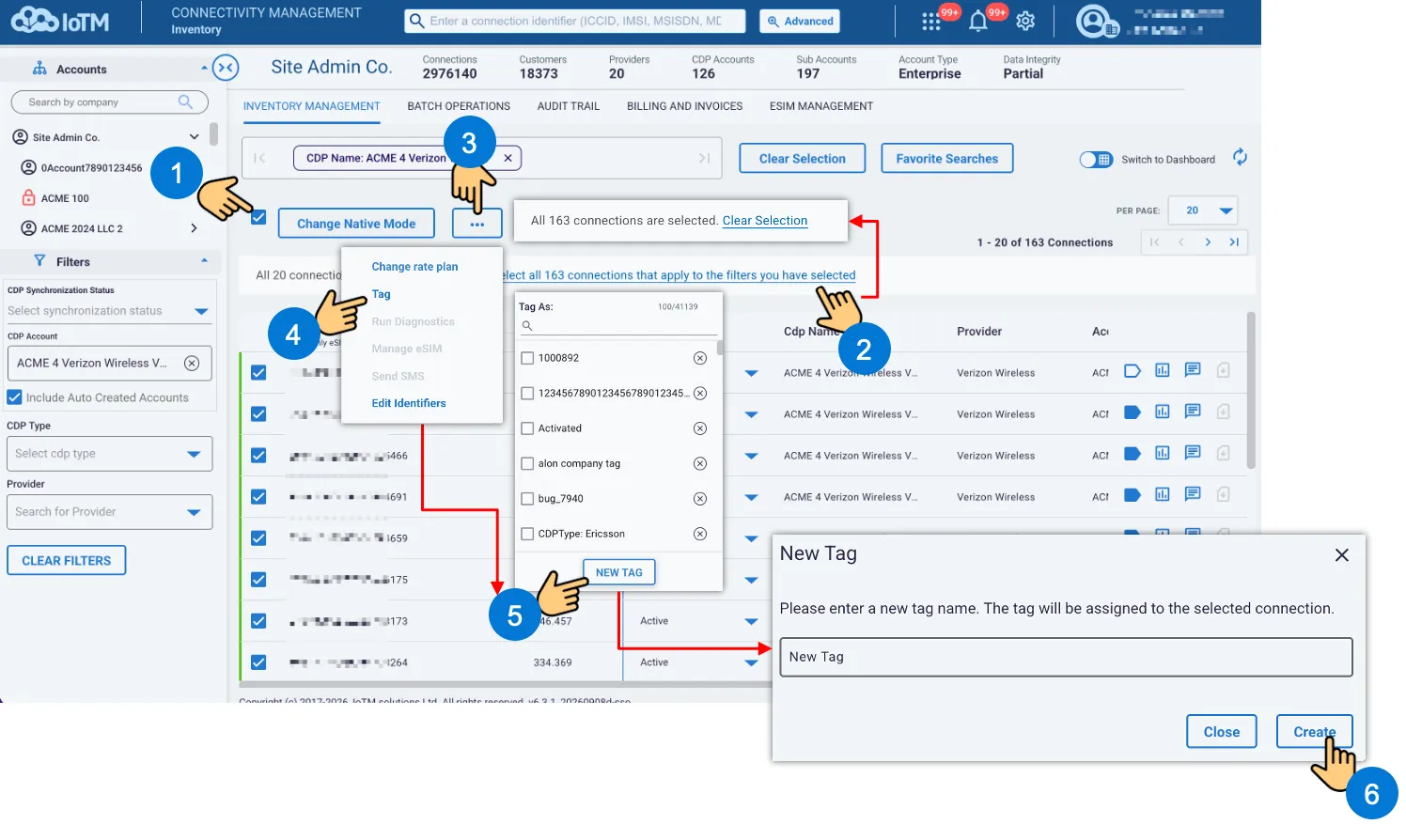
You can use the dropdown when the token box is focused. The window contains existing tags in the account scope. Users can type text in the search area to quickly find tags.
Location: ➀ ‘INVENTORY MANAGEMENT’ > ➁ Press the Beyond Visual Range Selection > ➂ Press "TAG” > ➃ check one or more items from the tags list box > ⑤ Press ‘Apply’. Not that clicking on the left-hand checkbox will check or uncheck the tag. Clicking on the tag name itself will reverse the current state of the tag association with the connection. If it is applied to the connection, it will disassociate it and if it is not applied, it will associate it. To remove the tag, press on the X symbol next to it.
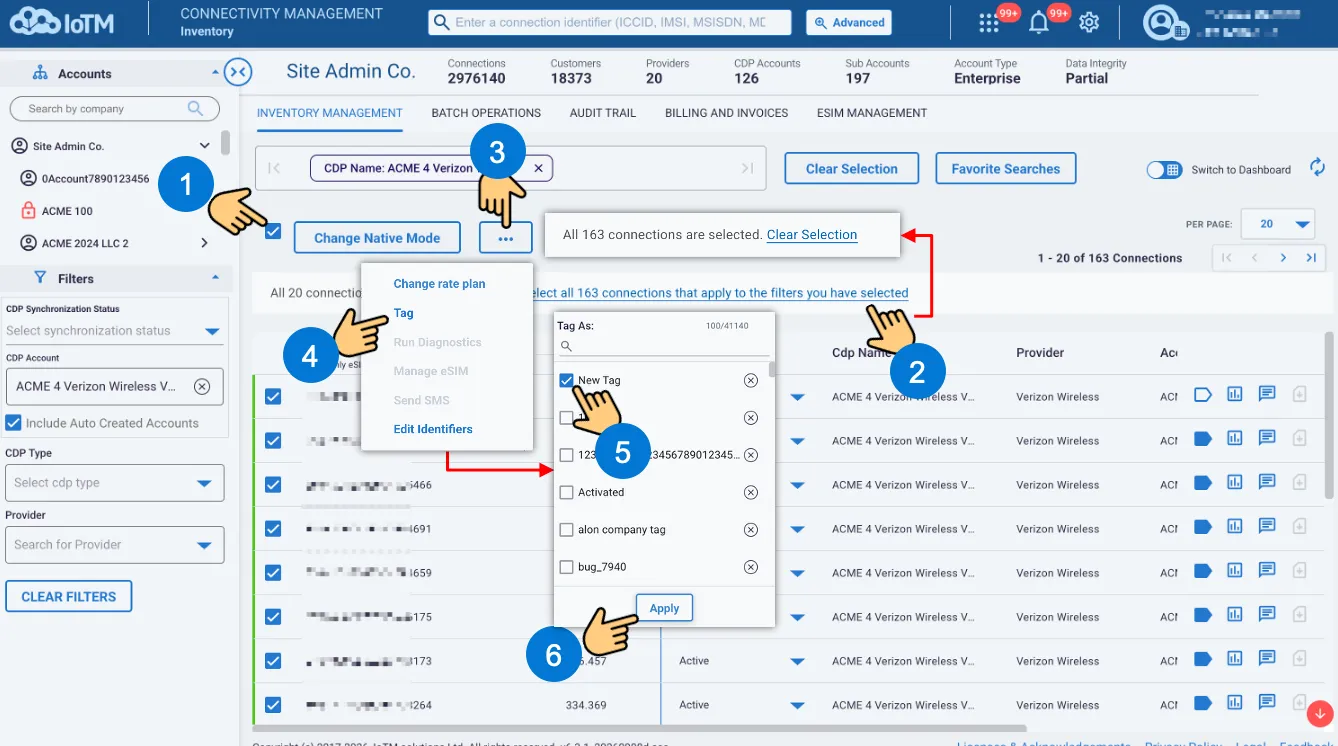
Example flow – applying a tag to multiple selected connections
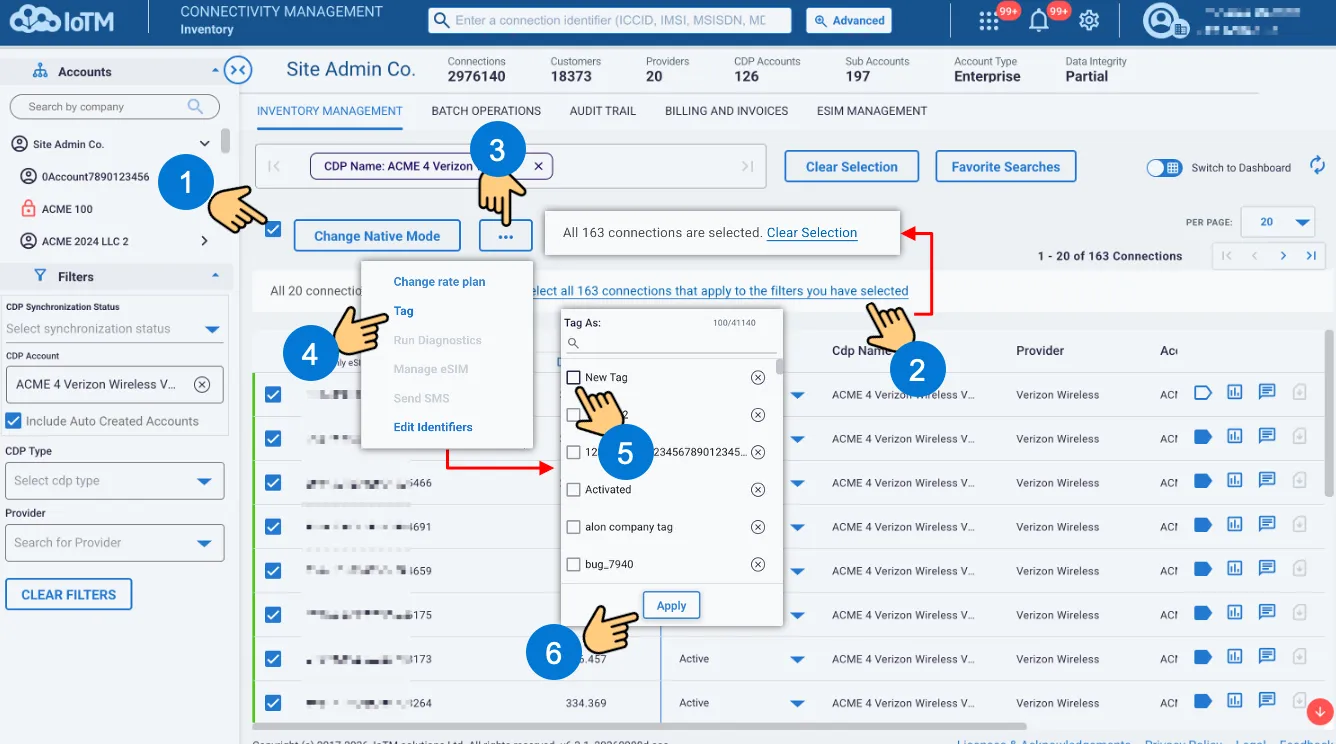
Example flow – removing a tag from multiple selected connections
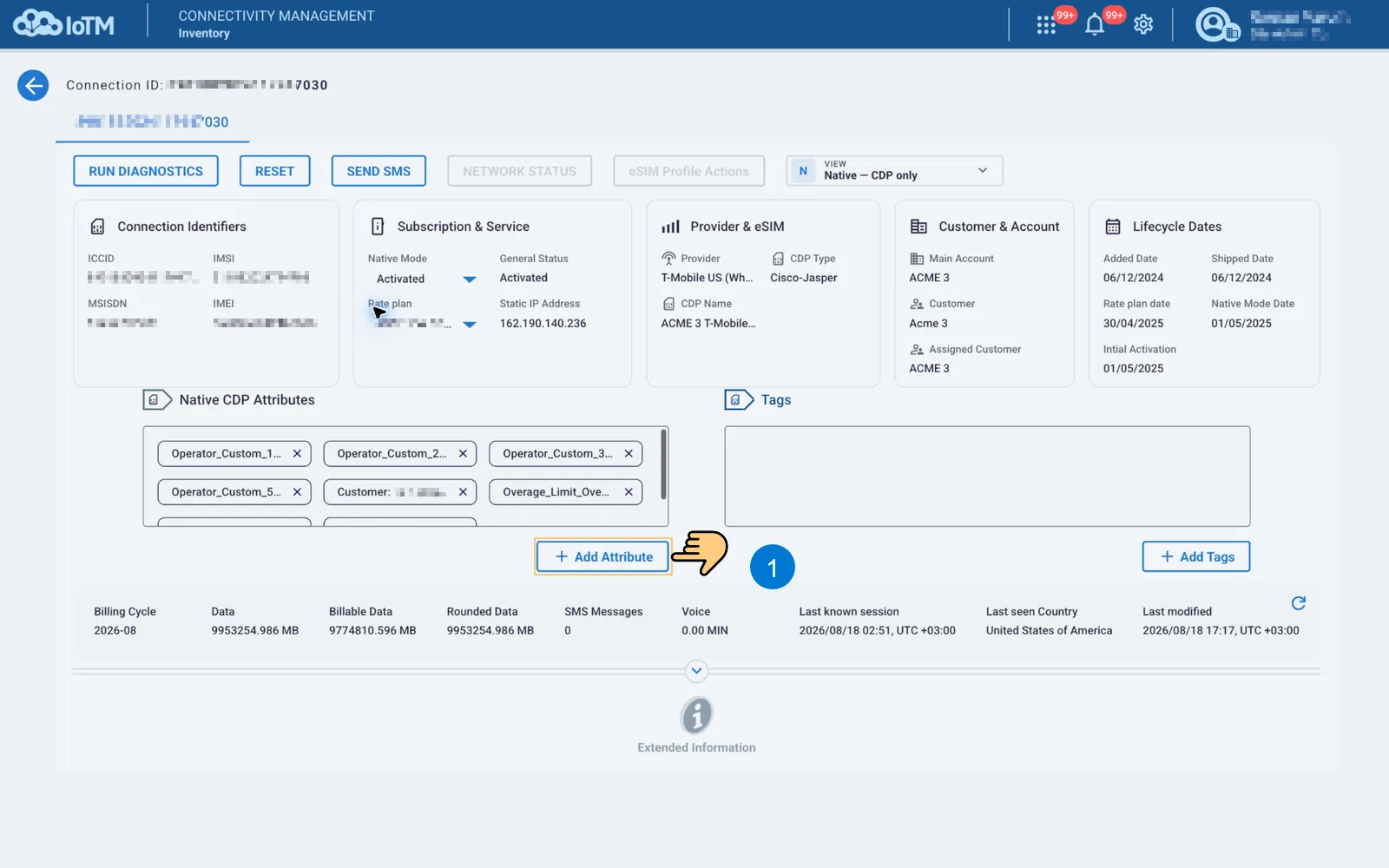
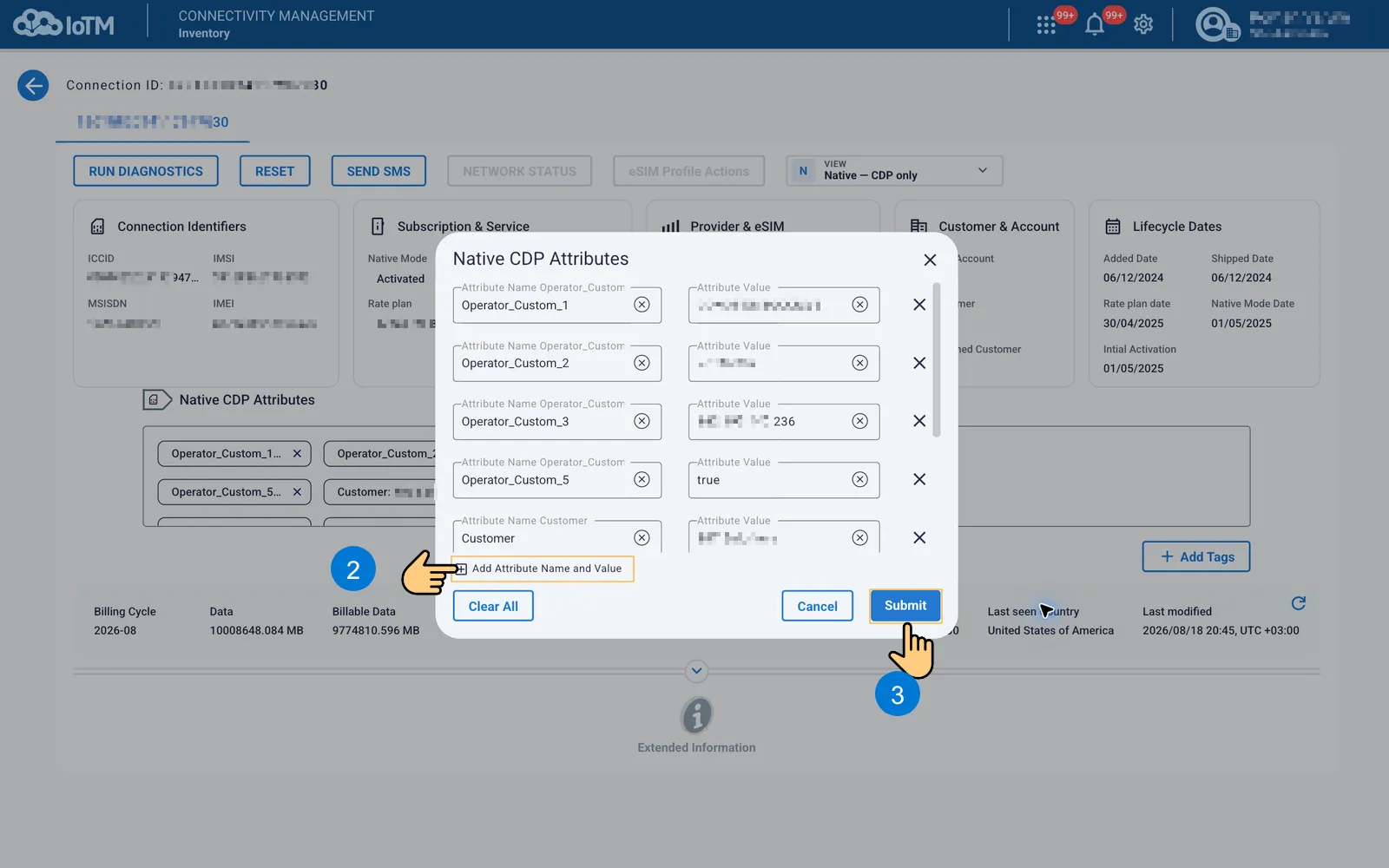
10.8. Adding Native CDP Attributes To A Single Connection From The Detailed Page
You can add a Native CDP Attribute to a single connection in the Inventory Management functional tab connection ID Details Page.
Location: ➀ Press ‘ATTRIBUTES” > ➁ Press ‘Add Attribute Name and Value’ in the ‘Native CDP Attributes pop-up notification > ➂ Press ‘SUBMIT’