Connection Tags – Single Connections
10.6. Viewing and Editing a Single Connection’s Tags
You can view tags assigned to a single Connection. These tags appear on the Connections Item List page and on the Connection ID Detailed page.
To view assigned tags in the Inventory Management functional tab item list for a specific connection, you need to simply press its tags control button, following which a horizontal bar input graphical element will appear displaying all tags as brand color tokens. The dropdown list will show all the tags in the account scope, with the ones that are assigned to the connection on the top with checked checkboxes. In this dropdown list, it is possible to search for tags, associate to and disassociate tags from the connection.
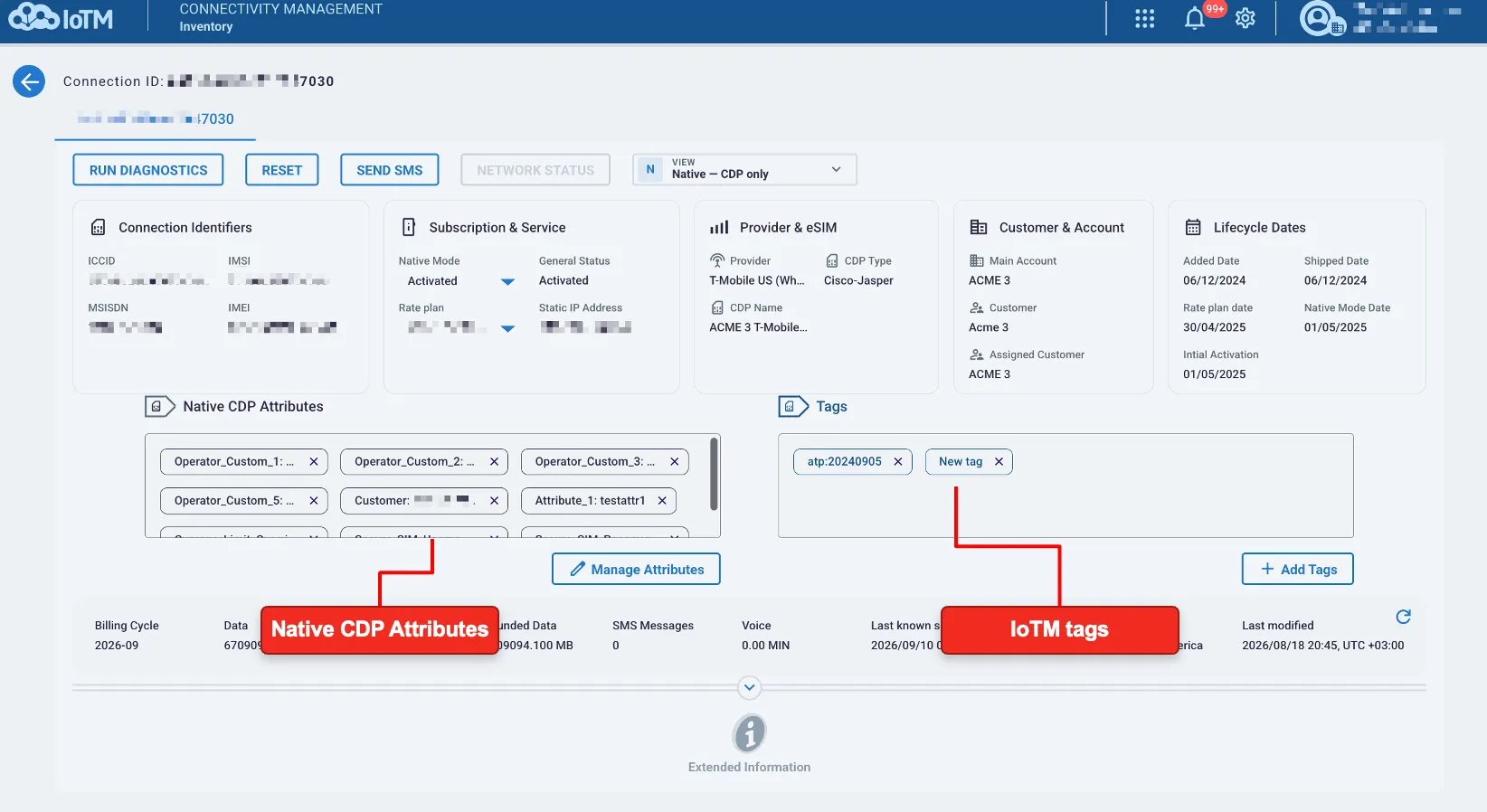
Referred to as an “Attribute” in IoTM’s terminology, the horizontal bar displays also field values originated and assigned to such a connection via the underlying native CMP.
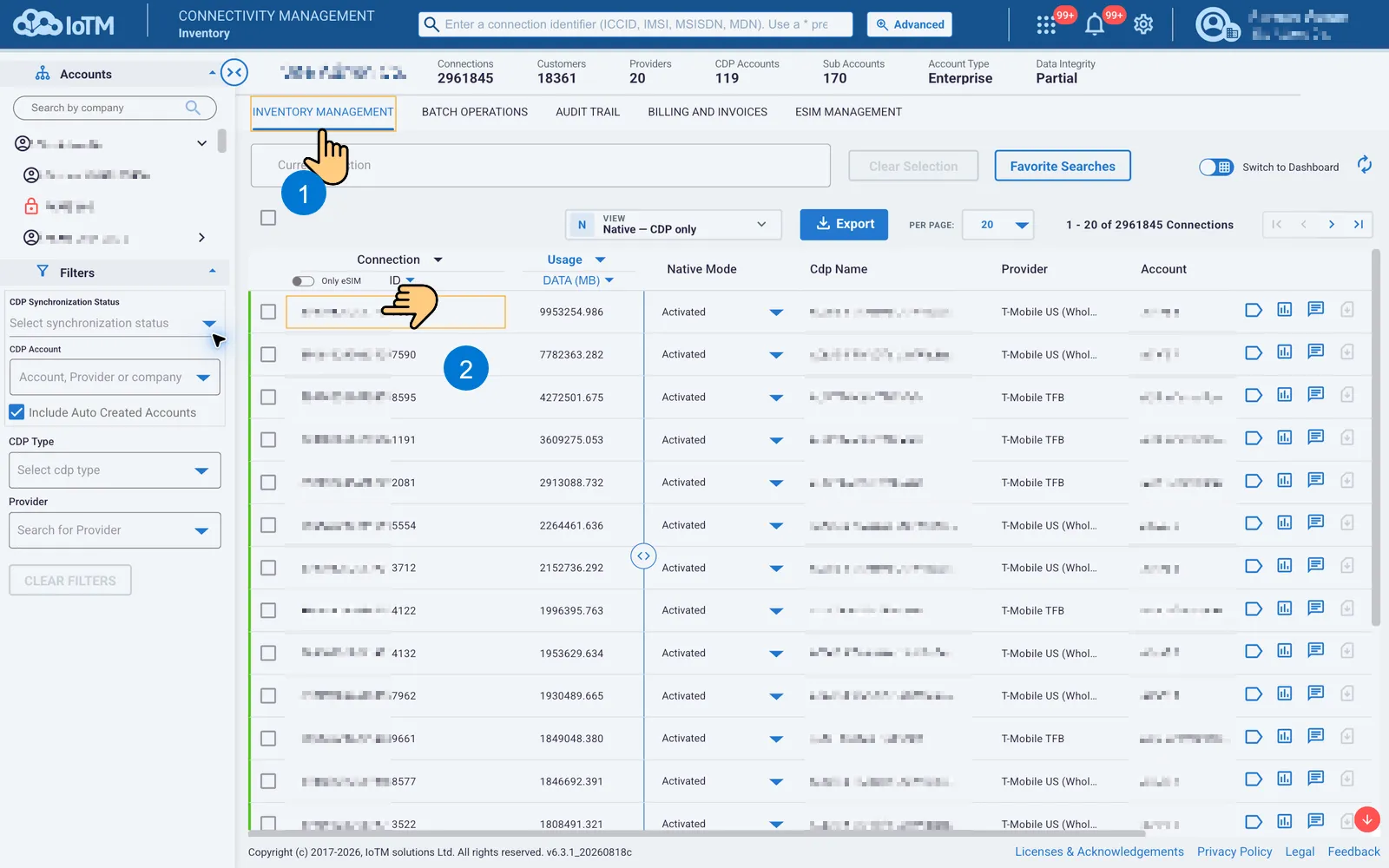
Location: ➀ ‘INVENTORY MANAGEMENT’ > ➁ Press Connection Tags Control Button
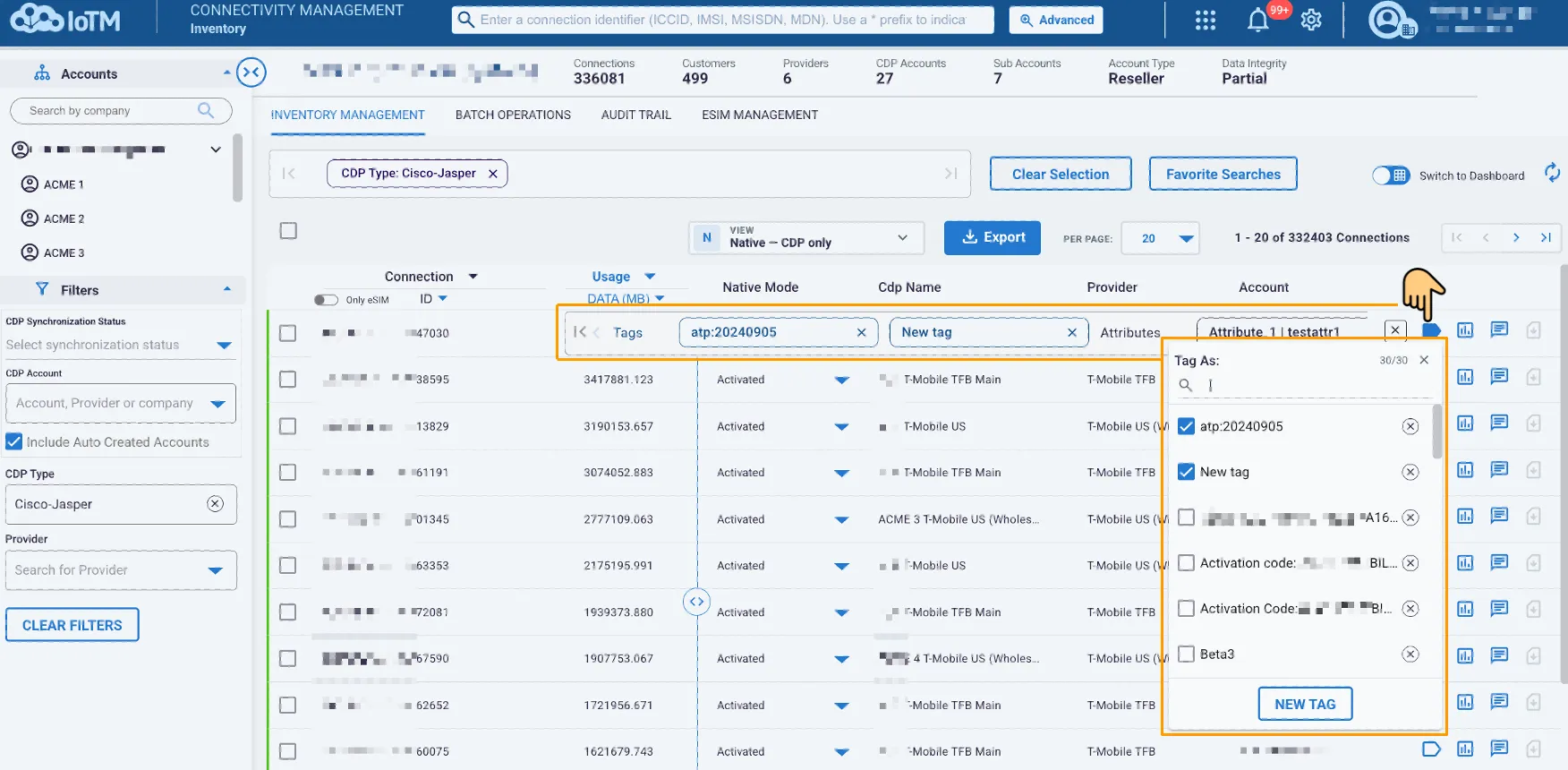
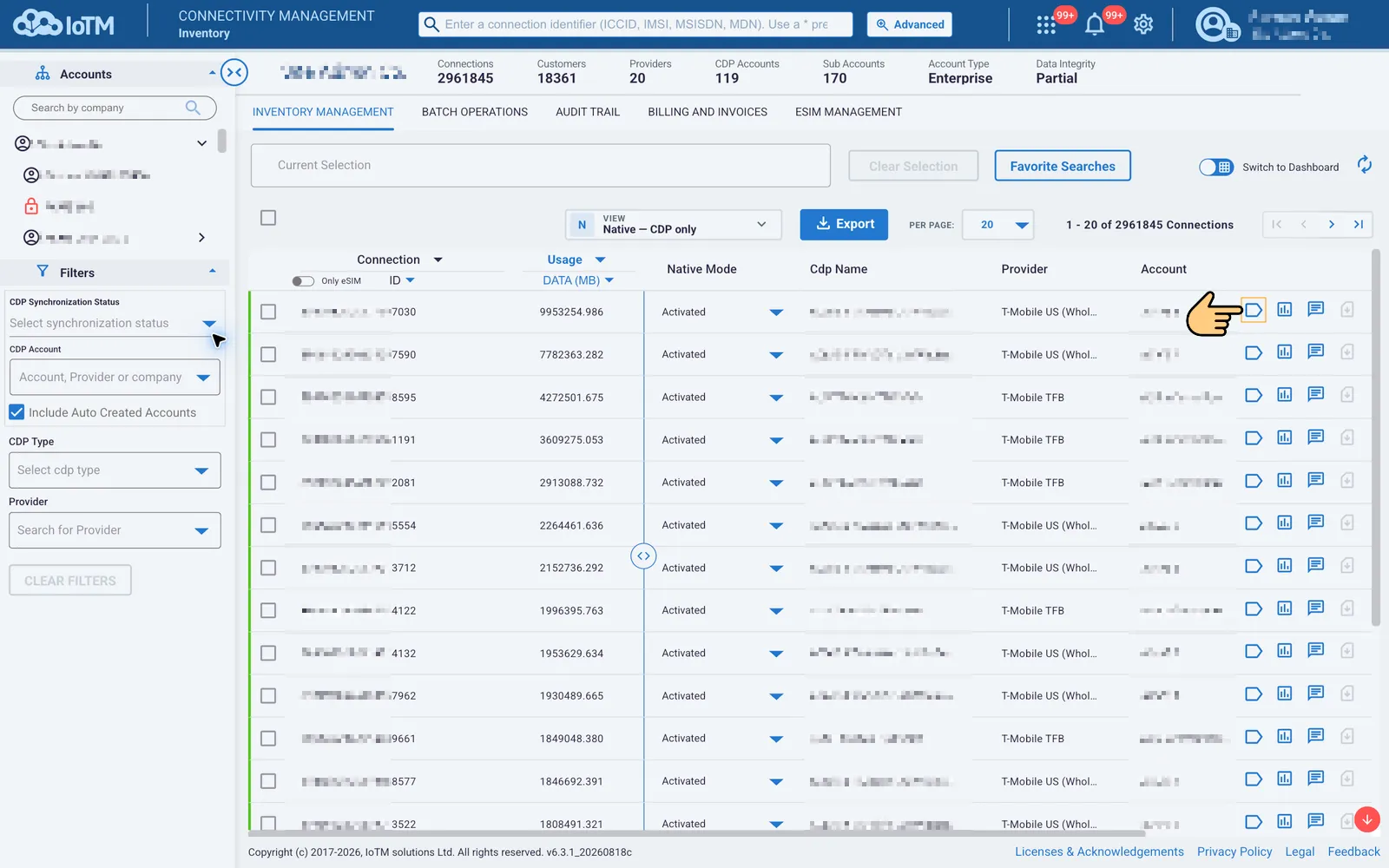
Note: when the Tags Control button background color appears as outline (as opposed to filled brand color), it means that there are no IoTM tags assigned to the connection.
10.6.1. Viewing and Editing a Single Connection’s Tags from Detailed Page
You can view assigned tags and attributes in the Inventory Management functional tab Connection ID detailed page.
Location: ➀ ‘INVENTORY MANAGEMENT’ > ➁ Select Connection