Batch Operations Interace, Bulk Rate Plan and Mode Changes
Chapter 6: Batch Operations Functional Tab
The IoTM Portal Batch Operations functional tab provides an asynchronous campaign manager for applying lifecycle, rate plan, attribute, eSIM, and provider-specific actions to many connections. Each action for an individual connection is processed as a track within the campaign.
A campaign can start immediately or at a scheduled UTC date and time. Retry and speed controls help manage provider responses and request rates. The Batch Operations grid is also used to monitor progress, inspect detailed results, and export campaign information.
The controls available to a user depend on role-based permissions, the selected account, the onboarded CDP types, and provider capabilities.
- Batch Operations Tab Unique Components and Controls
The Batch Operations page contains the controls used to create, review, filter, and export campaigns for the selected account scope.
Batch Operations Grid Page
The grid lists the campaigns visible for the current account. Use the account tree and filters to narrow the list. Each row shows the operation type, description, status, progress, start and end times, and account.
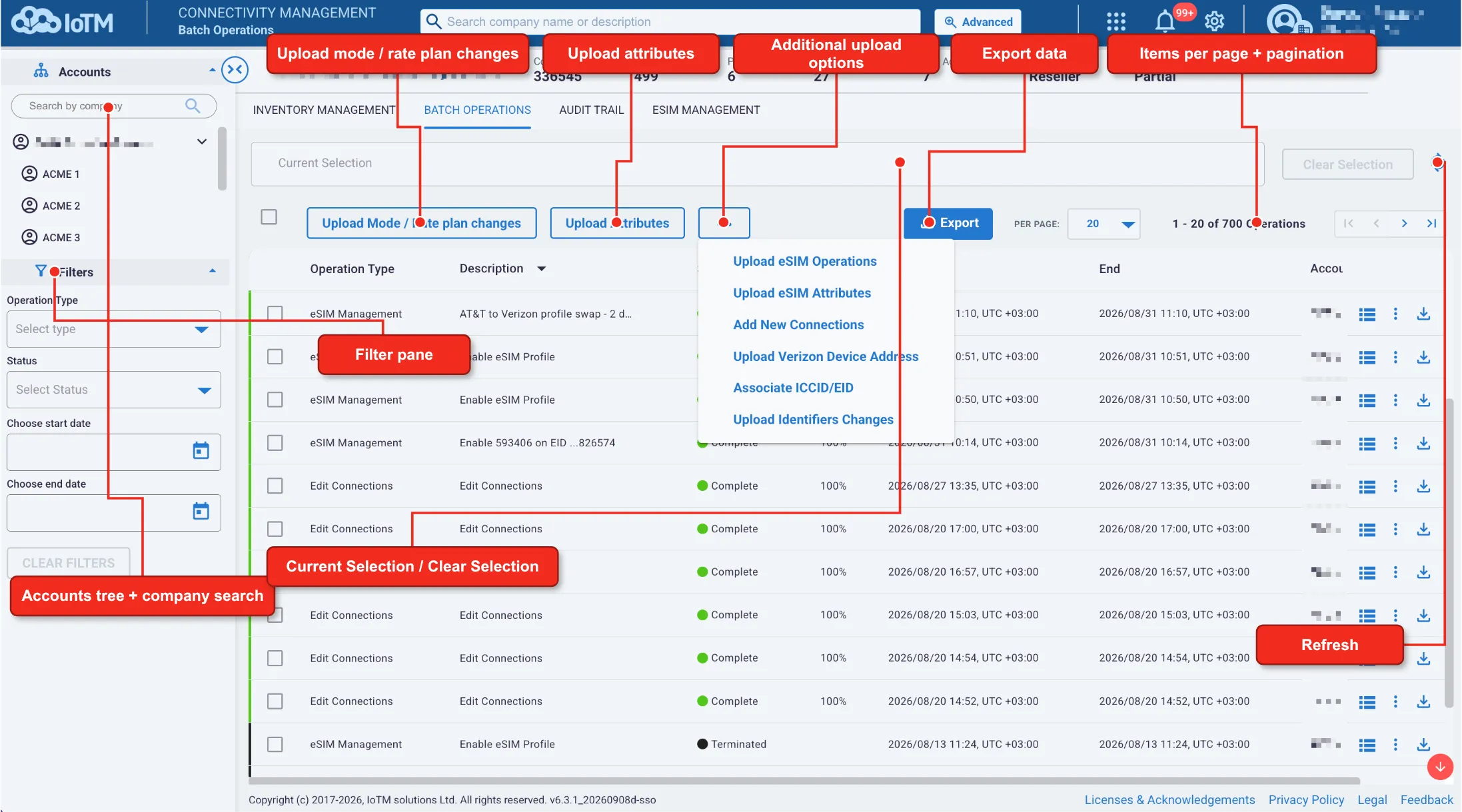
Batch Operations Grid Page unique Components and Controls
Interface Components
Interface Control | Description |
|---|---|
Accounts tree and company search | Selects the account scope for the grid and filters the account tree by company name. |
Filter pane | Narrows the operation list by operation type, status, start date, and end date. |
Current Selection / Clear Selection | Shows the selected scope and removes the current selection. |
Upload Mode / Rate plan changes | Creates a campaign that changes native mode, rate plan, or both from a file or pasted ICCIDs. |
Upload Attributes | Creates a campaign that applies native connection attributes from a file. |
Additional upload options | Opens eSIM, Verizon, ICCID/EID association, and identifier-change workflows. |
Export | Exports the current filtered operation list as zipped CSV or Microsoft Excel. |
Items per page and pagination | Changes the number of displayed operations and moves through pages. |
Refresh | Reloads the operation states and progress values. |
View details | Expands an operation summary or opens its per-connection results. |
Export operation results | Exports the individual connection tracks and results for one operation. |
The following information columns are displayed for each batch operation:
- Operation Type
- Description
- Status
- Progress
- Start
- End
- Account
11.1. Getting Batch Job Information
Expand a campaign to review its timeline, operation ID, connection count, progress, and the distribution of successful, failed, ongoing, pending-retry, aborted, and partially completed tracks. A campaign can finish even when one or more tracks fail.
Location: ➀ Expand the required operation row > ➁ Select View detailed results when per-connection information is required > ➂ Use the row export control to export that operation
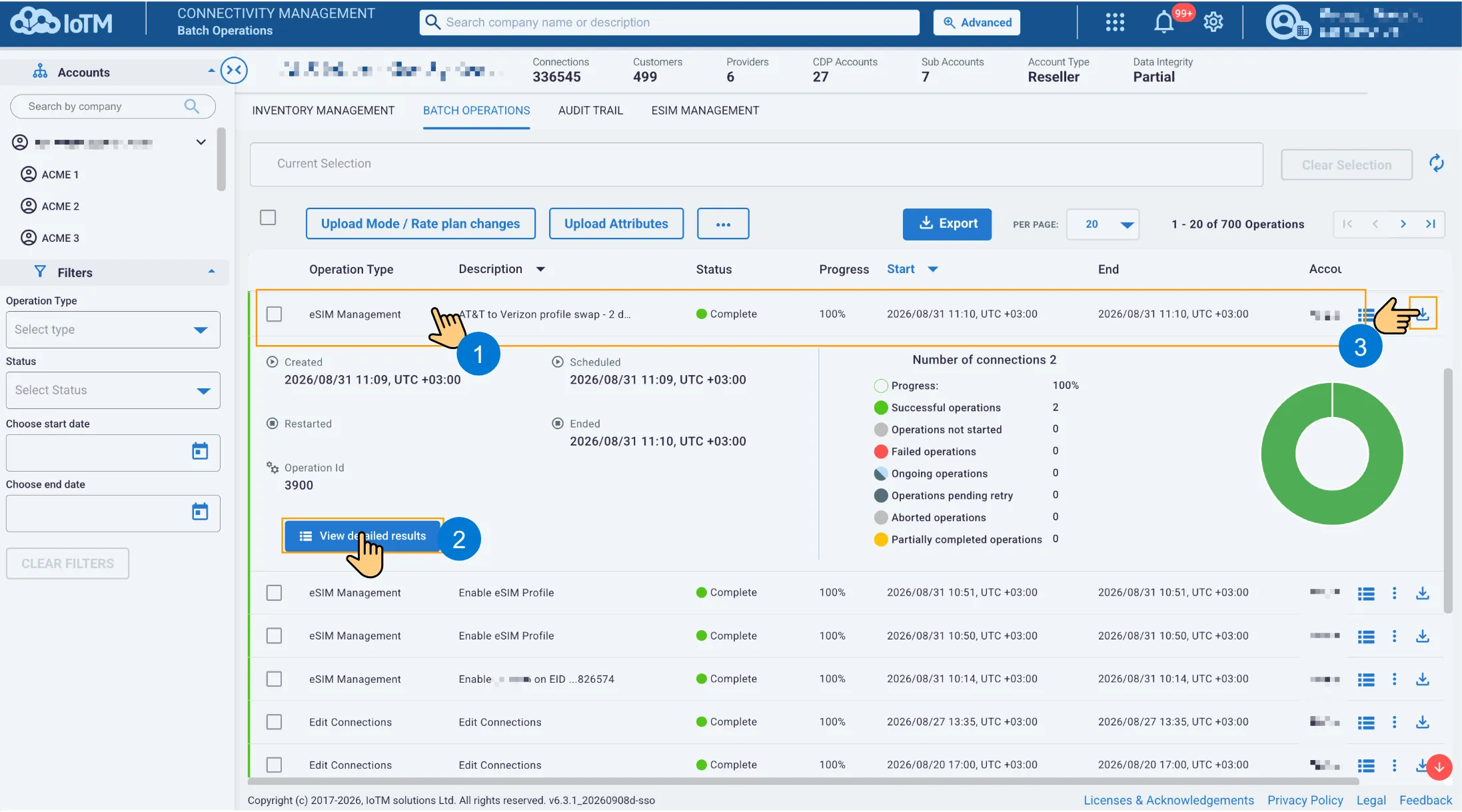
Expanding a batch operation and opening or exporting its results
Batch Operation Summary Components
Summary Item | Description |
|---|---|
Created | Time when the campaign record was created. |
Scheduled | Time when the campaign became eligible to run. |
Restarted | Most recent restart time, when applicable. |
Ended | Time when processing ended. |
Operation ID | Unique identifier used to track the campaign. |
Progress and result counts | Completion percentage and the number of tracks in each result state. |
11.1.1. Getting Batch Job Results
The details page contains one row for each connection or eSIM profile action. Search by ICCID, MSISDN, IMSI, EID, or connection identifier, or filter by state and request type. Expand a row to review the submitted request, response message, and result.
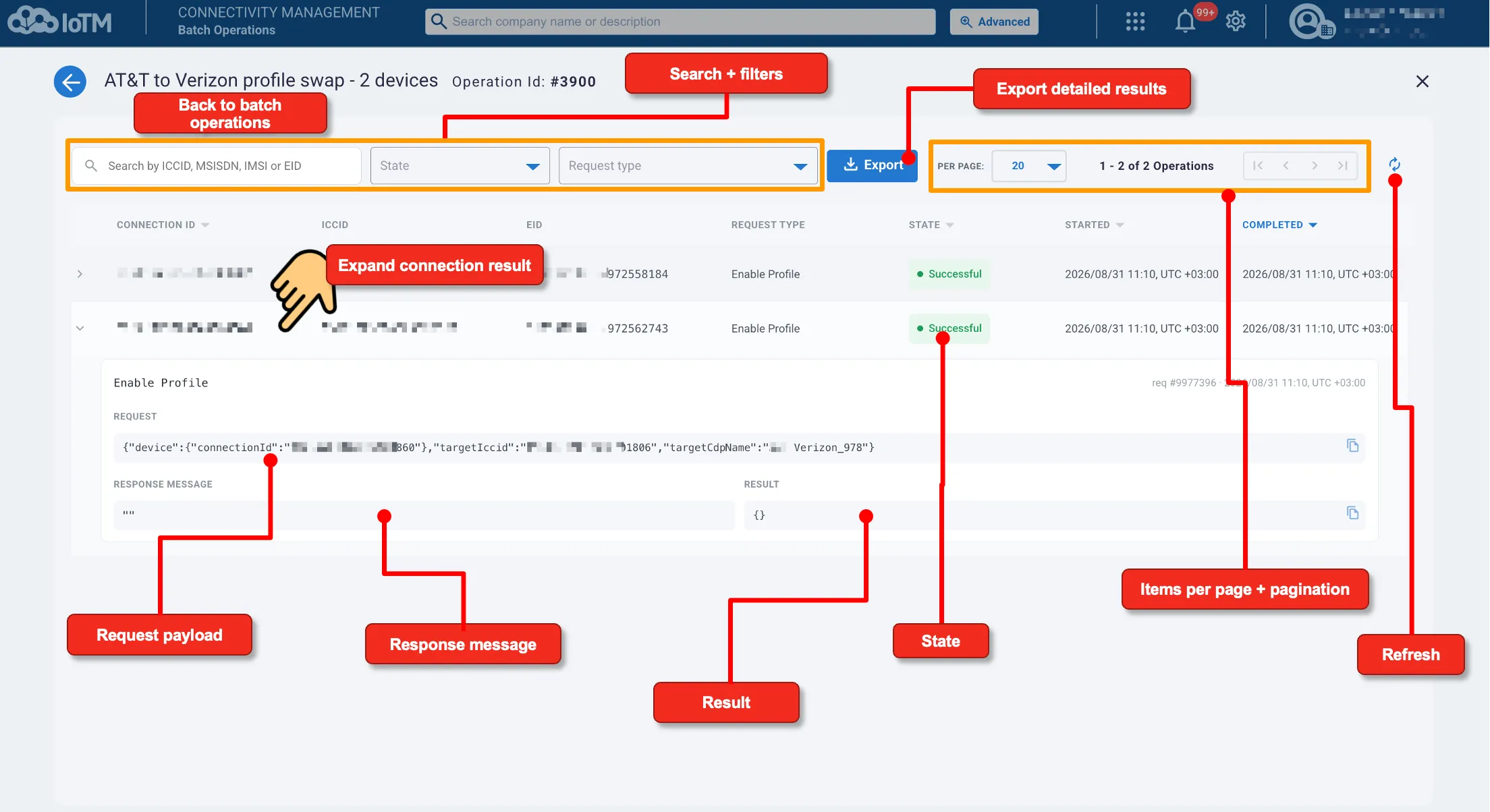
Batch operation details page components and controls
Note: Provider response content varies by request type. An empty response or result field can be valid when the provider confirms completion through the operation state.
11.2. Exporting Batch Operations Data
The main Export control exports the current filtered operation list, including operations beyond the visible page. The export control on an individual row exports the per-connection tracks and results for that operation. Both workflows support zipped CSV and Microsoft Excel formats.
Location: ➀ Select the appropriate Export control > ➁ Select Zipped Comma Separated Value (CSV) or Microsoft Excel (XLSX)
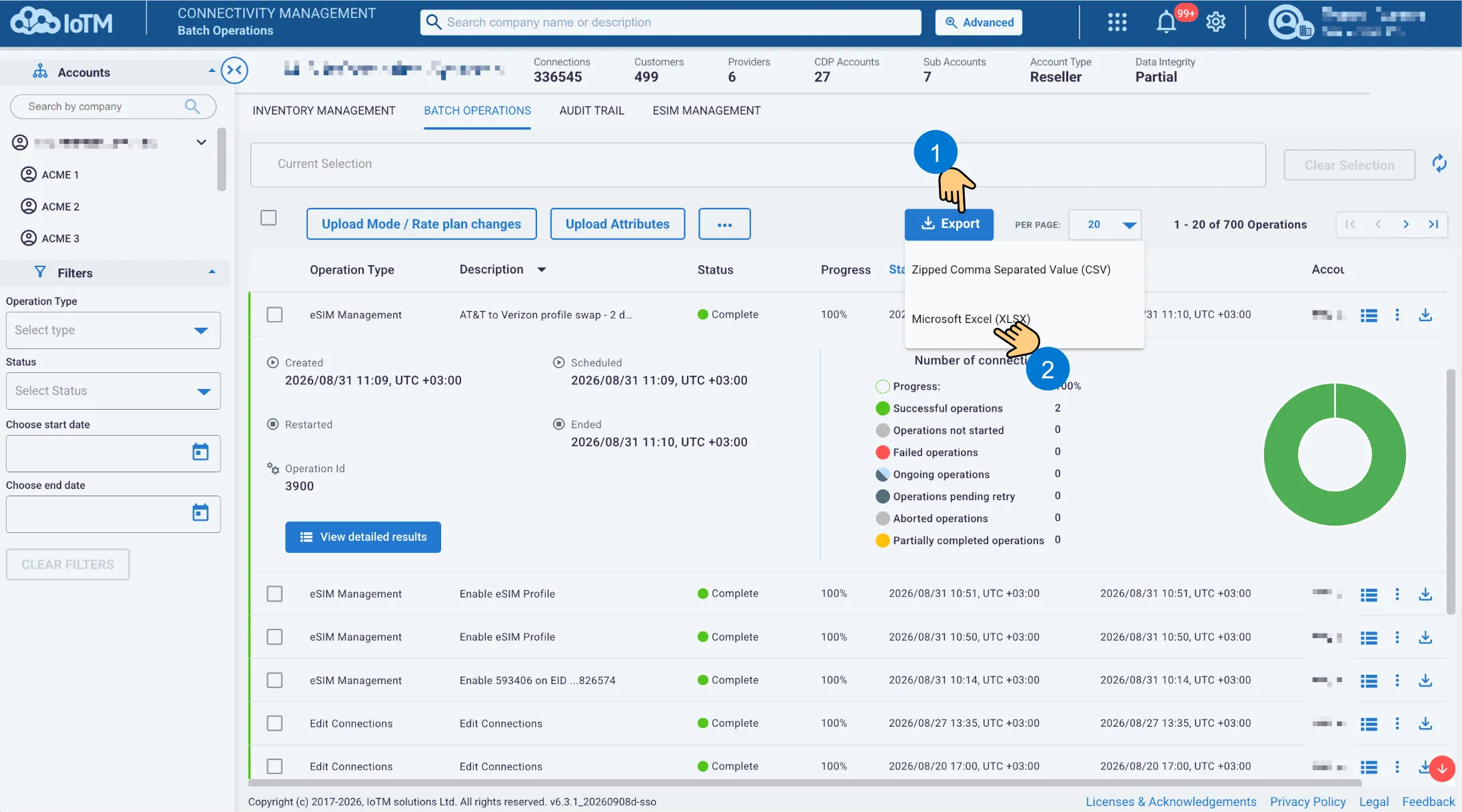
Exporting the current Batch Operations list
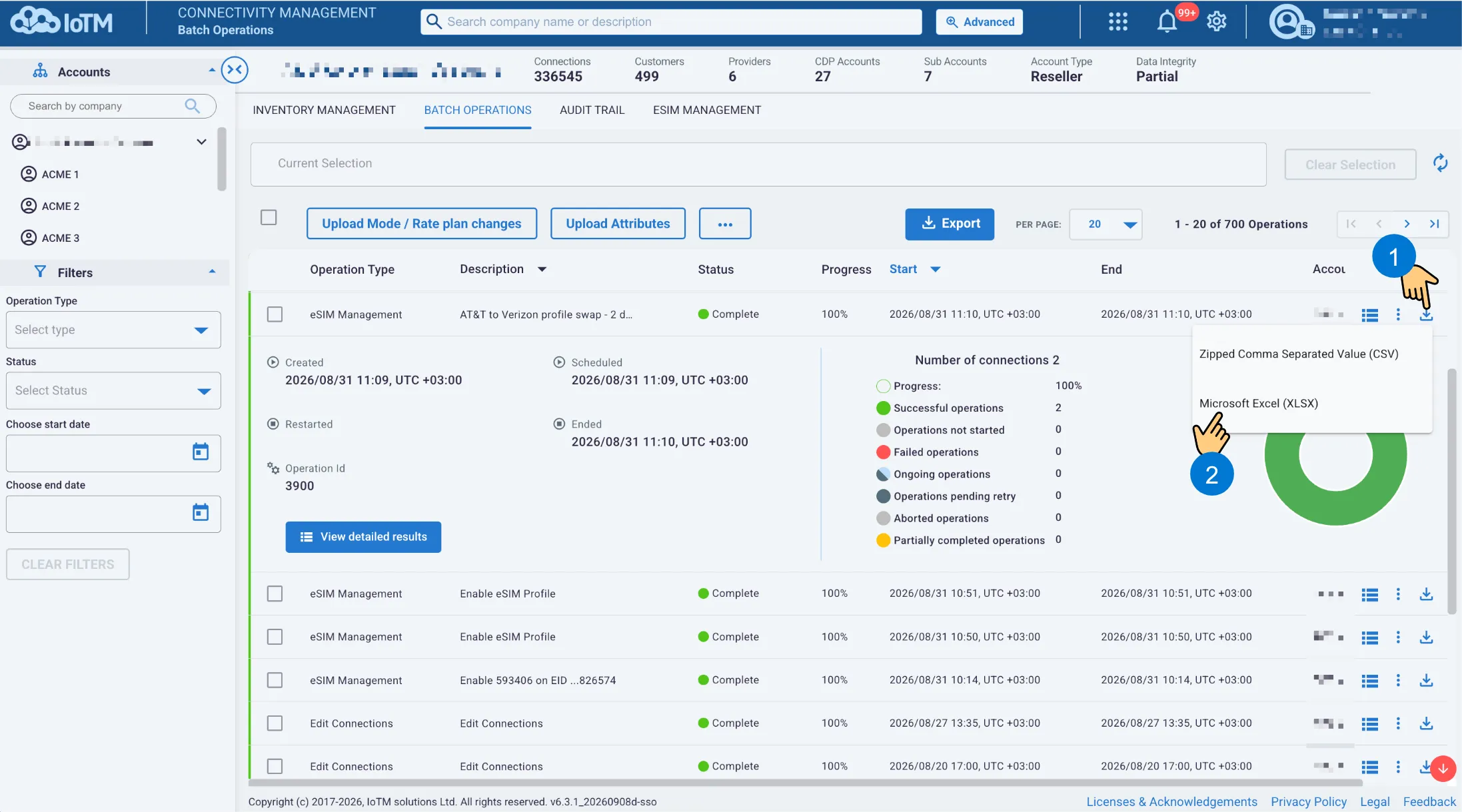
Exporting the detailed results for one batch operation
11.3. Uploading Native Mode and Rate Plan Changes
Use Upload Mode / Rate plan changes to change native activation mode, rate plan, or both. The upload accepts CSV or zipped CSV files containing up to 100,000 rows and no more than 10 MB. Enclose a value in double quotation marks when it contains a comma.
11.3.1. Standard File Upload
Location: ➀ Select Upload Mode / Rate plan changes > ➁ Select the CDP Type > ➂ Select Choose File > ➃ Select Upload
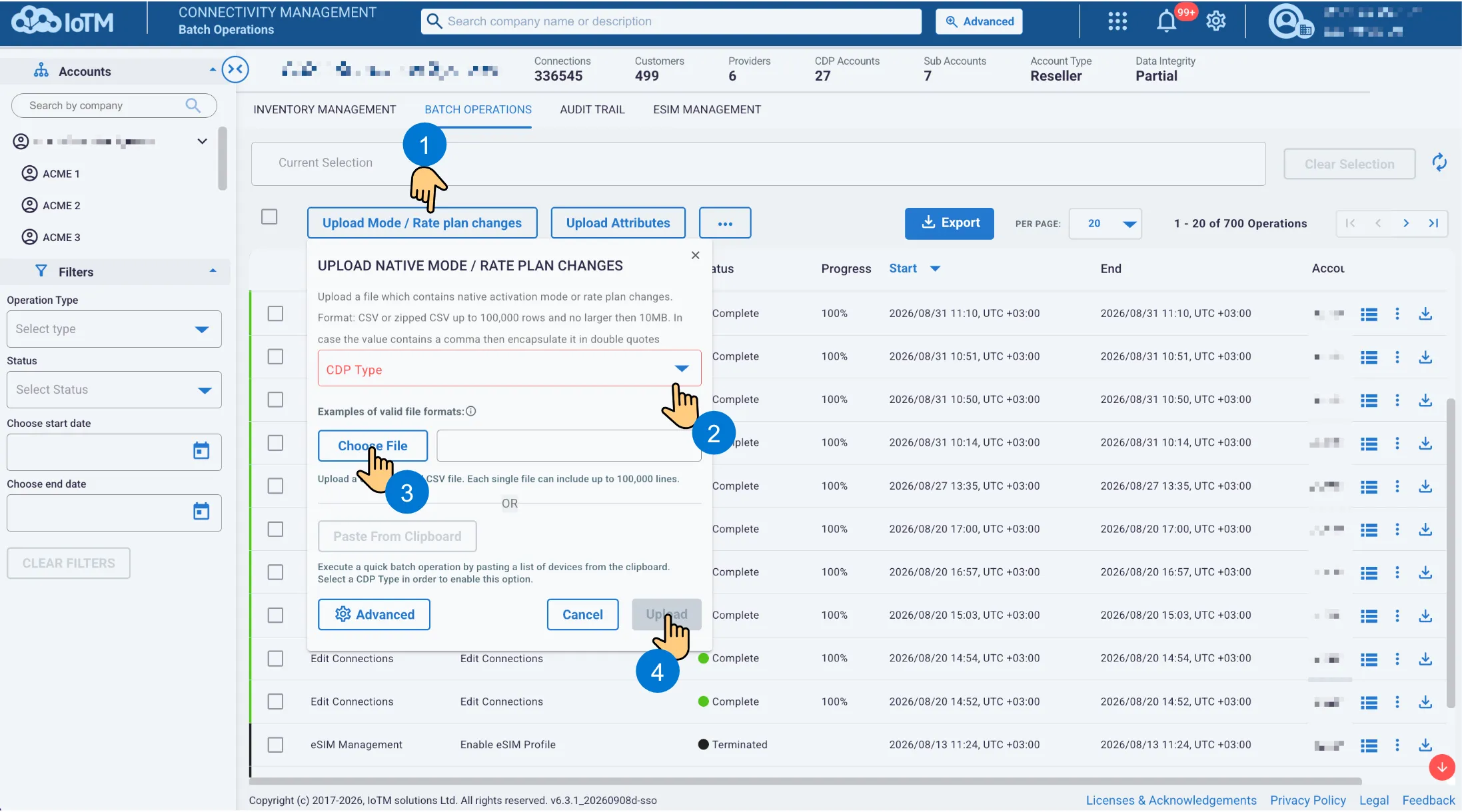
Uploading native mode or rate plan changes from a file
Native mode file example:
#IMSI,Activation Mode 241474833878273,Activated
Native mode and rate plan file example:
#ICCID,Activation Mode,Rate Plan 89112345671234567890,Activated,5 MB Pooled
Note: Use the identifier and value names required by the selected CDP. The information control in the upload dialog displays the current provider-specific examples.
11.3.2. Quick Batch Operation
Paste From Clipboard opens a Quick Batch Operation form. Paste a comma- or whitespace-separated list containing up to 1,000 ICCIDs. Select the target native mode and, when available, the rate plan before submitting the campaign.
Location: ➀ Select CDP Type > ➁ Select CDP Name > ➂ Select Native Mode > ➃ Select Rate plan when required > ⑤ Paste the ICCIDs > ⑥ Optionally enter a description > ⑦ Set Start > ⑧ Set retries > ⑨ Select Speed > ⑩ Select Upload
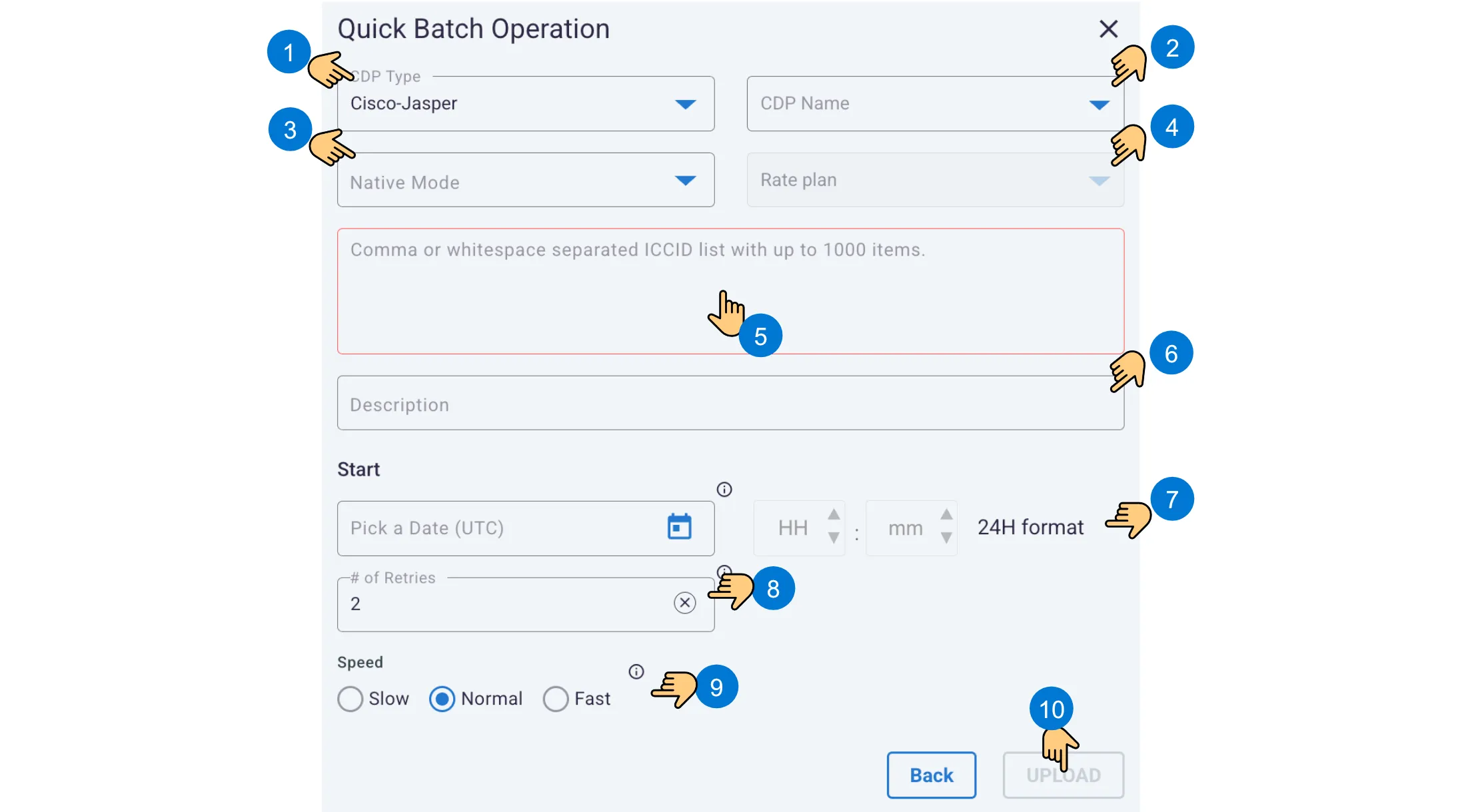
Creating a Quick Batch Operation
11.3.3. Advanced Settings
Advanced settings combine provider selection, file or clipboard input, an optional description, scheduling, retries, and processing speed in one form. Leave Start empty to run immediately or specify a UTC date and 24-hour time.
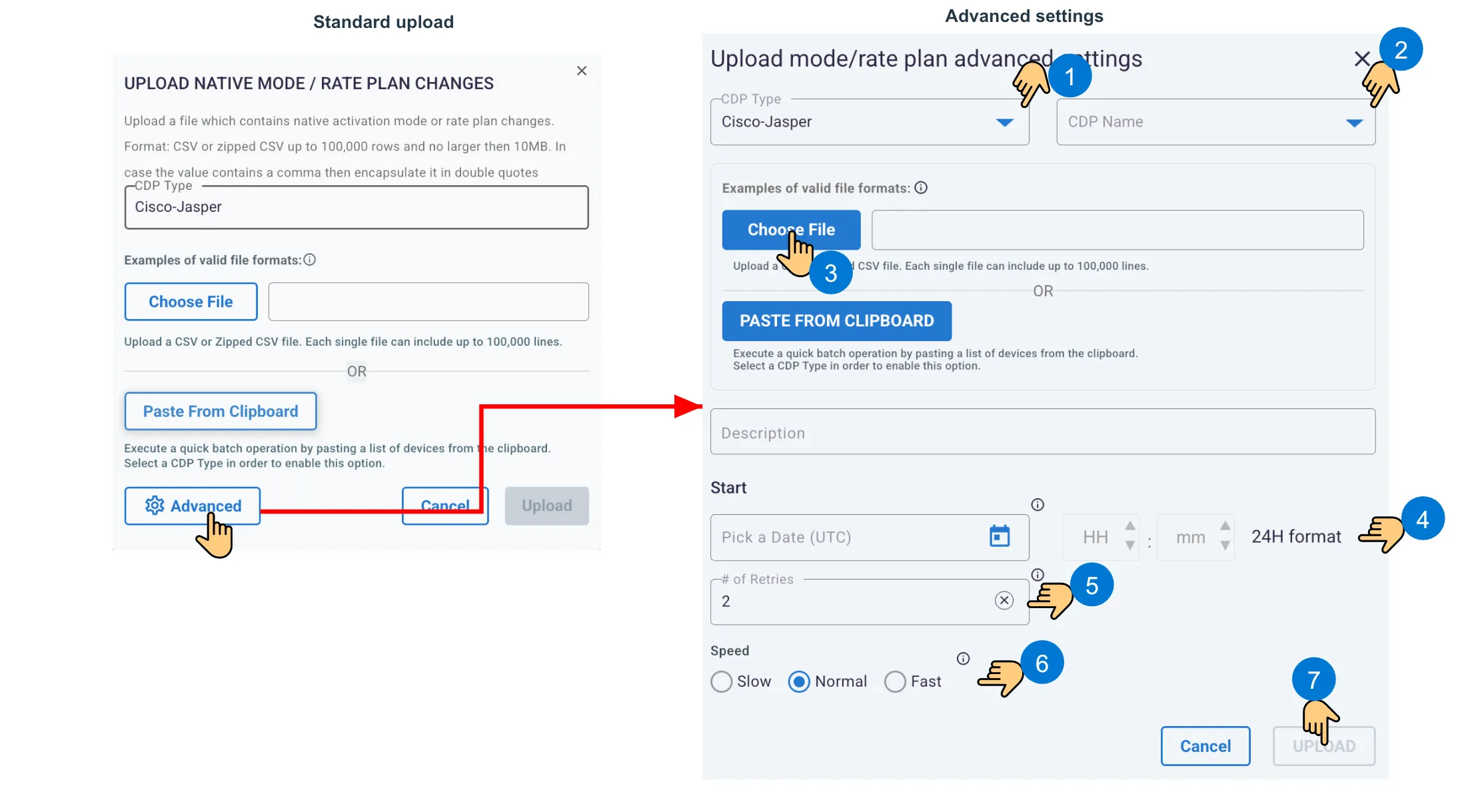
Opening and completing Upload mode/rate plan advanced settings
Advanced Settings Interface Components
Interface Control | Description |
|---|---|
CDP Type / CDP Name | Selects the provider platform and, when displayed, the onboarded account. |
Choose File / Paste From Clipboard | Supplies a CSV or zipped CSV file, or a pasted list of identifiers when enabled. |
Description | Optional reference text displayed in the Batch Operations grid. |
Start | Leave empty to start immediately, or specify a UTC date and 24-hour time. |
# of Retries | Number of additional attempts for a failed track. The displayed default is 2. |
Speed | Controls the provider submission rate. Normal is selected by default. |
Upload | Submits the campaign when all required input is valid. |