Uploading Other Bulk Changes
11.4. Uploading Connection Attributes
Use Upload Attributes to apply native Cisco/Jasper connection attributes in bulk. Upload a CSV or zipped CSV file containing up to 100,000 rows and no more than 10 MB. Enclose values containing commas in double quotation marks.
Location: ➀ Select Upload Attributes > ➁ Confirm the CDP Type > ➂ Select Choose File > ➃ Select Upload
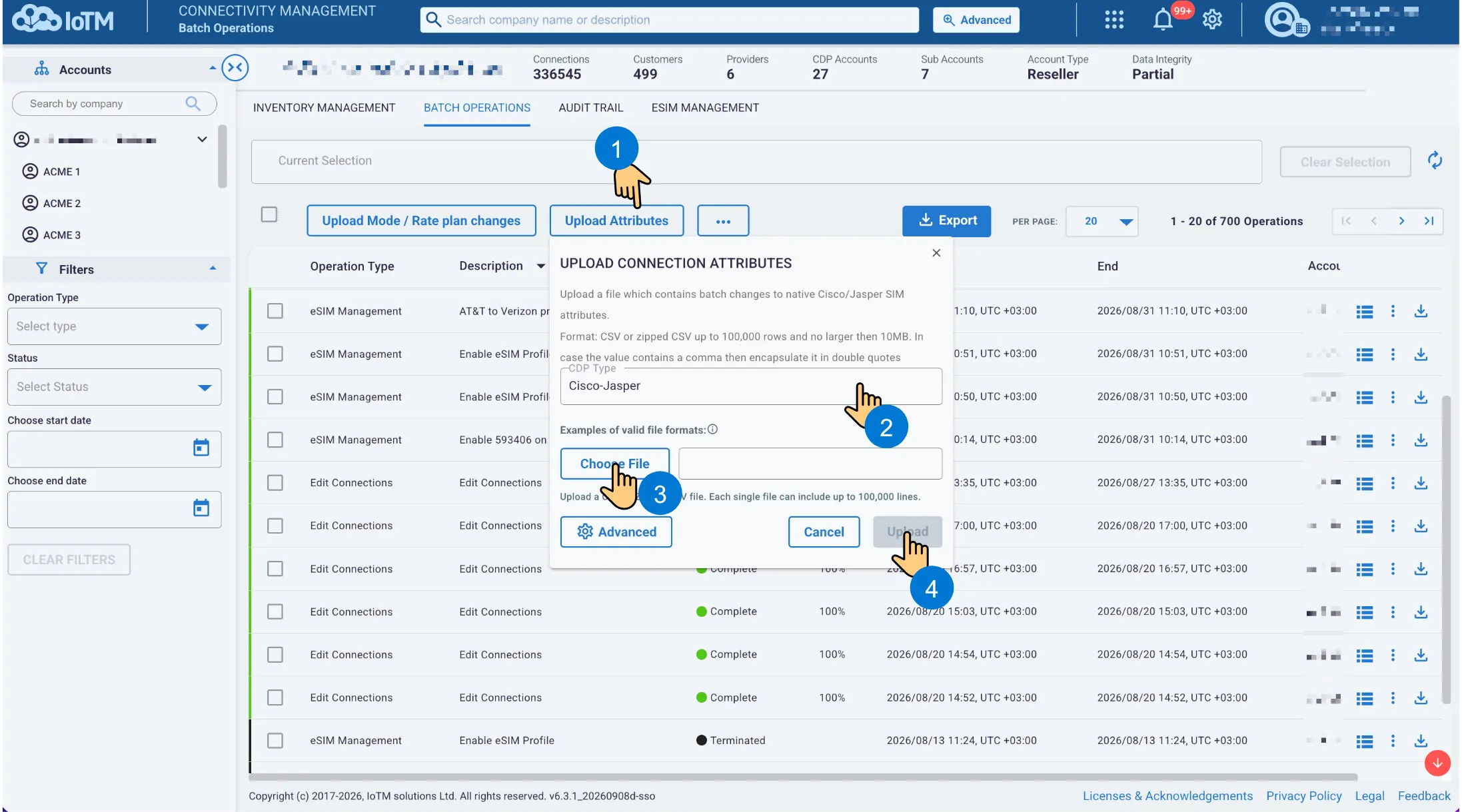
Uploading connection attributes from a file
Example:
#ICCID,Customer,Custom_1,Custom_2 89112345671234567890,North Region,Warehouse 7,Temperature Sensor
11.4.1. Upload Attributes Advanced Settings
Select Advanced to add a description, scheduled UTC start, retry count, and processing speed to the attribute campaign.
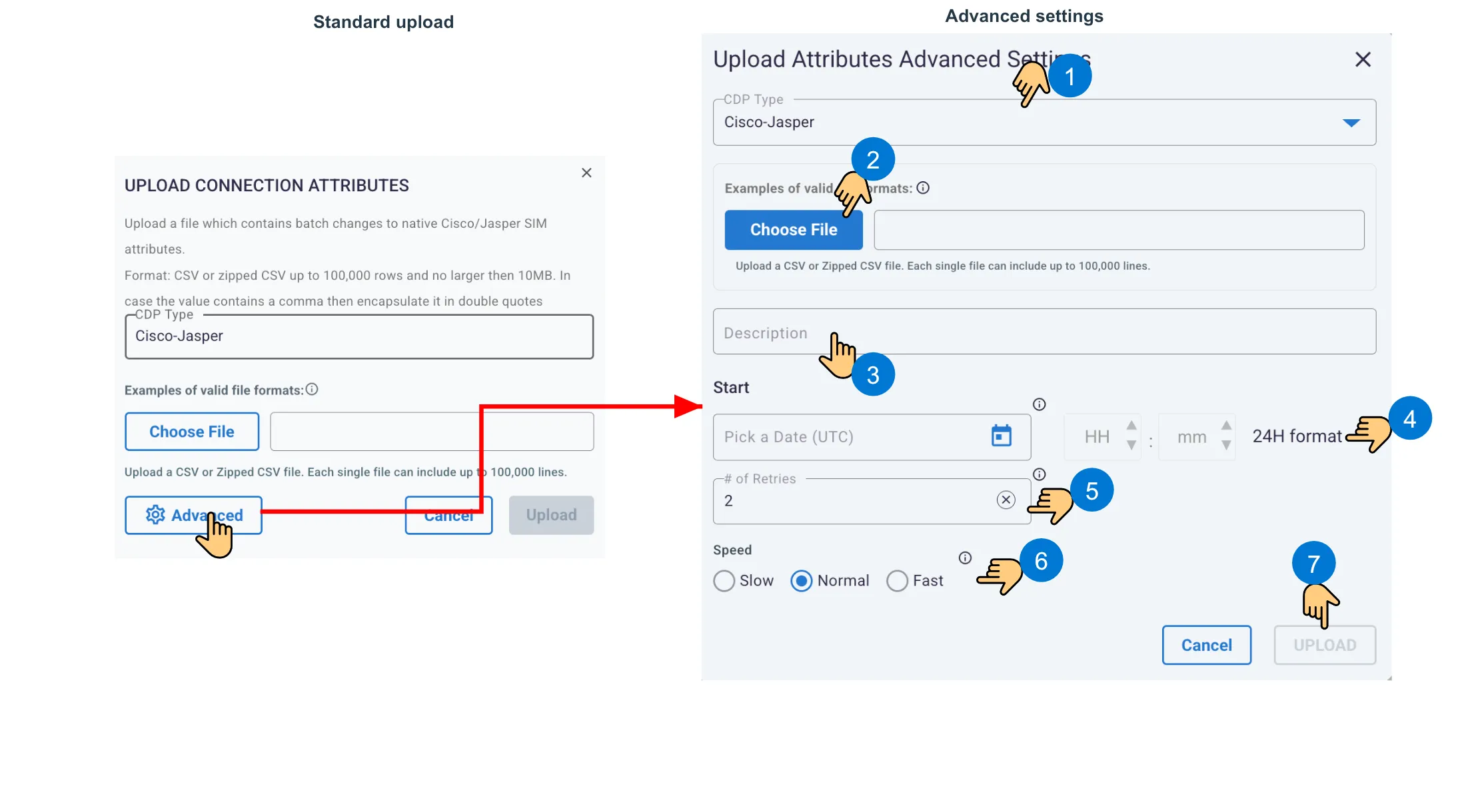
Opening and completing Upload Attributes Advanced Settings
11.5. Uploading eSIM Operations
Upload eSIM Operations submits an action-specific file to a subscription manager. Select the Subscription Manager before selecting an action. The selected action determines the required identifiers and columns; use the information control to confirm the current example format.
Location: More options > Upload eSIM Operations > ➀ Select Subscription Manager > ➁ Select Action > ➂ Select Choose File > ➃ Optionally enter a description > ⑤ Set Start > ⑥ Set retries > ⑦ Select Speed > ⑧ Select Upload
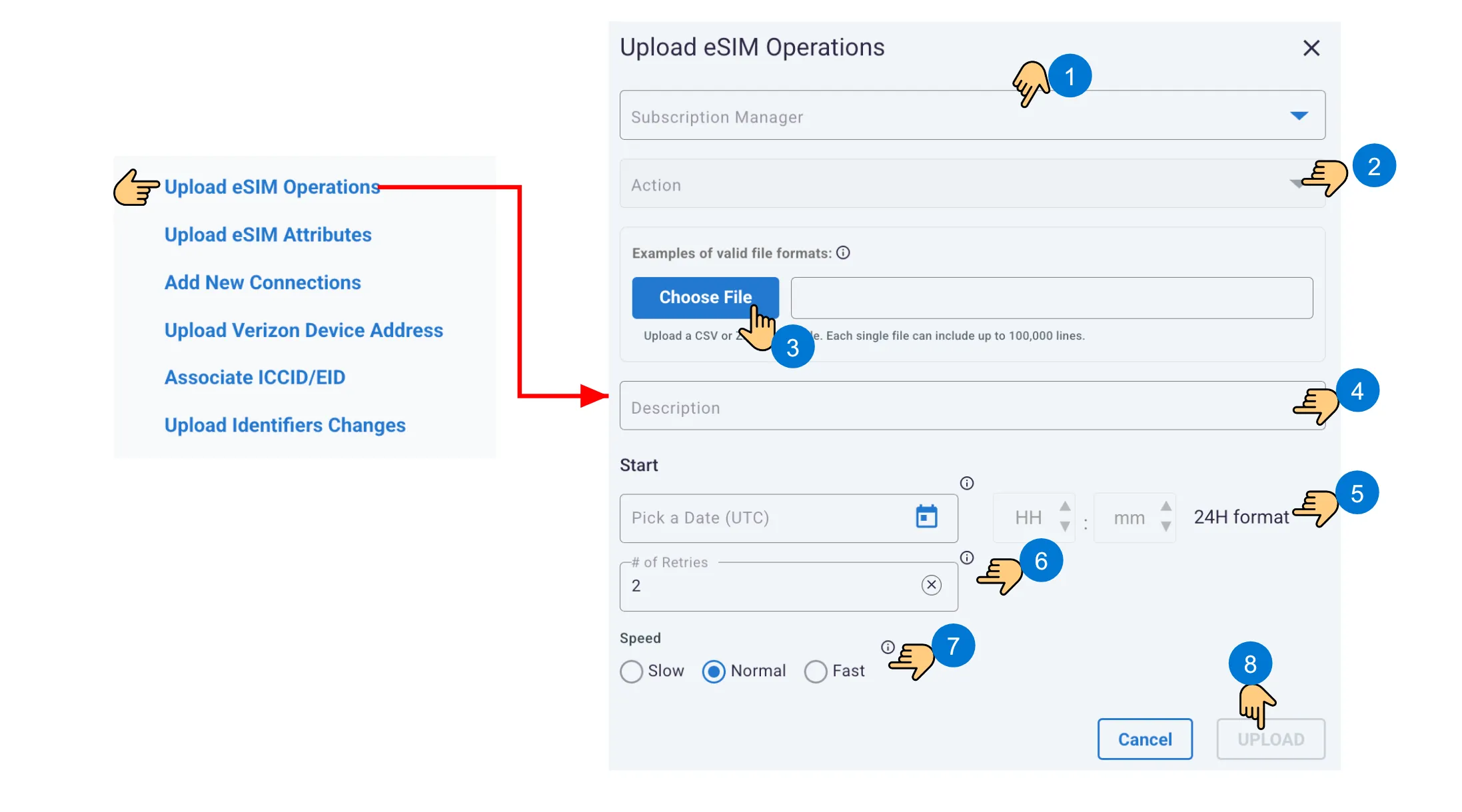
Uploading eSIM operations
Available eSIM Actions
eSIM Action | eSIM Action |
|---|---|
Query Rules Authorization Table | Configure Immediate Enable |
Query ESIM Configuration | Delete Profile |
Query ESIM Profiles Info | Disable And Delete Profile |
Set Default SMDP+ Address | Disable Profile |
Set Fallback Attribute | Download and Enable Profile |
Update Fallback Configuration | Download Profile |
Update Polling Parameters | Enable Profile |
11.6. Uploading eSIM Attributes
Use Upload eSIM Attributes to update customer, device, and custom attribute values on EIDs. The upload accepts CSV or zipped CSV files containing up to 100,000 lines.
Location: More options > Upload eSIM Attributes > ➀ Select Choose File > ➁ Select Override only when blank row values should delete existing values > ➂ Select Apply To Connections only when supported values should propagate to managed profiles > ➃ Select Upload
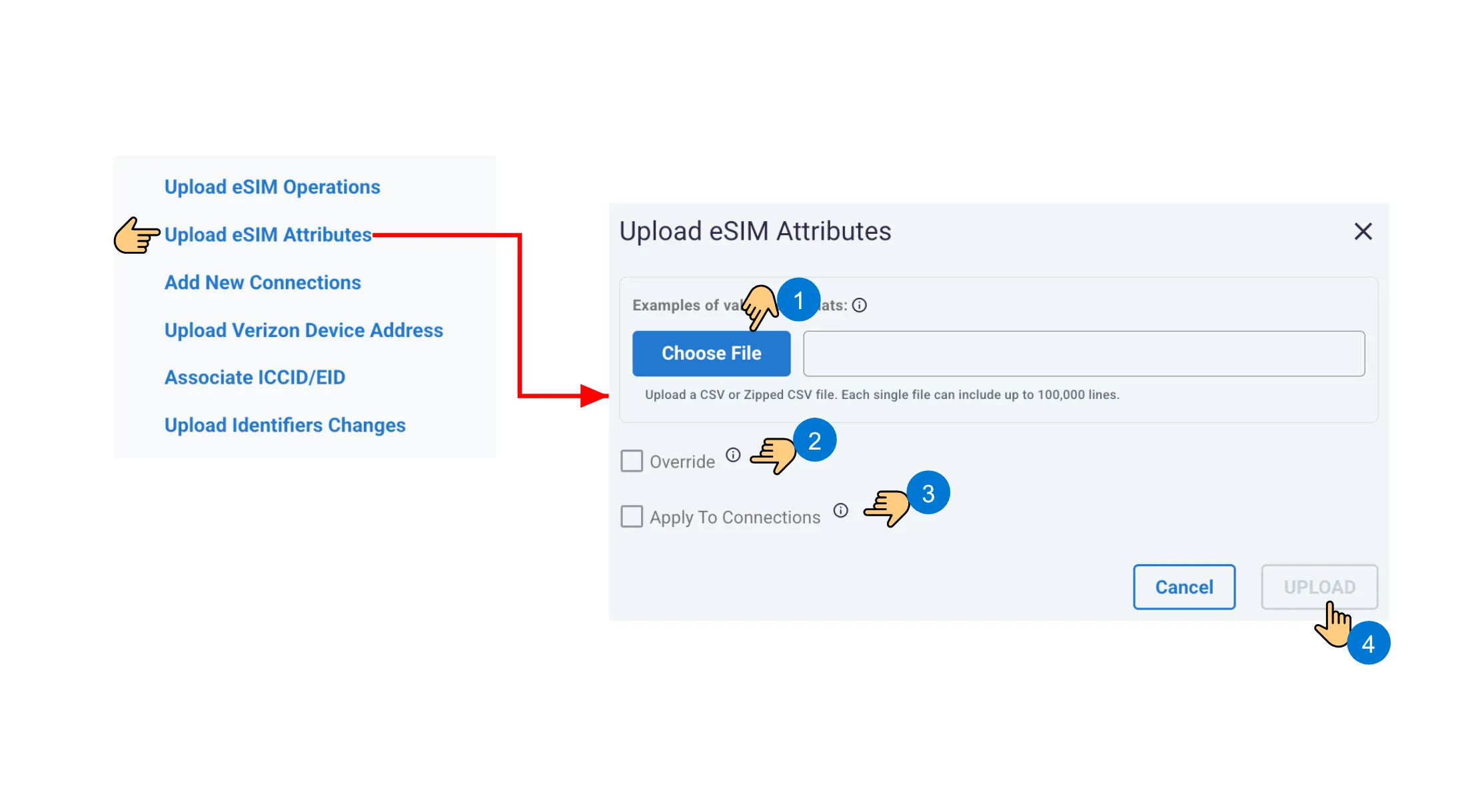
Uploading eSIM attributes
File format:
#EID,Customer,Device Id,Attribute1,Attribute2,Attribute3
Interface Control | Description |
|---|---|
Override | When selected, blank values in a row delete the corresponding existing values on the EID. |
Apply To Connections | When selected, Customer, Attribute1, Attribute2, and Attribute3 propagate to profiles associated with the EID that belong to onboarded CDPs (managed connections). |
Note: Device Id is an eSIM-level field and is not included in the values propagated by Apply To Connections.
11.7. Adding New Verizon Connections
Add New Connections is available for Verizon ThingSpace. Select Active or Pre-active for Native Mode. A Verizon account name is required when the selected CDP contains multiple Verizon accounts.
Location: More options > Add New Connections > ➀ Select CDP Name > ➁ Select Native Mode > ➂–⑥ Supply any shared Rate plan, SKU Number, Zip Code, and Verizon account name values > ⑦ Choose a file or ⑧ paste from clipboard > ⑨–⑪ Configure execution settings > ⑫ Select Update
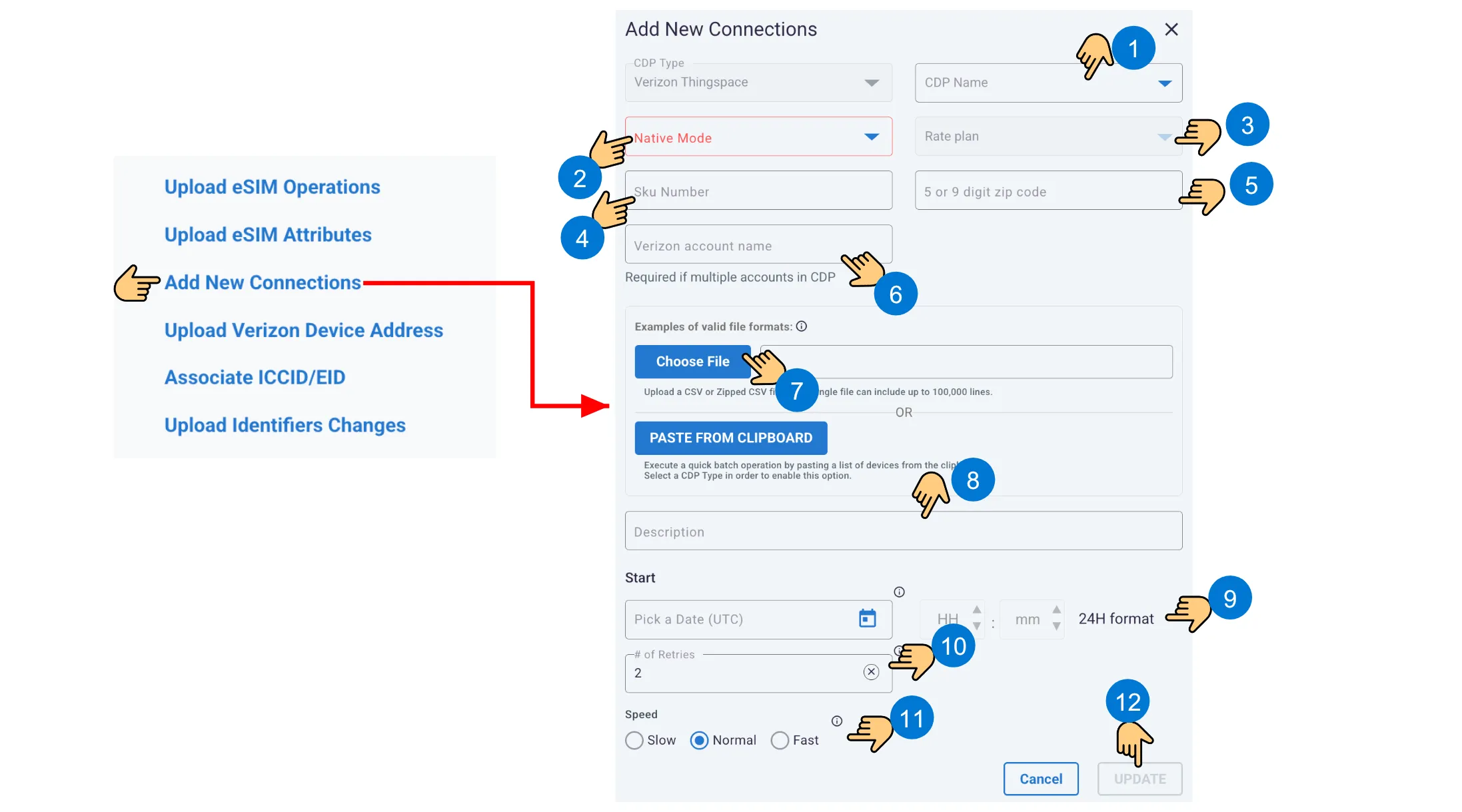
Adding new Verizon connections
File format:
#ICCID,IMEI,Rate plan,SKU Number,Zip Code
File Format Guidelines
Field | Requirement |
|---|---|
ICCID | Mandatory for every entry. |
IMEI | Optional; it can be omitted when SKU Number is supplied instead. |
Rate plan | Required unless it is specified in the Advanced dialog. |
SKU Number | Required unless IMEI is present and used instead. |
Zip Code | Required unless it is specified in the Advanced dialog. |
11.8. Uploading Verizon Device Addresses
Upload a CSV or zipped CSV file to update Verizon device address and contact data. The first column must be the Device ID and must use #ICCID, #MSISDN, #MEID, #MDN, or #ESN. Optional fields must remain as empty columns when unused so the required order is preserved.
Location: More options > Upload Verizon Device Address > ➀ Select CDP Name > ➁ Choose a file or paste from clipboard > ➂ Optionally enter a description > ➃ Set Start > ⑤ Set retries > ⑥ Select Speed > ⑦ Select Update
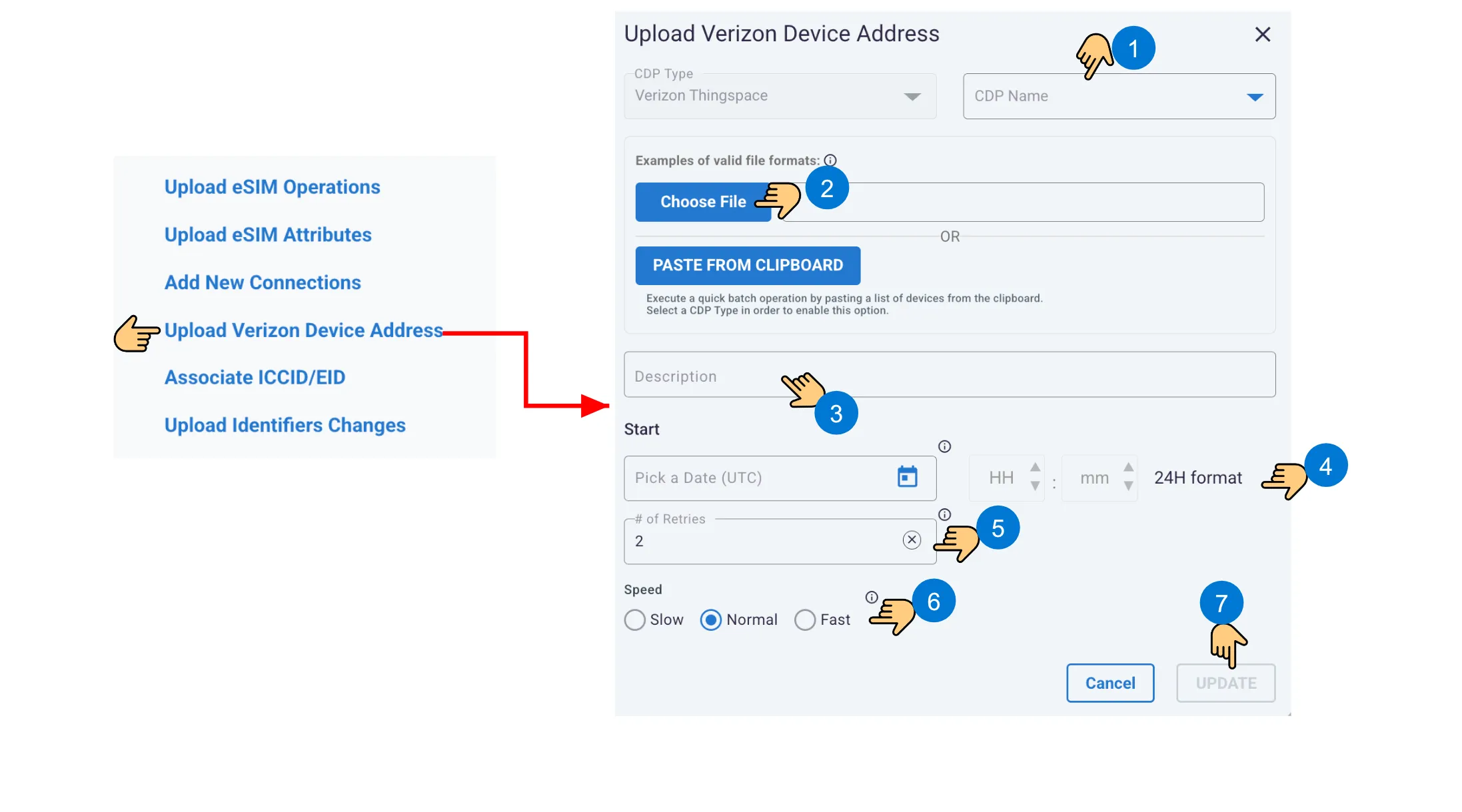
Uploading a Verizon device address file
File format:
#Device ID*,Address Line 1,Address Line 2,City,State,Country,Zip,Zip4,First Name,Last Name,Middle Name,Title,Suffix,Phone Number,Phone Type,Email
Example:
#Device ID,Address Line 1,Address Line 2,City,State,Country,Zip,Zip4,First Name,Last Name,Middle Name,Title,Suffix,Phone Number,Phone Type,Email 89320123456789012345,123 Main St,,New York,NY,USA,10001,,John,Doe,,,,,,
11.9. Associating ICCID and EID
Use Link to associate eSIM profile ICCIDs with unique eUICC identifiers (EIDs). Use Unlink to remove an existing association. Upload a CSV or zipped CSV file or paste identifiers when the clipboard option is available.
Location: More options > Associate ICCID/EID > ➀ Select Subscription Manager > ➁ Select Link or Unlink > ➂ Choose a file or paste from clipboard > ➃ Select Upload
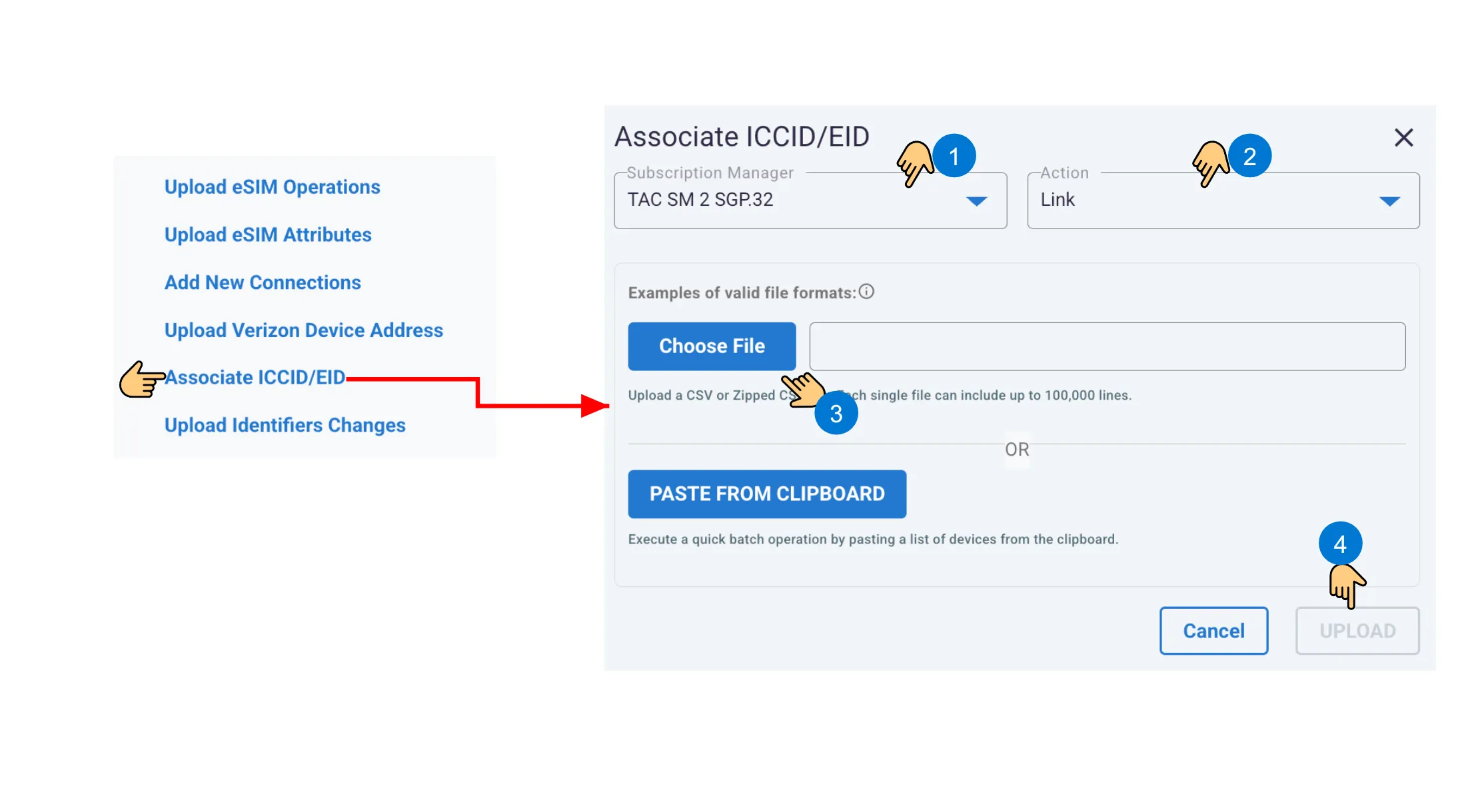
Linking or unlinking ICCID and EID
11.9.1. Link File
Upload two columns containing the ICCID and EID:
#iccid,eid 89011702272013815124,89045749747754644558000000000000
11.9.2. Unlink File
For the unlink action, provide only the ICCID:
#iccid 89011702272013815124
11.10. Uploading Verizon Identifier Changes
Upload Identifiers Changes is a Verizon ThingSpace workflow. Select the CDP name and then choose Change ICCID, Change IMEI, Change ICCID & IMEI, or Change MSISDN. The selected action determines the required columns and their order.
Location: More options > Upload Identifiers Changes > ➀ Select CDP Name > ➁ Select Action > ➂ Select Choose File > ➃ Optionally enter a description > ⑤ Set Start > ⑥ Set retries > ⑦ Select Speed > ⑧ Select Update
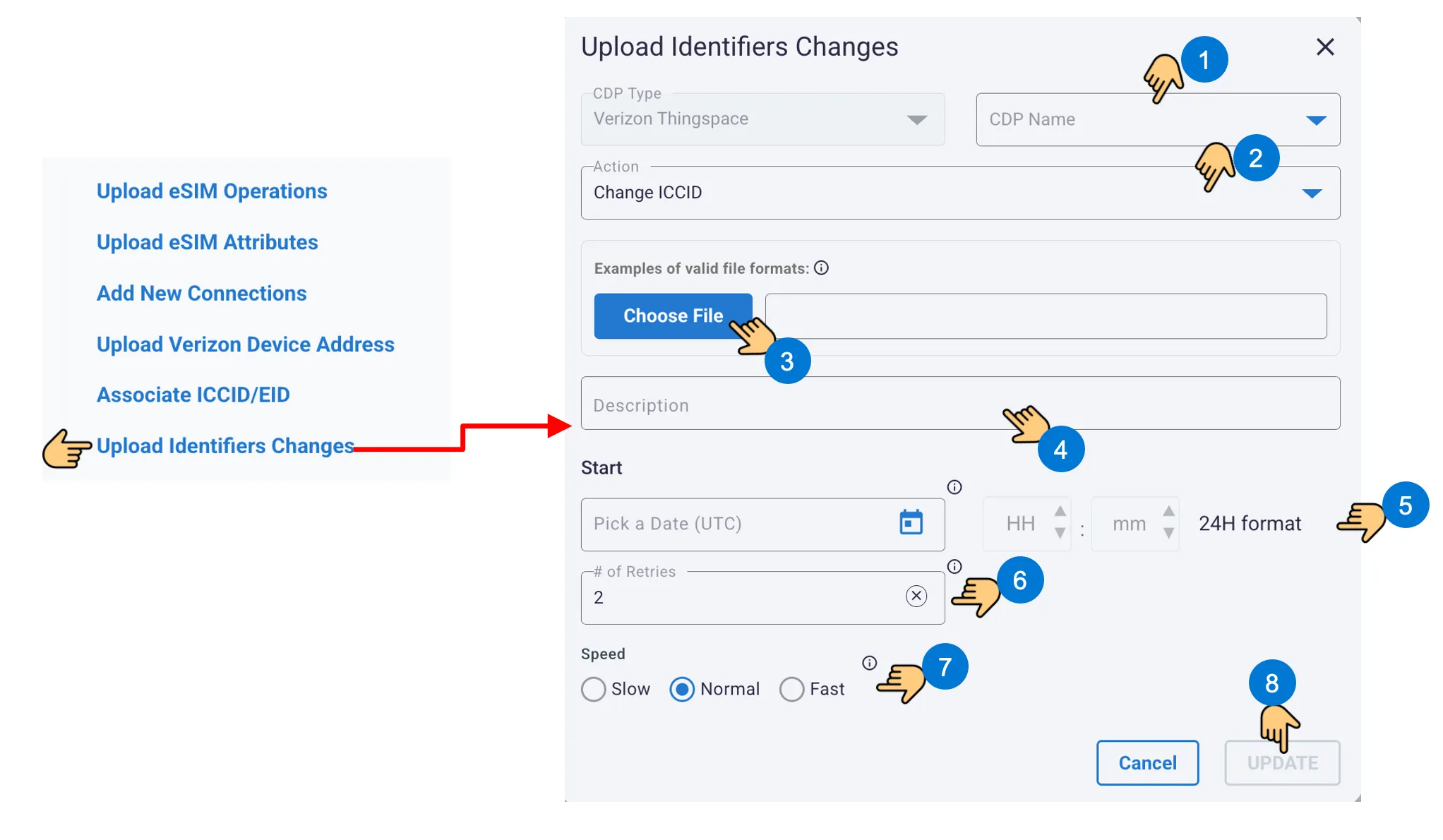
Uploading Verizon identifier changes
11.10.1. Change ICCID
Format and example:
#ICCID,New ICCID 89148000008291822728,89148000008291822710
11.10.2. Change IMEI
The Rate plan column is optional. Without a rate plan:
#ICCID,New IMEI 89148000008291822710,355478231315739
With a rate plan:
#ICCID,New IMEI,Rate plan 89148000008291822710,355478231315739,Example Rate plan 4G 2GB
11.10.3. Change ICCID and IMEI
The Rate plan column is optional. Without a rate plan:
#ICCID,New ICCID,New IMEI 89148000011021676612,89148000008291822710,865493046978244
With a rate plan:
#ICCID,New ICCID,New IMEI,Rate plan 89148000011021676612,89148000008291822710,865493046978244,Example Rate plan 4G 2GB
11.10.4. Change MSISDN
Use Zip Code for a non-geographic MSISDN or NPA NXX for a geographic MSISDN. Retain both columns and leave the unused value blank.
Non-geographic example:
#ICCID,Zip Code,NPA NXX 89148000008291822728,30096,
Geographic example:
#ICCID,Zip Code,NPA NXX 89148000008291822728,,500322
11.11. Campaign Execution Settings
Most upload workflows use the same execution settings. Apply them consistently so campaigns are easy to identify and provider traffic is controlled appropriately.
Interface Components
Interface Control | Description |
|---|---|
Description | Use a concise description that identifies the business purpose or source file. |
Start | Leave empty for immediate execution, or set a UTC date and 24-hour time for a scheduled campaign. |
# of Retries | Retain the displayed default of 2 unless provider behavior or operating policy requires another value. |
Speed | Use Normal for routine campaigns. Use Slow to reduce provider request rate; use Fast only when supported and operationally appropriate. |
Upload / Update | Becomes available after all required selections and input are valid. |
After submission, return to the Batch Operations grid and select Refresh to monitor progress. Expand the operation to compare the total connection count with the completed and failed track counts, and open detailed results when follow-up is required.