eSIM Operations from Inventory Management
10.10. Selectively Performing eSIM Operations
If eSIM orchestration is set up for the account, you can manually effect eSIM changes, such as enabling, disabling or deleting it or switching the target operator of a single eSIM right from the Inventory Management items grid list or from the target connection’s details page.
10.10.1. Selectively Performing eSIM Operations From The Inventory Page
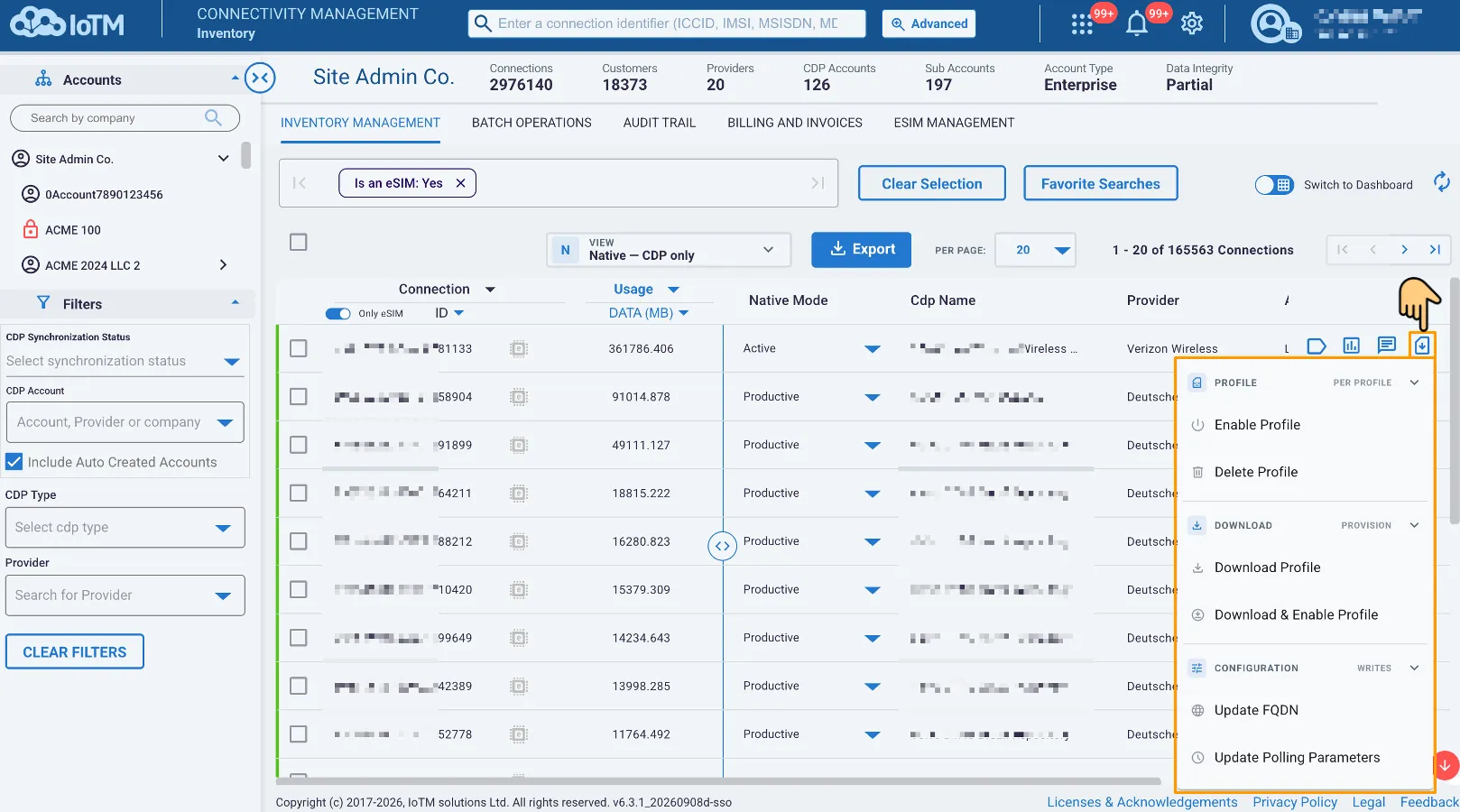
You can manually change a single eSIM state or switch its target operator from the Inventory Management items grid list. The floating ‘eSIM profile management’ button in the controls area of the grid will be available for the relevant connections.
Location: ➀ ‘INVENTORY MANAGEMENT’ > ➁ ‘eSIM profile management’ > ➂ Select desired Action (e.g. “Download Profile”)
10.10.2. Selectively Performing eSIM Operations From The Device Details Page
You can also access eSIM management functionality of a single eSIM connection from its Details Page. Click on one of its profiles, or on the EID in the items grid list to go to the Details Page:
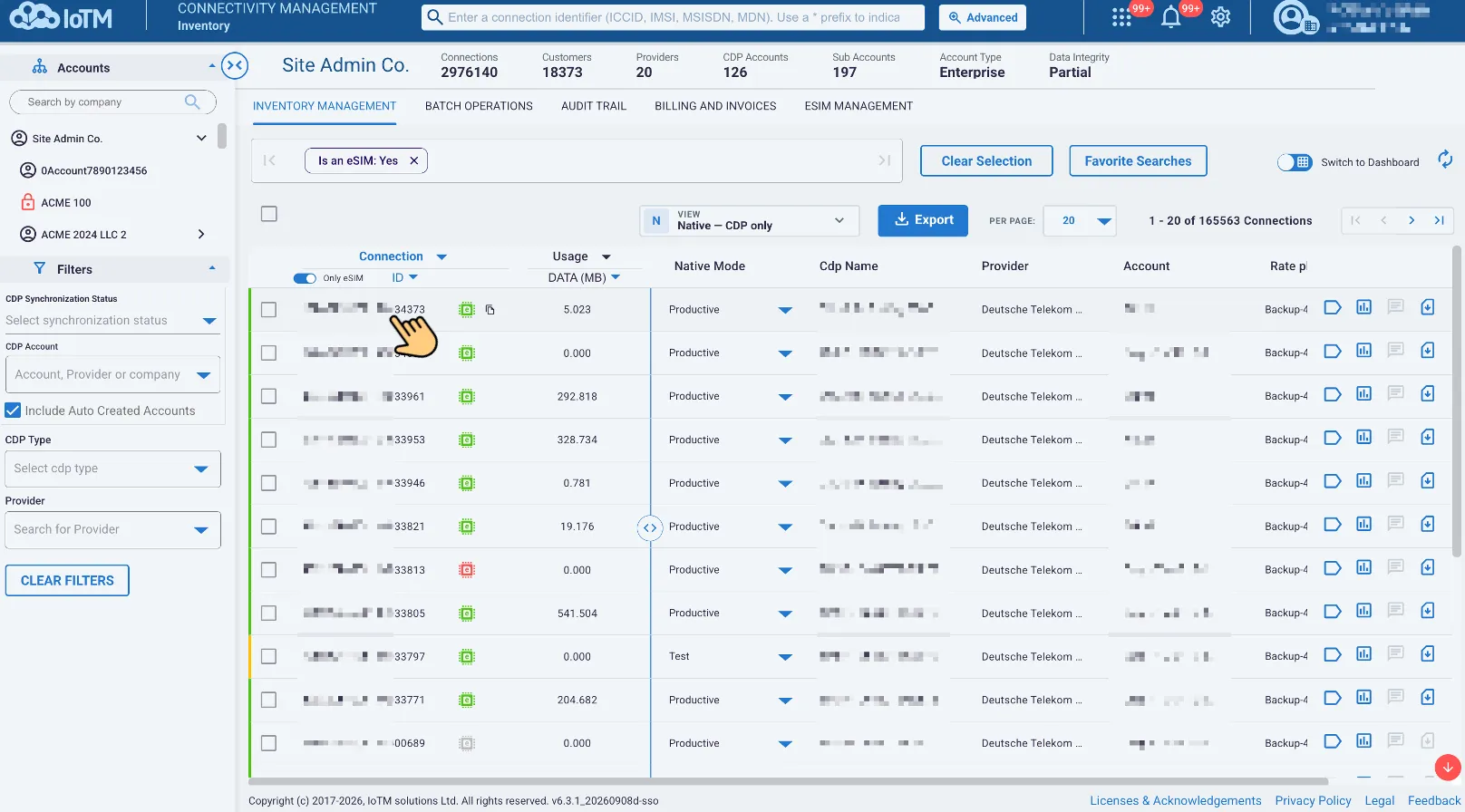
Once there, navigate to the ‘eSIM Profile Actions’ button. Depending on the type of eSIM device, you will find the relevant available options (E.g. ‘Enable Profile’, ‘Delete Profile’, or ‘Set Primary Profile’ in the case of rSIM). Navigate to the top-right handside of the details section to find ‘EID Actions’ button, which will display the available EID actions (E.g. ‘Download Profile’, ‘Download & Enable Profile’, ‘Update FQDN’, ‘Update Polling Parameters’, etc.).
Location: Details Page ➀ ‘eSIM Profile Actions’ or ‘EID Actions’> ➁ Select desired Action (e.g. ‘Enable Profile’ or “Set Primary Profile”):
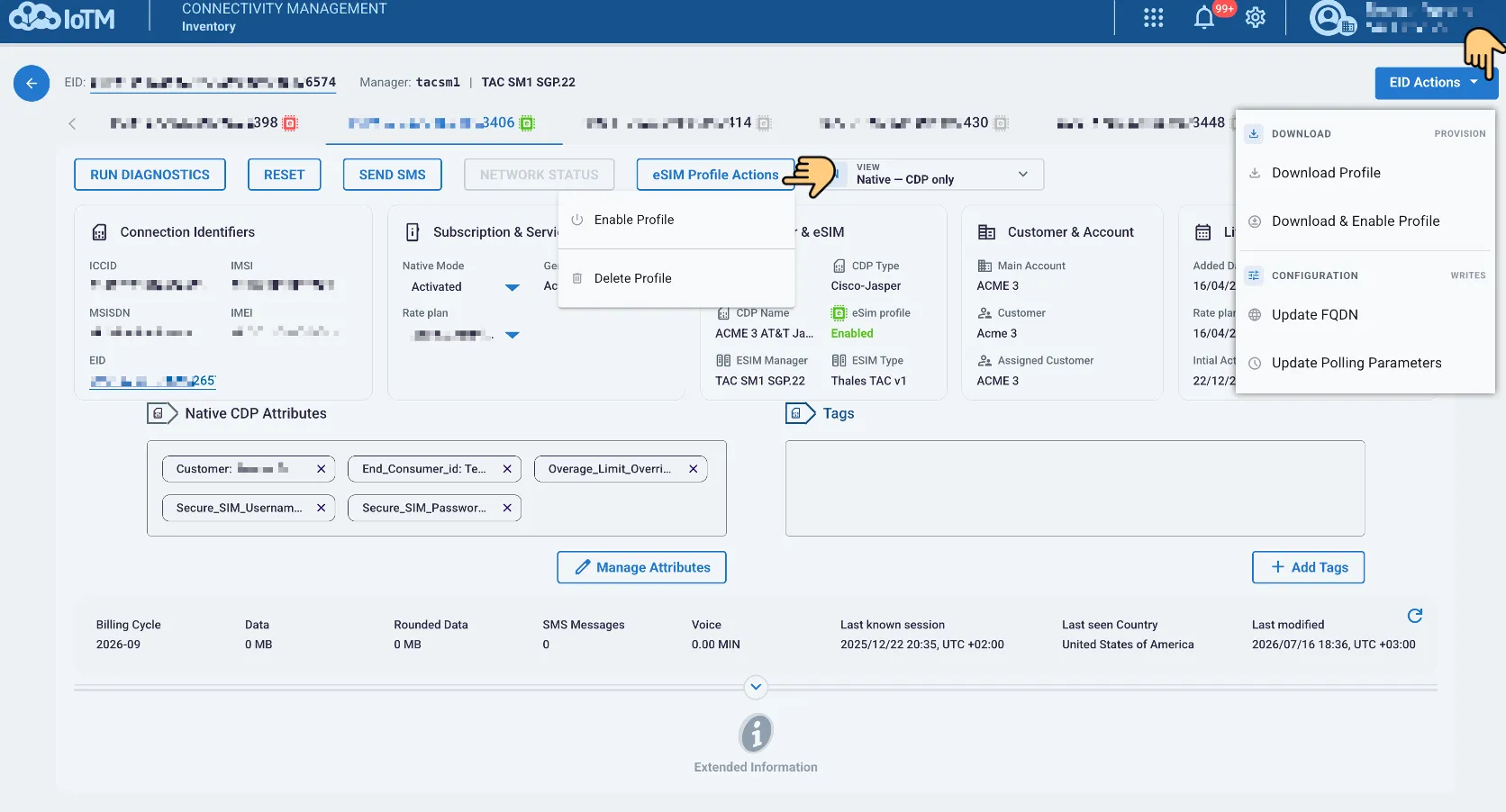
Example eSIM and EID Actions available – TAC SGP.22
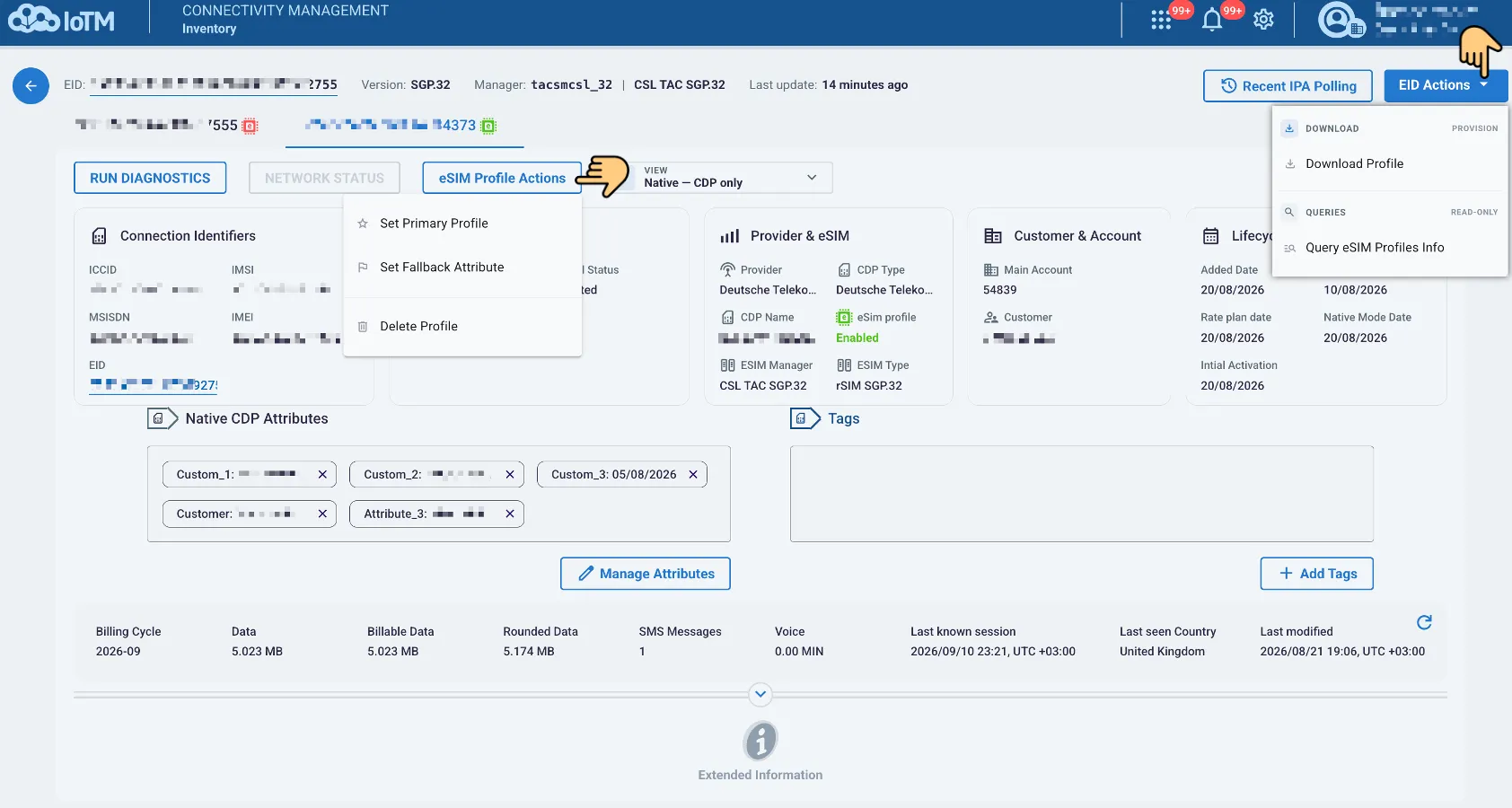
Example eSIM and EID Actions available – rSIM
Note that you can switch between the different eSIM profiles present on the device by pressing on the respective tabs on the top of the Details Page:
