Cdp Onboarding
8. CDP Account Management
In IoTM terminology, a CDP is a representation of a connectivity provider organizational account with a discrete API access credential that can access information related to a definitive set of connections identified by cellular identifiers. CDPs can be added, edited and deleted by account administrators.
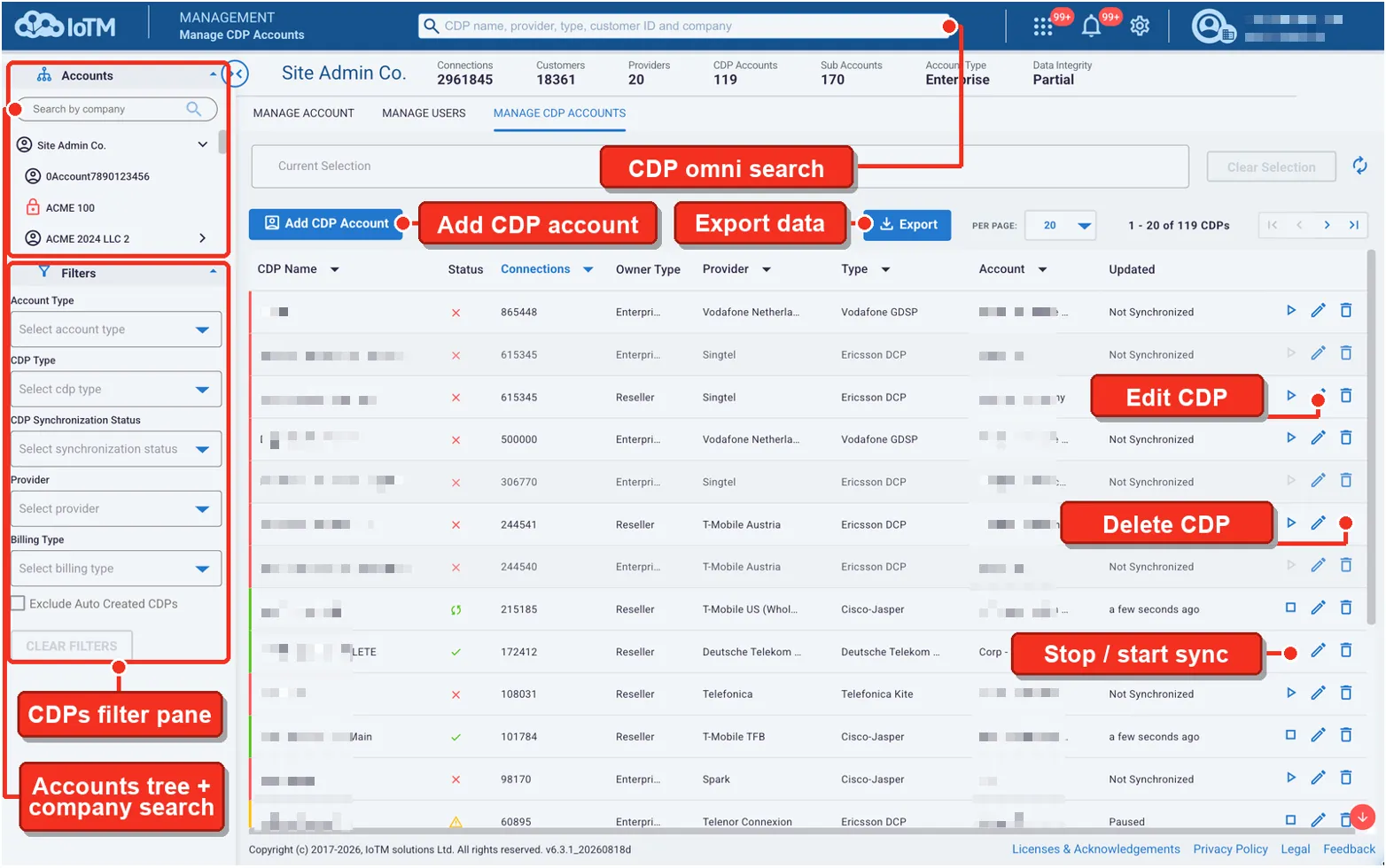
Main CDP Account management view
Control descriptions
Control | Description |
|---|---|
Sub-account tree search | Shows a tree view of the sub-accounts and a “search as you type” line above the tree. Once a sub-account is selected from the tree, then it is filtered in, other accounts are filtered out, and edit actions are performed on the selected account. |
CDPs Filter Pane | Offers common filters when searching for CDPs. |
Add CDP Account button | Triggers the Add CDP dialog. |
CDP omni search | Search for CDPs based on name, account etc. |
Export Data button | Downloads the detailed CDP list in Microsoft Excel © or CSV formats. |
Stop/Start Sync, Edit CDP, Delete CDP buttons | (1) Stop (Stop square icon) or start (right facing play icon) data synchronization toggle button. (2) Edit CDP (Pencil) - Triggers the edit CDP dialog. (3) Delete CDP (Trash) - Deletes the CDP and stops all CDP related synchronization, alerts and automation. |
8.1. Adding CDP Accounts
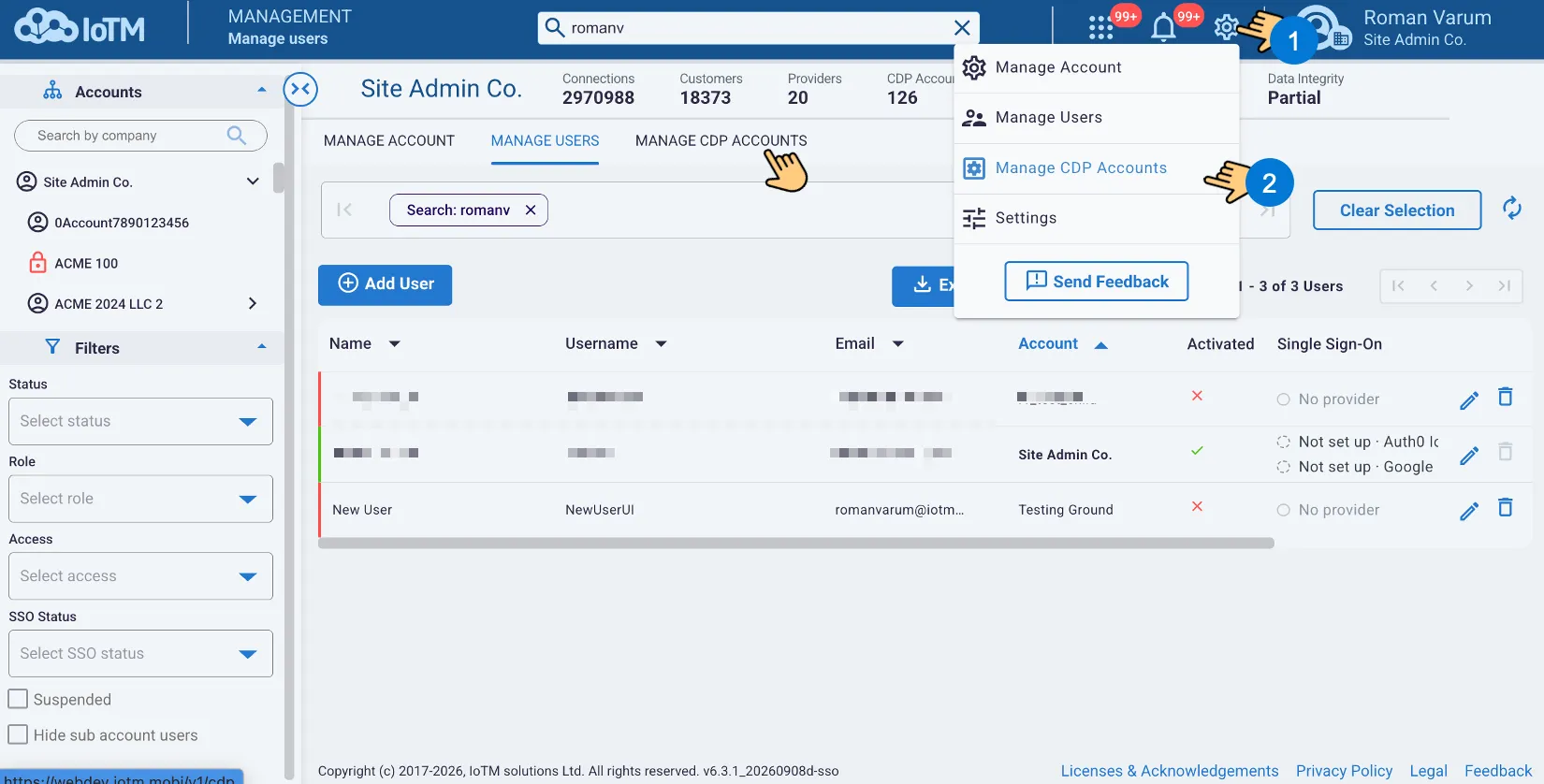
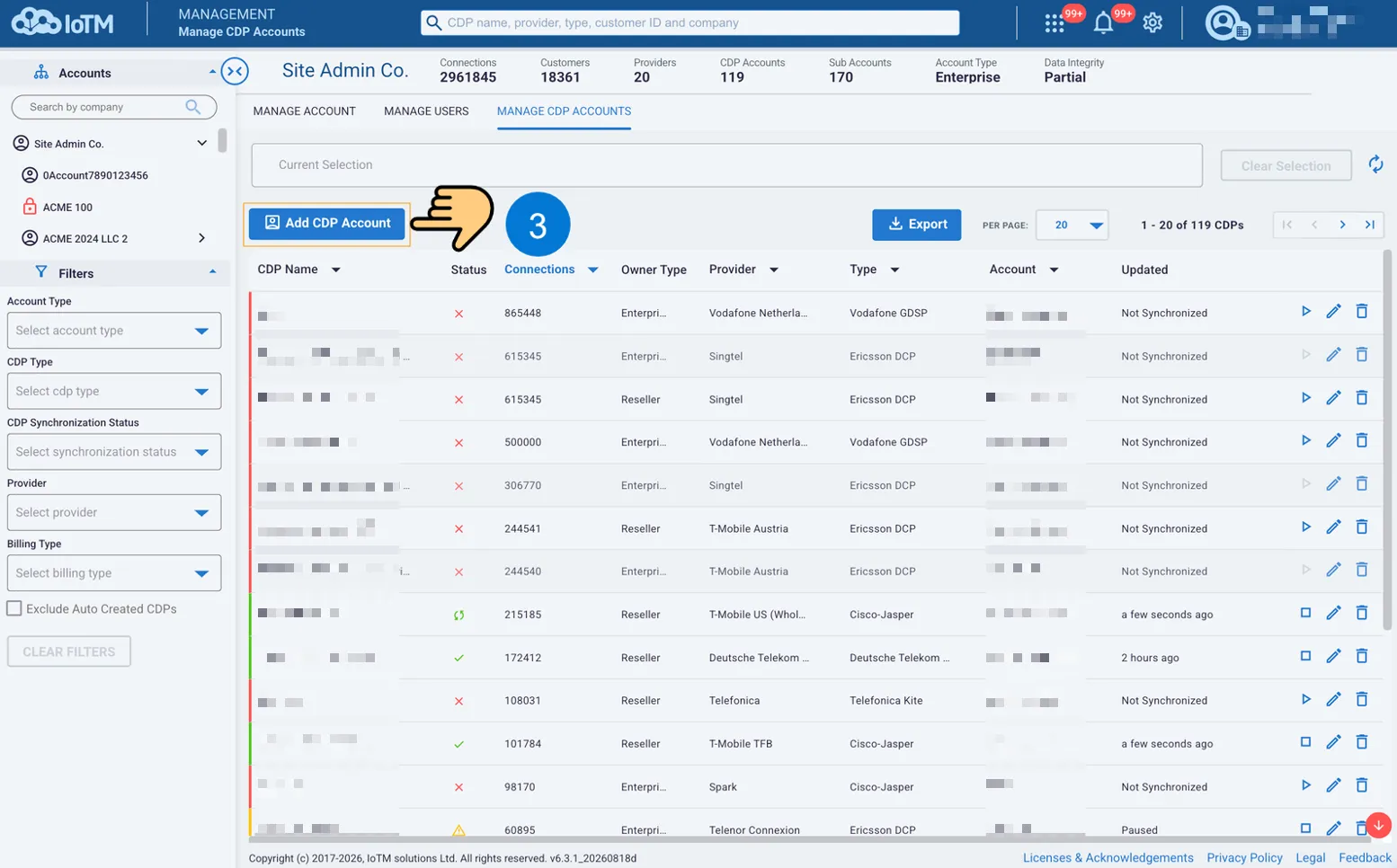
Make sure you click on the ‘Add CDP Account’ button from the top bar gear icon – or switch between the ‘Manage’ tabs. All the following steps are detailed below, for additional details, please refer to IoTM First Level Support Guide - Resellers in the References Section.
8.1.1. Selecting The Underlying CDP Type
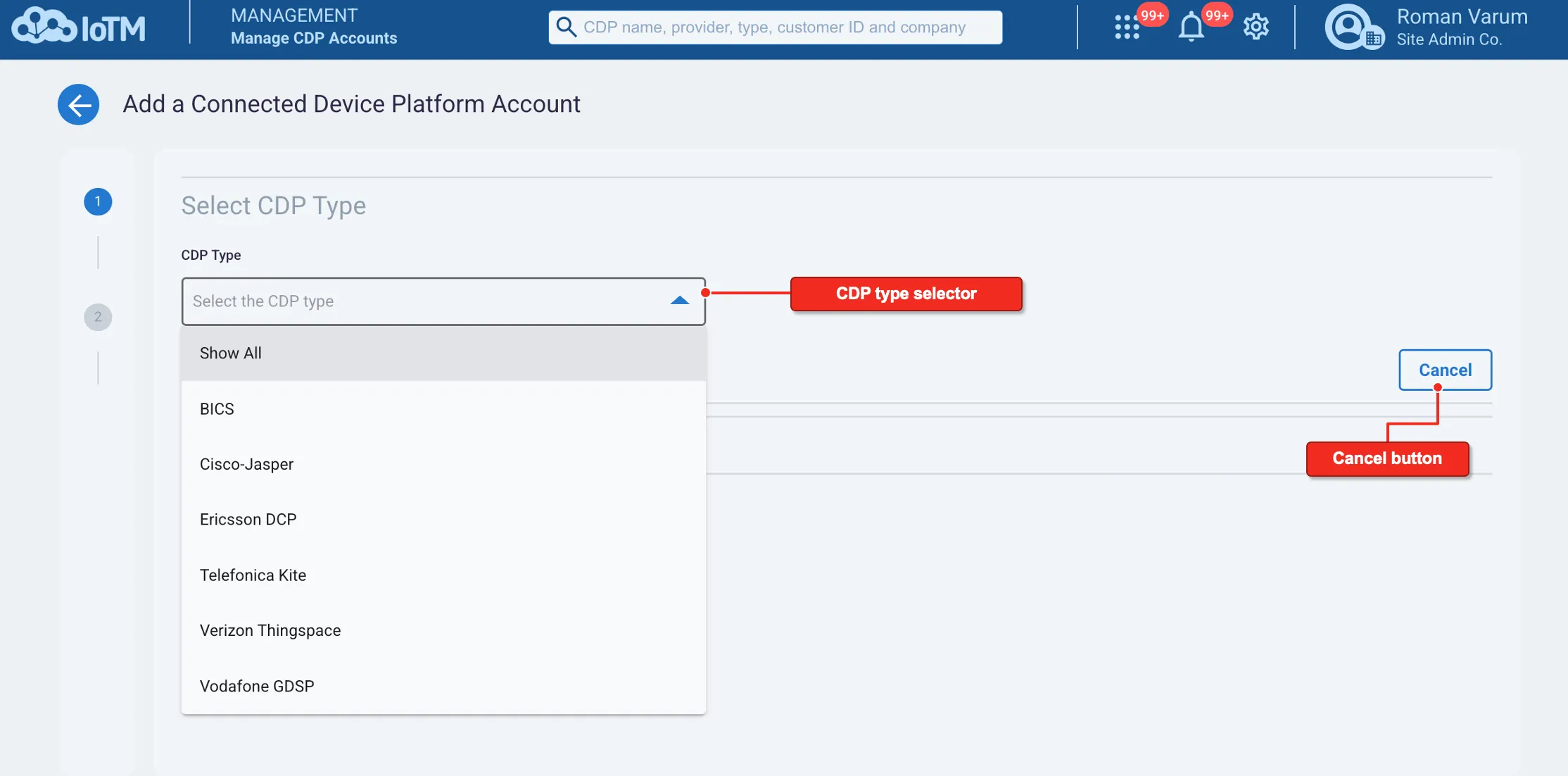
Connected Device Platform (CDP) type selection dialog
Control descriptions
Control | Description |
|---|---|
CDP Type selector | Select the CDP type of underlying Connectivity Management Platform (CMP) account you want to add. Additional types will be added as IoTM expands its CDP type coverage. Note that there are 2 CDP types that you cannot currently self onboard, as they require SFTP file delivery to be set up between the Connectivity Service Provider (CSP) and IoTM. These types are AT&T EoD and T-Mobile USA NextGen. CDPs from these 2 types need to be set up by the IoTM Pod administrator following an SFTP integration with the CSP. This is also true for special cases such as large Cisco-Jasper control center accounts that require JPO file integration and large Vodafone GDSP accounts that require a special file-based integration with IoTM. |
Cancel button | Cancel the dialog with no changes. |
8.1.2. Filling in CDP Parameters and Attributes
The configuration details differ slightly depending on the CDP type. The following instructions will outline the details for each type.
8.1.2.1. Cisco-Jasper
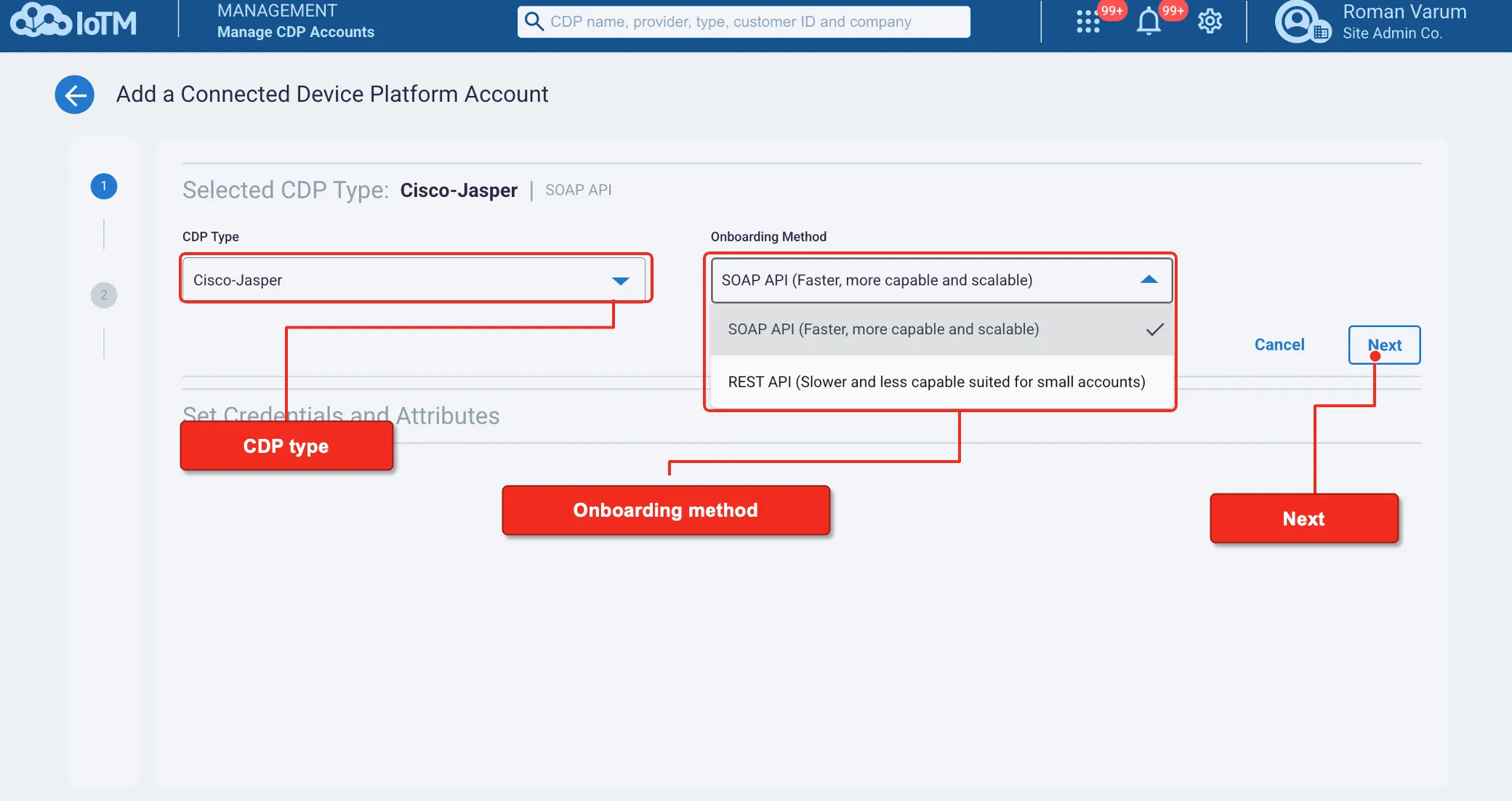
Add Connected Device Platform (CDP) dialog window. For some of the CDP types, like for Cisco/Jasper, you need to select the onboarding method first.
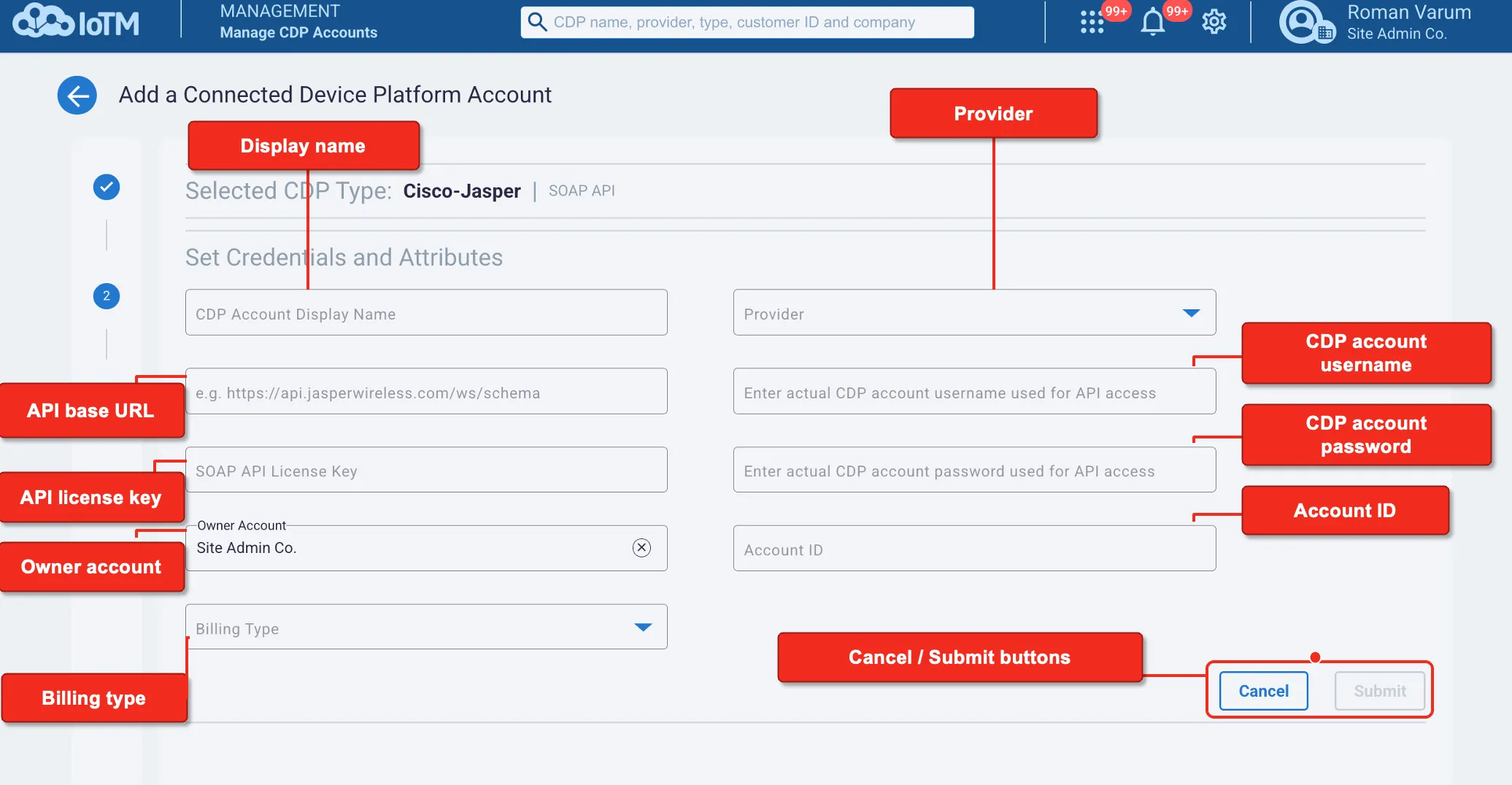
The Example is for Cisco/Jasper, other CDP types’ fields vary according to the relevant CMP platform API requirements
Control descriptions
Control | Description |
|---|---|
Location services toggle | Switch this toggle if you want to enable Location service. This will expand the menu, asking you to provide additional credentials, subject to the underlying CMP requirements. This option is available in some CDP Types. |
Owner Account | By default, the account that is logged in. In reseller or CSP cases, there is an option to select a sub-account either from the account tree on the left or by search as you type in the Owner Account field. |
Display Name | The display name that will be shown in analytics and CDP management views for this CDP (e.g. Jasper at AT&T, Vodafone UK GDSP, etc.). |
API base URL | The base URL for API calls. |
API License key | The API license key from the connectivity provider. Other CDP types may have other requirements, such as a certificate in Vodafone GDSP. Each CDP type has relevant and different fields in this dialog depending on the type selected in the “Selecting The Underlying CDP Type” phase above. |
Previous / Cancel / Submit buttons | (1) Erase all input and return to phase 1 CDP type selection. (2) Cancel the dialog with no changes. (3) Submit and add a new CDP account as a service data source. |
Provider | The connectivity provider. This field is a ‘find as you type’ field. Just start typing the provider name and the potential results will start appearing. |
CDP Account username | The username used for API calls, towards the CMP. |
CDP Account password | The user’s password for API calls, towards the CMP. |
8.1.2.1.1. Enabling location services for Cisco-Jasper
[SCREENSHOT NEEDED: Cisco-Jasper Location Service Credentials enabled, showing the location username, API key, and URL fields.]
Option Location Service fill-in form
Control descriptions
Control | Description |
|---|---|
Location Service Toggle | Switch this toggle on if you wish to provide credentials relevant for additional Location services. Specifically in Cisco Jasper control center accounts, the main onboarding is done using the SOAP API credentials and the location APIs require a separate set of REST API credentials and that is the reason for the credential separation for location services from the main credentials. |
Location Service Username | The REST username or app key configured for IoTM in the CMP account by the enterprise. |
Location Service API key | The REST service API key configured for IoTM in the CMP account by the enterprise. |
Location Service URL | The API URL used for location services. |
Previous/Cancel/Submit buttons | (1) Erase all input and return to phase 1 CDP type selection. (2) Cancel the dialog with no changes. (3) Submit and add a new CDP account as a service data source. |
8.1.2.2. Ericsson DCP
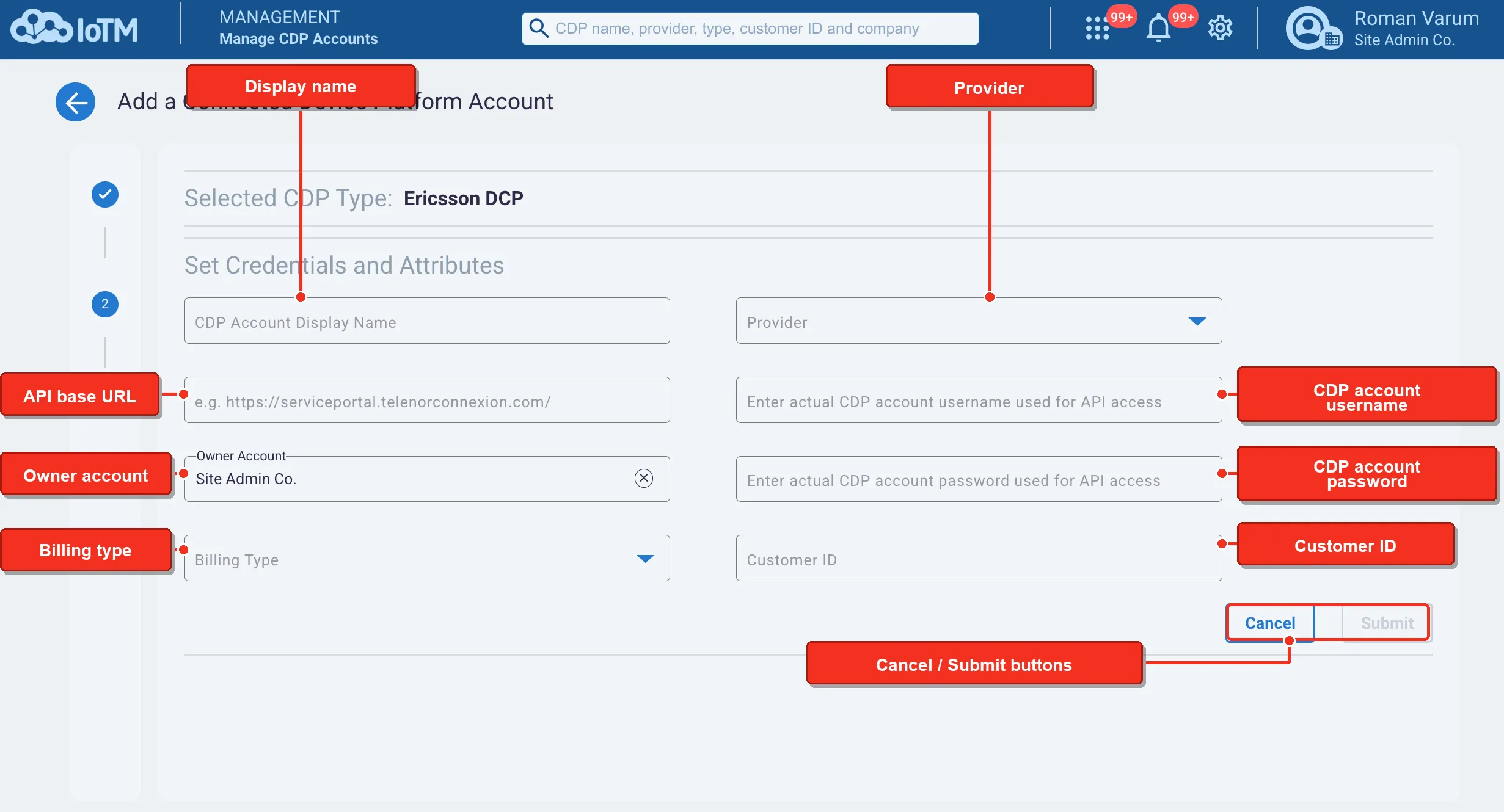
Add Connected Device Platform (CDP) dialog window. The Example is for Ericsson DCP, other CDP types’ fields vary according to the relevant CMP platform API requirements.
Control descriptions
Control | Description |
|---|---|
Display Name | The display name that will be shown in analytics and CDP management views for this CDP. |
API base URL | The base URL for API calls. |
Owner Account | By default, the account that is logged in. In reseller or CSP cases, there is an option to select a sub-account either from the account tree on the left or by search as you type in the Owner Account field. |
Provider | The connectivity provider. This field is a ‘find as you type’ field. Just start typing the provider name and the potential results will start appearing. |
CDP Account username | The username used for API calls, towards the CMP. |
CDP Account password | The user’s password for API calls, towards the CMP. |
Customer ID | The user’s Customer ID in their Ericsson DCP account. |
Previous / Cancel / Submit buttons | (1) Erase all input and return to phase 1 CDP type selection. (2) Cancel the dialog with no changes. (3) Submit and add a new CDP account as a service data source. |
8.1.2.3. Verizon Thingspace
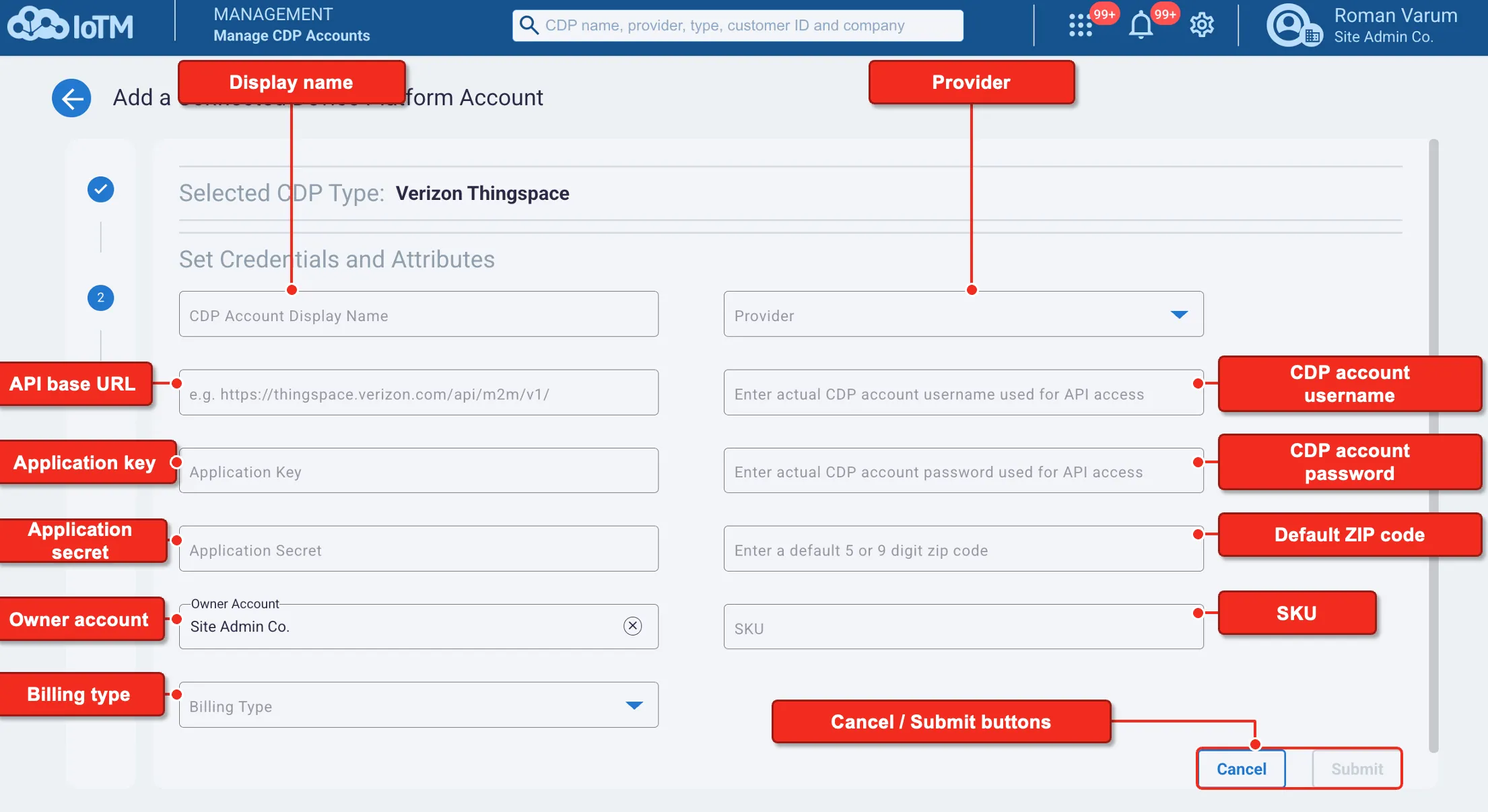
Add Connected Device Platform (CDP) dialog window. The Example is for Verizon Thingspace, other CDP types’ fields vary according to the relevant CMP platform API requirements.
Control descriptions
Control | Description |
|---|---|
Display Name | The display name that will be shown in analytics and CDP management views for this CDP (e.g. Jasper at AT&T, Vodafone UK GDSP, etc.). |
API base URL | The base URL for API calls. |
Application Key | OAUTH2 API application key that was set in Thingspace. |
Application Secret | OAUTH2 API application secret that was set in Thingspace. |
Owner Account | By default, the account that is logged in. In reseller or CSP cases, there is an option to select a sub-account either from the account tree on the left or by search as you type in the Owner Account field. |
Provider | The connectivity provider. This field is a ‘find as you type’ field. Just start typing the provider name and the potential results will start appearing. |
CDP Account username | The Verizon UWS account level username used for API calls, towards the CMP. |
CDP Account password | The Verizon UWS account level password for API calls, towards the CMP. |
Default Tax Zip code | Optional default tax zip code used for device activations if no other zip code is provided. |
Previous / Cancel / Submit buttons | (1) Erase all input and return to phase 1 CDP type selection. (2) Cancel the dialog with no changes. (3) Submit and add a new CDP account as a service data source. |
8.1.2.4. Vodafone GDSP
Add Connected Device Platform (CDP) dialog window. The Example is for Vodafone GDSP, other CDP types’ fields vary according to the relevant CMP platform API requirements.
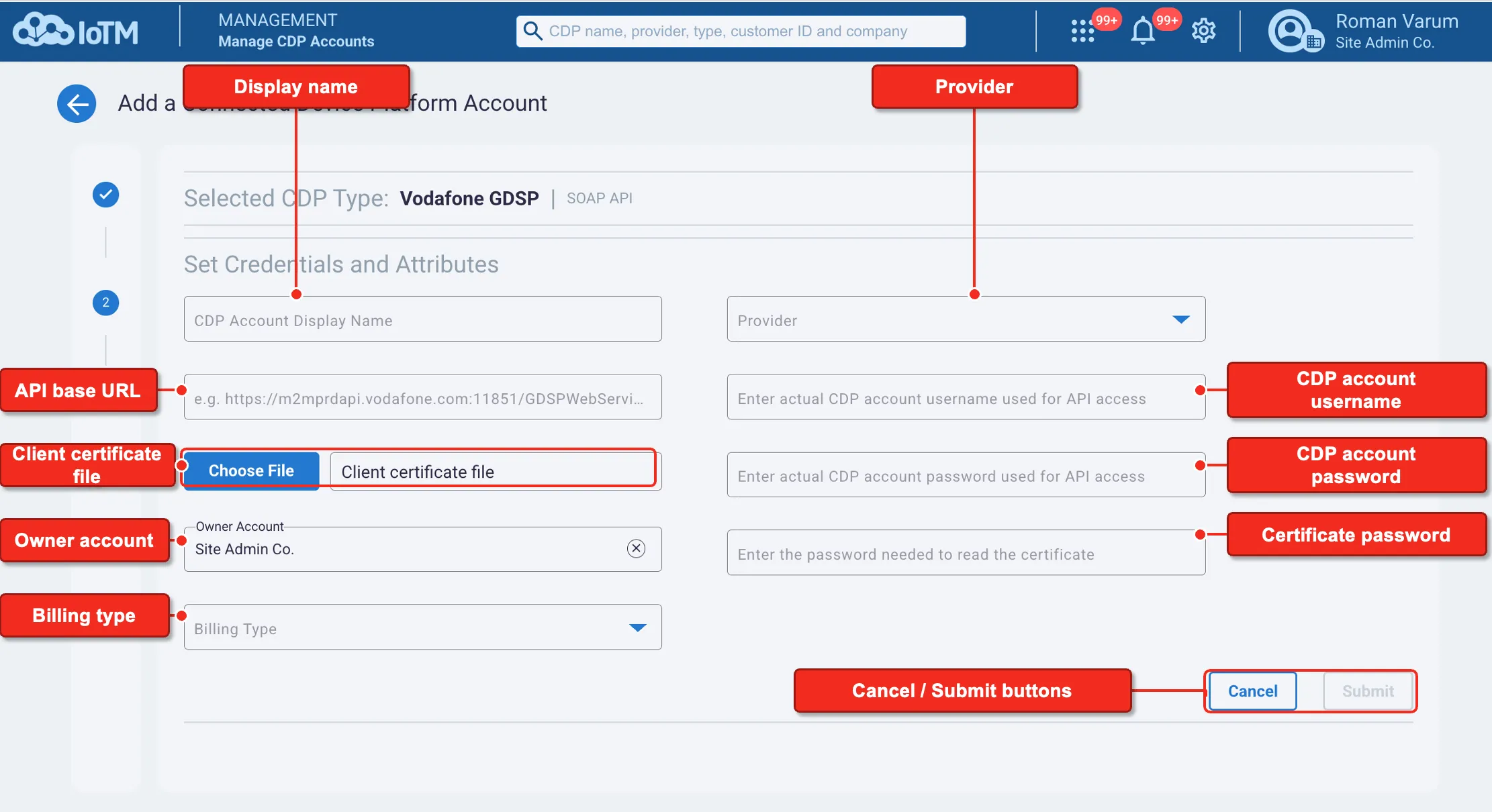
Control descriptions
Control | Description |
|---|---|
Display Name | The display name that will be shown in analytics and CDP management views for this CDP (e.g. Jasper at AT&T, Vodafone UK GDSP, etc.). |
API base URL | The base URL for API calls. |
Owner Account | By default, the account that is logged in. In reseller or CSP cases, there is an option to select a sub-account either from the account tree on the left or by search as you type in the Owner Account field. |
Client Certificate File | Upload the Vodafone API client TLS certificate file in pfx format. You can obtain this client certificate from your Vodafone Support representative. |
Provider | The connectivity provider. This field is a ‘find as you type’ field. Just start typing the provider name and the potential results will start appearing. |
CDP Account username | The username used for API calls, towards the CMP. |
CDP Account password | The user’s password for API calls, towards the CMP. |
Certificate Password | The user’s password with their Vodafone Certificate. |
Previous / Cancel / Submit buttons | (1) Erase all input and return to phase 1 CDP type selection. (2) Cancel the dialog with no changes. (3) Submit and add a new CDP account as a service data source. |
8.1.3. Submitting CDP Account details
After clicking SUBMIT, the IoTM platform will check the credentials given and if they check out, it will add a CDP account, and it will start synchronizing data from the underlying CDP platform (CMP).
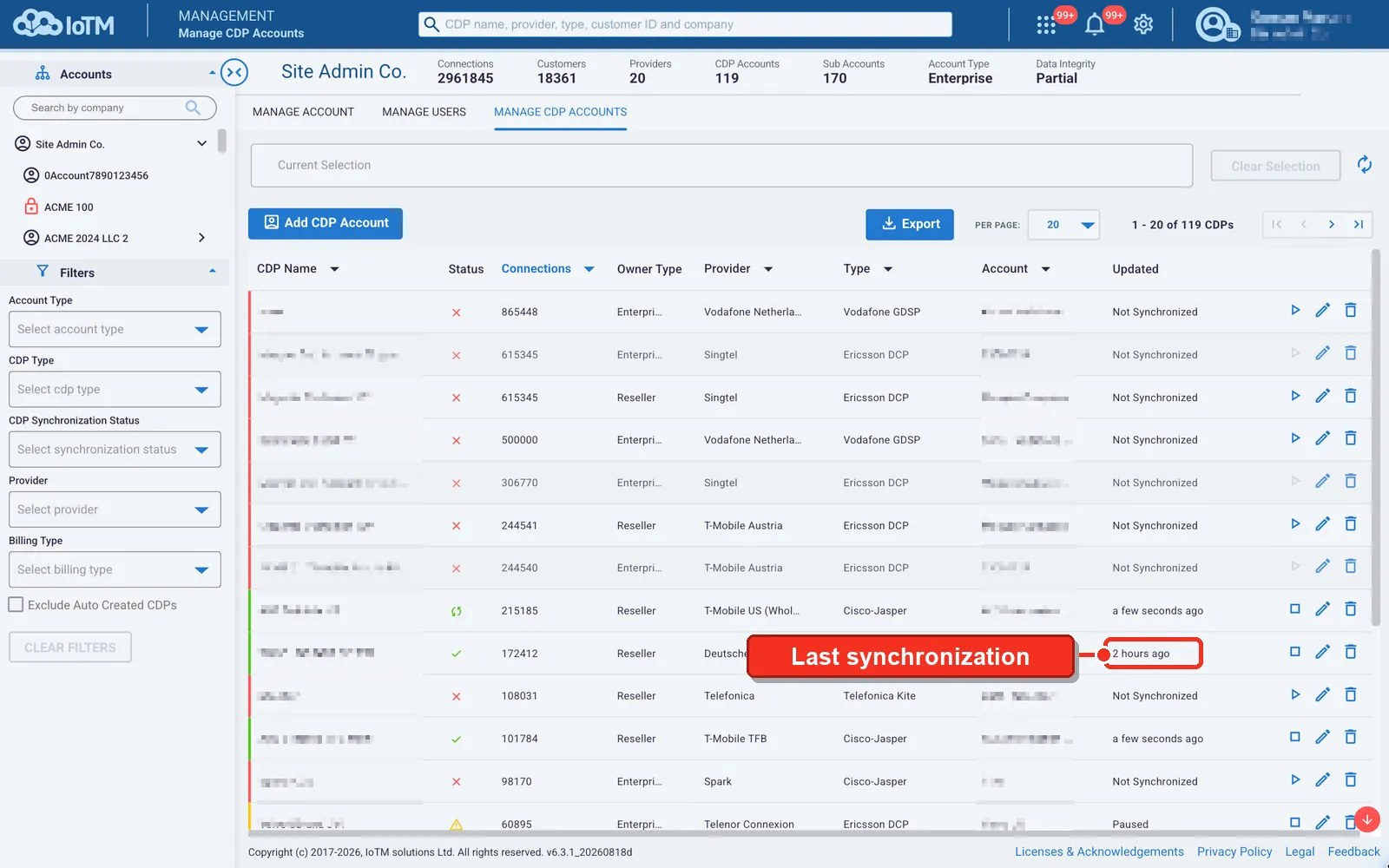
When the system is done synchronizing and processing the data, it will send the Administrator users in the account an email notifying them that analytics are available and that the initial sync for the new CDP data is done. From this point on, the system moved to incremental ongoing sync mode to keep the CDP data updated.
After the CDP account initial synchronization completes and the customer is notified, the progress bar turns into a timestamp.