EID Actions
EID Actions groups operations that provision a profile onto the eUICC, retrieve information, or change its configuration. Open the three-dot menu on the EID row in the grid, or use EID Actions on the EID details page; EID actions can also be accessed from the managed eSIM profile’s details page that is associated to the EID. Downloads belong to EID Actions because the target is the EID that will receive the profile.
Below are examples of accessing EID actions from different locations.
- From the eSIM inventory grid:
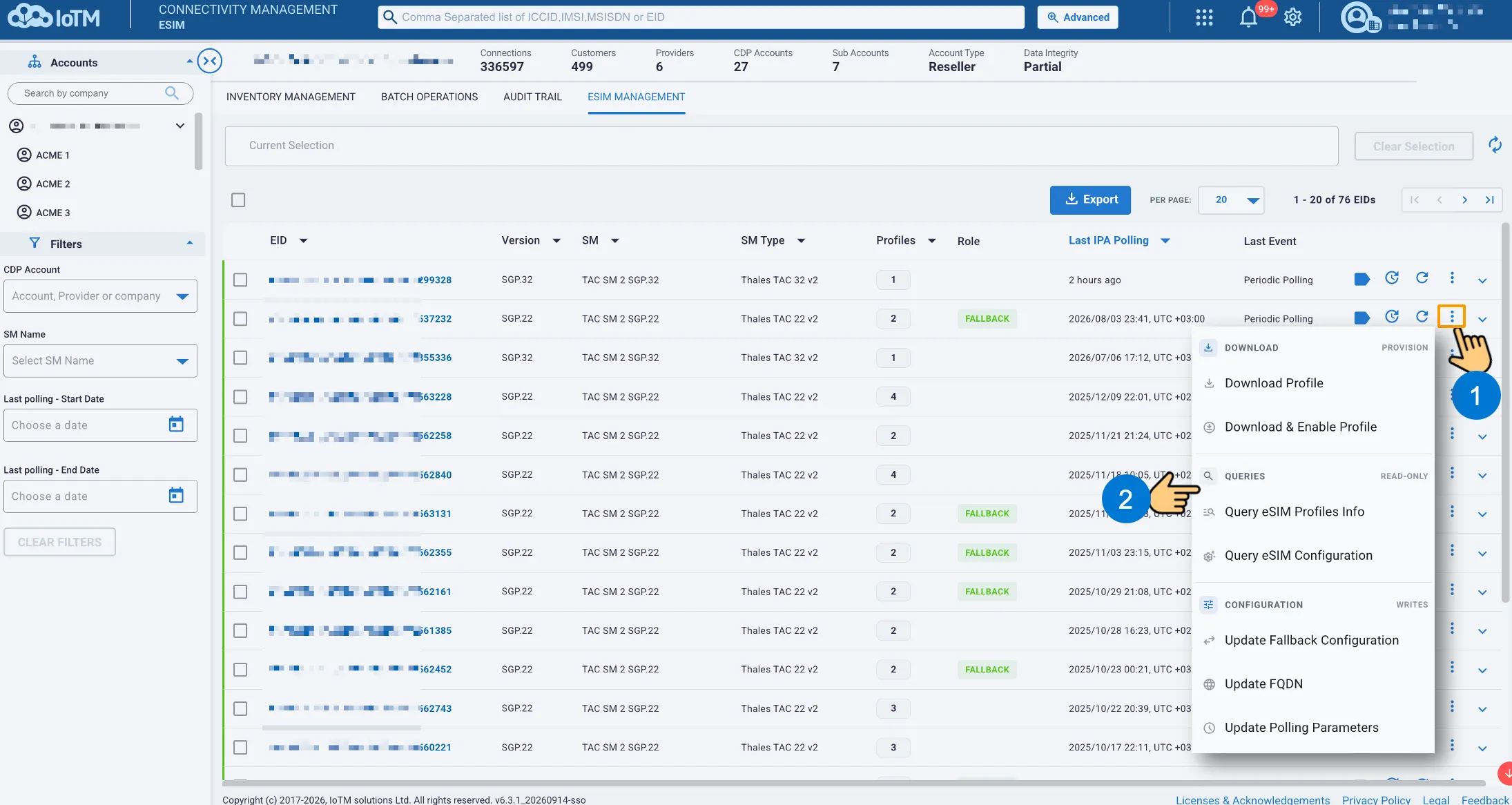
EID Actions from the inventory grid
- On the EID details page:
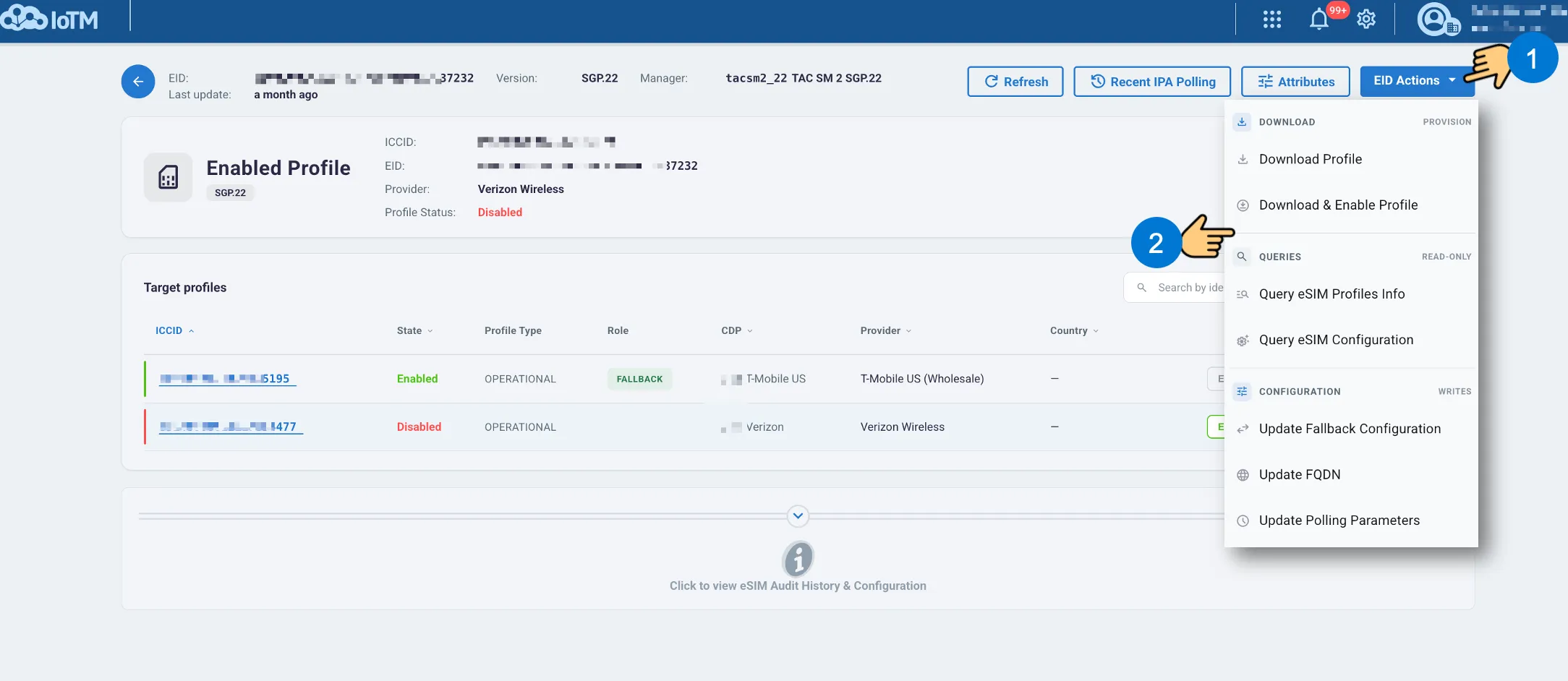
EID Actions on the EID details page
- From the managed profile’s details page:
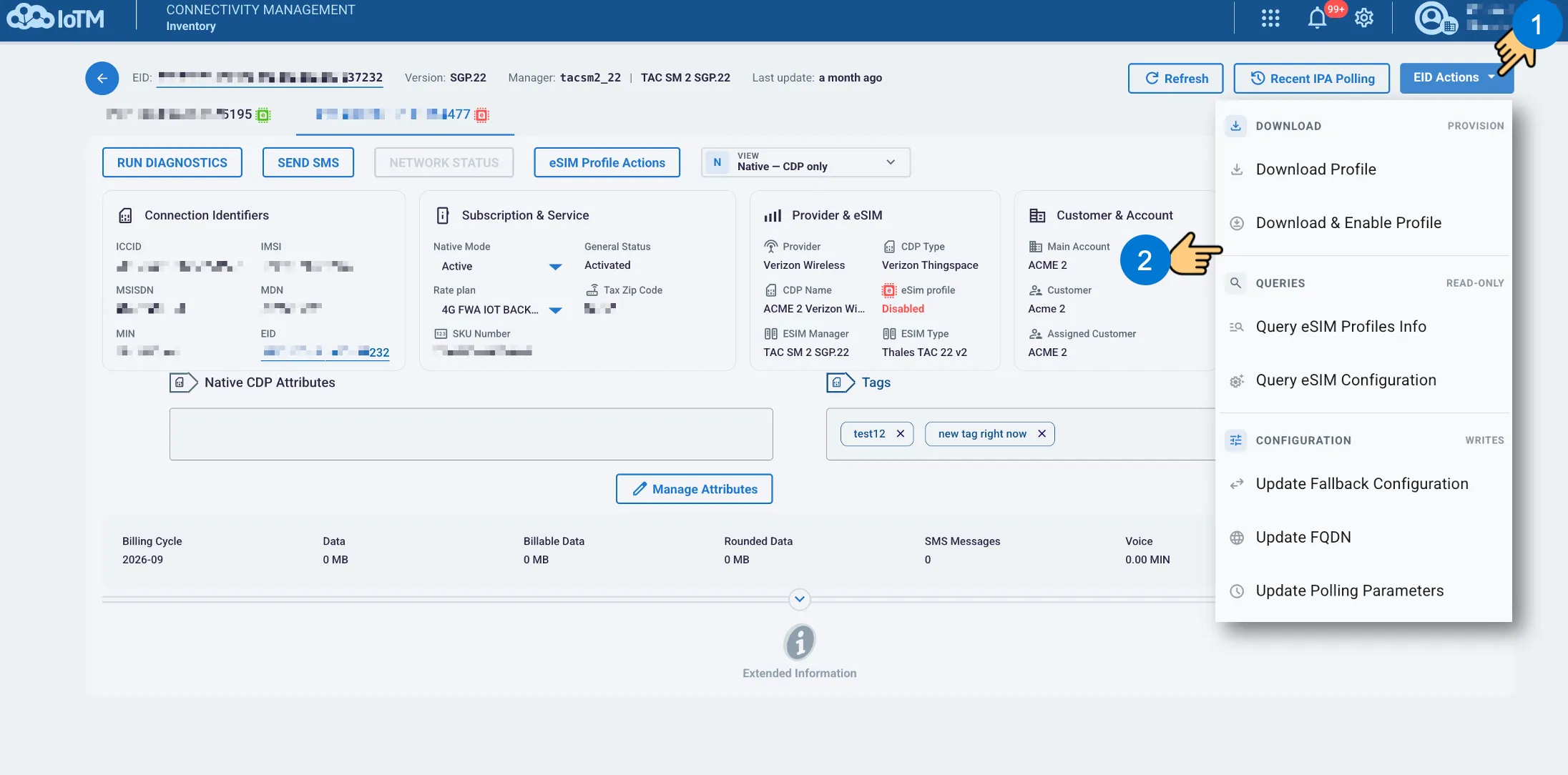
EID Actions on the managed profile’s details page
Menu Group | Purpose |
|---|---|
Download / Provision | Download Profile and Download & Enable Profile add a profile to the selected EID. The combined action also enables it. |
Queries / Read-only | Query eSIM Profiles Info and Query eSIM Configuration request current information without changing the configured values. |
Configuration / Writes | Update Fallback Configuration, Update FQDN, and Update Polling Parameters change settings for the selected EID. |
14.2.1 Download Profile
Download Profile provisions a profile onto the selected eUICC. Confirm the EID SCOPE identifier before selecting the activation-code source.
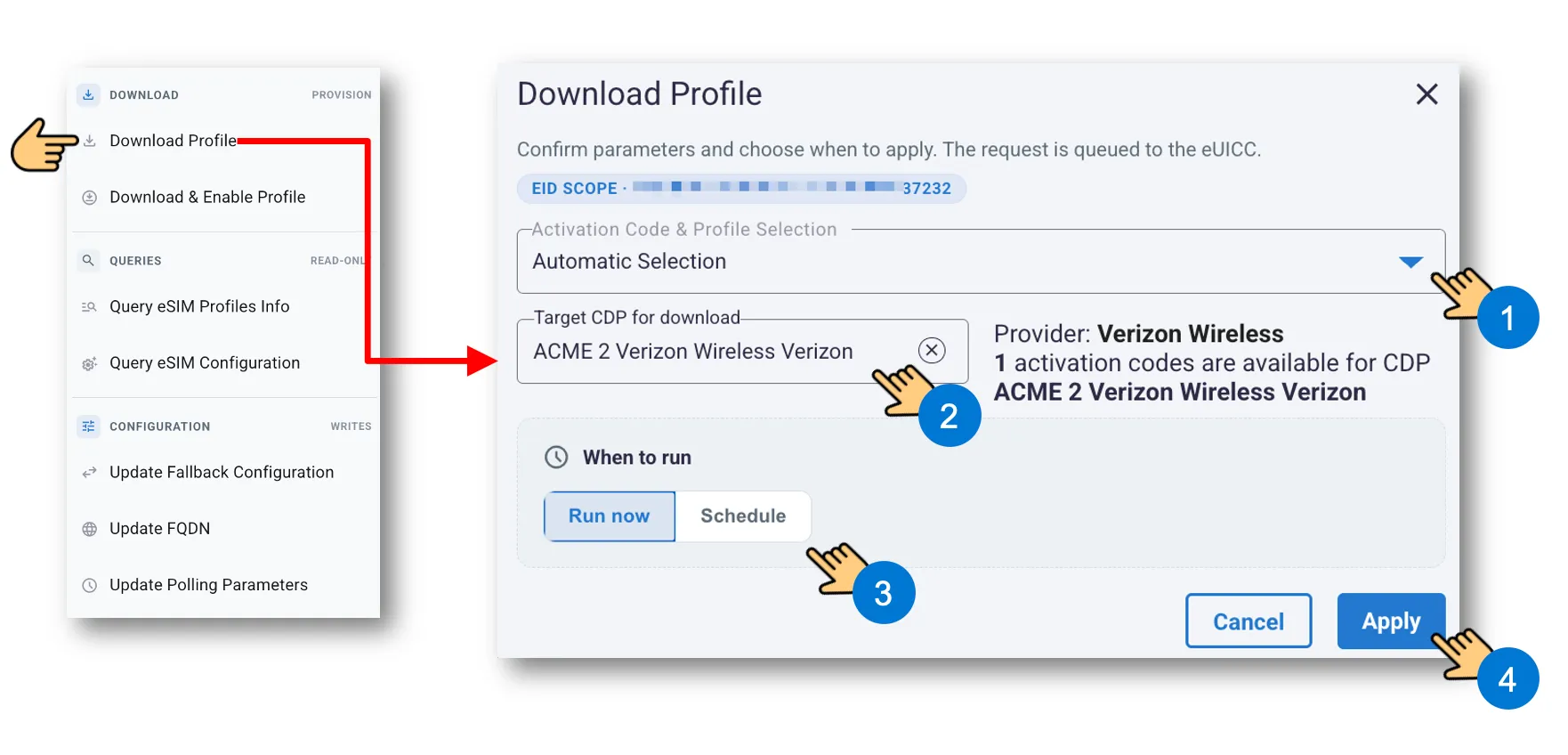
Download Profile dialog
- Open Activation Code & Profile Selection and choose the required method. Automatic Selection uses the activation-code inventory associated with the target CDP. Manual input, where offered, requires you to provide the activation code as well as the target CDP.
- Choose Target CDP for download. Review the provider and the number of available activation codes.
- Select Run now or Schedule, complete any required timing fields.
- Press Apply or Schedule action.
If the selected CDP has no available activation codes, the dialog displays an insufficient-codes warning and the action cannot proceed. Import suitable codes for that CDP, or select another appropriate CDP with an available code.
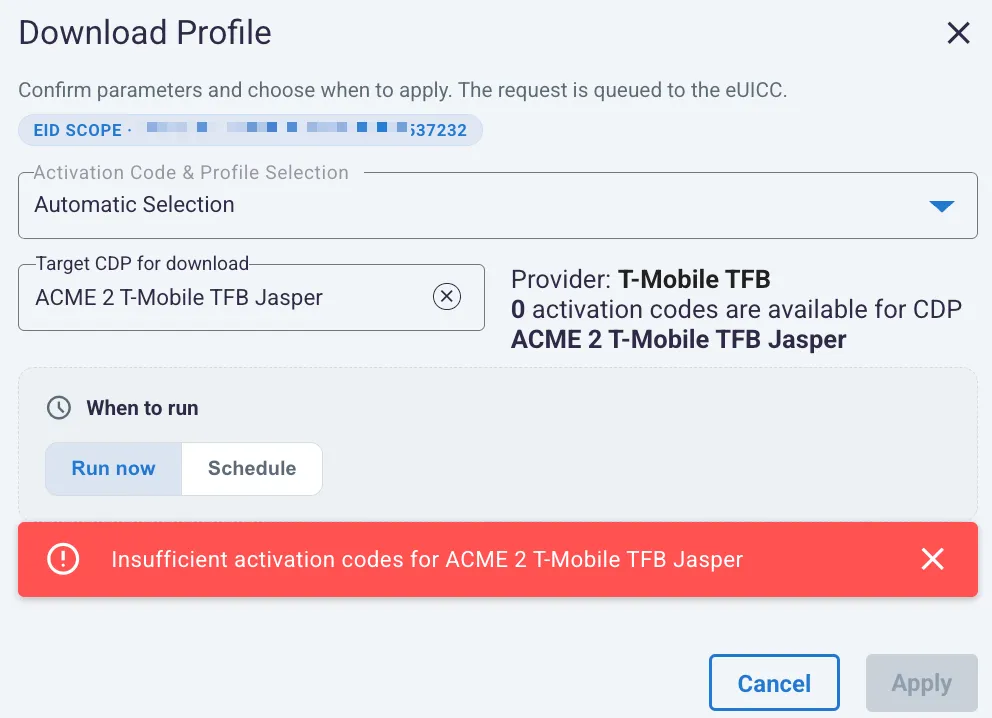
Download blocked because the target CDP has no available activation codes
14.2.2 Download and Enable Profile
Download and Enable Profile combines provisioning to the EID with enabling the downloaded profile. Select the activation-code method and Target CDP for download, and verify that a code is available. Select Activate after profile enable only when the workflow should also activate the subscription on its CDP.
When CDP activation is selected, complete the provider-specific rate-plan and device fields, verify the target profile identifiers, and add a description if needed. Choose Run now or Schedule and submit after all required fields are complete.
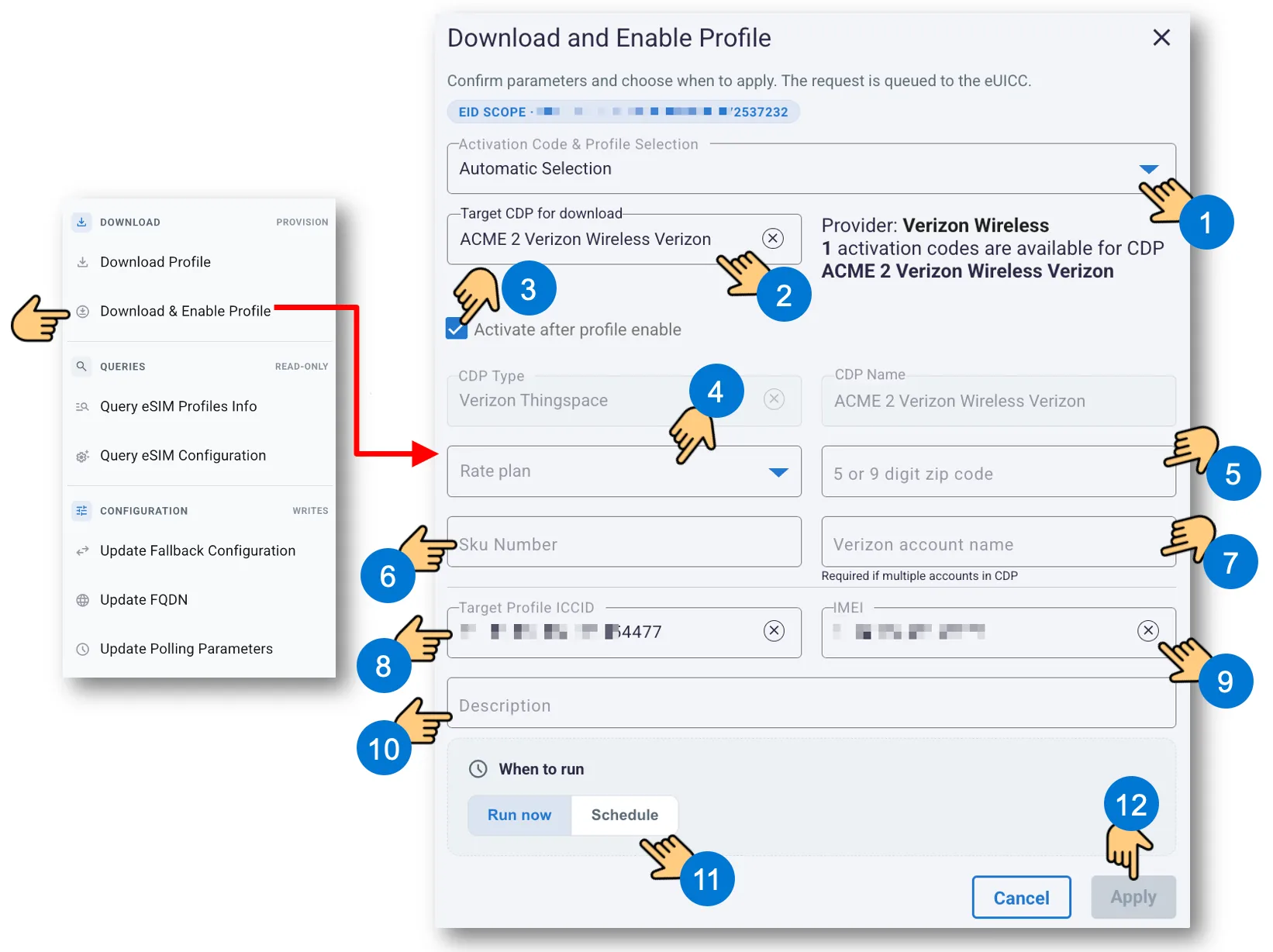
Download and Enable Profile with optional Verizon activation fields
14.2.3 Query eSIM Profiles Info
Use Query eSIM Profiles Info to request a refresh of the profile information for the selected EID. Select Run now or Schedule, and press Apply.
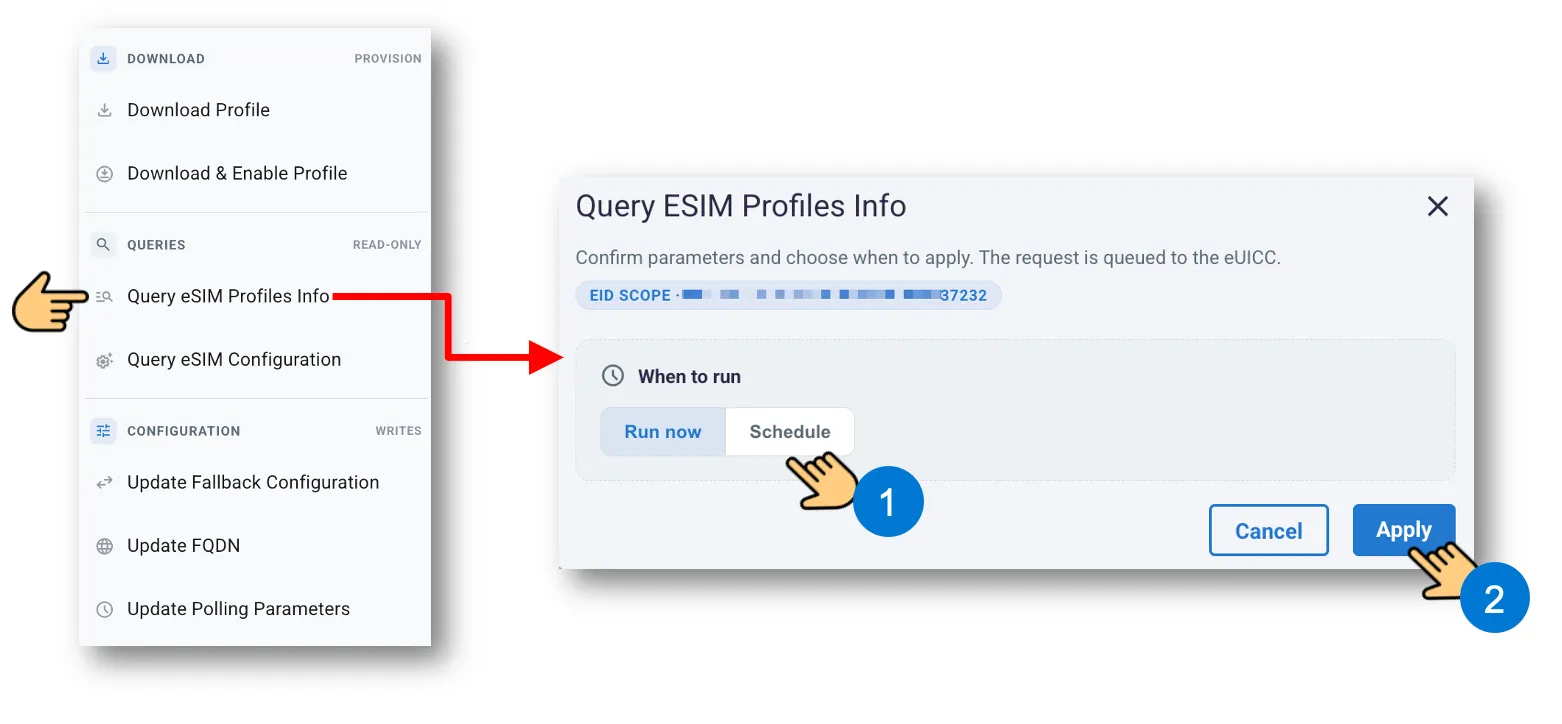
Applying the profile-information refresh request
14.2.4 Query eSIM Configuration
Use Query eSIM Configuration to request the current configuration for the selected EID. Choose the execution timing and select Apply.
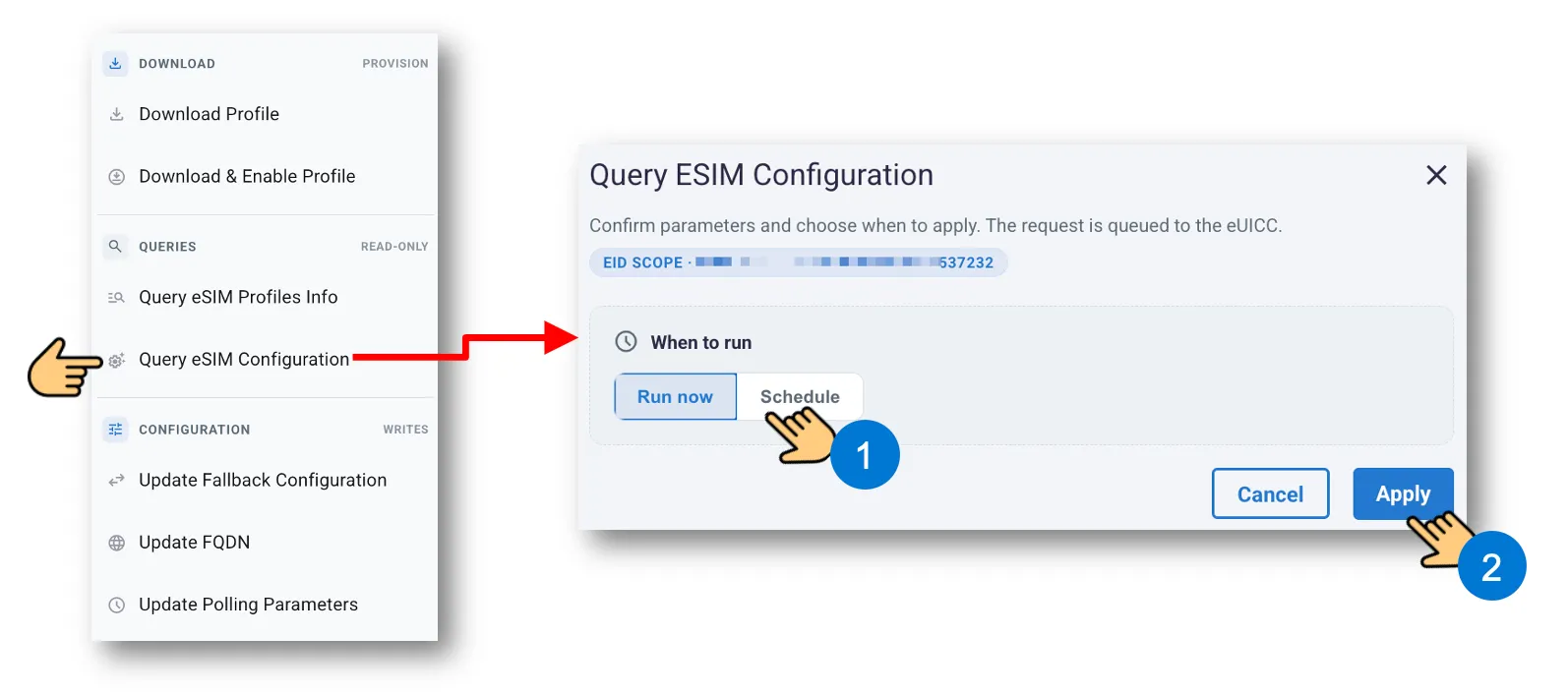
Querying the EID configuration
14.2.5 Update Fallback Configuration
This EID-level action sets the fallback mechanism and its count. Choose Fallback Mechanism from the available options and enter Fallback Count from 1 to 30. Run the request now or schedule it, then submit.
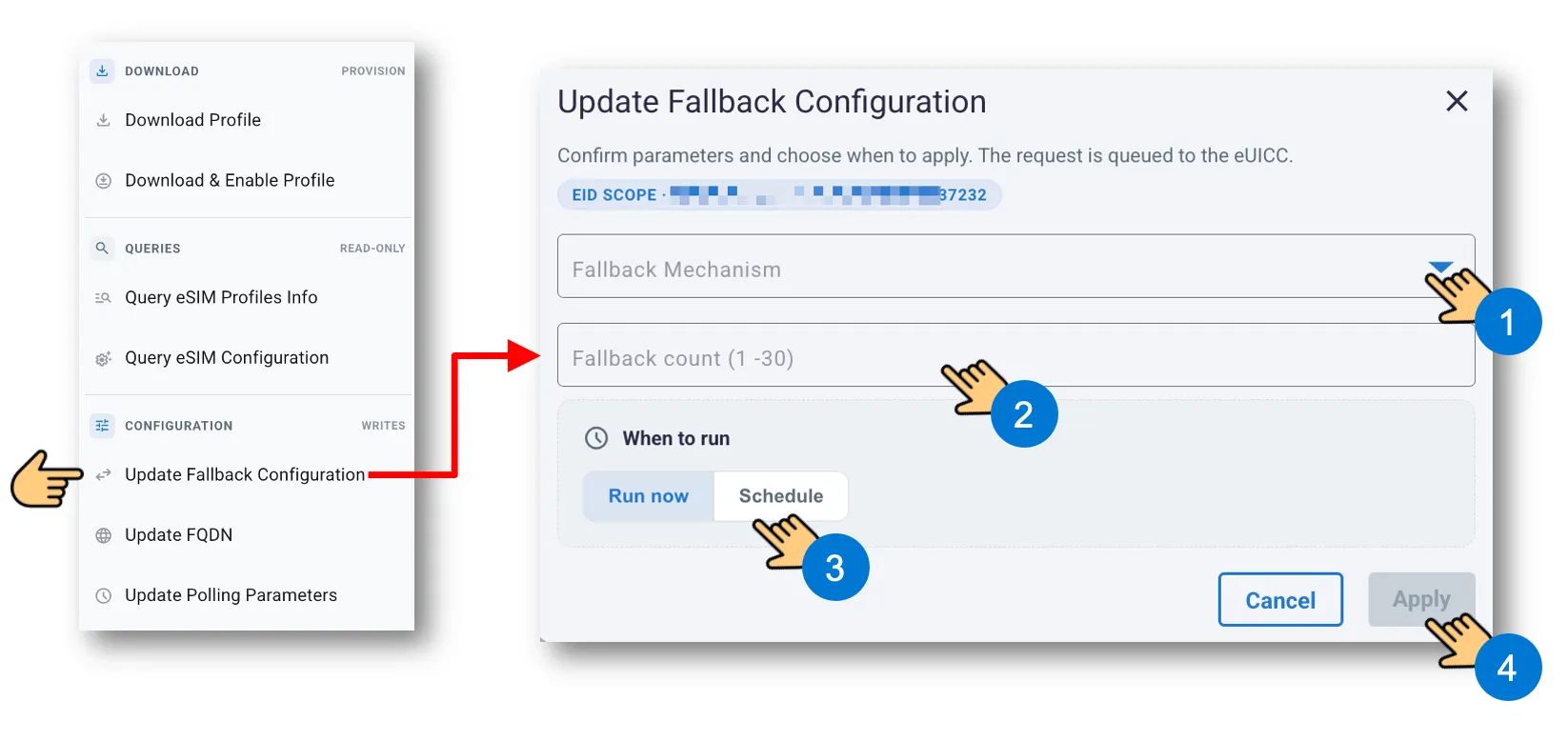
Updating the fallback mechanism for an EID
14.2.6 Update FQDN
Update FQDN changes the server address used by the selected EID. Enter the agreed server FQDN. The field supports an optional :port suffix, with a port from 1 to 65535. Choose the execution timing and select Apply.
Important: use an address agreed with the subscription-manager operator. An incorrect address can prevent the eSIM from contacting its management server.
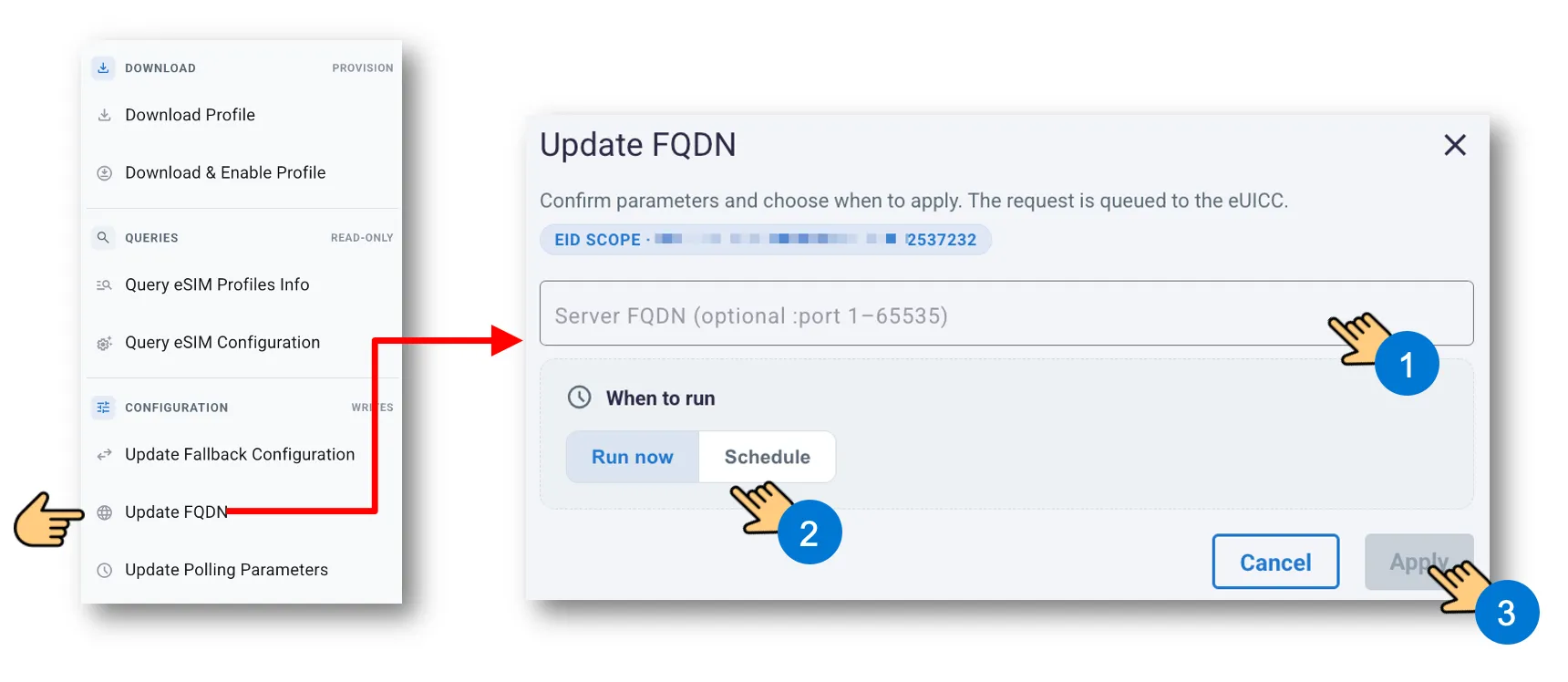
Updating the server FQDN for an EID
14.2.7 Update Polling Parameters
Use Update Polling Parameters to choose the events that trigger polling and the regular interval. The current dialog supports a regular polling interval from 1 to 168 hours. Presets include 1h, 3h, 12h, 1d, 3d, and 7d.
Polling Option | Purpose |
|---|---|
Polling At Power-On | Requests polling when the device powers on. |
Regular Periodic Polling | Enables the recurring polling interval entered in hours. |
Polling MCC-MNC Change | Requests polling when the mobile country code or mobile network code changes. |
Polling on IMEI Change | Requests polling when the device IMEI changes. |
Select the applicable triggers, enter the regular interval if used, and choose Run now or Schedule. In the scheduled example, complete the date and 24-hour time before selecting Schedule action.
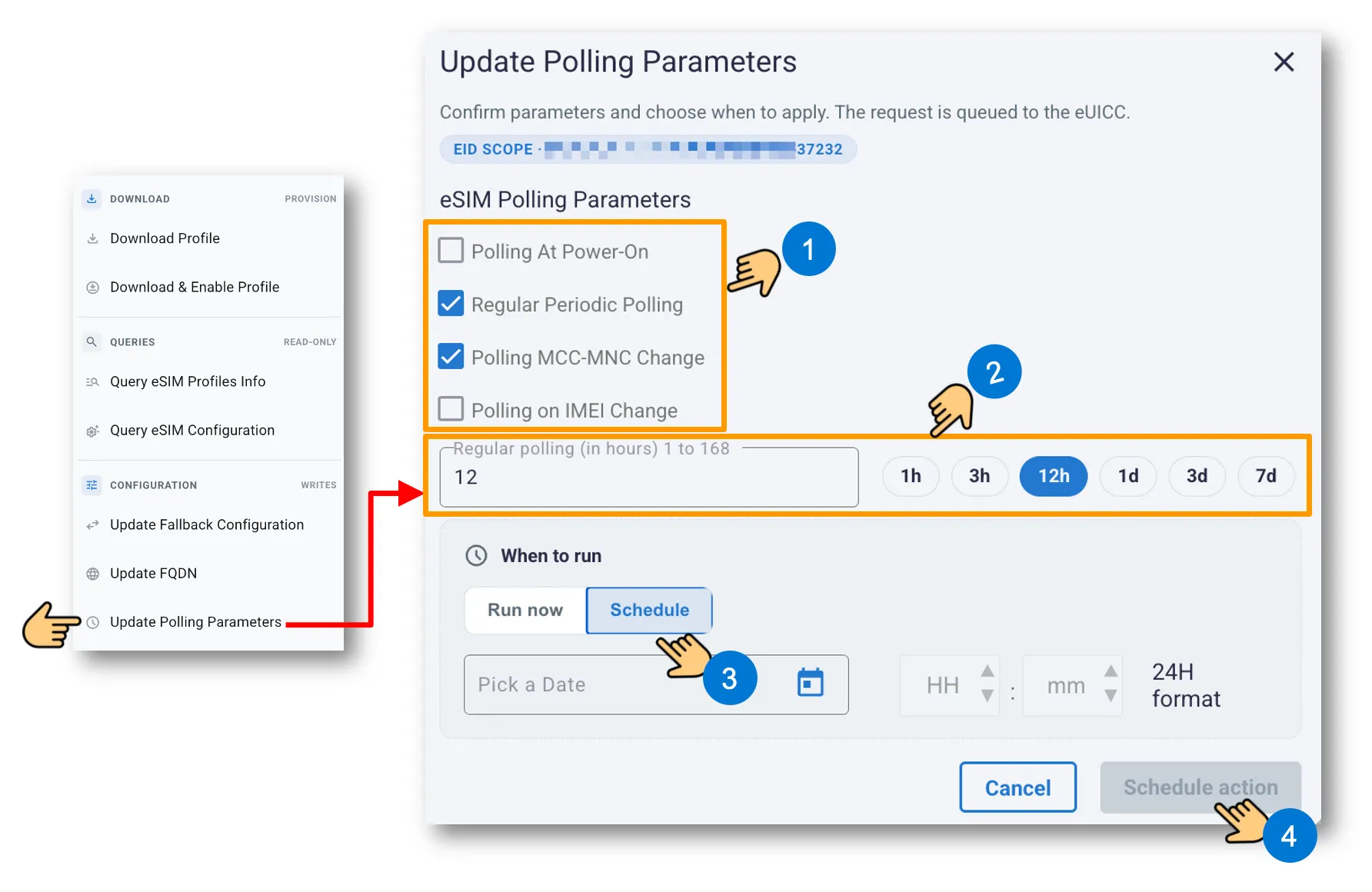
Configuring polling triggers and scheduling the update