eSIM and EID Actions on Multiple Devices
Triggering eSIM or EID Actions on Multiple Profiles and Devices
To apply an eSIM Profile Action or an EID action to many units at once, first make sure to filter the population by a Subscription Manager, since these actions can only be applied to a population under the same SM Type. Once filtered, the Manage eSIM button will become available. Select several EIDs, or click to Select All and press Manage eSIM to display available actions:
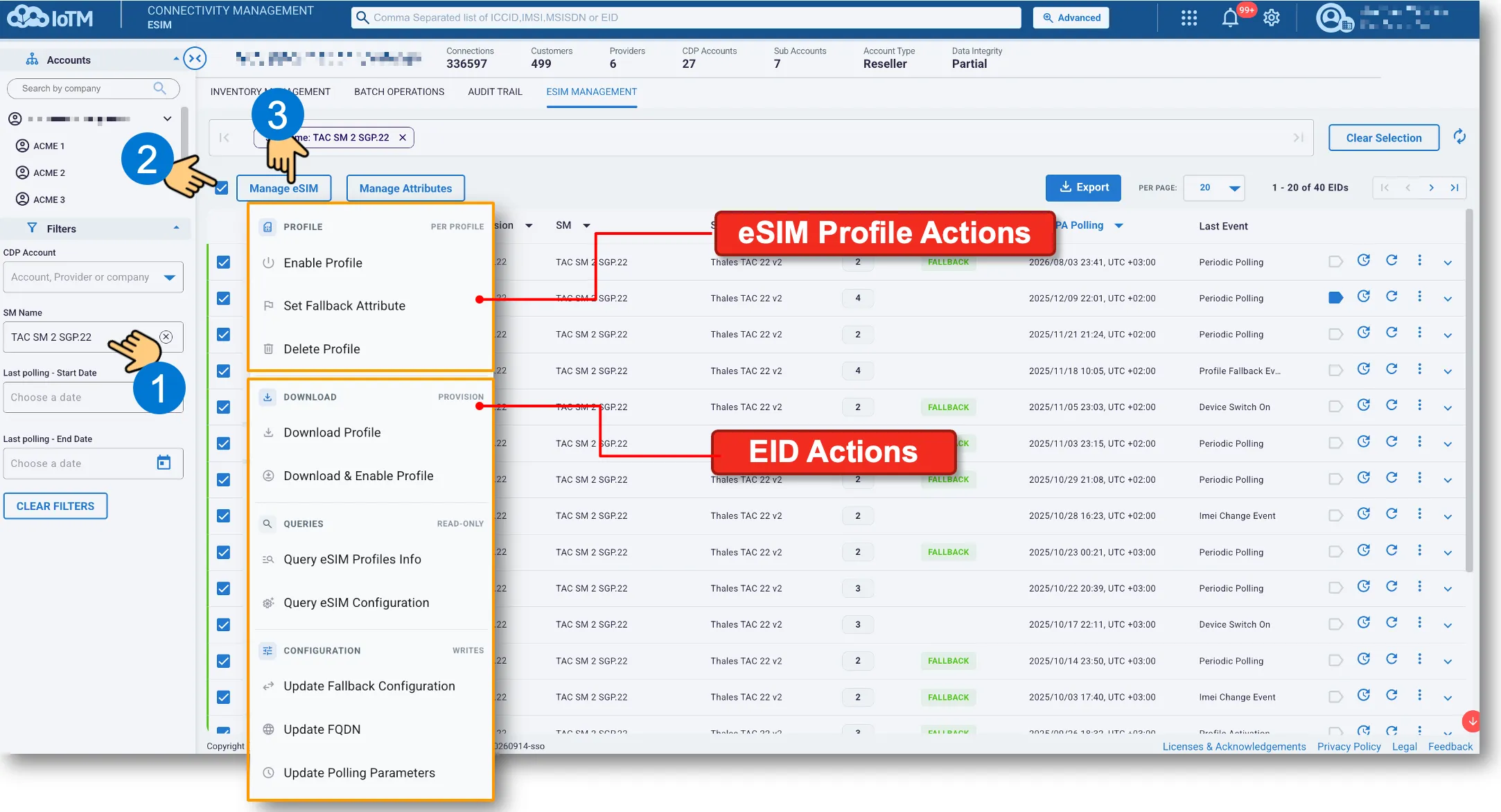
Selecting any of them will start an eSIM/EID action wizard. It requires the same type of configuration details as when performing an eSIM / EID action on an individual device. The difference when doing these actions on multiple devices at once is that the action wizard is aware of the amount and SM Type of devices selected, and unlike ‘quick action’ wizard, it allows you to switch to a different type of action inside, while keeping the already selected target population.
See an example of Enable Profile (an eSIM Profile Action) on multiple EID devices:
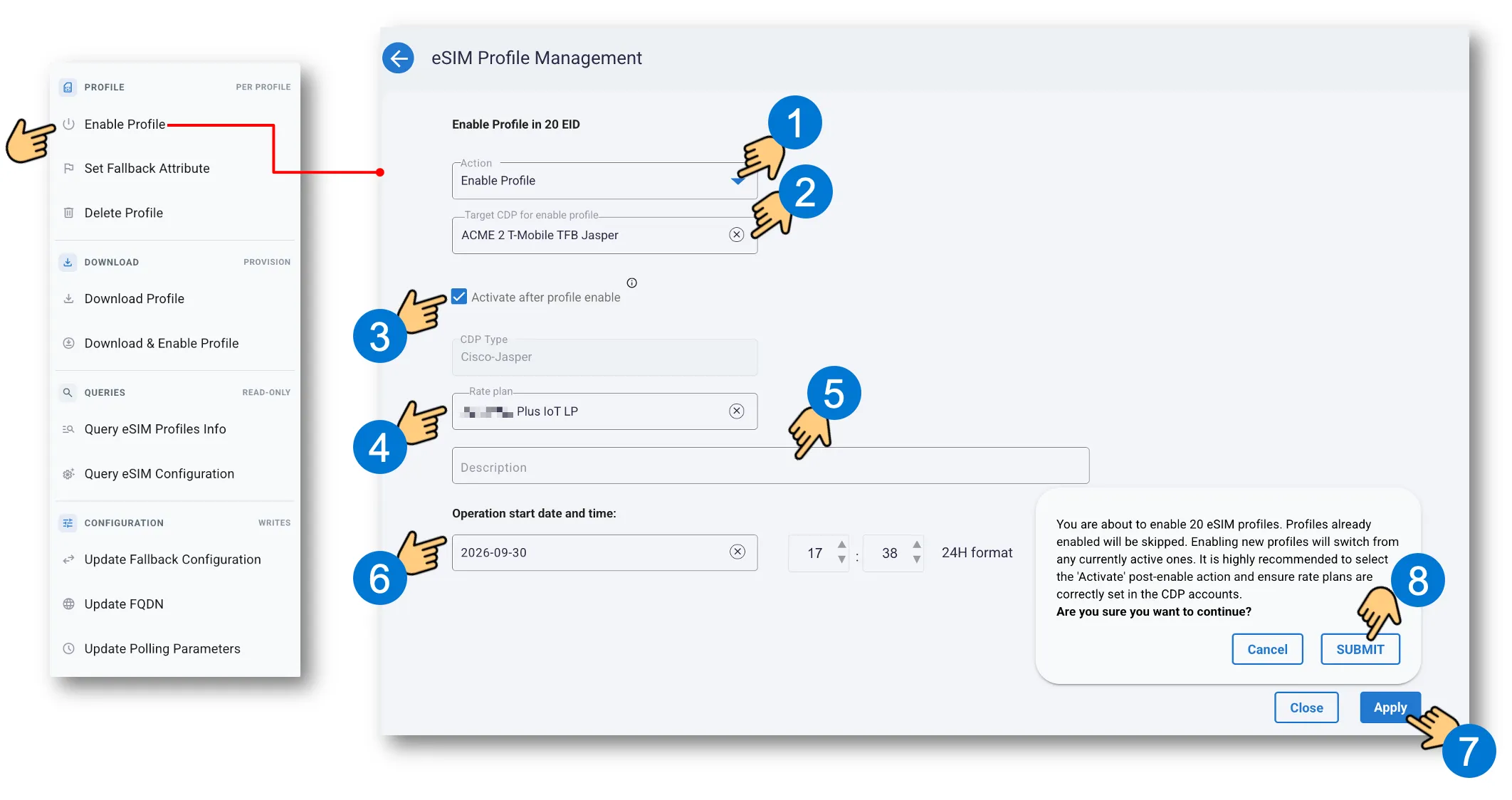
In Step 1 in the example above, the user can select any other action from the available list, and keep configuring it without having to re-define the target population.
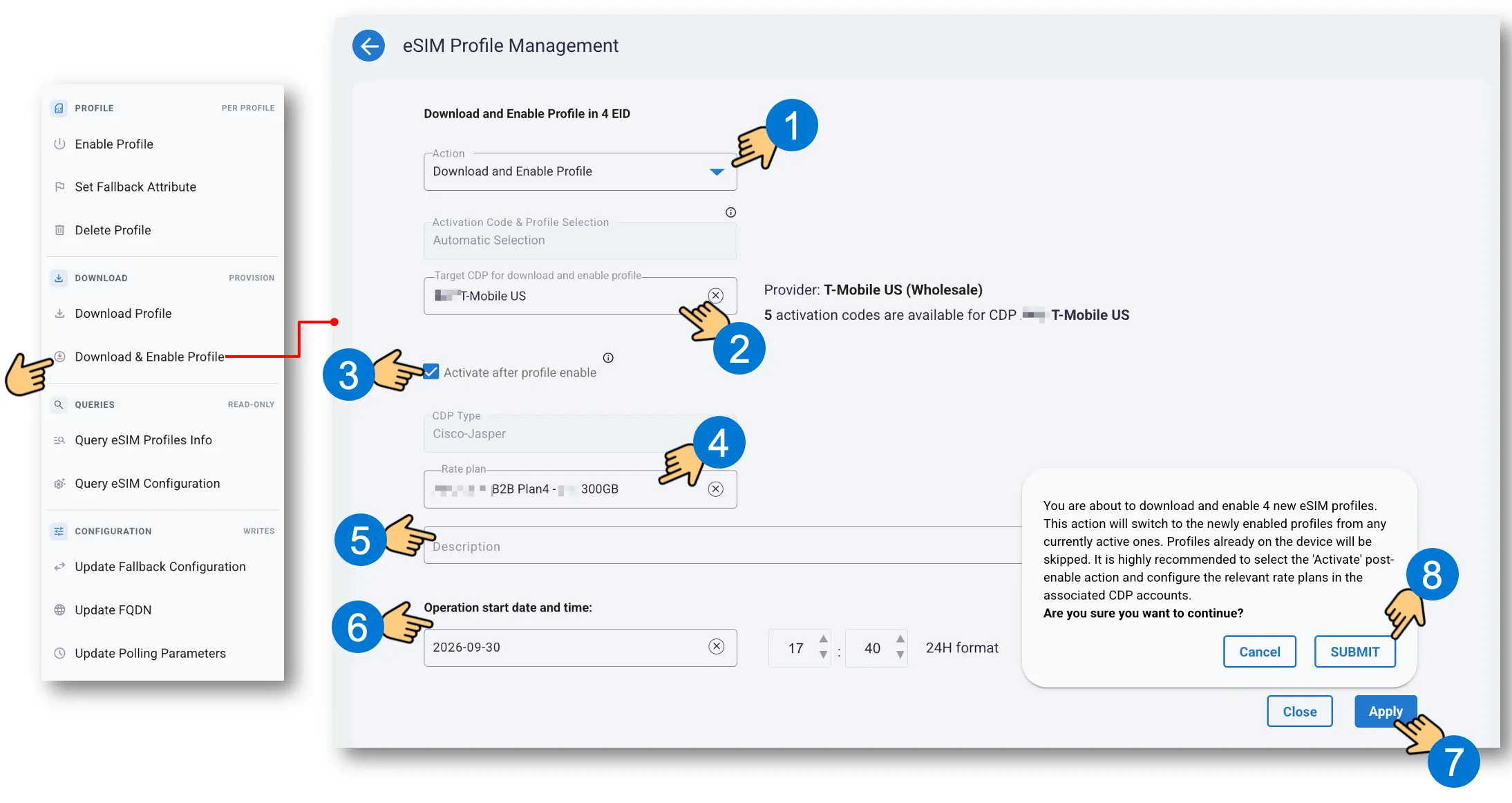
See an example of Download & Enable Profile (an EID Action) on multiple EID devices:
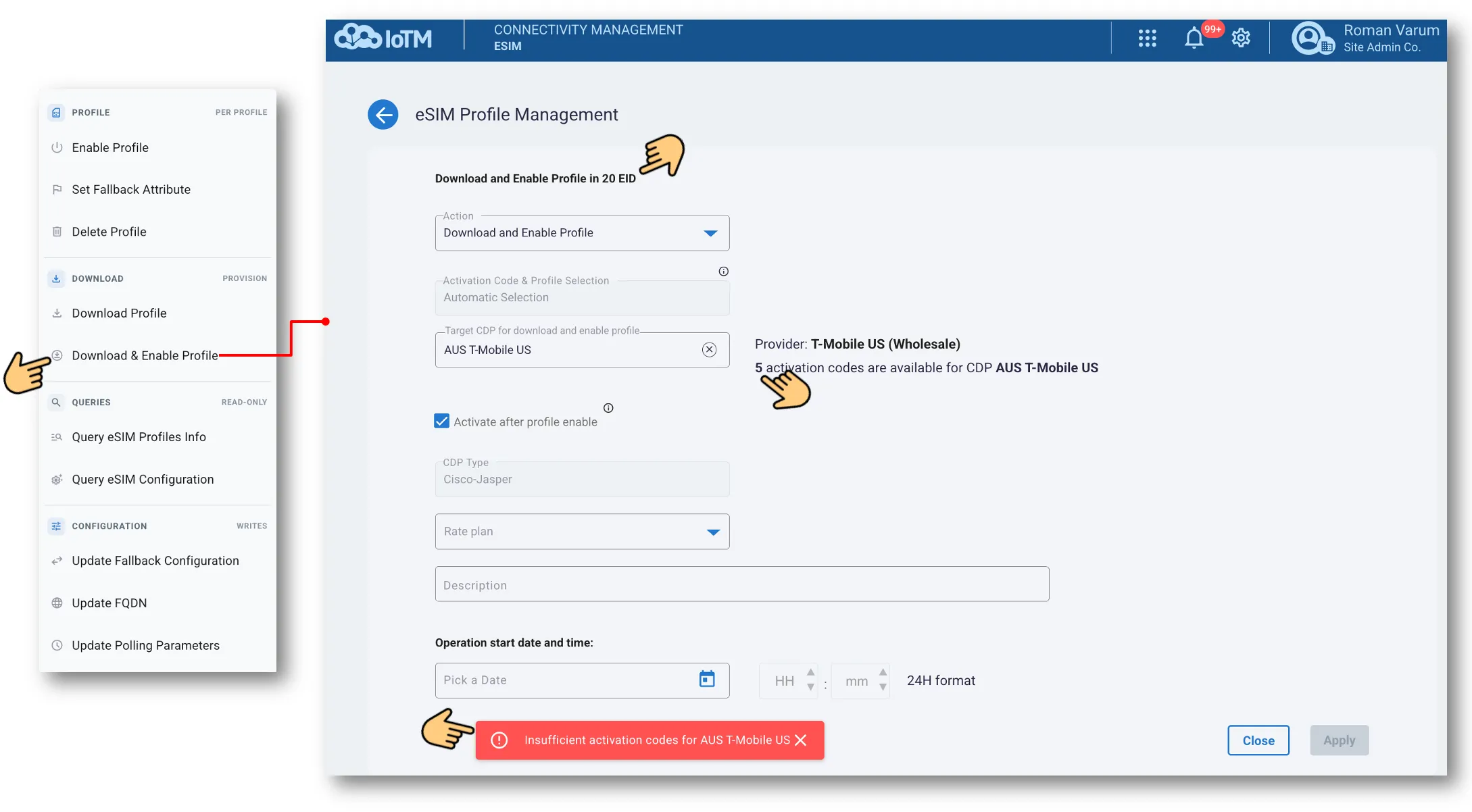
In the event that the target CDP doesn’t have enough Activation Codes available for the action (e.g. if the user is trying to Download Profile on more EID than they have Activation Codes available), the action will not be performed:
14.3 EID Attributes
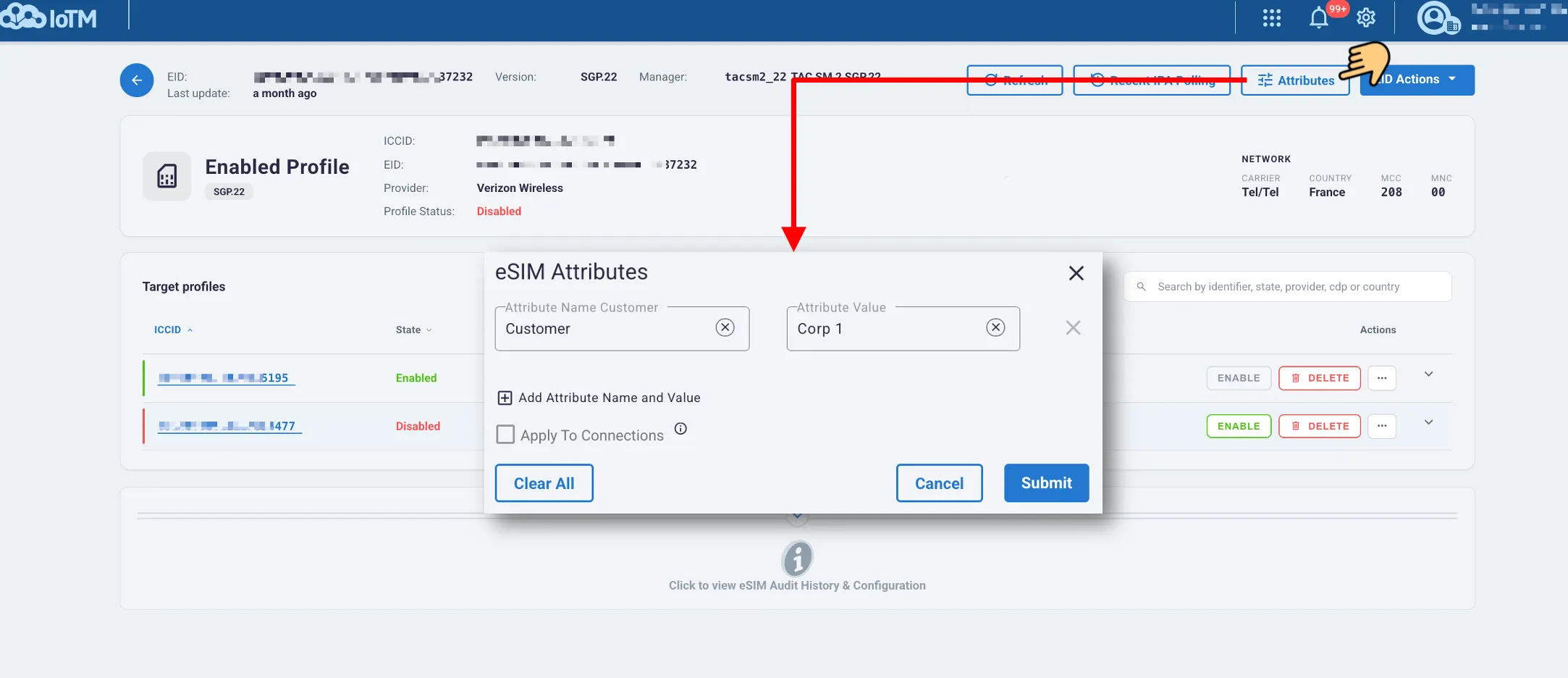
Select Attributes on the EID details page to manage descriptive fields for that EID. These fields are separate from Native CDP Attributes on an individual connection’s details page, and can be accessed through the EID details page:
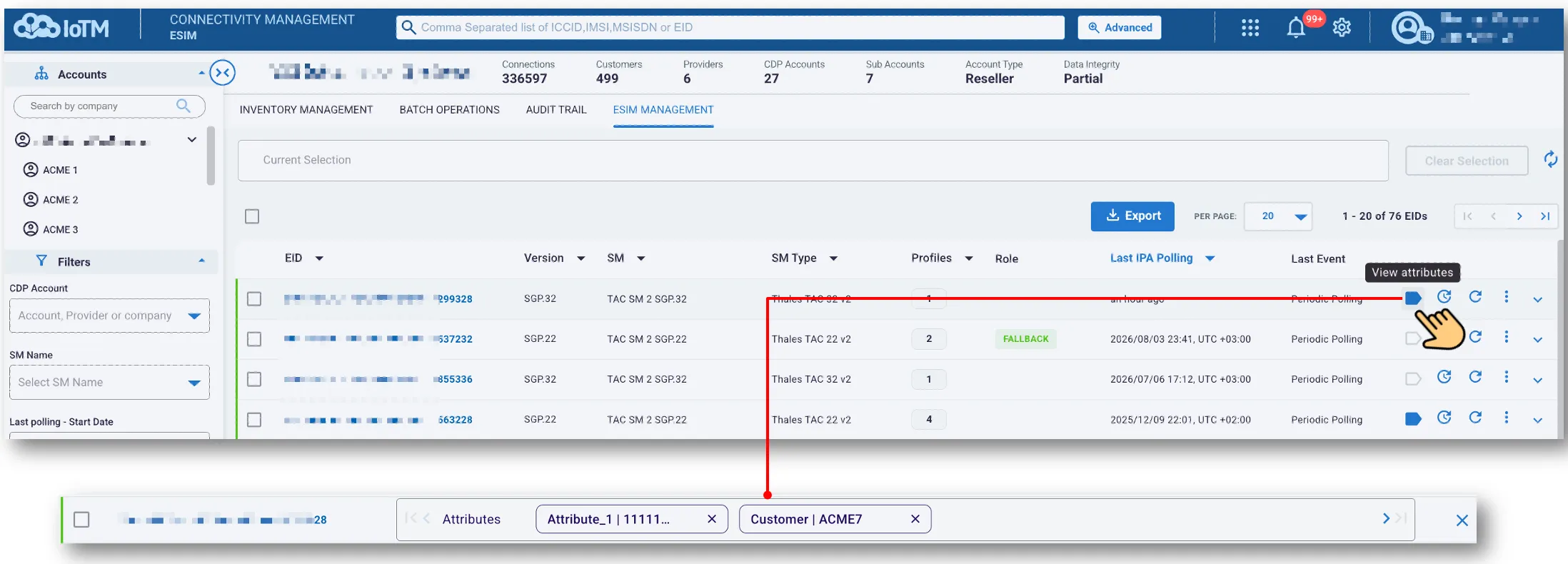
Existing attributes can be viewed, or removed, from an individual EID on the eSIM management inventory grid, where devices with Attributes have a ‘filled’ tag icon:
Choose an Attribute Name and enter its Value. Use Add Attribute Name and Value to add another row.
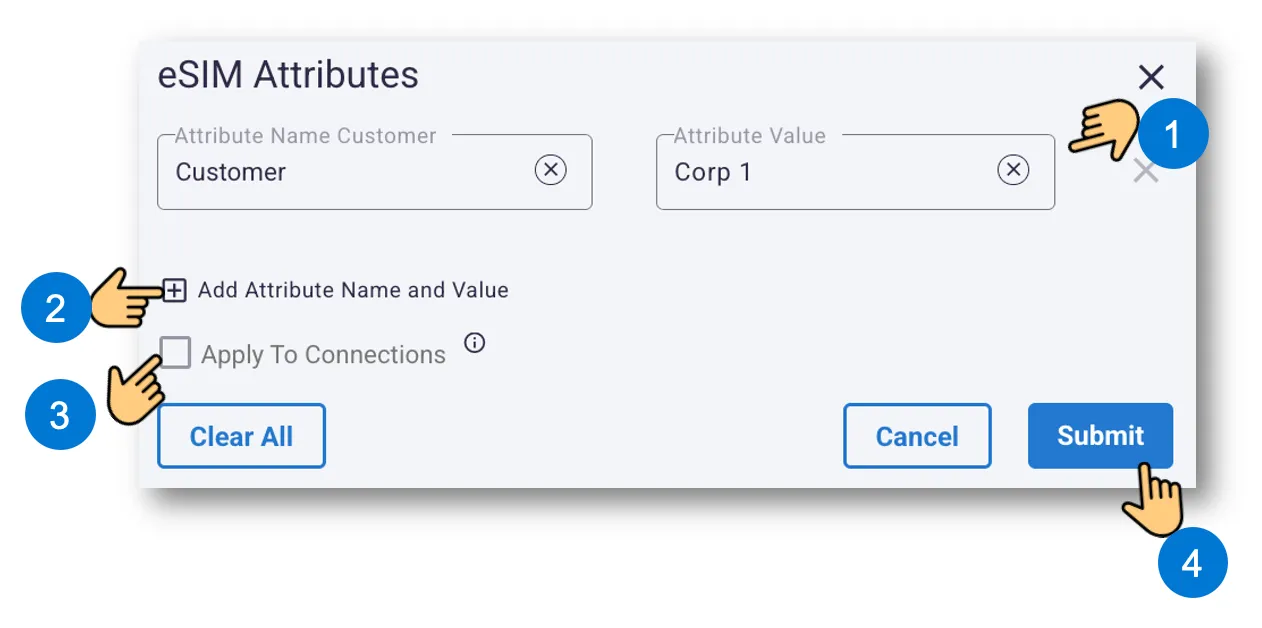
Adding an attribute to an EID
Select Apply To Connections when the relevant EID attributes should also be applied to associated managed connections. Customer, Attribute1, Attribute2, and Attribute3 propagate to profiles belonging to onboarded CDPs. Device Id remains an EID-level value. Review the entries, then select Submit.
To remove one attribute entry, use the X at the right of that row. Clear All affects all entries in the dialog. Review the remaining rows and the Apply To Connections choice before submitting the change.
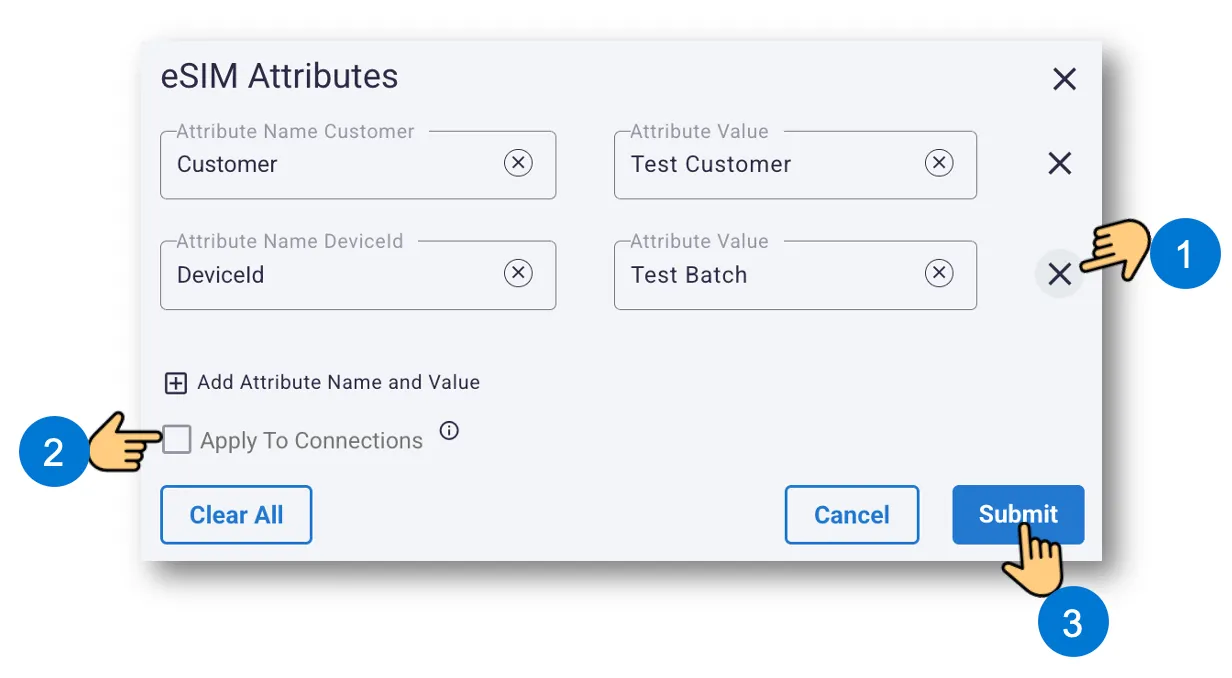
Removing one attribute entry before submitting the update
You can add or remove attributes to multiple EID at once from the Inventory Grid:
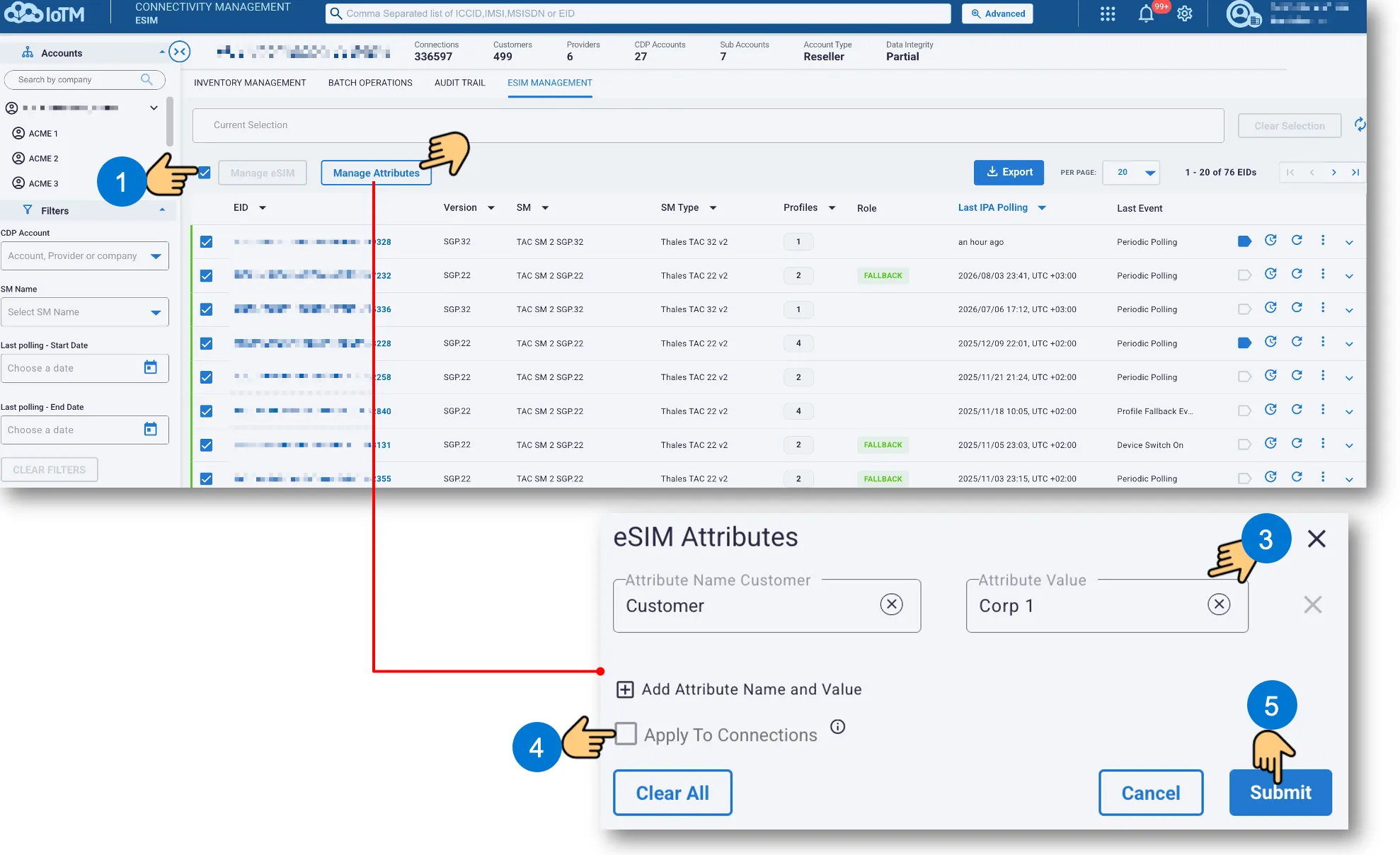
Applying eSIM Attributes to multiple EID devices by selecting devices in the eSIM Inventory Grid
First, press to select all devices in the grid, and click on Manage Attributes to enter the eSIM Attributes dialog.
For file-based changes to many EIDs, use Upload eSIM Attributes in Batch Operations.