Filtering and Searching Data
9.2. Filtering and Searching Data
The IoTM Portal offers users robust filtering and search capabilities for customizing the data you see in the various Functional Tabs, including powerful and complex query functionality for specifying which SIM population users want to retrieve from their connections deployment.
9.2.1. Viewing and Filtering for eSIM
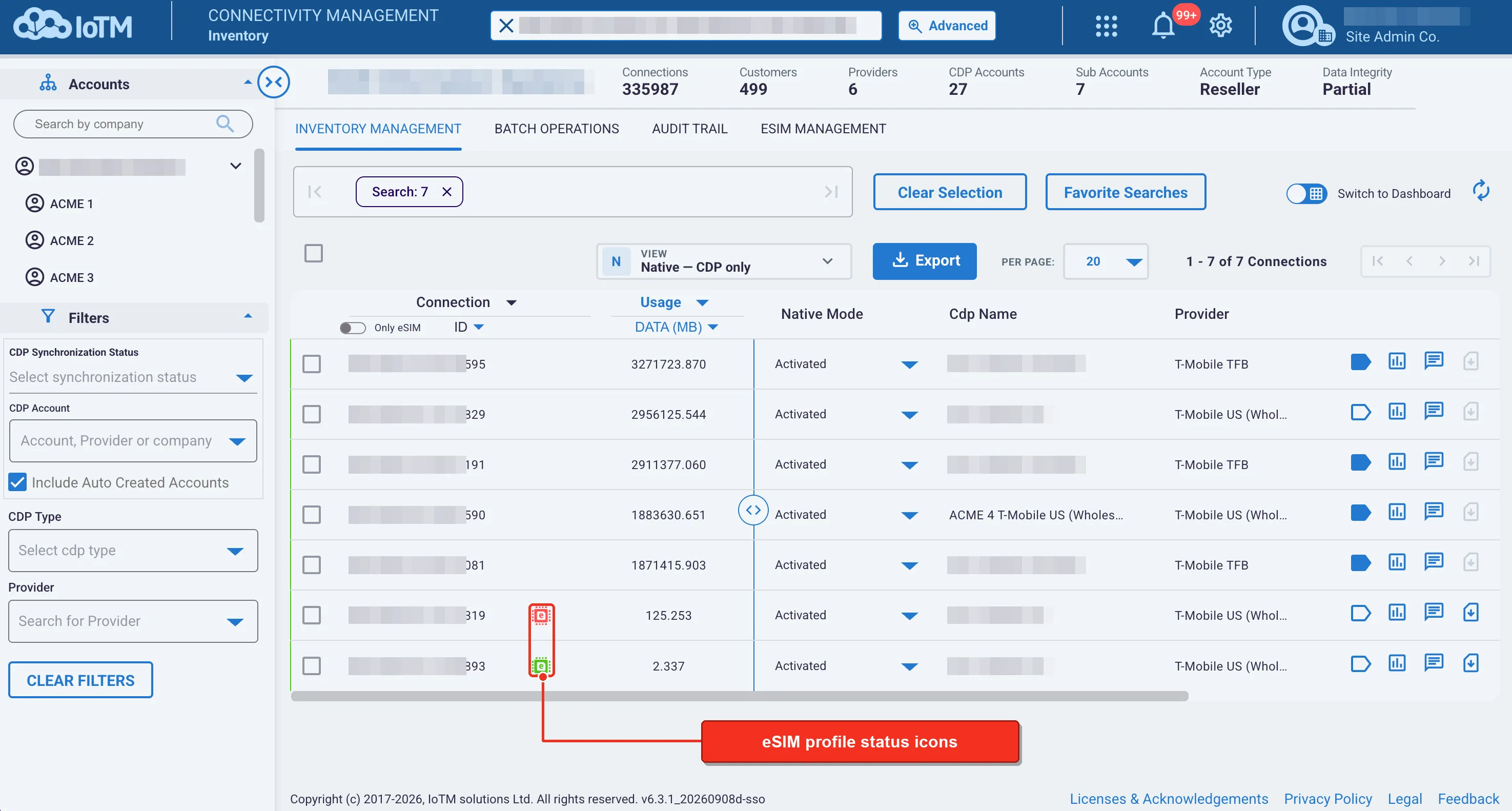
IoTM’s Connectivity Management app offers a unified interface for managing both standard and eSIM connectivity. eSIM devices are clearly differentiated on the grid, where each eSIM profile is marked by a visual eSIM icon indicating its current status:
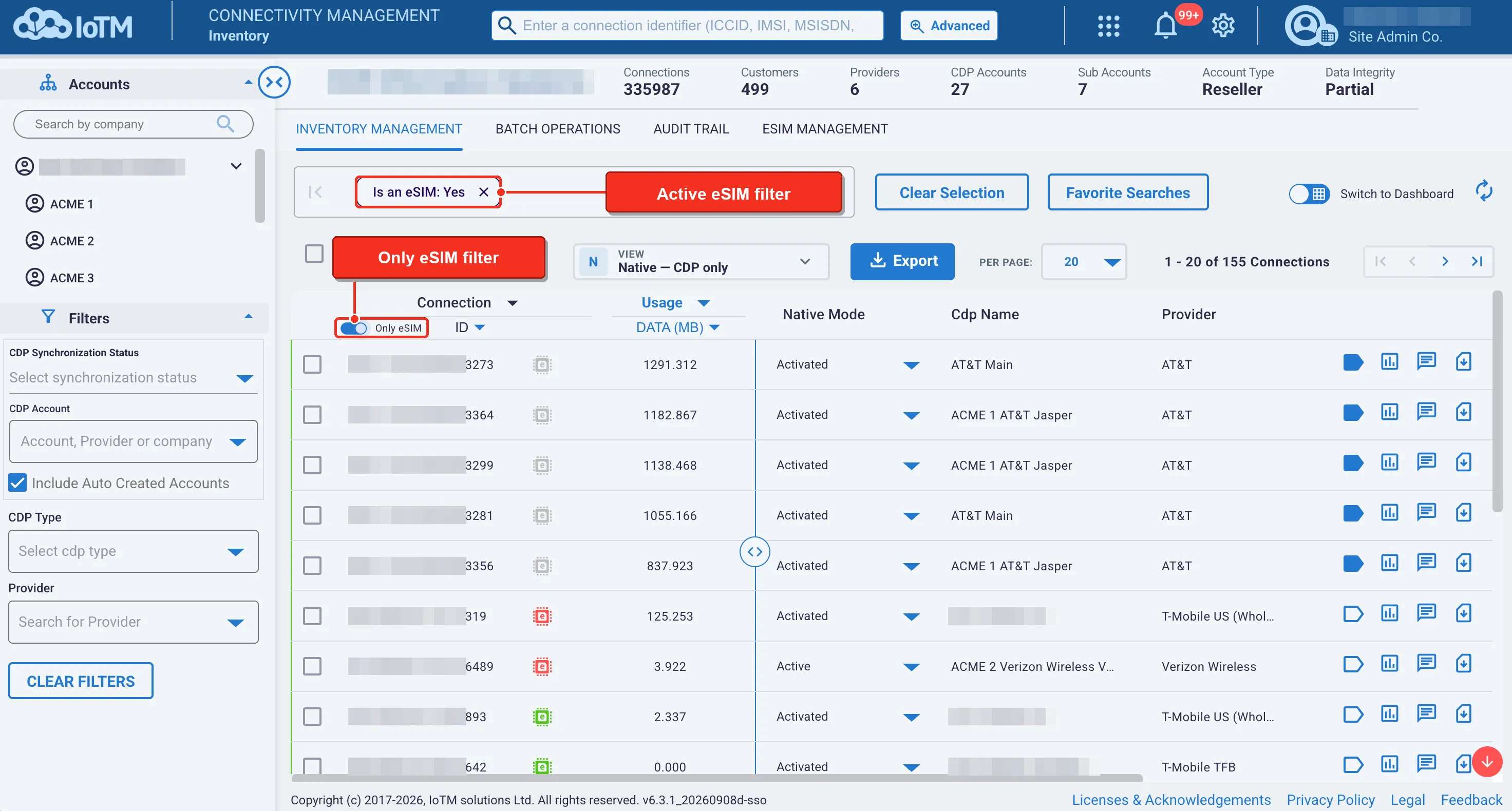
To simply eSIM management, the platform allows users to filter the inventory grid by eSIM devices only:
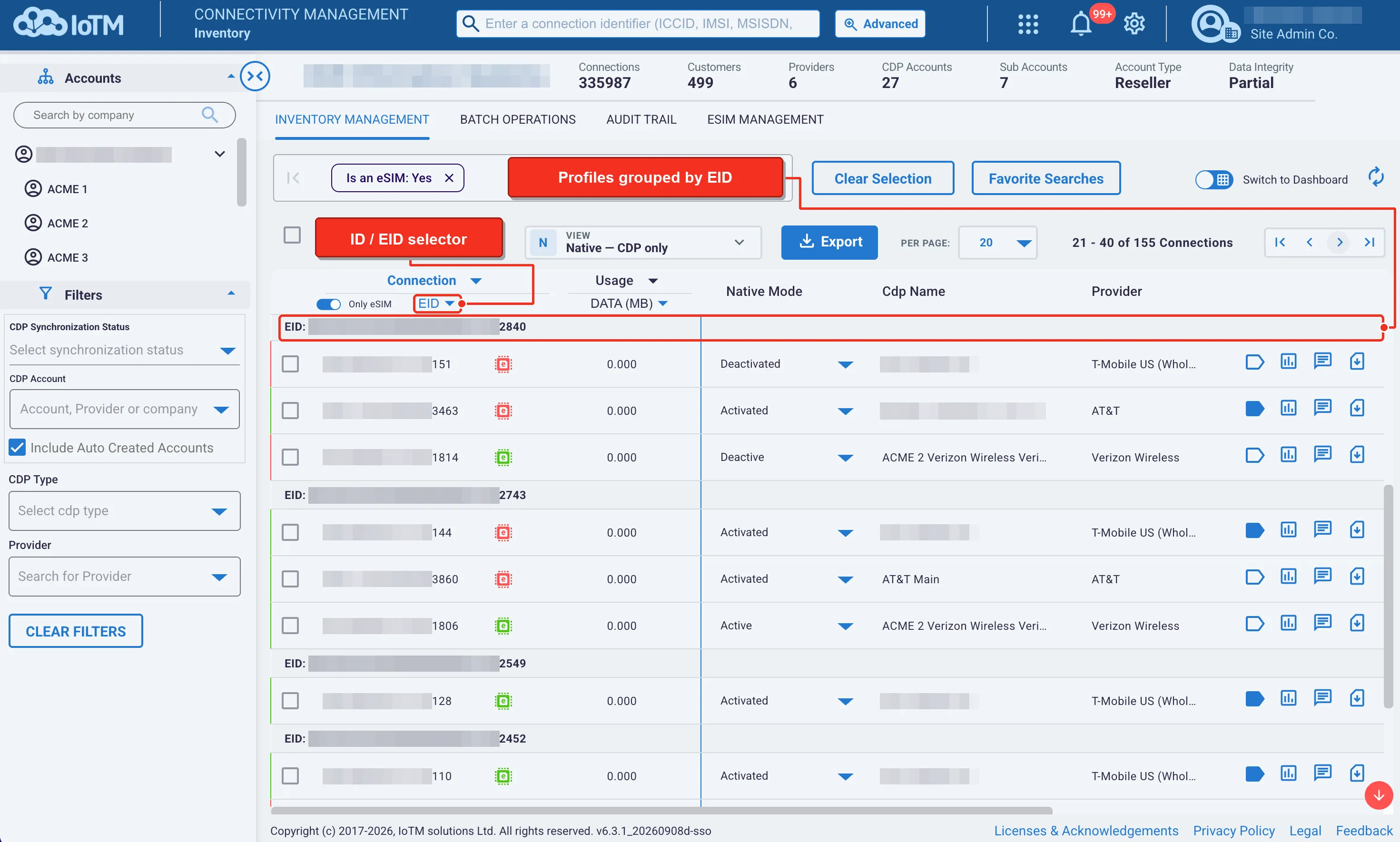
Additionally, users can switch from viewing devices by ID (e.g. ICCID) which is suitable for standard connectivity, to viewing by EID. Grouping by EID instead of the ID allows the user to focus on eSIM connectivity by viewing eSIM devices as identified by the EID as opposed to a continuous list of eSIM profiles belonging to different devices:
9.2.2. The Accounts Tree Control - Navigate and Filter Sub/Accounts
As the IoTM platform is designed to support multi-generational account hierarchies, the collapsible Account tree control is present on each one of the grid pages and allows you to filter out the sub-account you wish to look at or work with. It contains all your sub-accounts organized in a hierarchical nested fashion that shows the parent/child relationships between all your accounts in IoTM. This is visualized by indentation in a list and a small triangular button to the right of the account name indicating that it has sub-accounts as well. An Account can be expanded to reveal sub-Accounts, if any exist, and collapsed to hide them.
The Accounts tree control provides both a bird's-eye view of your entire account tree structure, with the root being the account you are currently logged into or the sub-account you’ve switched into using the account selector on the top right. This allows users to navigate and select a single sub-account in an intuitive way. If you want to filter out a specific nested account, you can click the small arrow on the right side of your account label, which can be found in the upper left-hand vertical bar, and all the nested labels should appear under it.
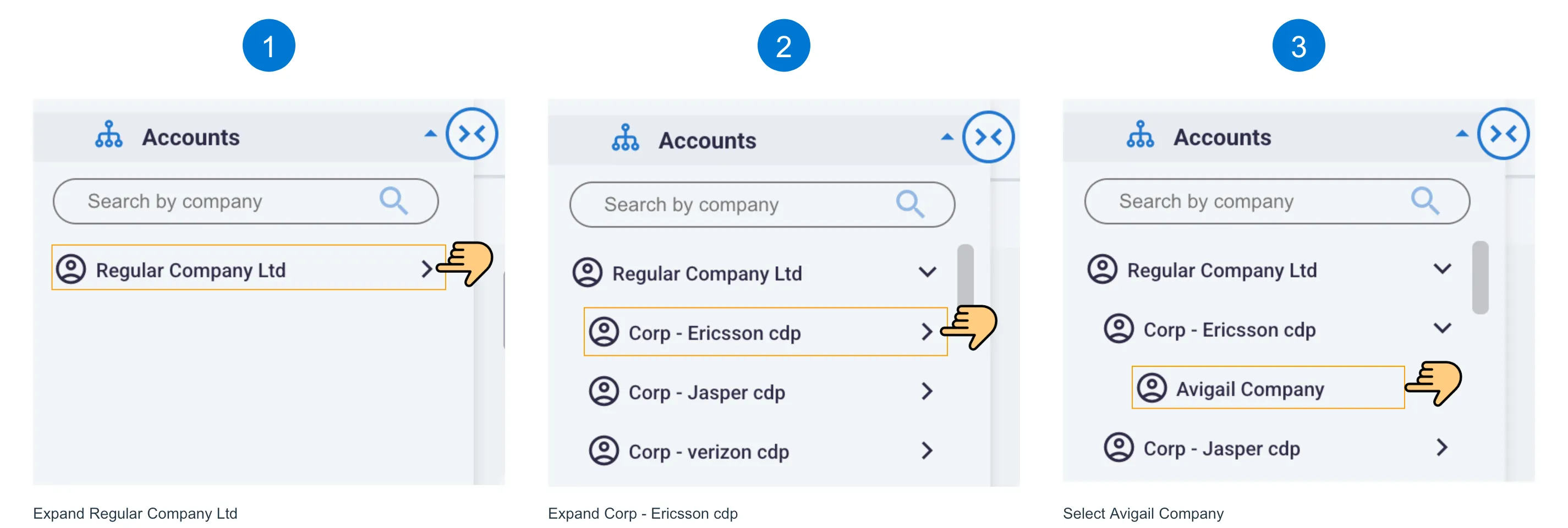
The Search Control allows you to search by company name.