Lefthand-side Filters Pane
9.2.3. The Left-hand Side Filters Pane
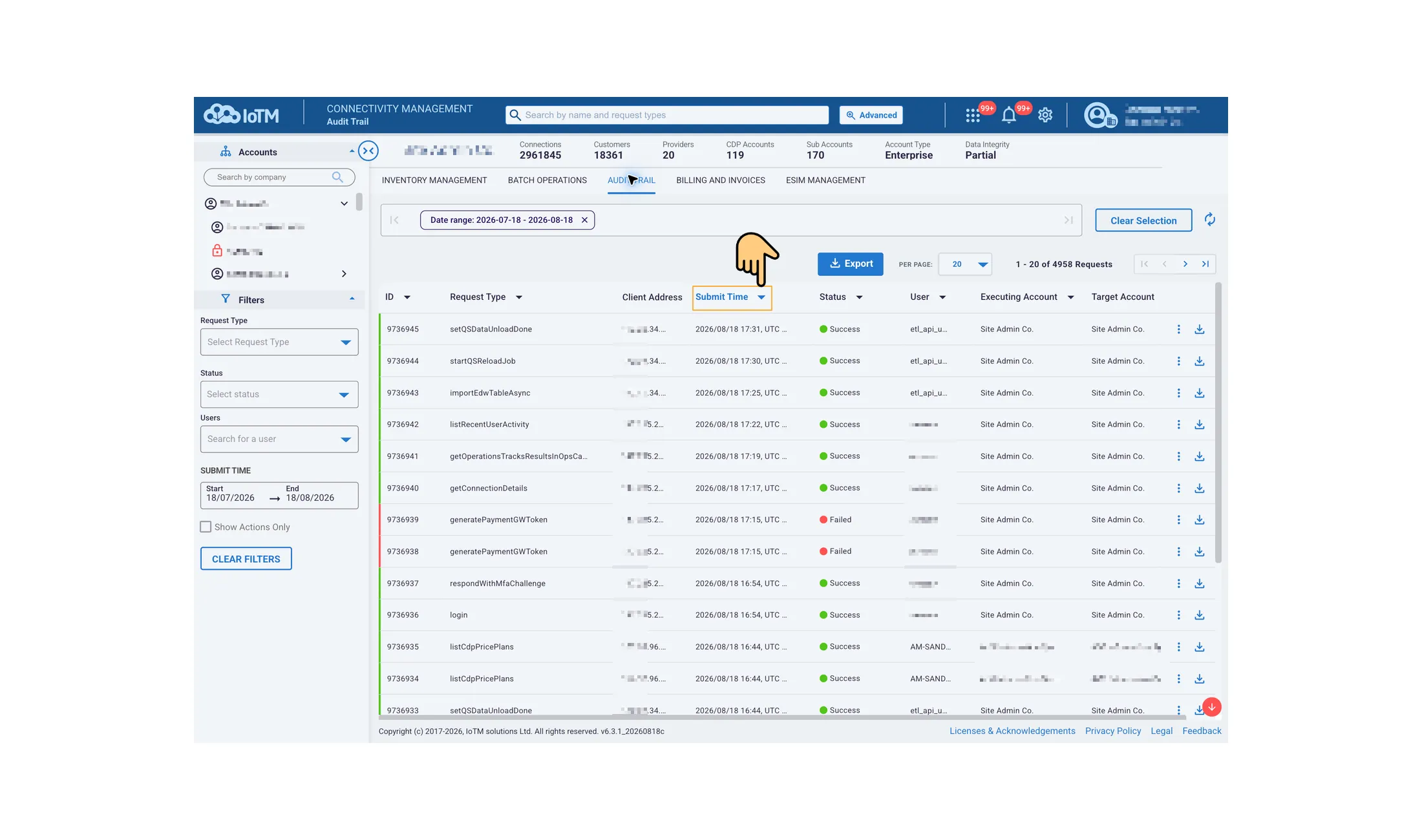
Each Functional Tab includes a unique set of filters in the Filters Pane that are applicable to the entities handled in that tab.
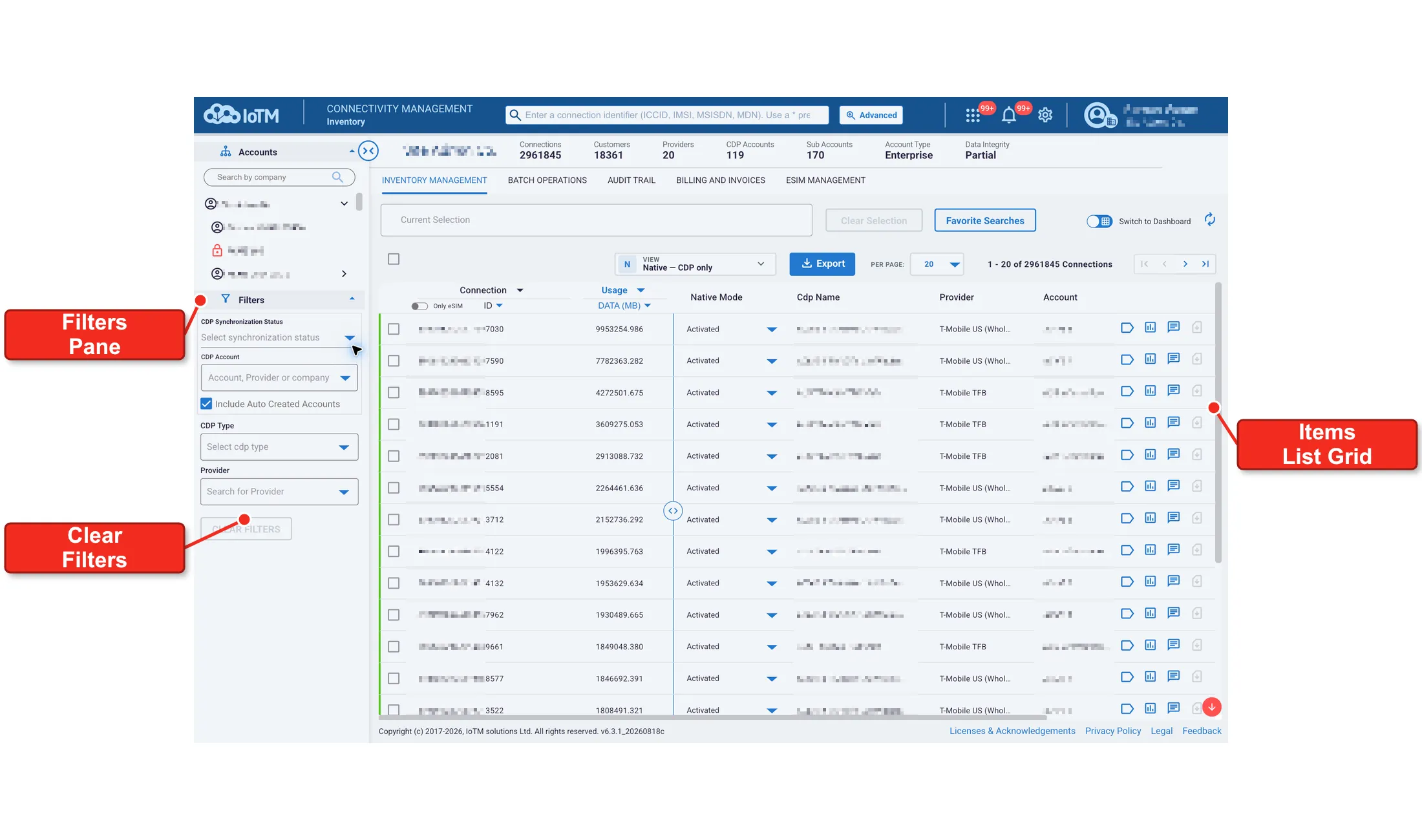
With the collapsible Filters Pane, located on the left side of each grid page, you can easily make compound “AND” logic selections to filter your grid data set. You can use the filters to explore data of particular interest or to find specific items. Filter panes are good for making selections and filtering data sets. But they also show the relationship between different values.
The dimension values are displayed in a list. To make selections in filter pane lists, click to select a single value. To remove a selection, you can remove the chip from the current selection bar. To remove and clear all filters in a functional tab and remove all the selection chips from the Current Selection bar, press the ‘CLEAR FILTERS’ call-to-action link.
9.2.3.1. Inventory Management Tab Filter Pane
Inventory Management Tab Filters Pane
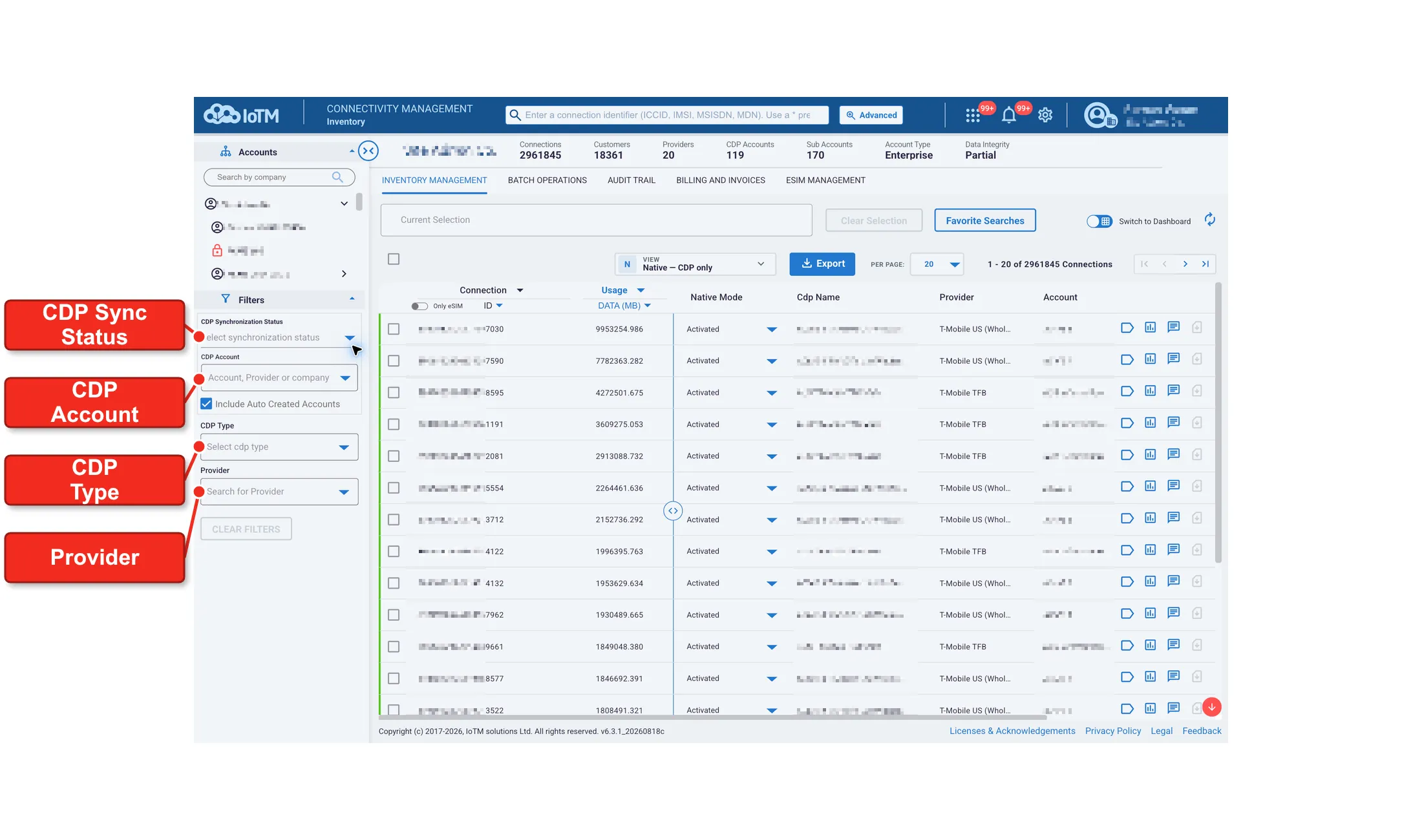
Inventory Management Filters Description
Filter | Dimension Values Description |
|---|---|
CDP SYNCHRONIZATION STATUS | Dropdown list displaying a list of synchronization status values, from which the user may select one. The list includes several status filters: • Active • Active with Temporary Errors • Data Source Unavailable • Failed • Initializing • Loading • Paused • Pending • Re-Initializing • Synchronizing • Synchronizing with Temp Errors • Credential Update Required • Unhealthy Data Source Error • Invalid SSL Certificate • Unsynchronized |
CDP ACCOUNT | Includes both a (1) CDP account search field allowing users to search for a CDP by either Account, Provider or Company and (2) CDP list allowing the user to select one CDP Account item from a list contained. The CDP name appears as you registered it when adding the CDP account. |
CDP TYPE | Dropdown list including CDP Type filters for supported CDP type values: Cisco Jasper, Ericsson DCP, VF GDSP, Verizon Thingspace, T-Mobile NextGen, and AT&T EOD, from which the user may select one. |
PROVIDER | Dropdown list including available and supported CDP Providers (HPLMN), from which the user may select one. This list is autocomplete searchable as well. |
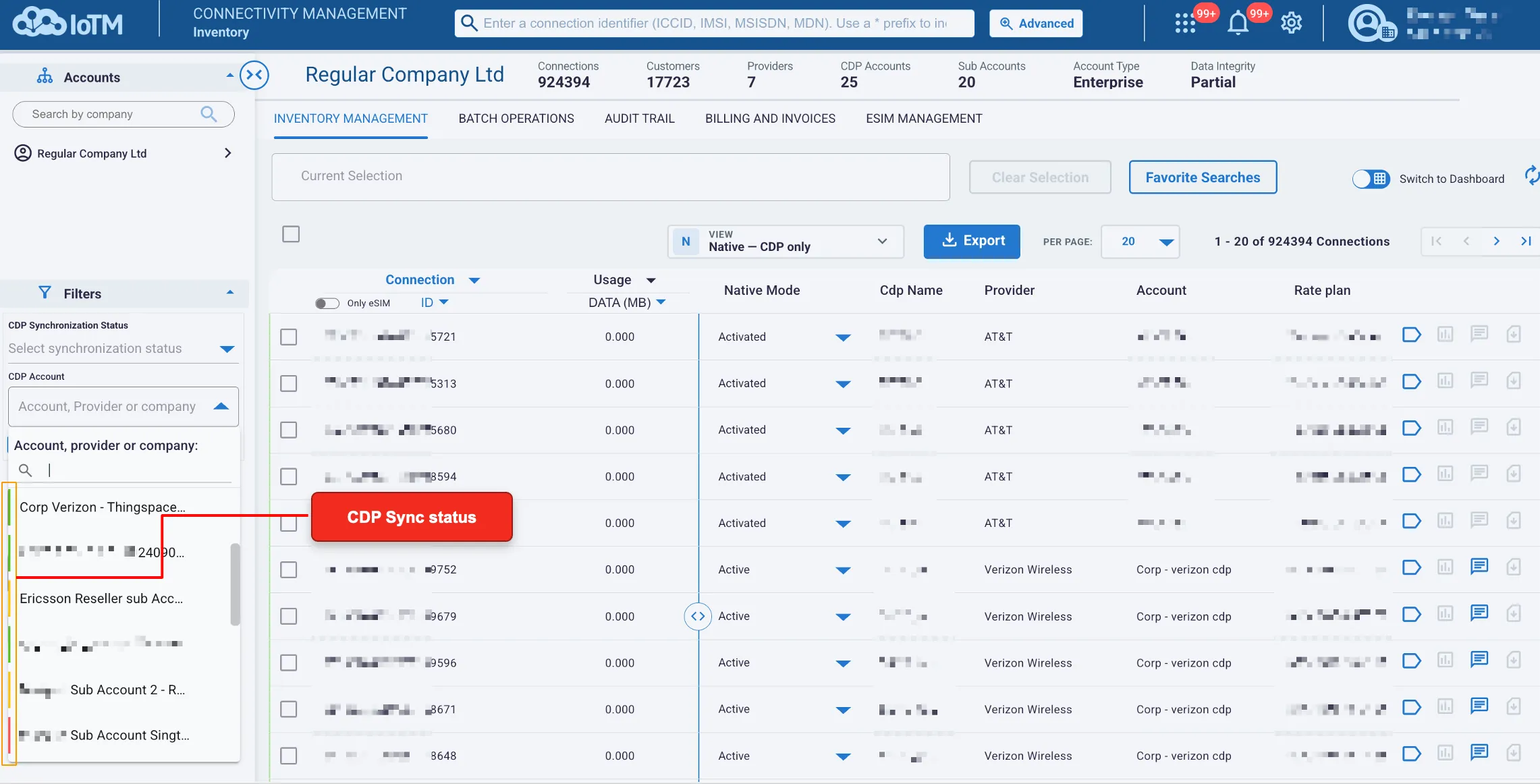
The green, Red, and Yellow colors in the ‘CDP ACCOUNT’ filter offer a visual cue to the sync status.
9.2.3.1.1. Beyond Visual Range Selection
Unique to the Inventory Management functional tab is the Beyond Visual Range Selection (BVR) link, which becomes visible once the ‘Select All’ checkbox is clicked and shows the user how many connections fit the current search criteria. Whereas the ‘Select All’ limits the selection only to all the items on the current page, pressing the BVR allows the user to select the entire population related to their account and sub-accounts that complies with the selection criteria, even if it is not on the visible page. After a BVR selection is made, the user can execute an action on the entire selected population. This will generate an asynchronous background campaign, similar to uploading this population and executing a campaign using a CSV file.
Alternatively, the user can narrow the search further on the selected population by clicking on ‘NARROW YOUR SELECTION’ – this will take them to the Advanced Search page. Or they can drop the selection by clicking on ‘CLEAR SELECTION’ – this is equivalent to unchecking the ‘Select All’ checkbox.
9.2.3.2. Batch Operations Tab Filter Pane
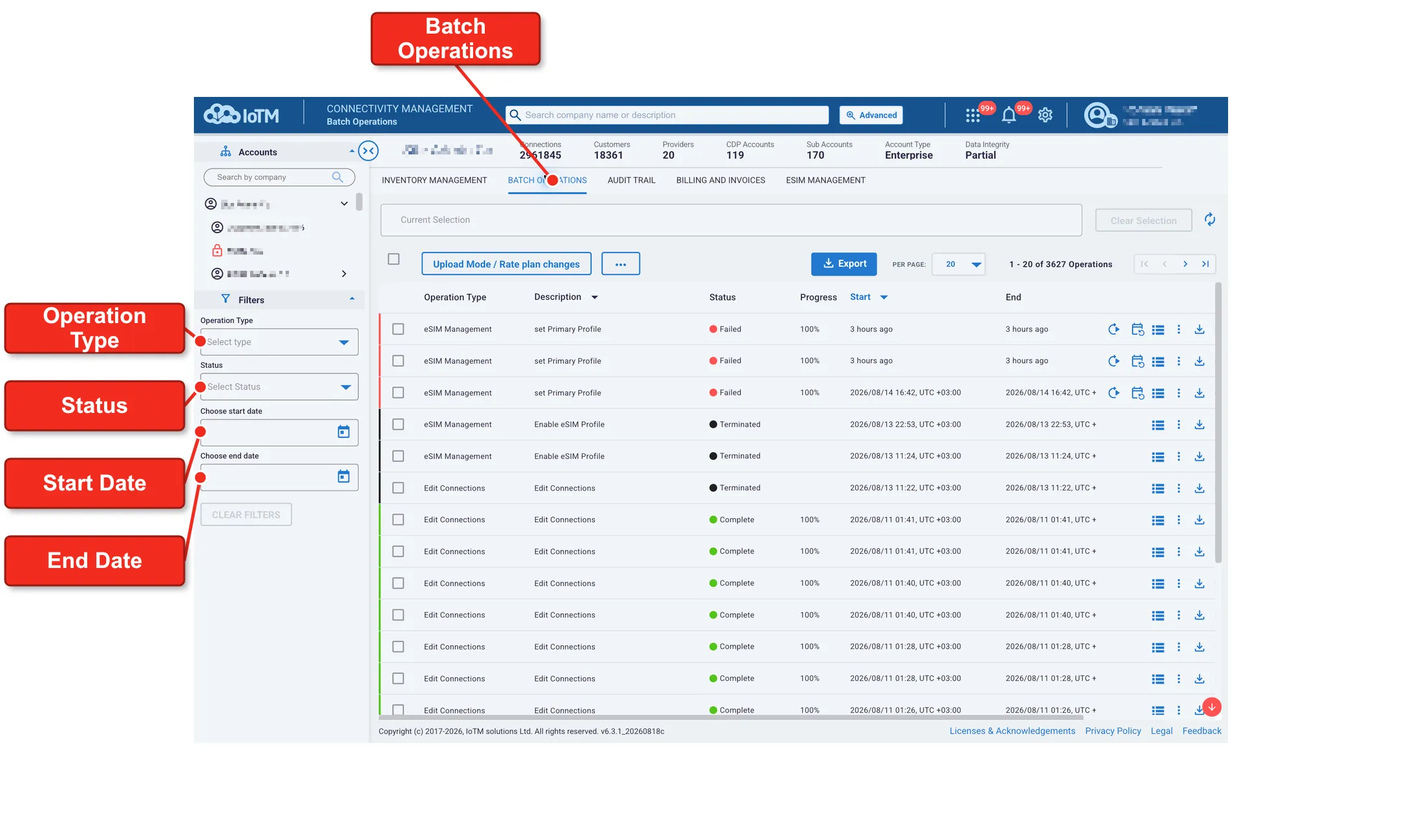
Batch Operations Tab Filters Pane
Batch Operations Filters Description
Filter | Dimension Values Description |
|---|---|
OPERATION TYPE | Dropdown list displaying a list of batch jobs operation type categories, from which the user may select one. The list includes: • Show All • Business Automation • Edit Connections • Edit Connections Attribute • eSIM Management |
STATUS | Dropdown list displaying a list of batch jobs status types, from which the user may select one. The list includes: • Pending • Ongoing • Rerunning • Complete • Partial Success • Failed • Pausing • Paused • Stopping • Terminated • Fatal error |
CHOOSE START DATE | Popup calendar graphical user interface widget which allows the user to select a start date from a calendar. Click on the icon of a calendar such that when the icon is clicked on, the calendar appears. |
CHOOSE END DATE | Popup calendar graphical user interface widget which allows the user to select an end date from a calendar. Click on the icon of a calendar such that when the icon is clicked on, the calendar appears. |
9.2.3.3. Audit Trail Tab Filter Pane
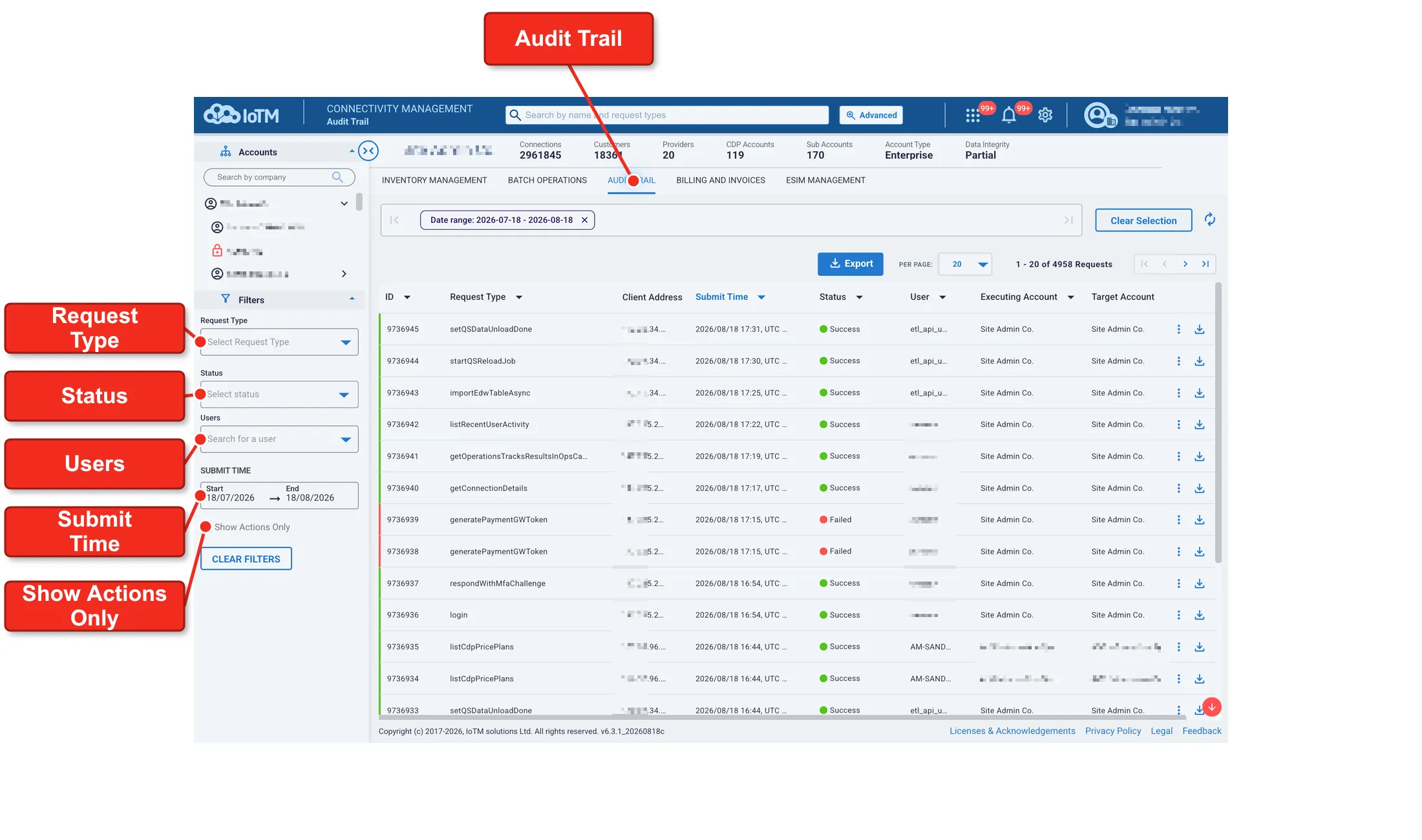
Audit Trail Tab Filters Pane
Audit Trail Filters description
Filter | Dimension Values Description |
|---|---|
REQUEST TYPE | Includes both a ‘Request Type’ search field, and a list-box, allowing users to search for specific request types. This selector has a multi-select option and the user can filter on several request types. |
STATUS | Dropdown list displaying a list of request status types, from which the user may select one. The list includes: • Show All • Pending • Partial Success • Success • Failed |
USERS | Includes a searchable username search field allowing users to search for a single user, based on First, Last Names, username, email or account from a list. |
SUBMIT TIME | Popup calendar graphical user interface widget which allows the user to select both start and end date from a calendar. Click on the date box such that when the date box is clicked on, two calendars and ‘PICK A RANGE’ appears. If no request type filter is being applied, then the search is limited to 30-day period blocks. |
Show Actions Only | Checkbox filter that shows only action type requests. |
9.2.3.4. Billing and Invoices Tab Filter Pane
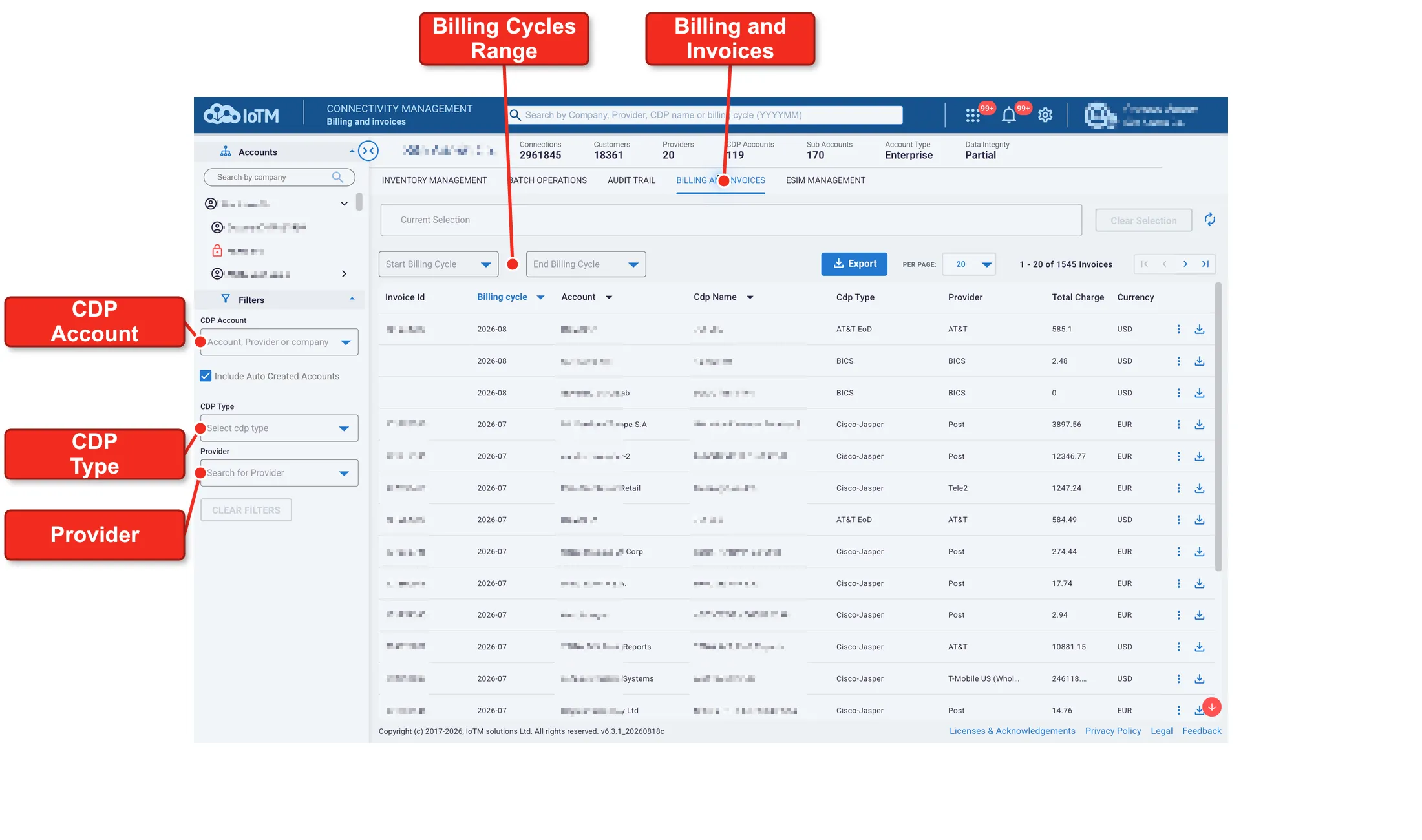
Billing and Invoices Tab Filters Pane
Billing and Invoices Filters description
Filter | Dimension Values Description |
|---|---|
CDP SYNCHRONIZATION STATUS | Dropdown list for CDP Account search displays the sync status value of each CDP, from which the user may select one. The list includes: • Active • Active with Temporary Errors • Data Source Unavailable • Failed • Initializing • Loading • Paused • Pending • Re-Initializing • Synchronizing • Synchronizing with Temp Errors • Credential Update Required • Unhealthy Data Source Error • Invalid SSL Certificate • Unsynchronized |
CDP ACCOUNT | Includes both a (1) CDP account search field allowing Users to search for a CDP by either Account, Provider or Company and (2) CDP list allowing the user to select one CDP Account item from a filtered list. A Connected Device Platform name appears as you registered it when adding the CDP account. |
CDP TYPE | Dropdown list including all your onboarded CDP Types: Cisco Jasper, Ericsson DCP, VF GDSP, Verizon Thingspace, T-Mobile NextGen (Netcracker), and AT&T EOD, from which the user may select one. |
PROVIDER | The dropdown list filter includes all supported providers (HPLMN), from which the user may select one. |
Billing Cycles Range Filter | A “From”-->”To” billing cycles ranges filter. |
9.2.4. Sorting Data
Certain columns in the grid tables support data sorting. To sort the data within a particular column, hover over the column’s header or arrow. Click the header/arrow. You can toggle between the ascending and descending sort order by clicking on the column header/arrow. The blue arrow indicates whether the sort order is ascending or descending. An arrow pointing up means that the column is sorted in ascending order. An arrow pointing down means that the column is sorted in descending order. To change the sort order, simply click on the column header.