Page Components and Controls
9.1. Page Components and Controls
The IoTM Connectivity Management Portal web application has several page component types that have a functional use in the IoTM Portal and some other IoTM applications as well. This section will outline them and their functionality.
Grid Page
A Grid page contains a list of items, e.g., in the Inventory Management page these items will be connections, i.e. SIM subscriptions, in the Batch Operations view it will batch jobs, in the Audit Trail view it will be user actions and in the billing and invoices section it will be CSP invoices. Often you can find the information you need by searching, sorting, or filtering the list.
The Inventory Management grid displays all subscriptions – standard as well as eSIM, and provides a convenient way to view eSIM exclusively as well as to group eSIM subscriptions by the EID. When grouped by EID, the grid can be thought of as displaying subscriptions per eSIM device.
The item search options are the following:
1) The Omni search bar is used for term-based search of common search items such as names, ICCIDs, IMSIs, rate plans, tags etc., subject to the grid view in focus. 2) The top left-hand filter pane is used for sub-accounts search. 3) The bottom left-hand filter pane can be used for typical filters that require selection. 4) In some pages, like the inventory or audit trail pages, there is an “Advanced” search button that opens a compound search dialog for the most complex search options. Specifically, in the Inventory view, these searches can be saved by the user for future use as bookmarked “Favorite Searches”.
Note that your current selected population search criteria are shown with logical AND relation chips in the “Current selections” bar. You can remove one or more of these chips directly from the bar, to broaden your search criteria.
You can click on a particular grid item in a row to get even more detail. In certain pages you may gain access to controls that enable you to perform actions on a single or group of items, such as the option to modify an activation mode, rate plan, tag etc. Specifically, in the inventory view, there is an option to initiate batch operations on populations that are results of a search and are larger than the visual range of a single page.
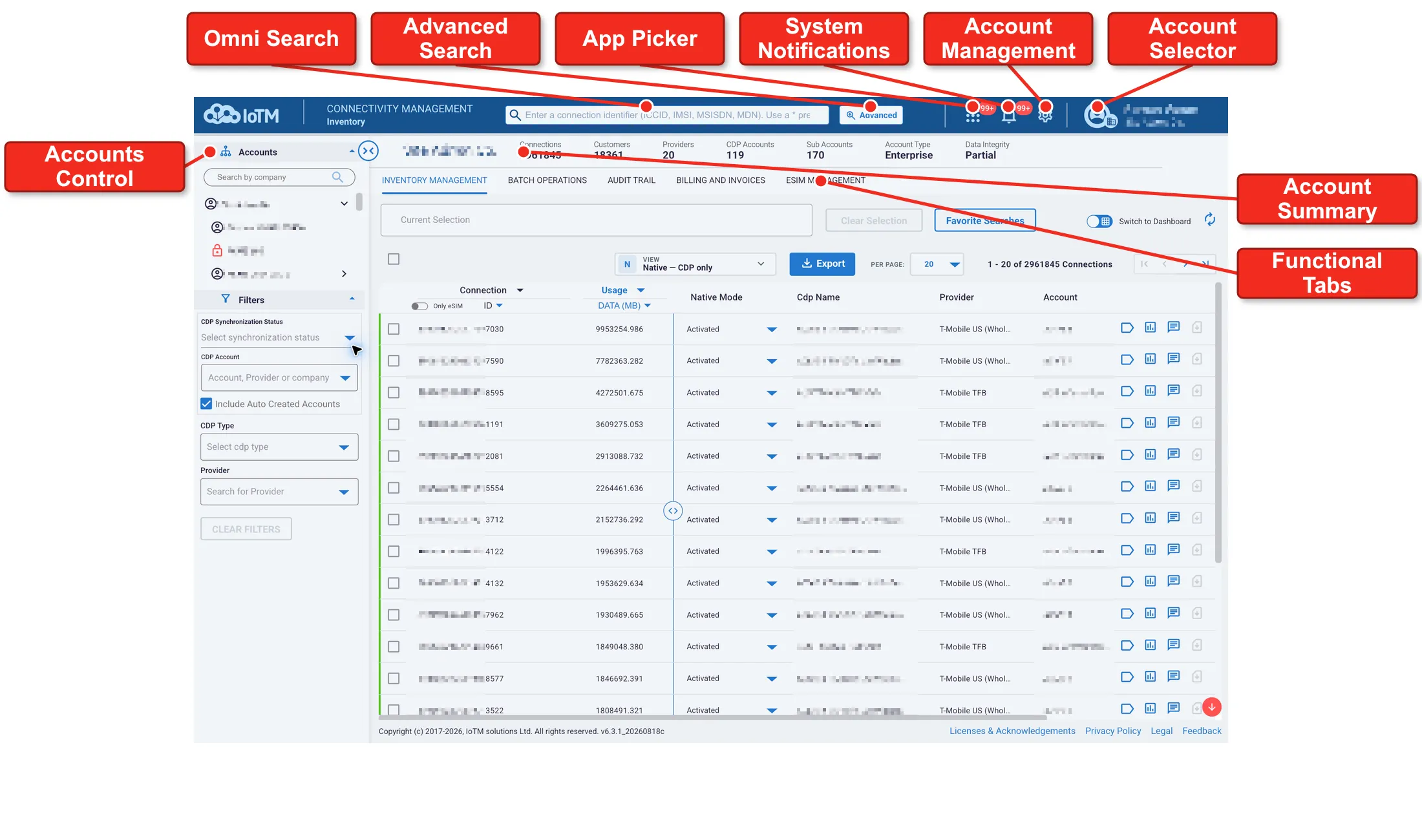
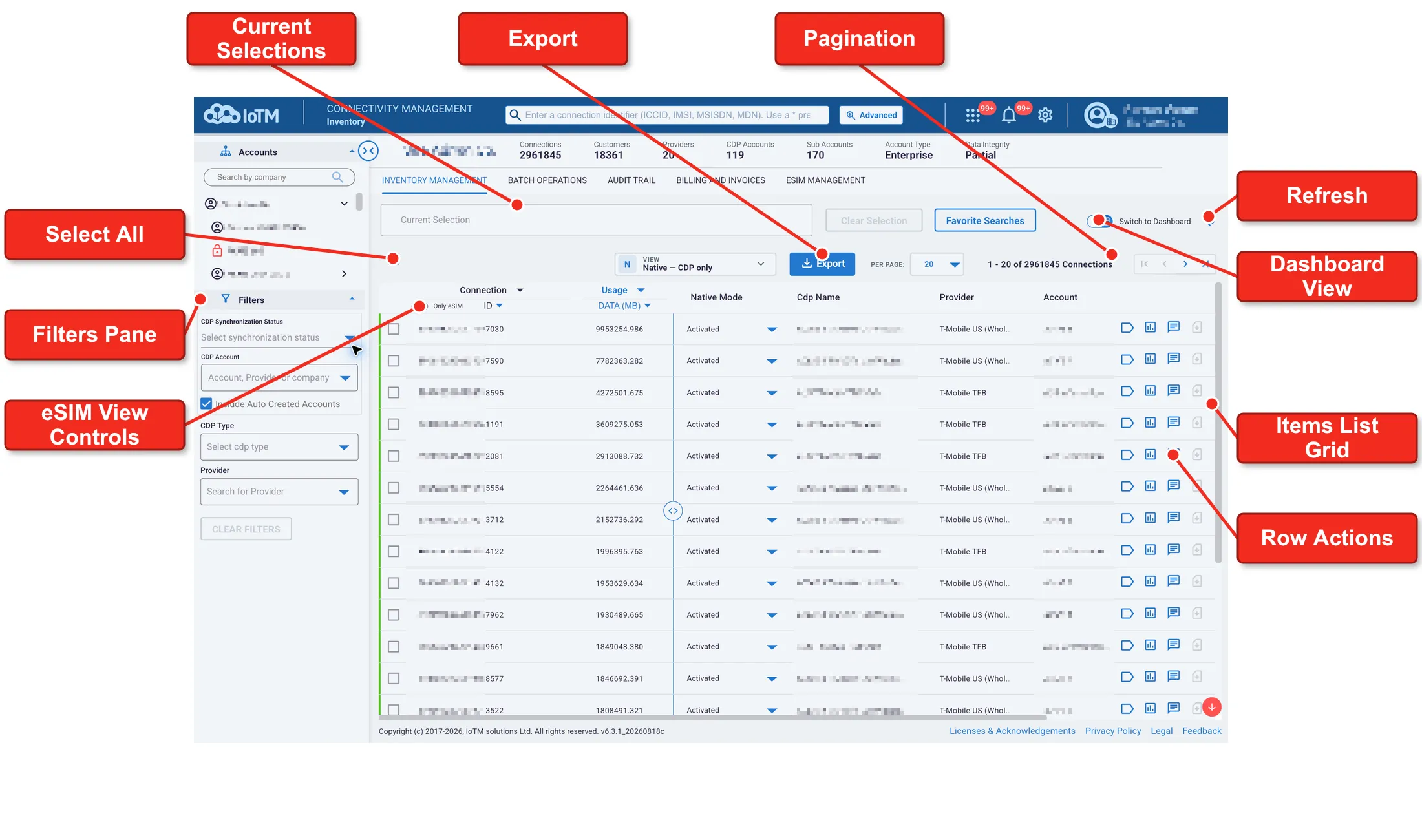
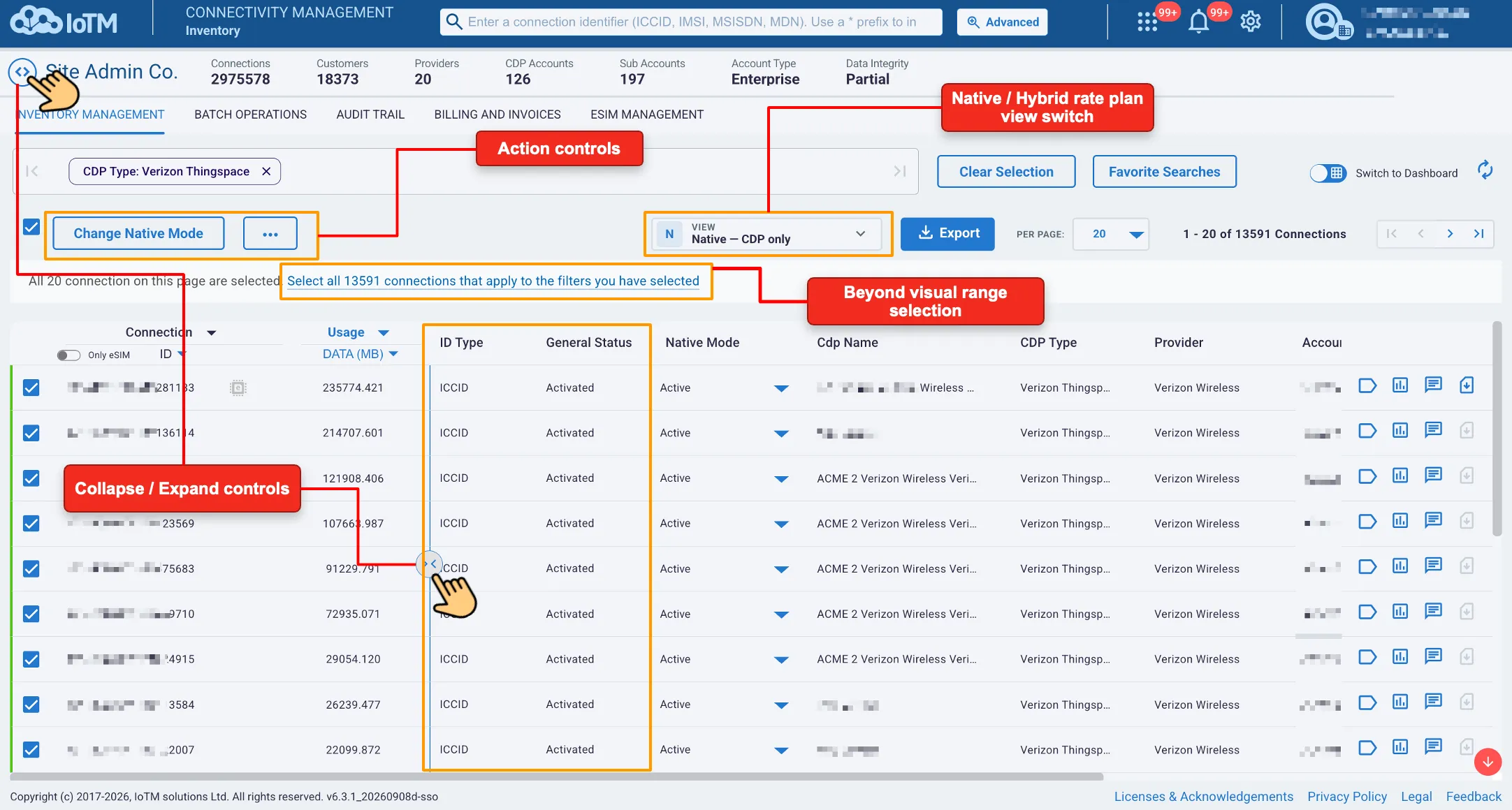
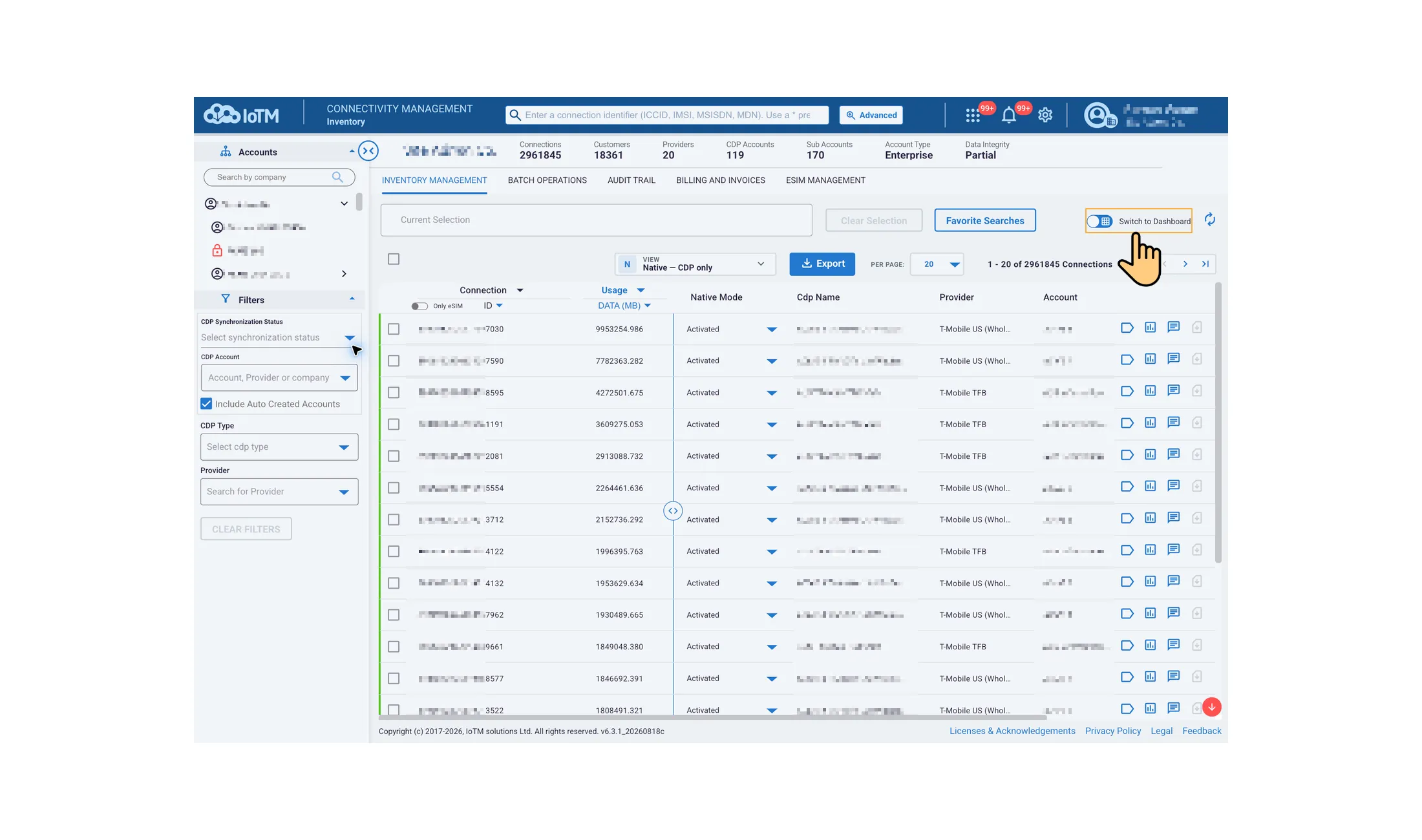
The connectivity management inventory grid view components and controls.
Interface Components
Interface Control | Description |
|---|---|
Fillers Pane | Each dashboard includes a unique, intuitive filters' pane, making it easy to obtain the exact data you need. Filter on any dimension and metric to change your view on-the-fly and better understand your data. Simply click the desired filter and hover over the dropdown list, and then click on the required selection. |
Accounts Control | Visualizes the Account structure and hierarchies in a data tree structure and enables Users to filter and select SIM subscriptions associated with specific Sub/Accounts or a group of Sub/Accounts. |
Collapse / Expand Controls | Collapse or expand the left pane containing the filters and accounts tree. A separate control expands the inventory grid columns to show additional information, or collapses them for a compact view. |
Select All and Beyond Visual Range Selection | The Select All checkbox allows you to select multiple subscriptions at once so that you can perform the same action on the selected items. The scope of the select all button is a single page, but when it is clicked, the Beyond Visual Range (BVR) selection link becomes visible, and it allows you to select the entire population related to your account and sub-accounts that complies with your selection criteria, even if it is not on the visible page. After you make such a BVR selection, you can execute an action on the entire selected population. This will generate an asynchronous background campaign, similar to uploading this population and executing a campaign using a CSV file. |
Functional Tabs Navigation | Enables to easily navigate between the view’s 4 different functional tabs: ‘INVENTORY MANAGEMENT’, ‘BATCH OPERATIONS', ‘AUDIT TRAIL’ and ‘BILLING AND INVOICES’. Each tab provides different and distinct functionality. |
Current Selections Bar | Shows all filter selections made by the user. The filter selections have an AND logical relationship, and each additional filter typically narrows down the subscription (connections) population participating in the selection. It is possible to remove selection chips directly from the Current Selections Bar and broaden the selection. |
Search Controls (Omni search) | In the inventory view omni search field, it is possible to perform keyword searches (see Keyword Searching). The Advanced button allows you to filter the data by certain predefined values and create a complex compound search, that you can even bookmark and save the search parameters for future use as one of your “Favorite Searches” (see Advanced Searching). |
App Picker | The App picker button (9 squares) lets you navigate between the various IoTM platform applications: e.g. Business Analytics, Business Alerts and Smart Savings Optimizer automation bots. |
System notifications | Shows you system notifications about your account. E.g. CDP account was added, CDP account credentials require refreshing, CDP account finished synchronizing, etc. |
Account selector | Enables IoTM resellers with multiple sub-accounts to switch the login down into their constituent sub-accounts and perform actions and configurations on behalf of these sub-accounts as if they are logged in through the sub-account itself. |
Account Summary | Displays summary information (meta-info) about the account, including the number of connections, customers, providers, CDP accounts, sub-accounts, and the account type. |
Account Management (Gear) | Enables account administrators to manage their account, their sub-accounts (in case of resellers), users and CDP accounts. |
Refresh Button | The refresh button is used to immediately refresh the data of the grid outside the regular refresh interval. |
Actions Controls | The Action Controls bar provides convenient access to commands and controls that execute actions relevant to the current selection. For example, if the selected contains connections from multiple CDP accounts of the same type, the Native mode button will be enabled, but the rate plan button will be disabled. If the selection is narrowed down to a specific CDP account, then the Rate Plan button will become enabled as well, etc. |
Export button | Click this button to export the data associated with your selection along with additional information on each item (this may vary depending on the functional tab) as a Microsoft Excel © or a zipped CSV file. |
Items List Grid | Best suited to presenting homogenous data from mixed data sources, the Items List Grid provides summarized information and access to controls that perform actions relevant to the view's subject on a single or a group of items. The grid list is optimized for visual comprehension. The grid item presented and being manipulated depends on which tab is selected and active. |
Native / Hybrid Rate Plan View Switch | Switch between Native view, showing only Native CDP rate plans, and Hybrid view, showing both Native and Retail rate plans. |
Pagination Bar | These numbers tell you how many total records there are in your current selection, and which records page appears on the current page. Click the arrows to display the previous and next pages in the selected population. |
eSIM View Controls | These controls include a) eSIM only toggle which filters the entire selection only for eSIM profile b) ID/EID view mode which allows to switch between viewing the subscriptions as grouped by the standard ID (e.g. ICCID) and EID. Grouping by EID allows for a convenient overview of eSIM profiles as grouped by the eSIM device (uniquely identified by the EID). |
Details Page
A details page is a page or a dialog or a UI information pane that is dedicated to a single grid item. For example, when a user clicks on a connection’s grid item in the inventory view, they will see a single connection page with details and actions related to a single connection ID. A connection ID is the cellular identifier used by the underlying CMP. For example, in a Cisco/Jasper control center CDP type, this will be the ICCID. In an Ericsson IoTA (formerly DCP) CDP type, this will be the IMSI.
In case that the user is dealing with an eSIM profile, the details page will contain all the information related to a single device as identified by the EID. In such a scenario, the device might include multiple IDs (eSIM profiles). The user can easily switch between those using tabs. The user will also have access to eSIM Profile Actions – actions performed on the currently selected eSIM profile like Enable or Delete Profile, – and EID Actions, which are eSIM device/eUICC (EID) level download and configuration actions, such as Download Profile, Download & Enable Profile, Update FQDN, Update Polling Parameters and more, as applicable.
The page will contain a considerable amount of information on the connection, some of which cannot be fitted into an inventory grid item. The page itself can be detailed enough to include expandable sub tabs that display additional information, such as historic sessions and connection audit trails coming from the data sync with the enterprise’s CMP account at the operator. You can search and filter data in the sub-tabs in the same way you manage and export the data in the main Grid pages.
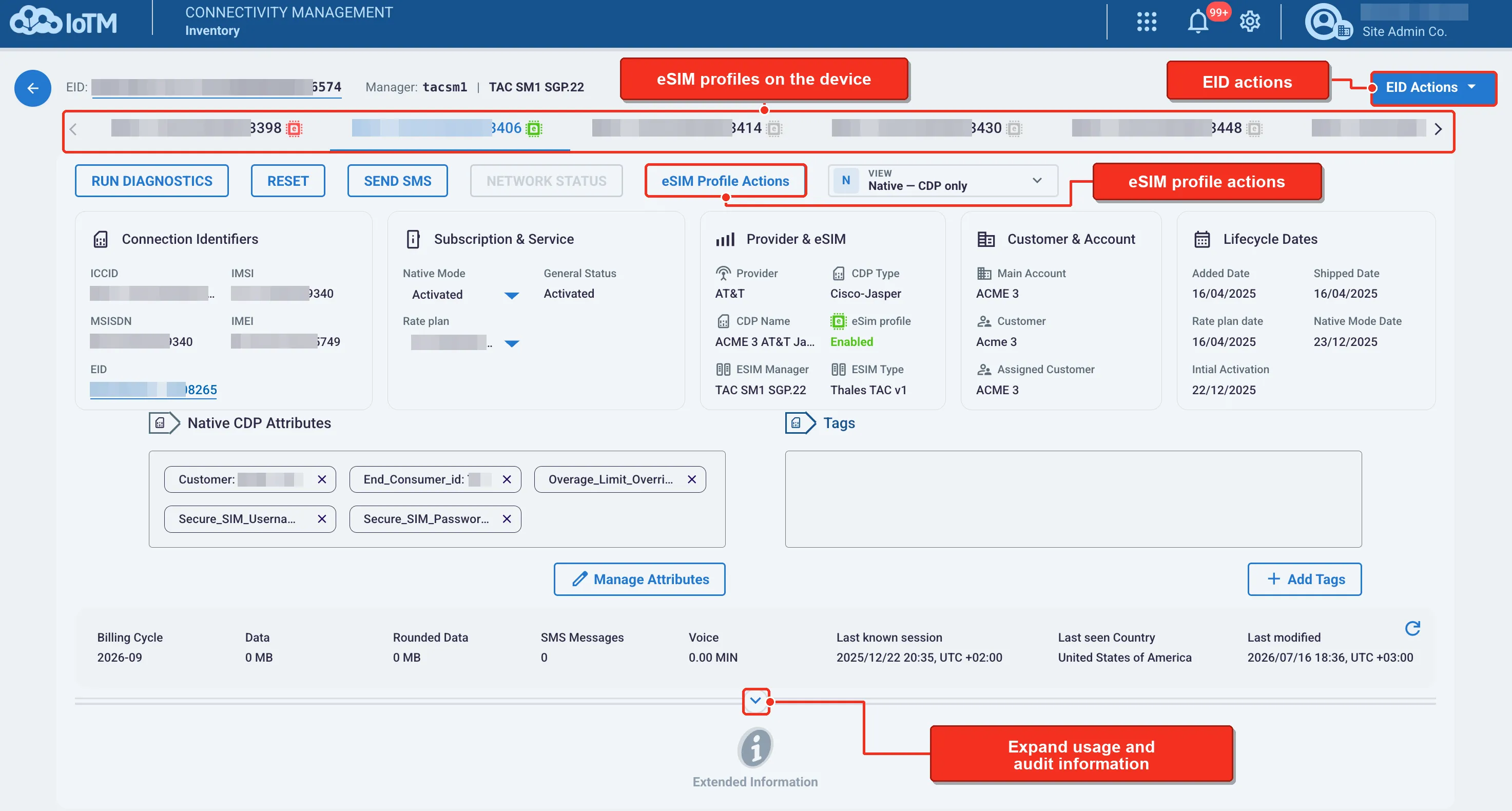
Connection ID Detailed Page
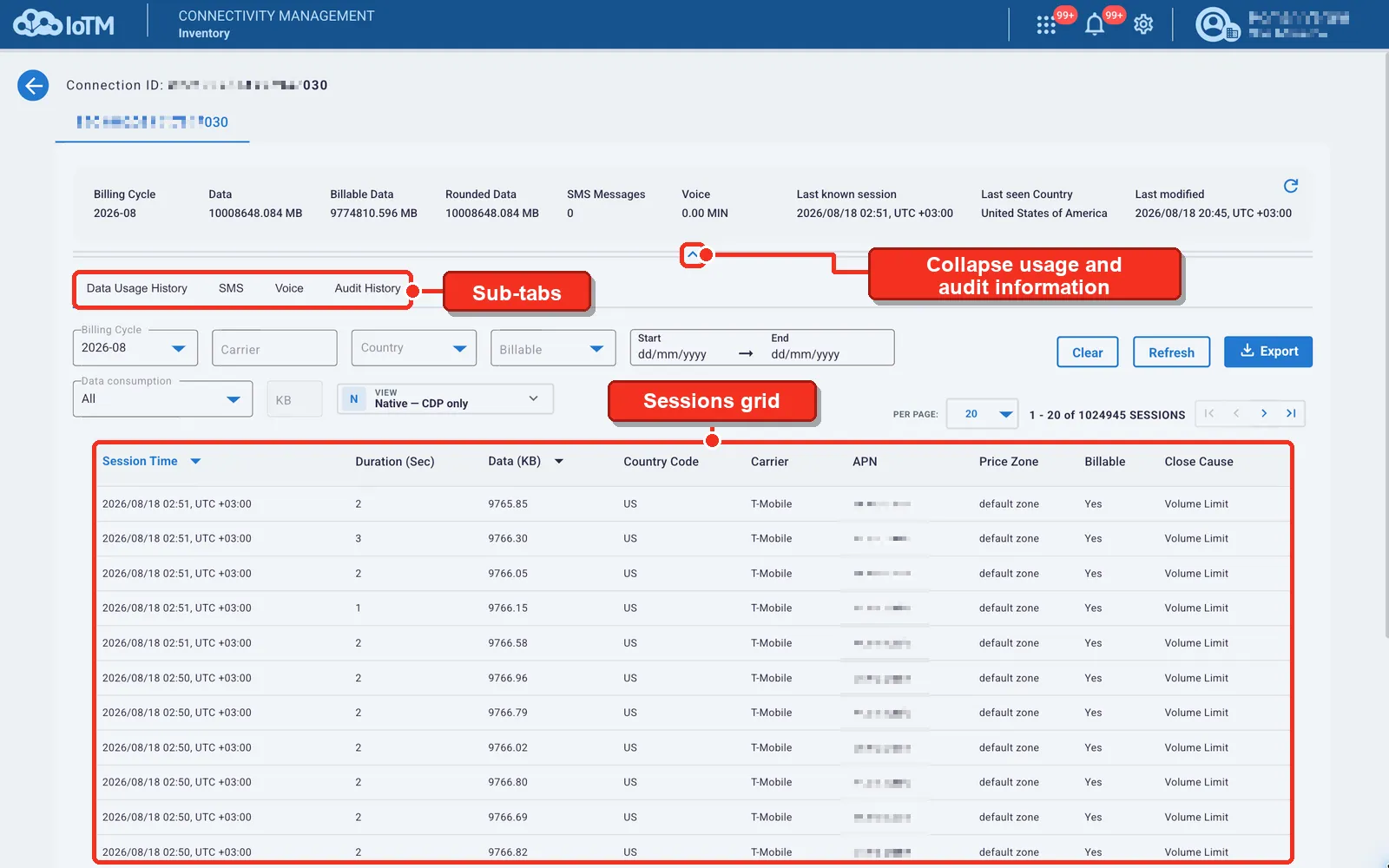
Connection ID Detailed Page usage and audit information.
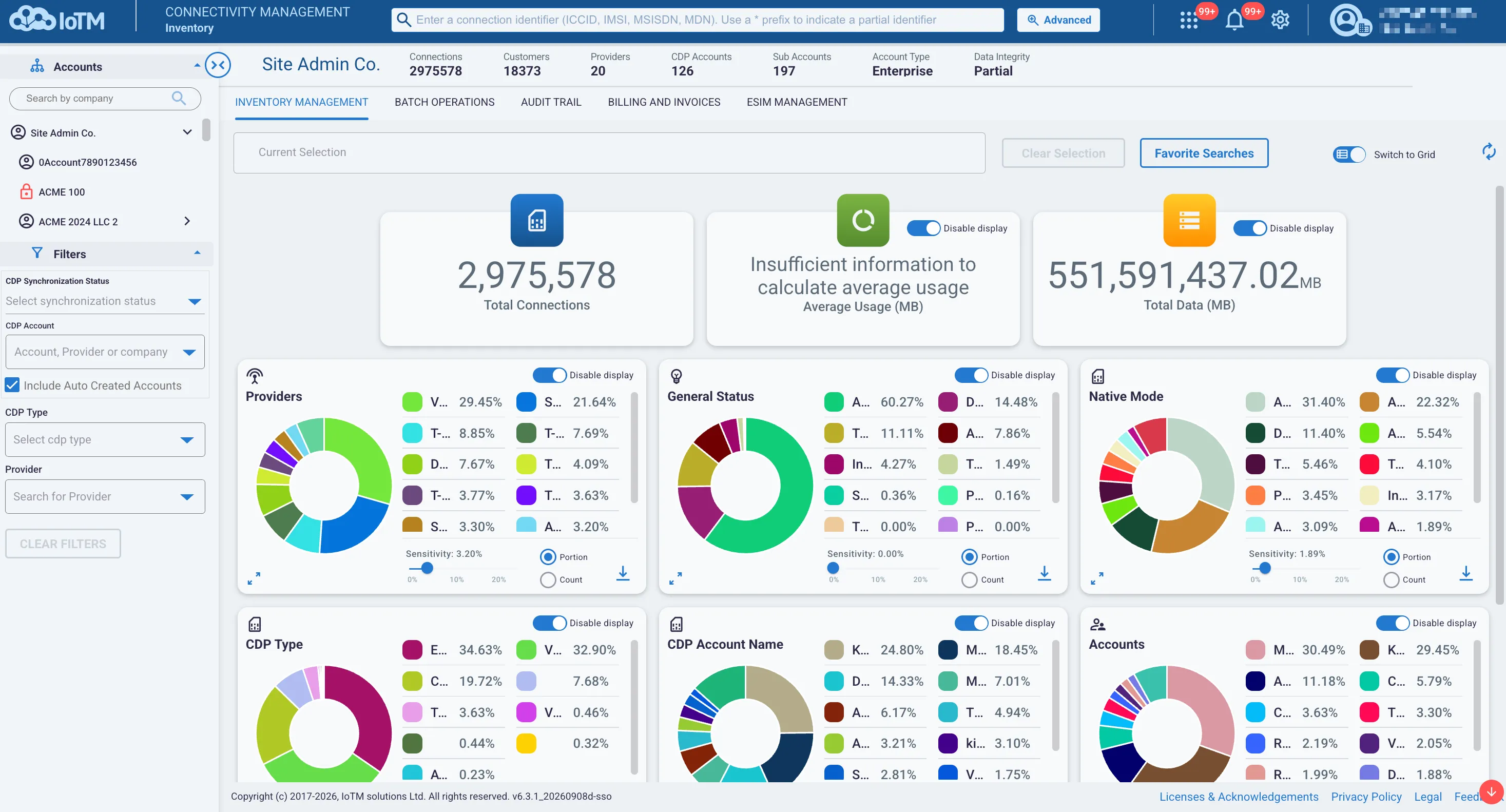
‘INVENTORY MANAGEMENT’ Dashboard View Page
Most traditional IoT CMP allow viewing the SIM inventory data in a grid. A grid view displays your SIM inventory in a tabulated columnar format that is often paginated as well. The IoTM inventory view also provides a “Dashboard” view option that gives the user a graphic analysis of the connections' population related to the applied selection filters (“the current selections”). The dashboard view can be very helpful when you need a quick insight on the selected population. For example, if you need to take a critical decision regarding changing rate plans or SIM status (Native mode) the grid view often cannot provide the needed information and cumbersome processes are required like downloading Microsoft Excel © files and processing them to aggregate and analyze connectivity usage data and other connection parameters that support the decision on which rate plan needs to be used in the given population etc.
IoTM is offering a new paradigm to manage connections’ inventory. You can switch on the fly between the grid view and a dashboard view of the selected connections population, offering digested, aggregated and analyzed data to support your decision instantly and effortlessly.
Dashboard view of an inventory selection.