Inventory Management Operations
Chapter 5: Inventory Management Functional Tab
The IoTM Portal Inventory Management Functional Tab allows you to perform the common day-to-day actions required to manage an IoT SIM deployment, such as: SIM inventory management, SIM Life cycle management (e.g., Activation/Deactivation), eSIM lifecycle management (e.g., manual/batched MNO swaps), SIM Troubleshooting, SIM population tagging, Advanced SIM searching and listing, monitoring data, SMS, and voice usage, assigning a rate plan to a SIM.
Some activities are governed by the underlying CMP platform and were defined during your native account onboarding process. Other transitions can be governed through IoTM.
You may execute an action on one or more connections or use the IoTM Portal’s asynchronous batch operations campaign manager to configure and invoke a real-time or future function on a large set of connections which is beyond the visual range of the current active page.
10. Inventory Management Tab Components and Controls
The IoTM Portal Inventory Management tab has several page components. This section will outline them and their functionality.
Inventory Management Grid Page
The Grid page contains a list of SIM subscriptions (i.e., CONNECTIONS). Often you can find the information you need by searching, sorting, or filtering the list. You can click on a particular item in a row to get even more detail (Single connection page). You may gain access to controls that enable you to perform actions on a single or group of items.
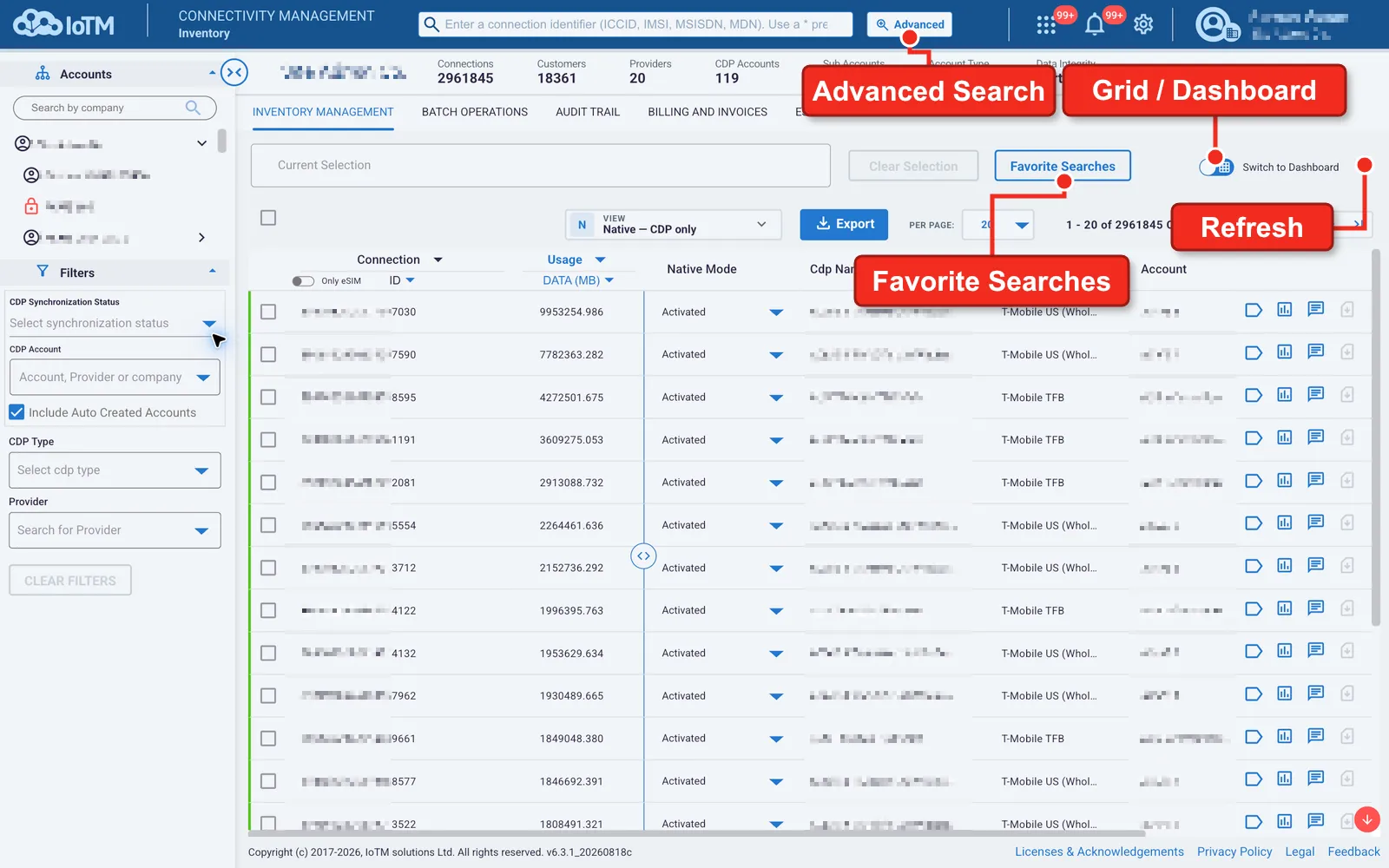
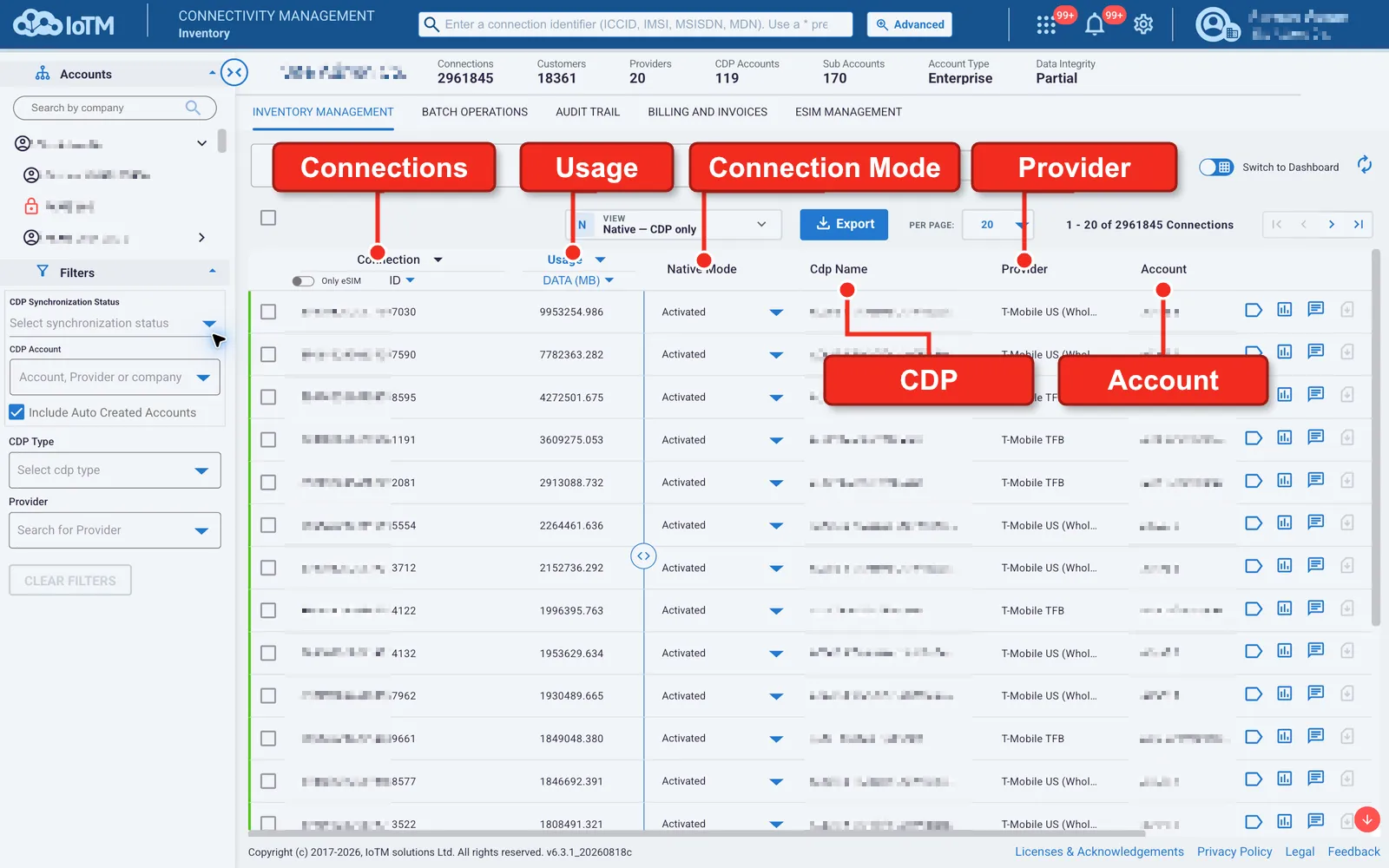
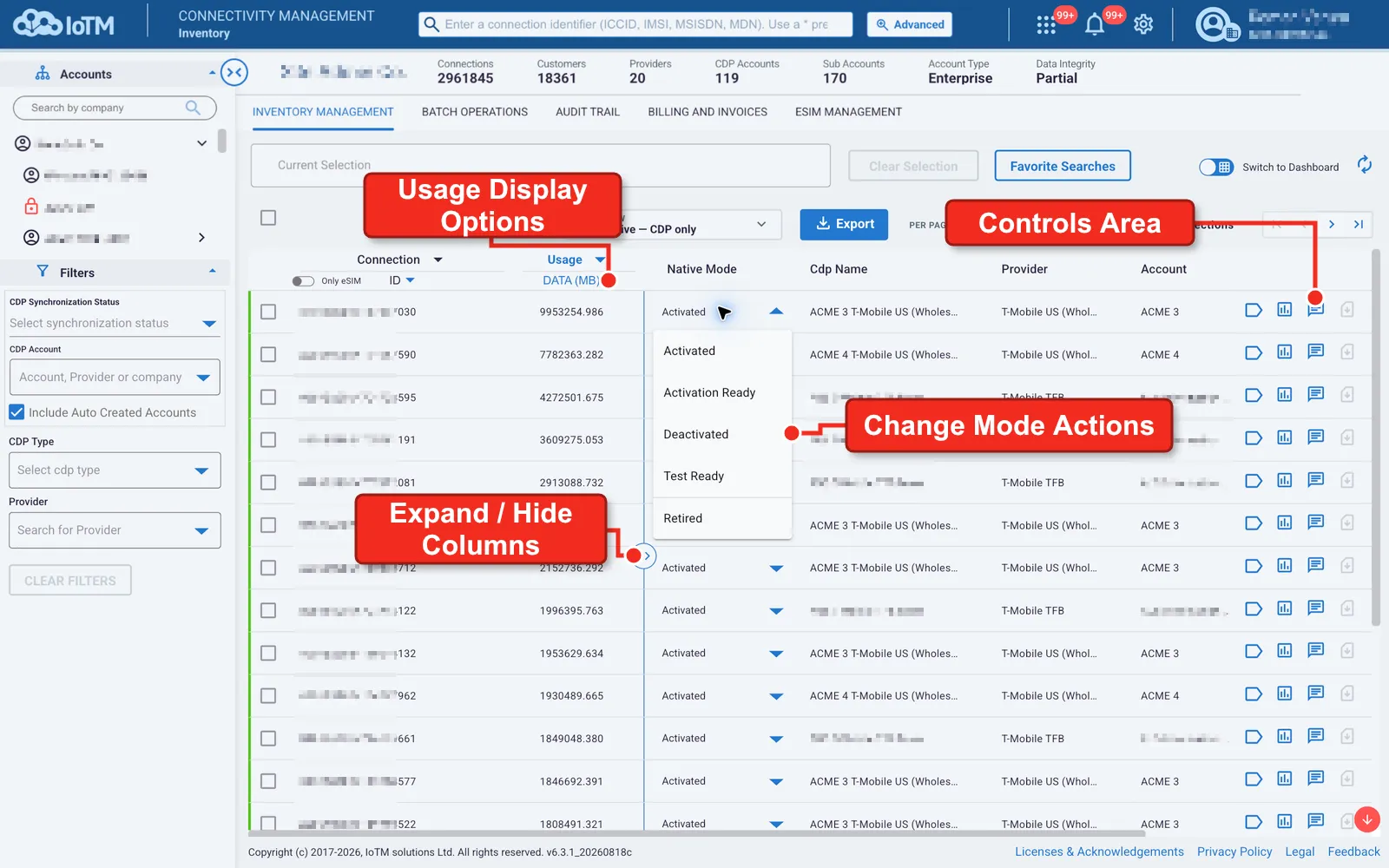
Inventory Management Grid Page unique Components and Controls
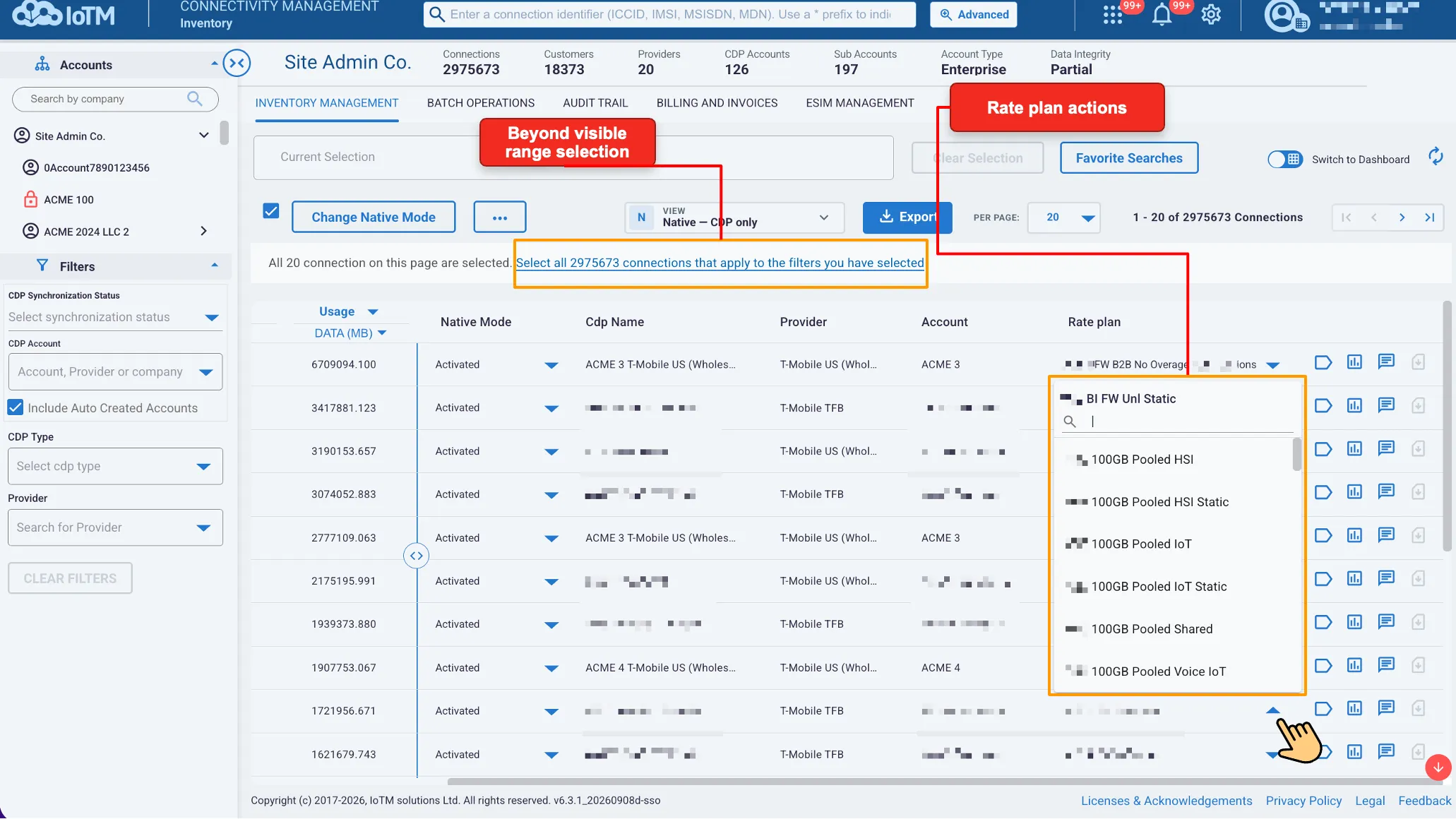
Interface Components
Interface Control | Description |
|---|---|
Connections | This column displays your SIM subscriptions (connections) by their underlying CDP Type default connection ID (ICCID, IMSI, MSISDN, IMEI, MEID, ESN, MDN, or MIN). |
Usage | Displays the SIM subscription’s latest synced cycle to date usage volume (in MB for Data, in Count for SMS, and in min for voice). |
Connection Mode | Displays the connections’ Native Mode states status values. |
CDP | Displays the CDP account to which the subscription is assigned. |
Provider | Displays the name of the connectivity provider for the SIM subscription. |
Account | Displays the parent account for this SIM’s CDP. |
Rate Plan | Displays the connection’s currently assigned Rate Plan. |
Grid/Dashboard Switch | Switches between the Grid mode that represents your deployment as a tabular itemized list, and the Dashboard mode that provides at a glance useful visual summary statistics of your filtered selection. |
Usage Display Options | Allows you to switch between viewing usage by Data, SMS and Voice consumption. Click on the arrow next to the field’s sub-header to expand the dropdown menu and pick the desired option. |
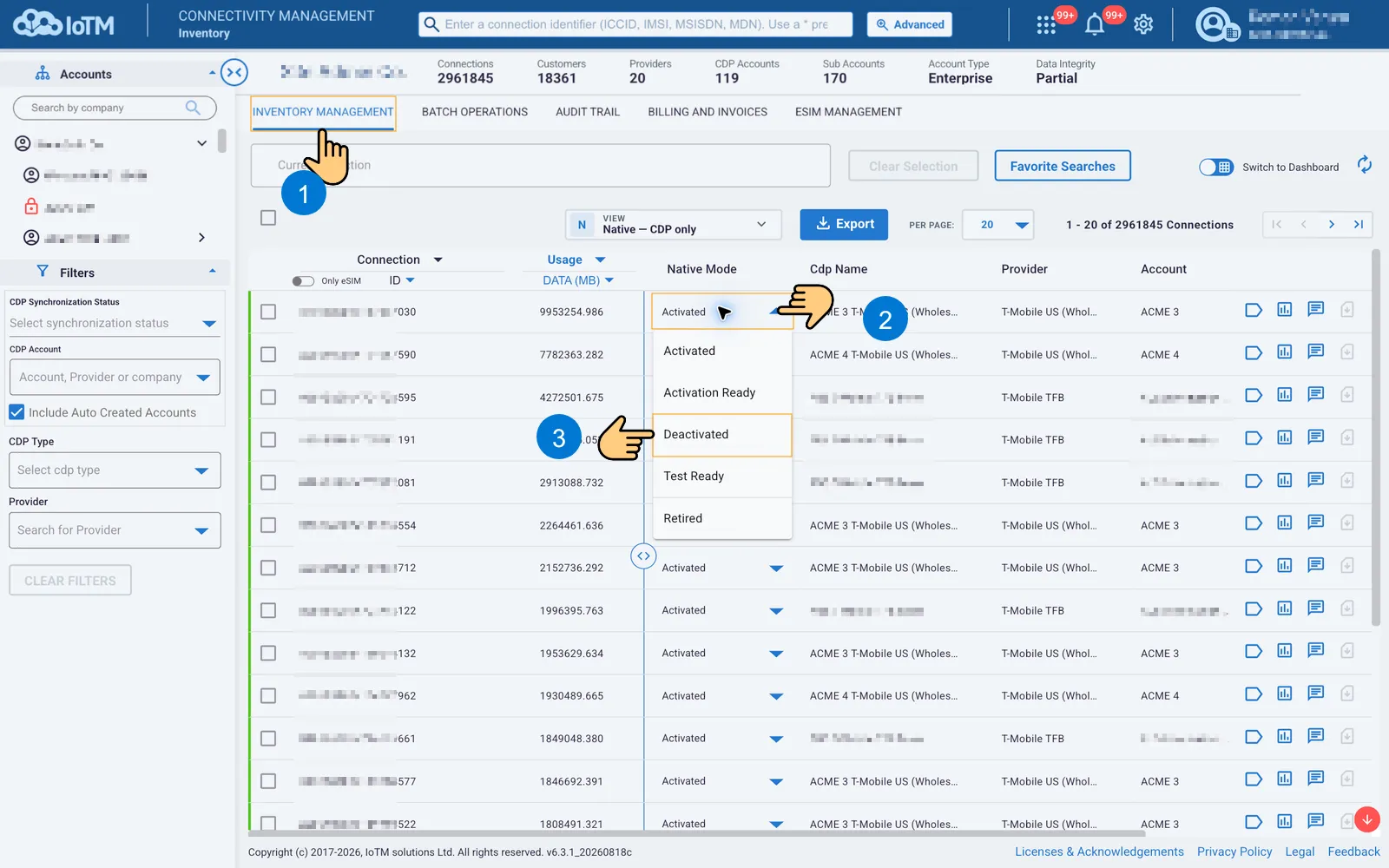
Change Mode Actions | Displays the available options for the connection’s Native Mode state. Click on the arrow next to the item inside the Native Mode field to expand the dropdown menu to view or to proceed to change the connection’s state. |
Actions Control | Provides convenient access to commands and controls that perform actions relevant to the current Dashboard. |
Beyond Visual Range Selection | The Beyond Visual Range (BVR) selection link becomes visible once the ‘Select All’ button is clicked. Whereas the ‘Select All’ limits the selection only to all the items on the current page, pressing the BVR allows you to select the entire population related to your account and sub-accounts that complies with your selection criteria, even if it is not on the visible page. After you make such a BVR selection, you can execute an action on the entire selected population. This will generate an asynchronous background batch operation, similar to uploading this population and triggering a batch operation campaign using a CSV file. |
Advanced Search | You can perform keyword searches on the columns shown in the text entry field (see Keyword Searching). The Advanced button allows you to filter the data by certain predefined values (see Advanced Searching). |
Expand/Hide Columns | Displays or hides several additional columns, including connection ID type, CDP type, General Status of the connection, and its Static IP Address. Simply press on the button to switch between the expanded and simplified viewing mode. |
Favorite Searches | Enables users to save search queries using IoTM's “favorite searches” bookmarking. You can bookmark search results and revisit them later to get a dynamic update (See Favorite Searches for details). |
Rate Plan Actions | Displays the available rate plans for the respective connection, including a ‘find as you type’ search field. Click on the arrow next to the item inside the Rate Plan field to expand the dropdown menu to view, or to proceed to assign the connection to the desired rate plan. |
Refresh | The refresh button is used to refresh the grid on demand. |
Controls Area | A set of persistent floating buttons. Tags, diagnostics, Send SMS and additional actions that if enabled expand to eSIM management and online presence status. |
This section explains in detail how to use the Inventory Management functional Tab, including a description of each widget and control. A step-by-step use case tutorial is included.
10.1. Manually Change the Connection Native Mode
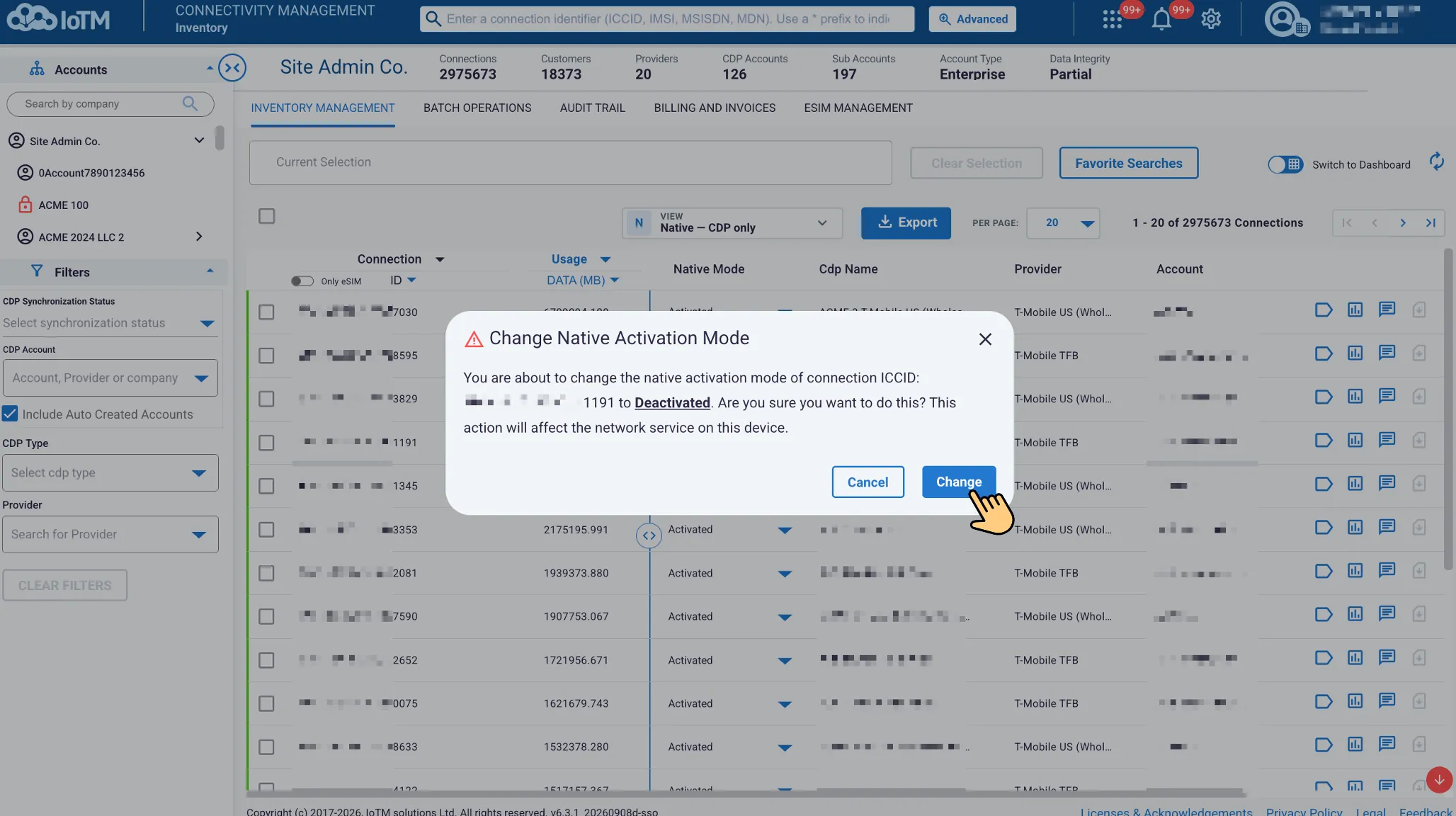
You can manually change a single Connection state status from the Inventory Management Items List.
Location: ➀ Inventory Management > ➁ Native List drop down > ➂ Select desired State > ➃ Press ‘CHANGE’ in the pop-up guard notification