Omni-search and Advanced Search
9.2.5. Using the Omni Search and Advanced Search Fields
Some IoTM platform pages include an Omni Search field that is context-sensitive to the active page and view that you are on. Depending on the page you're viewing, when using the Omni Search field, the IoTM Portal may allow you to search for one or more search criteria. The target search term will appear in the search box and be applied to the relevant page.
For example, when you’re viewing the Inventory Management tab, the Omni Search hint is “Enter a connection identifier”, in the Batch Operations tab the Omni Search hint is “Search company name or description”; in the Audit Trail tab – “Search by name or request types”; in the Billing and Invoices tab – ”Search by Company, Provider, CDP name or billing cycle (YYYYMM)”.
When viewing Account Management, the Omni search hint is “Company, account type”; User Management – ”First, last names, username, email or account”; CDP Account Management – “CDP name, provider, type, customer ID and company”.
When a search term is entered, the IoTM platform will search for the term in the active grid applicable dataset.
To further refine the search and to give a means of creating a complex compound search, the Inventory Management tab and the Audit Trail tab also have an “ADVANCED SEARCH” feature (see below).
9.2.5.1. Using the Omni Search In Inventory Management
The ‘Inventory Management’ tab omni search field can be used to generate certain single and multi-object searches. The search term relations in omni searches are logical “OR” and they broaden the search as opposed to the Advanced Search dialog or filter pane searches which are logical “AND” and they narrow the searches.
The inventory Omni Search supports both single and multi search term searches. Other IoTM portal Omni Search fields support only single search term searches.
Note: Inventory Management is the only tab on IoTM portal where the user can apply prefixes – or ‘keyword’ searching – to make the search more efficient due to the large amount of data to traverse. For instance, when looking up a connection or a list of connections by a connection identifier, the user may prefix it with “iccid:” followed by the id number value or a list of values separated by commas, – this will limit the search to the iccid field from the start, leading to better performance. This is also allowed in the listConnections API call omniSearch field as well. It is mandatory to use keywords in case of searching for string-type values like in Provider, Mode and other fields. For instance, when looking for all connections with Provider1, the user would need to type in the search bar “provider:Provider1”. The user would also need to use a prefix for a compound search across a single field, for instance, when searching for connections within a specific group of providers. In that case, the search would look like this: “provider:ProviderName1,ProviderName2,ProviderName3”.
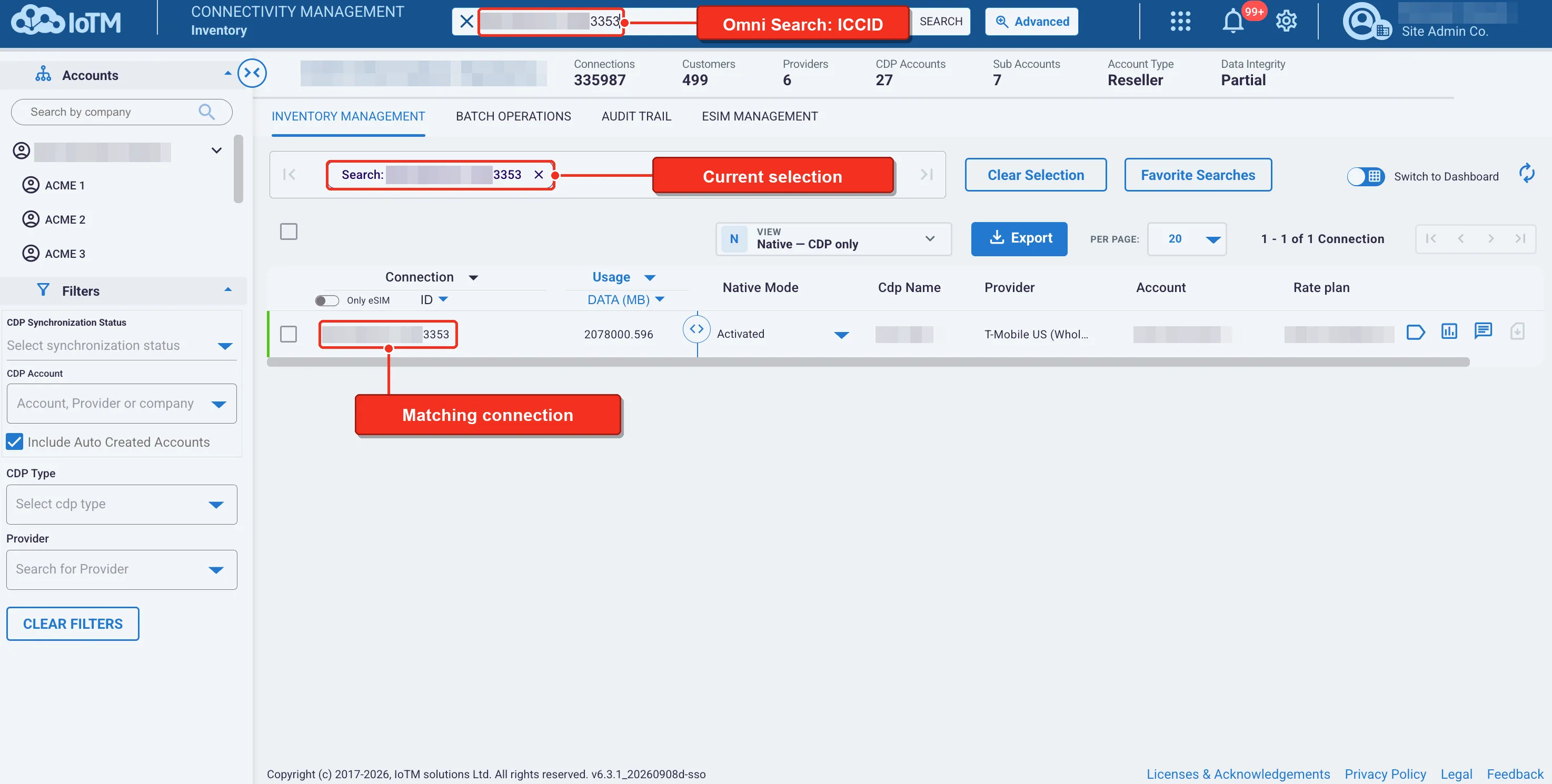
1) Single term searches: Where you can search using a simple single search term. An example for this will be looking for a single connection using one of its cellular connection identifiers with or without a prefix and either exact or partial. E.g., you can search for an ICCID by “omni search”:”iccid:89314404000088954239” or “omni search”:”89314404000088954239” or you can search for all ICCIDs that have an 88954-sub string like so “omni search”:”iccid:*88954*” or that end with 54239 like so “omni search”:”iccid:*54239”. If you omit the iccid: prefix, then the search will occur in all possible cellular identifiers, and this will impact the search performance.
(2) Multi term searches: Another option is to search for a population using multiple search terms, through one of several attributes of the connections. The following prefixes are supported: anyid, id, iccid, imsi, imei, msisdn, mdn, esn, eid, meid, deviceid, modemid, customer, endconsumerid, custom1,custom2, custom3, custom4, custom5, custom6, custom7, custom8, custom9, custom10, customercustom1, customercustom2, customercustom3, customercustom4, customercustom5, operatorcustom1, operatorcustom2, operatorcustom3, operatorcustom4, operatorcustom5, cdp, provider, account, tag, ip, mode, aggStatus, activeInCycle.
In this case, you would search for connections containing the values after the prefix in an OR logical relation.
Examples:
“omni search”:”anyid:<iccid>, <imsi>, <msdisdn>, <iccid2>, <iccid3>, <meid>” will look for all the connections visible to the root account that have these identifiers.
“omni search”:”tag:serial:12345,serial:67890,serial:24433” will look for connections that include these serial number tags.
“omni search”:”tag:serial:* will look for connections that include a serial: prefix tag.
“omni search”:”tag:serial:123* will look for connections that include a serial: prefix tag that starts with a 123 value.
“omni search”:”aggStatus:Activated” will look for connections that have an IoTM aggregated Activated status. These could be “Activated” connections in Cisco/Jasper and Ericsson, “Active” in Verizon Thingspace, “Active.live” in Vodafone GDSP etc.
Example: searching for connections under two specific providers:
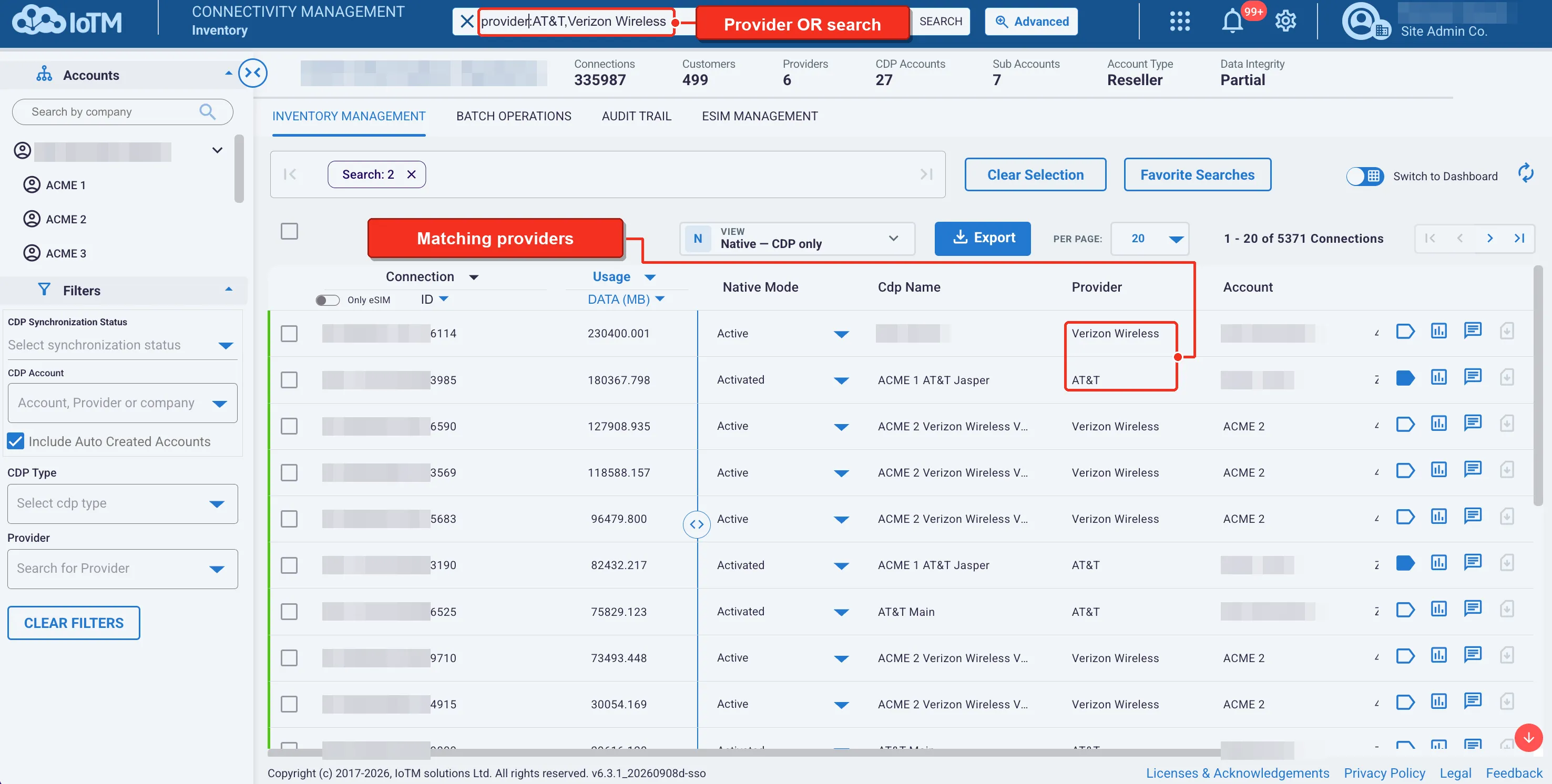
Example: performing a keyword-based Omni search in Inventory Management to fetch connections with AT&T or Verizon Wireless as providers. Typing in “provider:AT&T, Verizon Wireless” in the search bar
When searching the ‘Inventory Management’ tab using the omni search field, enter your search attributes and click the search button. The results of that string would present in the Items list area. The search string will appear in the ‘Current Selections’ bar area.
Note that it is possible to search for up to 500 comma separated items in a single search with a keyword prefix (e.g. 500 distinct ICCIDs, IMSIs, tags, etc.).
Specifically for cellular identifiers, it is possible to search for multiple items without a prefix and with either comma or even whitespace delimitation. E.g. the following searches are legal:
8901882030100299561 8901260882289196675 8901260882289356519 8901882030100299561,8901260882289196675,8901260882289356519
Multiple partial search terms are also legal - e.g. 890188203010029956*,8901260882289*,89012608822*
9.2.5.2. Using the Omni Search outside of Inventory Management
When searching all other functional tabs, enter the search string in the text entry field. While you input search strings, the results of that string would also present on the Items list area, updating in real-time, without the need to press ‘Search’.
Note that all other functional tabs outside of Inventory Management do not support keyword and multi search. The user can always know which fields can be searched by Omni search from the respective hint displayed in the search bar.
- In Batch Operations, the user can perform Omni Search by company name (“Account” column) or description
- In Audit Trail – by name or request types
- In Billing and Invoices – by company, provider, CDP name or billing cycle (YYYYMM)
- In Account Management – by company and account type
- In User Management – by first or last names, username, email and account;
- In CDP Account Management – by CDP name, provider, type, customer ID and company
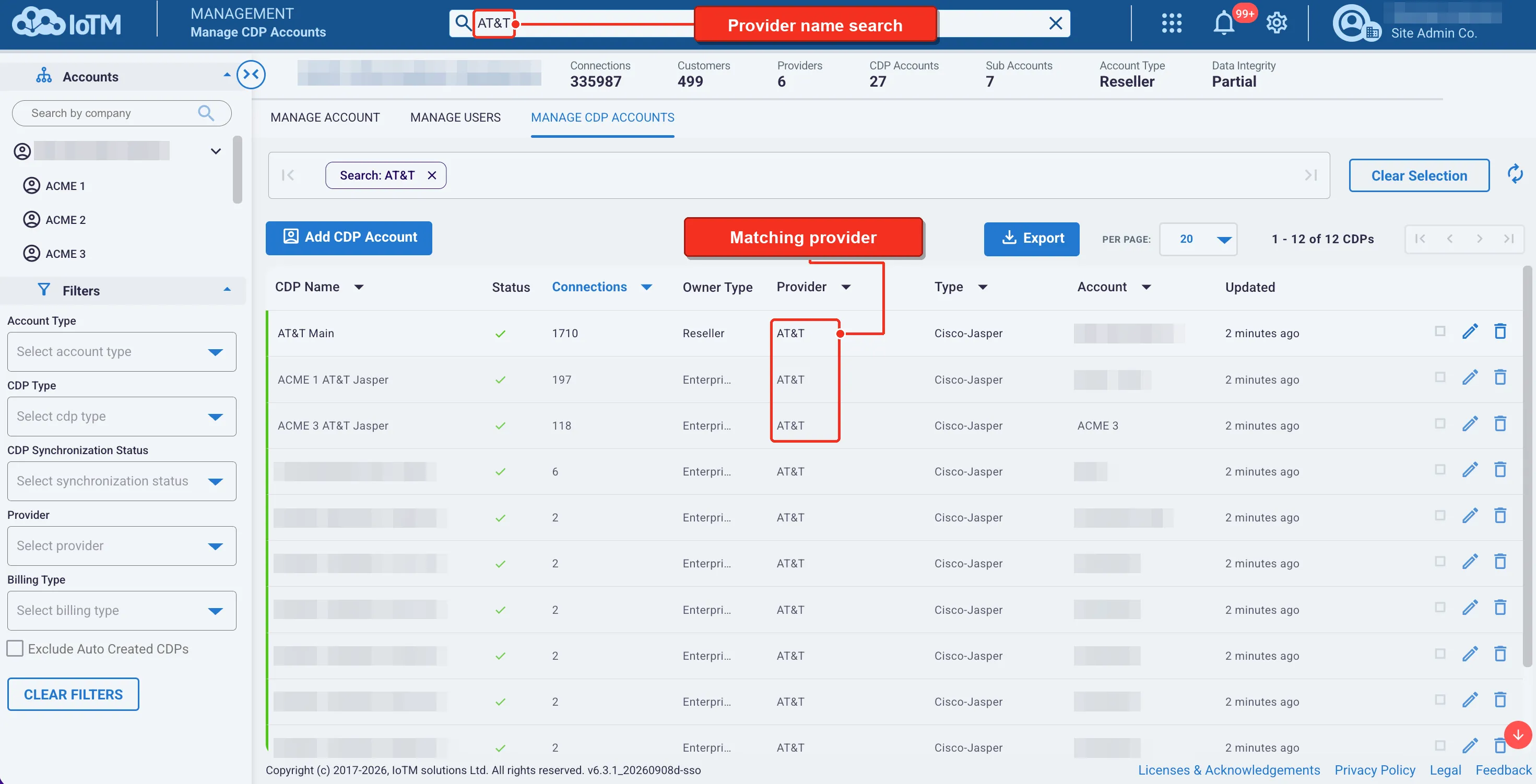
Therefore, if the user wants to look for a provider in CDP Account Management, they can simply type the name of the provider in the search bar without prefixing it, like so:
Or if the user would like to look for all the ‘Download and Enable eSIM Profile’ jobs in the Batch Operations functional tab, they could do it like so:
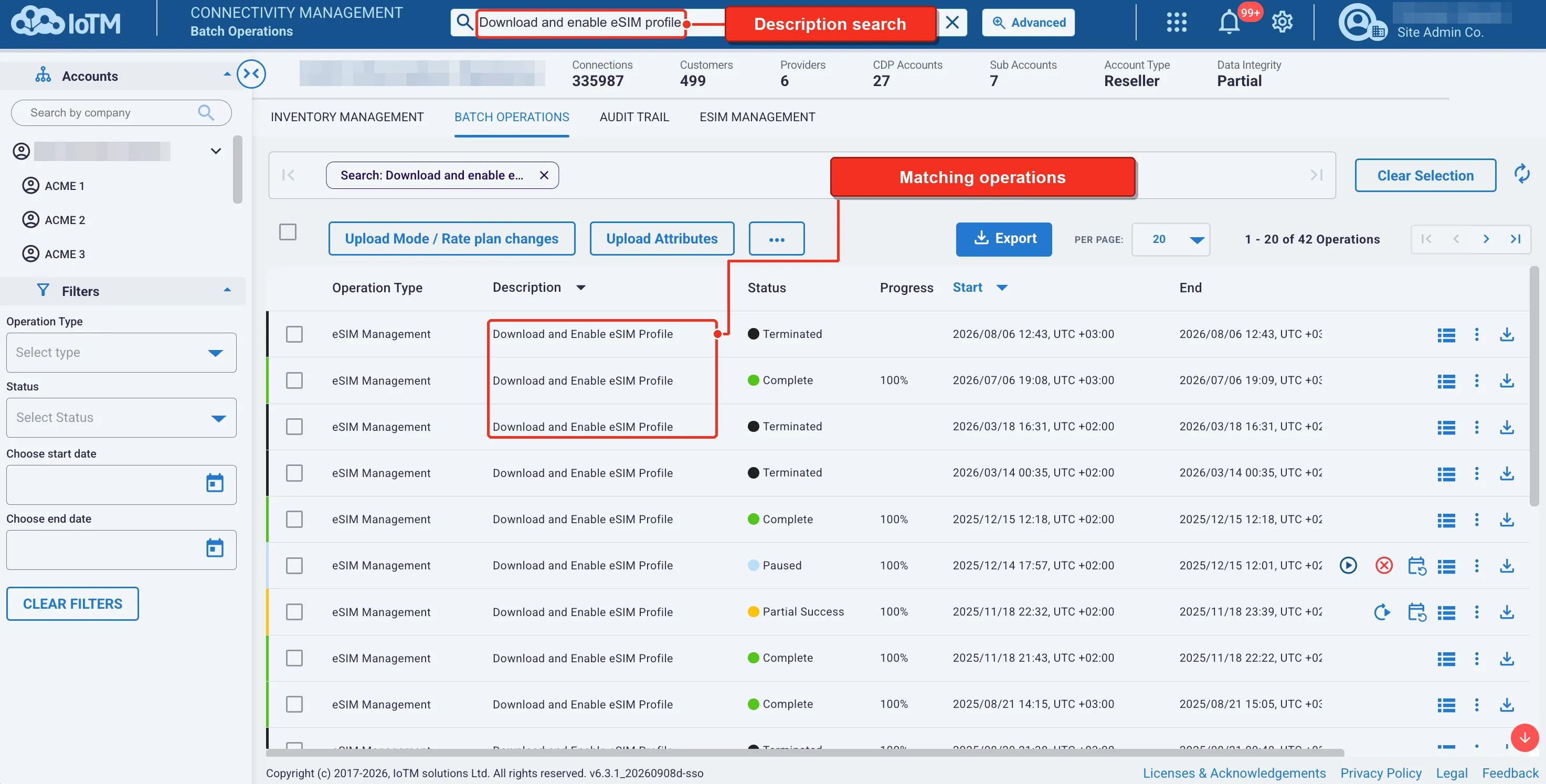
Resetting Data. After typing in the search box, an 'x' will appear to the left of the search term in the inventory tab and to the right in all other tabs. The ‘x’ can be clicked to clear the text and the Omni Search term. Alternatively, you can click on the ‘x’ appearing on the right side of the ‘CURRENT SELECTION’ bar.
Combining Omni Searches And Advanced Searches
Specifically, in the Inventory management tab, it is possible to combine an omni search with a compound search from the advanced search dialog. The logical relation between the results from the 2 search categories is ‘AND’.
9.2.6. Advanced Searching
The Advanced Searching feature is available in two functional tabs in the Connectivity Management application: Inventory Management and Audit Trail. Depending on the selected functional tab, the Advanced Search will offer a different set of filters and capabilities.
9.2.6.1. Inventory Management Advanced Search
Using the ‘INVENTORY MANAGEMENT” advanced searching feature, you can implement a compound filter search to the data in the Connections items list grid. Click the Advanced button located on the right side of the omni search bar to display the Advanced Search page. The Advanced Search page contains four categories: ‘Inventory’, ‘eSIM’, ‘Events’ and ‘Usage’. The search can contain input from the omni search bar and filters from these categories. Inventory focuses on connection attributes, eSIM on profile and manager filters, Events on date ranges, and Usage on the amount of data, SMS or voice usage consumed by the connection in a given billing cycle.
Select a category from the navigation on the left. Specify the desired filters and click Apply on the lower-right side of the page. The Selected Search Attributes pane on the right summarizes the selected filters by category.
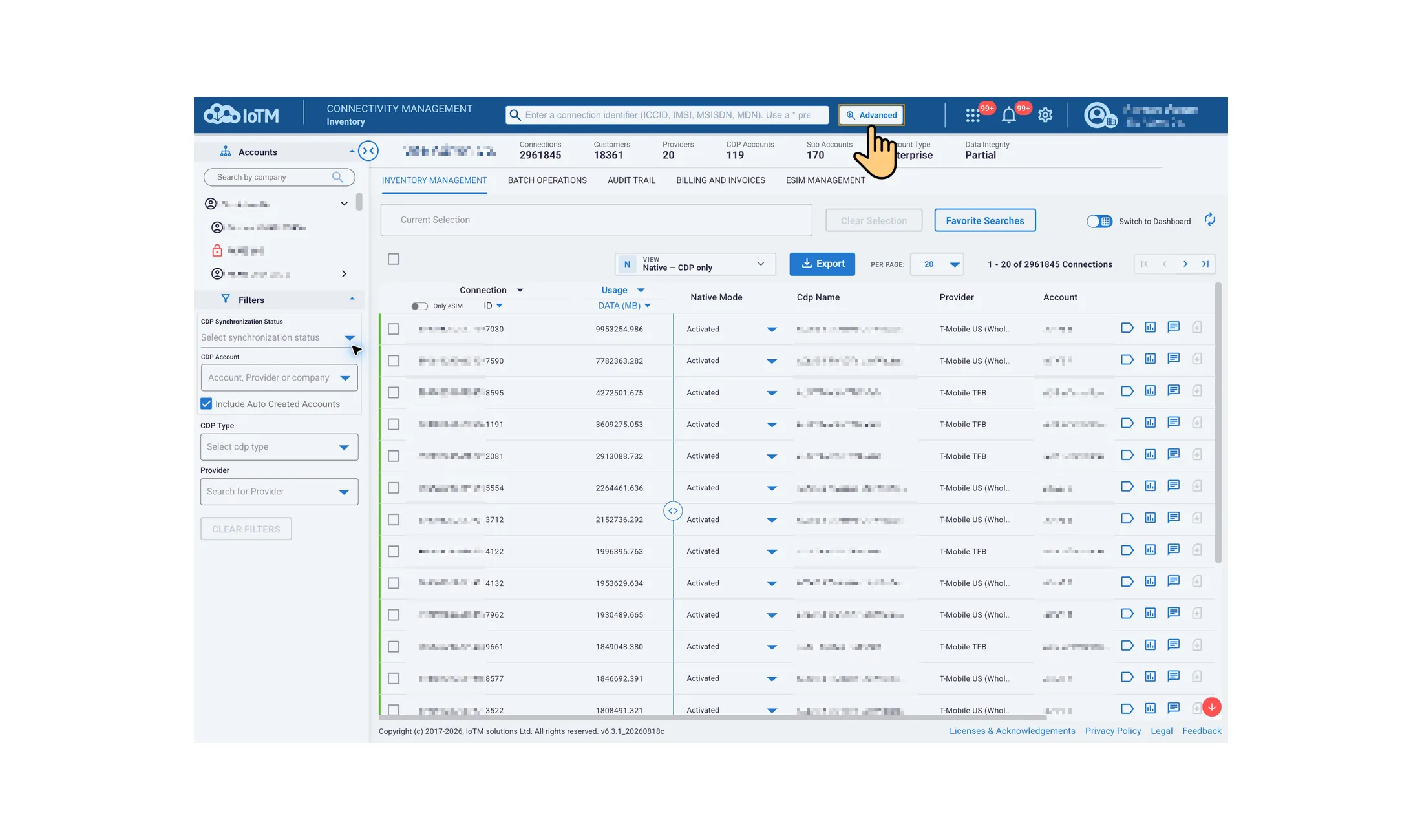
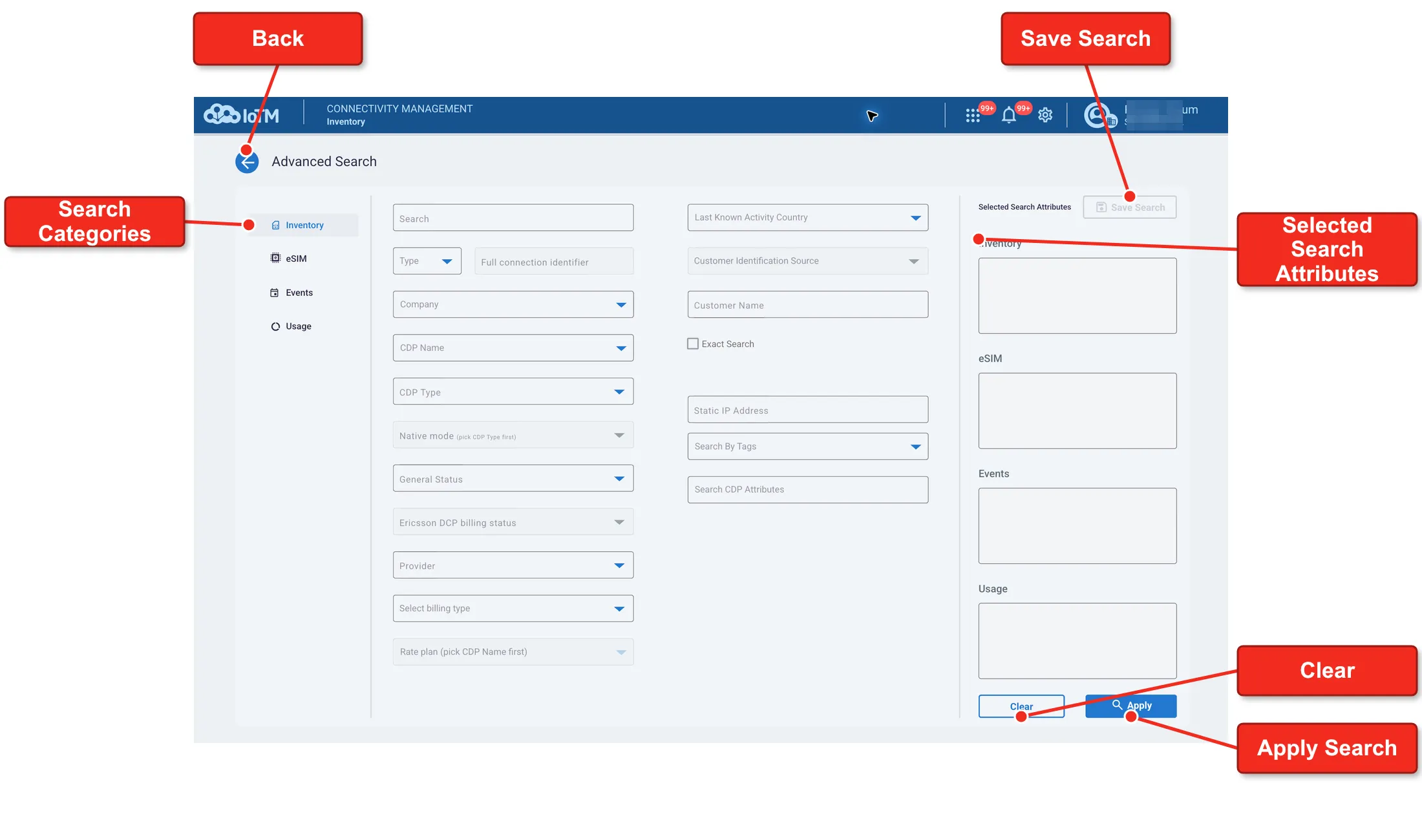
If you enter both a search string in the Omni Search field and one or more advanced filters, the search will combine both searches with an AND logic. The Clear button, located on the lower-right side of the page, clears all search terms for the advanced filtering. Return to the Inventory Management tab by clicking the back arrow at the upper-left of the Advanced Search page. Clicking on the Apply button applies the search filters and executes the search. Clicking on the “SAVE SEARCH” button up top on the right hand-side saves the search criteria as a bookmarked favorite search for future use.
9.2.6.1.1. Inventory and Events categories
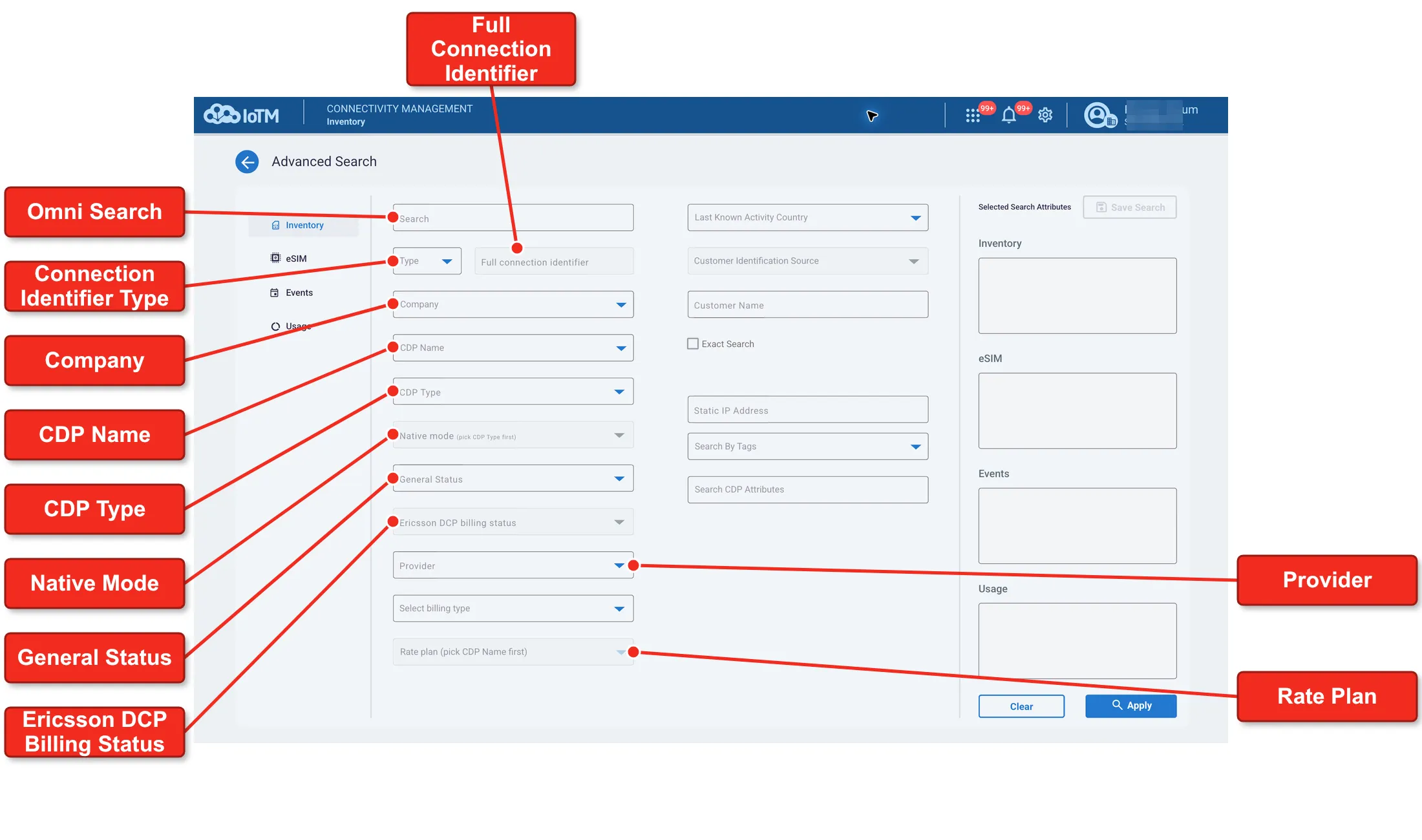
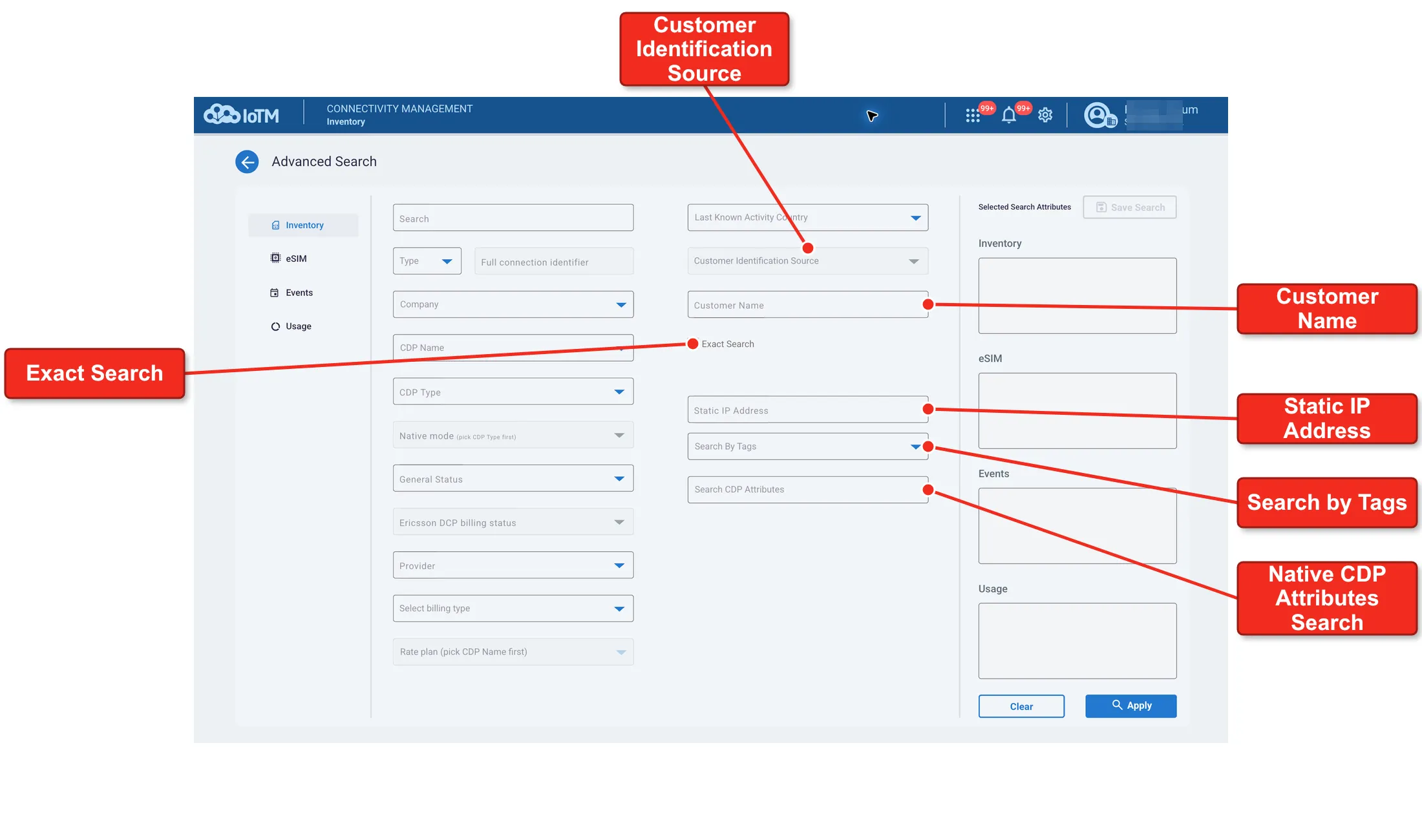
To access the Inventory category, click Inventory in the navigation on the left.
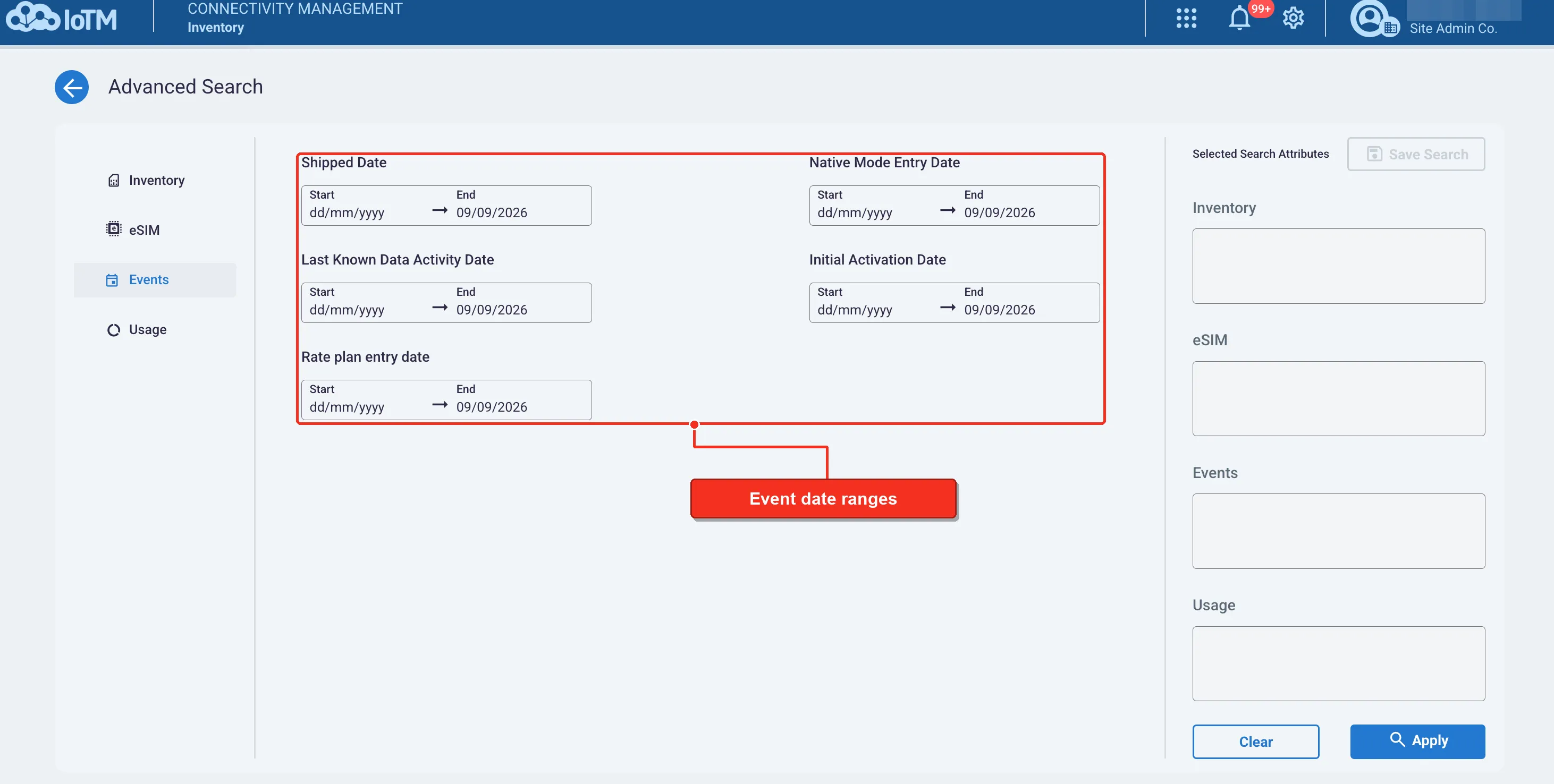
Click Events in the navigation on the left to display the date filters described in the table below.
Inventory and Events filters description
Filter | Dimension Values Description |
|---|---|
Omni Search | The Omni Search field allows the user to perform keyword searches on the connections on any related criteria like they would normally do from the Grid view page, such as one of the connection identifiers, CDP, provider, mode etc. it is equivalent to the top bar omni search field in the inventory page (See the Using the Omni Search In Inventory Management section for details.) |
Connection Identifier Type | Dropdown list displaying a list of Connection identifier types, e.g., IMSI, ICCID, MSISDN, etc. |
Full Connection Identifier | Search Field, allowing you to search for single connections by full unique integer identifier. If you’re not sure about the full identifier, then use the Omni Search instead. |
Company | Dropdown list including all your sub-accounts. |
CDP Name | Includes both a (1) CDP account search field allowing Users to search for a CDP by either Account, Provider or Company and (2) CDP list allowing the user to select one CDP Account item from a list contained within a static, multiple - line text box. A Connected Device Platform name appears as you registered it when adding the CDP account. |
CDP TYPE | Dropdown list including all your onboarded CDP Types: Cisco Jasper, Ericsson DCP, VF GDSP, Verizon Thingspace, T-Mobile NextGen, and AT&T EOD, from which the user may select one. |
Native Mode | Dropdown list displaying a list of Native Mode (SIM Status) values, from which the user may select one (or leave untouched to show all). Native Mode values vary between CDP types and this field will only become enabled after you select a CDP Type or an actual CDP name, and then it will show you the modes for this specific CDP type. |
General Status | The General Status (IoTM aggStatus) is an IoTM normalized generalization of the native activation mode. So, for example, General Mode “Activated” will map to native mode “Activated” for Cisco/Jasper and Ericsson DCP, “Active.Live” in Vodafone GDSP and “Active” in Verizon Thingspace, etc. This dropdown list from which the user may select one (or leave untouched to show all) includes the following values: • Activated • Active Ready • Deactivated • Inventory • Terminated • Test • Transferred |
Ericsson DCP Billing status | Dropdown list displaying a list of SIM Billing status values, – specific only to Ericsson DCP, – from which the user may select one. The list includes: • Active • Deactive • Paused • PBR • Terminated Note that the user needs to select ‘Ericsson DCP’ in the CDP Type filter for the Ericsson DCP Billing status filter to become active. These billing statuses may differ from the Ericsson Native Modes. For example, a Deactivated native mode in an Ericsson DCP carrier can still be in the “Active” billing state. |
Provider | Dropdown list including all your onboarded Home Connectivity Provider (HPLMN), from which the user may select one. |
Rate Plan | Includes both a (1) Rate Plan search field allowing Users to search for a specific rate plan and (2) list of all Account Rate Plans allowing the user to select one Rate Plan item from a list contained within a static, multiple - line text box. A Rate Plan name appears as it is named by the underlying CMP and synced by the IOTM system. Start typing the rate plan name to select a rate plan to filter by. |
Save Search | Save the current query as a bookmark with all its criteria in ‘Favorite Searches’ for future use. |
Shipped Date | Popup calendar graphical user interface widget which allows the user to filter by the date that the connection was shipped to the account. You may select a start and end date range, a predefined range, or just an end date. The default end date is today (according to your local machine). |
Native Mode Entry Date | Popup calendar graphical user interface widget which allows the user to filter by the date that the connection was last entered into the current native mode. You may select a start and end date range, a predefined range, or just an end date. The default end date is today (according to your local machine). |
Rate Plan Entry Date | Popup calendar graphical user interface widget which allows the user to filter by the date that the connection was last entered into the current rate plan. You may select a start and end date range, a predefined range, or just an end date. The default end date is today (according to your local machine). |
Last Known Data Activity Date | Popup calendar graphical user interface widget which allows the user to filter connections by their last known (synchronized) data activity. |
Initial Activation Date | Popup calendar graphical user interface widget which allows the user to filter by the date that the connection was initially activated. You may select a start and end date range, a predefined range, or just an end date. The default end date is today (according to your local machine). |
Customer Identification Source | A dropdown list allowing the user to select the source field from where the customer is defined in the underlying CMP. This can be all the available selection options for Cisco/Jasper. For the rest of the CDP Types, it can only be tagged customers. The Tagged customers' field is populated by tagging through gear--> Manage Account --> Import Device / Customers. |
Customer Name | In case the CDP Name is pre-selected, then select the customer name from the auto-complete options. In case the CDP Name is not pre-selected, then type the customer name in the text field. If you type the complete name and click on the Exact Search checkbox below, the search performance will improve significantly. Please note that "Exact Search" is case-sensitive. |
Exact Search check box | Check this box if the customer name you've entered is a complete and exact name. This will significantly improve the search performance. |
Static IP Address | Filter a single connection by entering its exact static IP address in the designated text field. |
Search By Tag | Select the tags you want to search by. Includes both a (1) Tag search field allowing Users to search for a specific tag and a (2) list of all tags allowing the user to select one tag item from a list contained within a static, multiple - line text box. Search by tag looks for tags in the current account scope but also lets you search for tags that exist in sub-account scopes and also to look for connections that match all the tags in the search selection (with an AND instead of an OR relationship). |
Back / Clear / Apply controls | (1) Return to the Inventory Management grid using the back arrow. (2) Clear the entire selection. (3) Apply the filters and execute the search. |
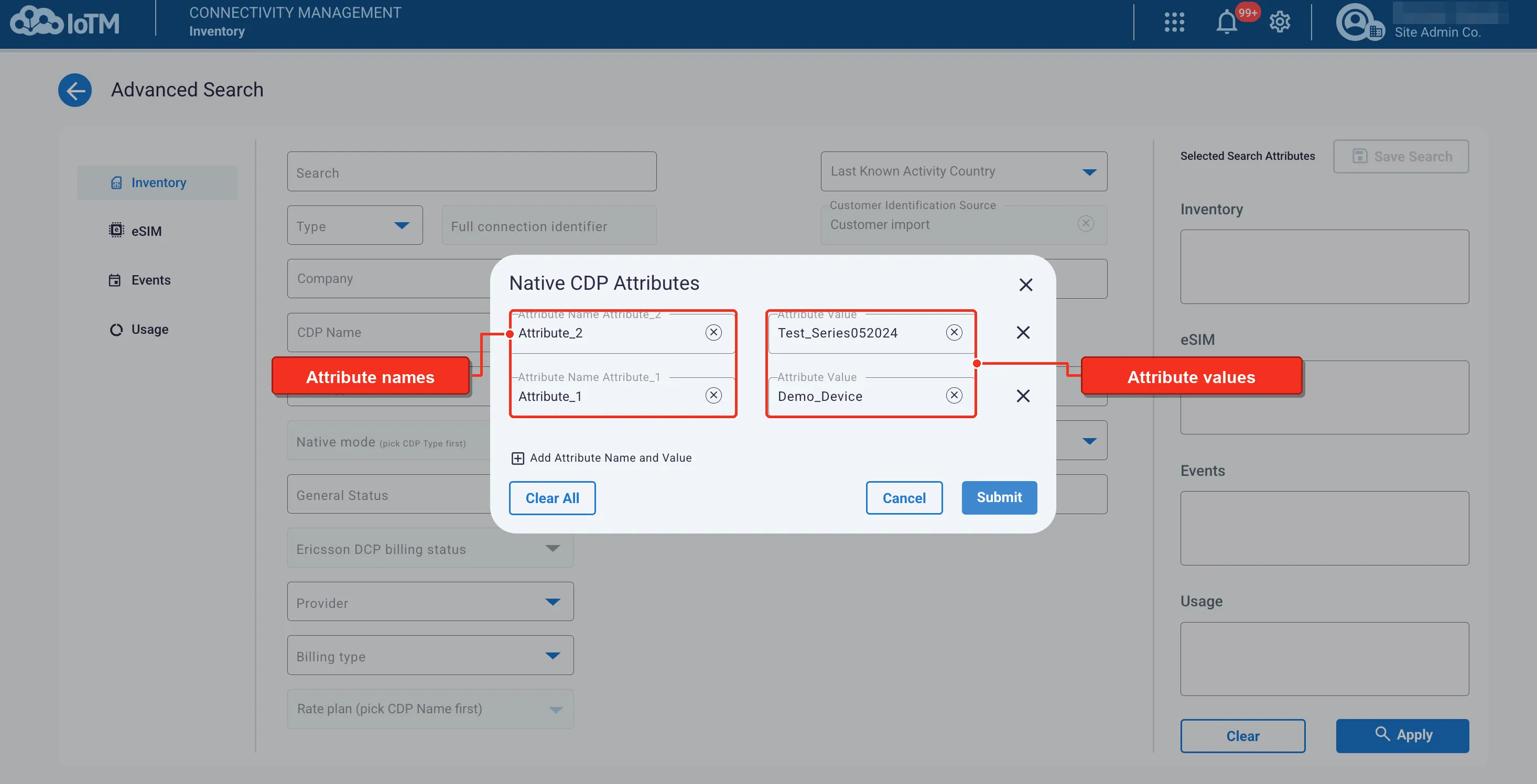
Native CDP Attributes
In the Inventory category, click Search CDP Attributes to open the Native CDP Attributes dialog. Select an Attribute Name from the dropdown list and enter its Attribute Value in the field on the right. Use Add Attribute Name and Value to include another pair, then click Submit to return to Advanced Search. Click Apply on the Advanced Search page to execute the search.
eSIM category
Click eSIM in the navigation on the left to filter by eSIM Profile Status, Is an eSIM, eSIM Manager Type or eSIM Manager Name.
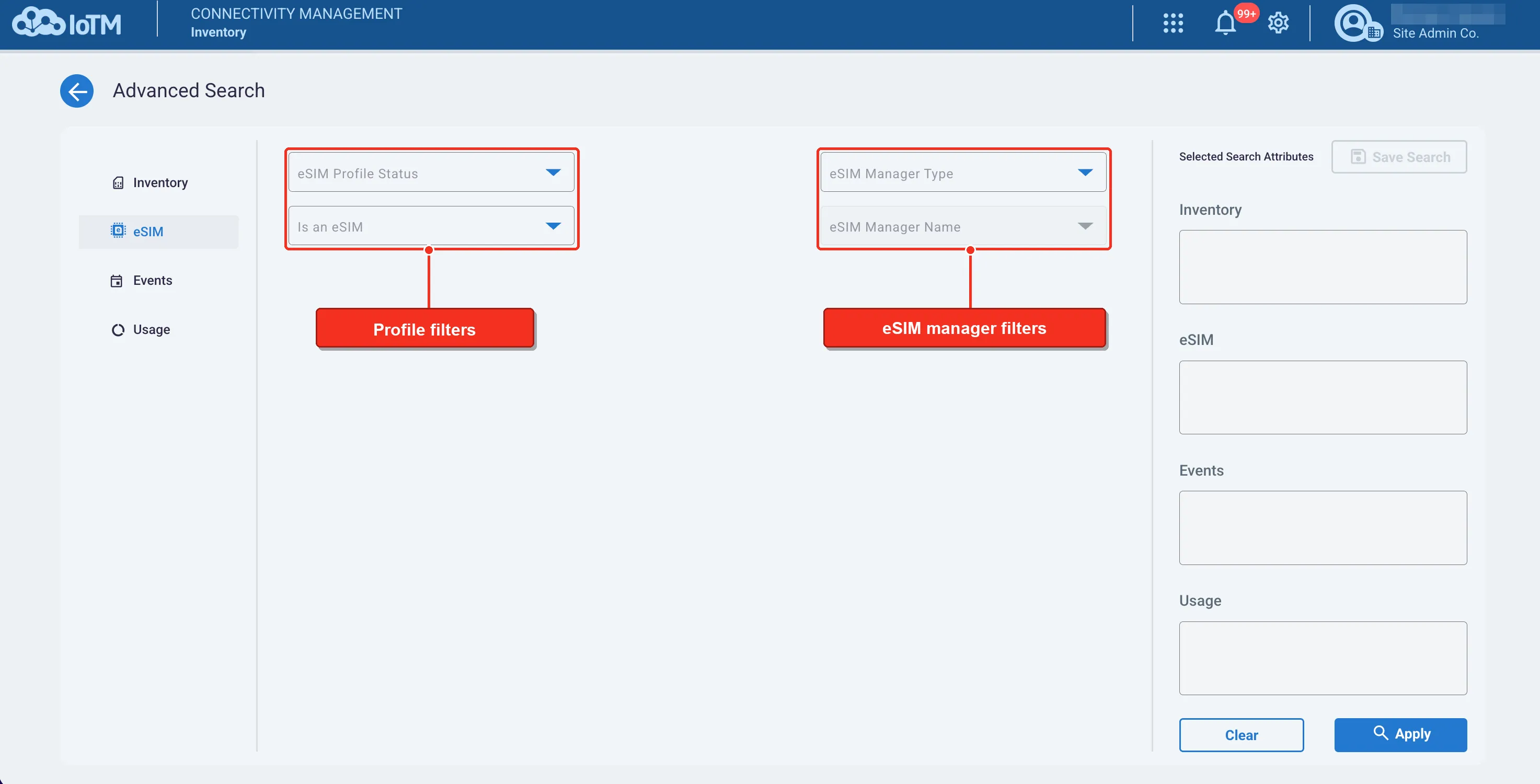
The eSIM Profile Status dropdown includes Deleted, Deleting, Disabled, Disabling, Downloadable, Downloading, Enabled and Enabling.
9.2.6.1.2. Usage category
To access the Usage category, click Usage in the navigation on the left. Select the billing cycle and any data, SMS or voice consumption filters required for the search.
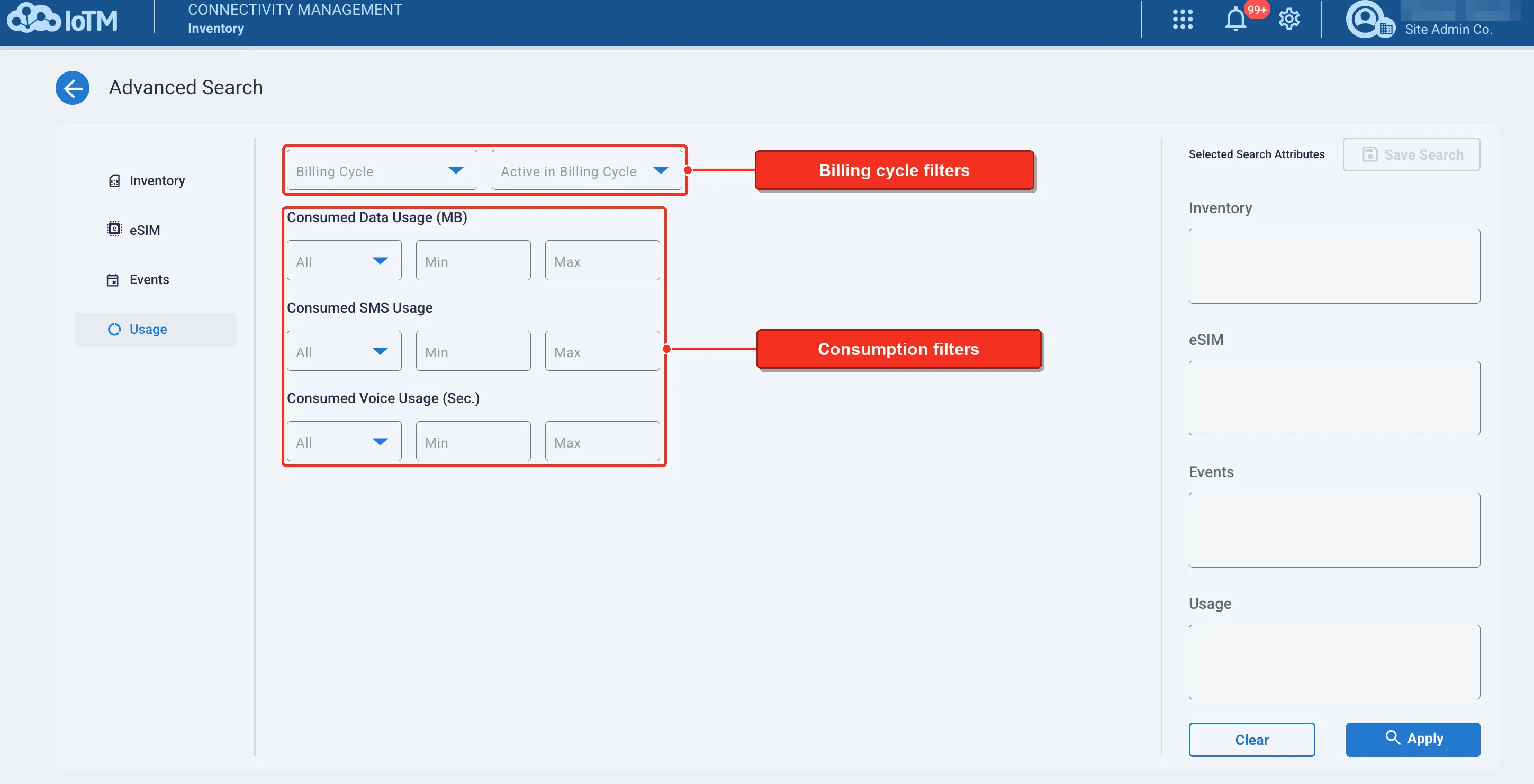
Usage filters description
Filter | Dimension Values Description |
|---|---|
Billing Cycle | Select the billing cycle you want to apply the search for. Includes both a (1) billing cycle search field allowing Users to search for a specific billing cycle and (2) list of all billing cycles allowing the user to select one billing cycle item from a list contained within a static, multiple line text. No selection means current billing cycle to date. After filling the search box, an 'x' will appear on the right side, which can be clicked to clear the text. |
Active in Billing Cycle | Filter the connections according to them being in an active billing state at some point during the elected billing cycle. Includes a drop-down list from which the user may select one. The list includes: - • "All" means all connections. - • "Yes" means only the connections that were active at some point in the cycle. - • "No" means only the connections that were not active in the cycle. |
Consumed Data Usage | Select a data usage (MB) range to limit the results to connections that consumed this much data each in the selected billing cycle. All fields are optional. Includes 2 graphical elements: 1. Dropdown list from which the user may select one. The list includes: • "All" means all connections. This is the default. • "Yes" means only the connections that generated data in the cycle. • "No" means only the connections that did not generate data in the cycle. 2. Two Text entry boxes that allow only numeric inputs for the from → to range. |
Consumed SMS Usage | Select an SMS usage range to limit the results to connections that consumed these many SMS each in the selected billing cycle. All fields are optional. Includes 2 graphical elements: 1. Dropdown list from which the user may select one. The list includes: • "All" means all connections. This is the default. • "Yes" means only the connections that consumed SMS in the cycle. • "No" means only the connections that did not consume SMS in the cycle. 2. Two Text entry boxes that allow only numeric inputs for the from → to range. |
Consumed Voice Usage | Select a voice usage range (Sec) to limit the results to connections that consumed these many voice seconds each in the selected billing cycle. All fields are optional. Includes 2 graphical elements: 3. Dropdown list from which the user may select one. The list includes: • "All" means all connections. • "Yes" means only the connections that consumed voice in the cycle. • "No" means only the connections that did not consume voice in the cycle. 4. Two Text entry boxes that allow only numeric inputs for the from → to range. |
9.2.6.2. Audit Trail Advanced Search
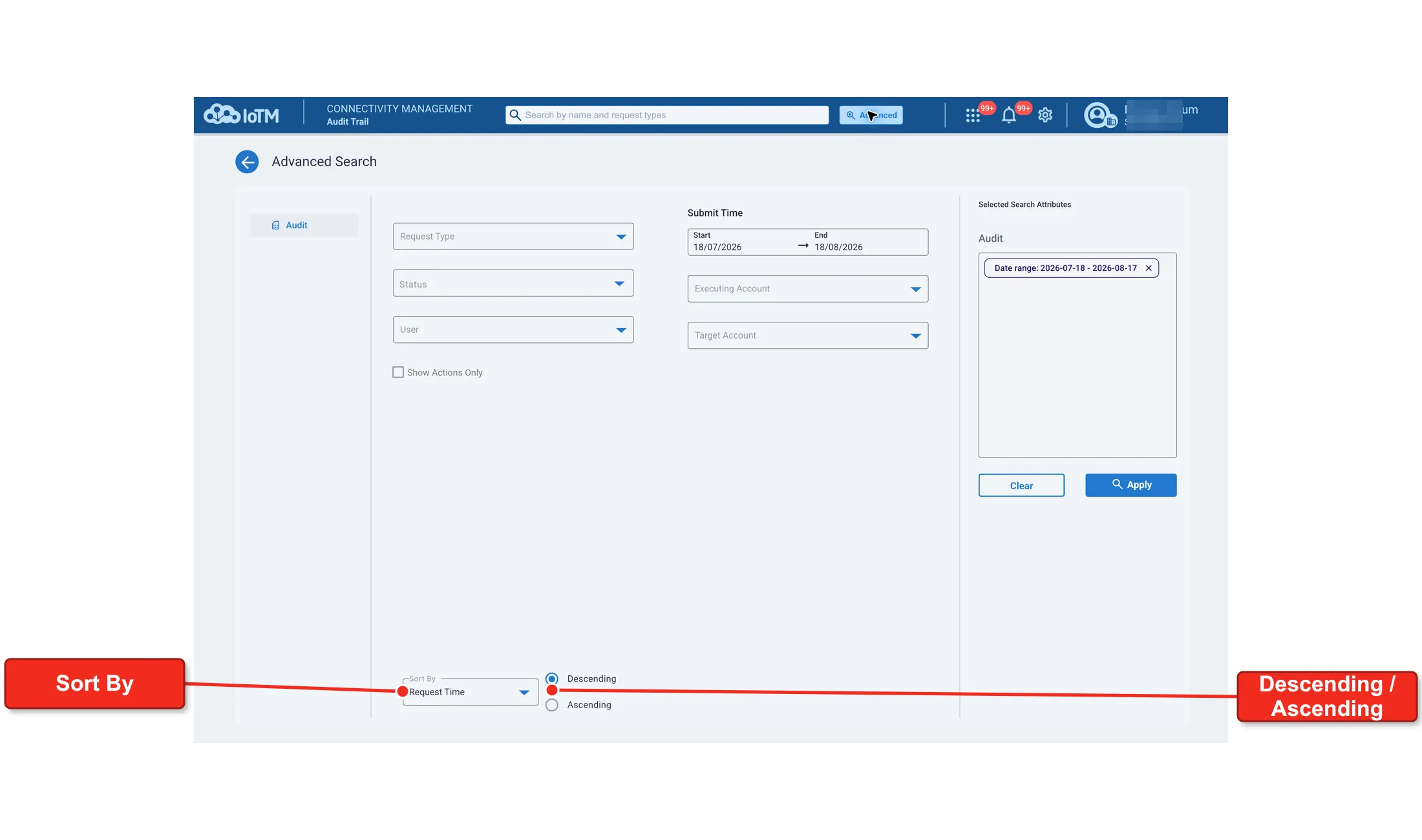
Using the “AUDIT TRAIL” Advanced Searching feature, you can apply additional multiple filters to the data in the actions items list grid. Click the Advanced button located on the right side of the Search control to display the Advanced Search page. The Advanced Search page for Audit Trail contains a single sub-tab: ‘Audit’.
Specify the desired filters and click the Search button on the lower-right side of the page. Any filters you choose will appear in the sub tab Search Selection header located at the upper side of each sub-tab.
9.2.6.2.1. Audit Trail Tab
By default, the Audit Trail tab will be expanded when the user enters Advanced Search from Audit Trail, but they can click on the ‘-’ to collapse it and on ‘+’ to expand it again.
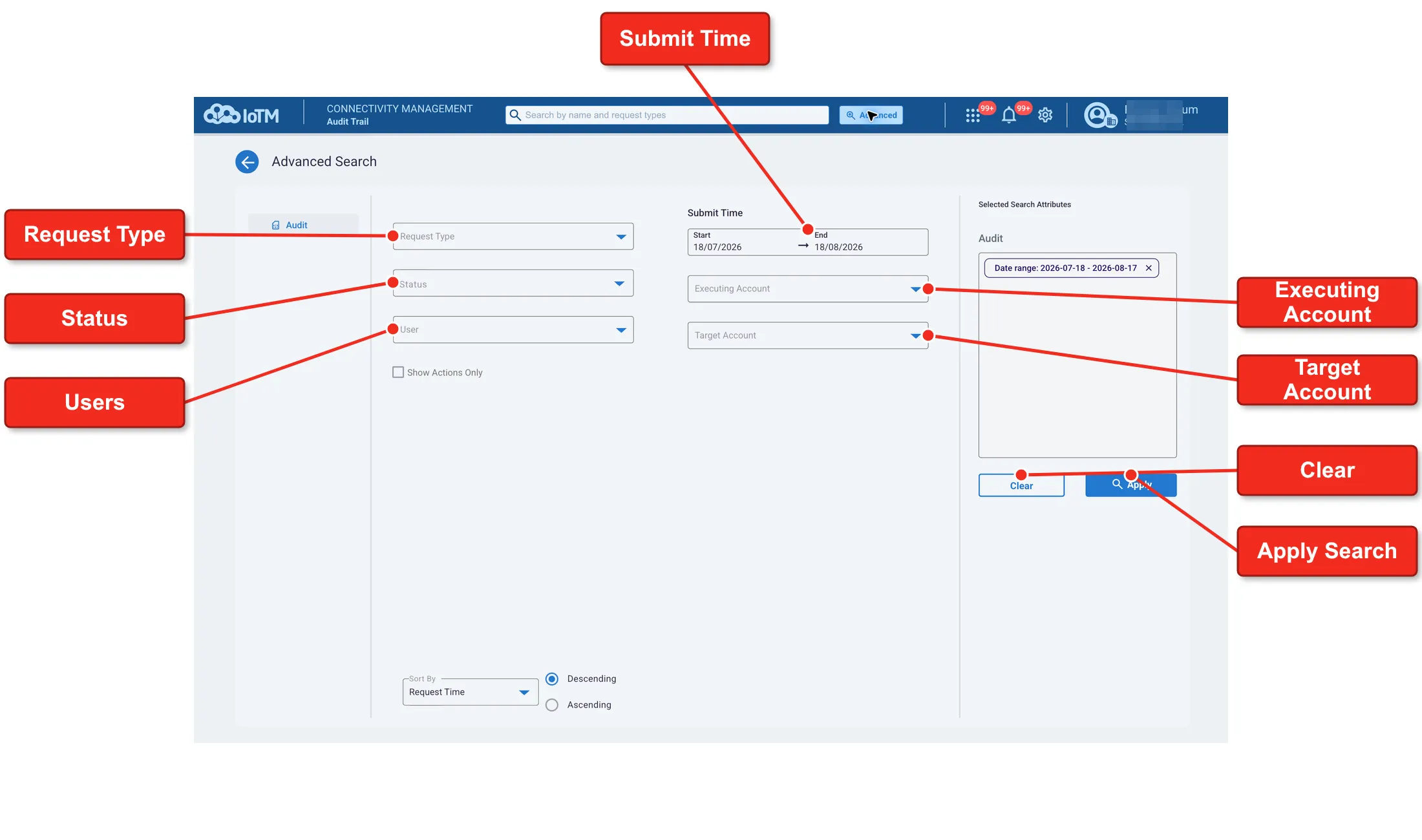
Inventory category Sub-tabs Filters description
Filter | Dimension Values Description |
|---|---|
Request Type | Includes both a ‘Request Type’ search field, and a list-box, allowing users to search for specific request types. This selector has a multi-select option and the user can filter on several request types. |
Status | Dropdown list displaying a list of batch jobs status types, from which the user may select one. The list includes: • Show All • Pending • Partial Success • Success • Failed |
Users | Includes a searchable username search field allowing users to search for a single user, based on First, Last Name, username, email or account from a list. |
Submit Time | Popup calendar graphical user interface widget which allows the user to select both start and end date from a calendar. Click on the date box such that when the date box is clicked on, two calendars and ‘PICK A RANGE’ appears. Note that If no request type filter is being applied, then the search is limited to 30-day period blocks. |
Executing Account | Includes a searchable accounts list, allowing the user to search for or select from the list a single account that requested the action. |
Target Account | Includes a searchable accounts list allowing the user to search for or select from the list a single target account, on which the action was executed. Since IoTM supports an account tree structure, the executing and target accounts are not necessarily the same, since the parent can execute an action on behalf of a target sub-account. |
Cancel/Clear/Search buttons | (1) Erase all input and return to the previous page (the Grid view). (2) Clear the entire selection. (3) Start the search. |
9.2.6.2.2. ‘Sort Criteria’ pane
The ‘Sort Criteria’ pane in the Audit Trail Advanced Search includes two graphical elements: (1) a dropdown list including the following ‘Sort By’ frequently used objects for this functional tab: Request ID, Request Time, Request Status, Request Type, Target account, Executing account, User, and (2) Descending/Ascending radio buttons.